Your Windows 10 lock screen is the image you see before signing in, and it does not have to stay on the default picture. You can use one photo, rotate Microsoft images, or show a folder slideshow. Start with the simple Settings method, then use the managed-device notes only when a work or school PC blocks the controls.
1. Open Lock screen settings
The lock screen controls all live in the same place.
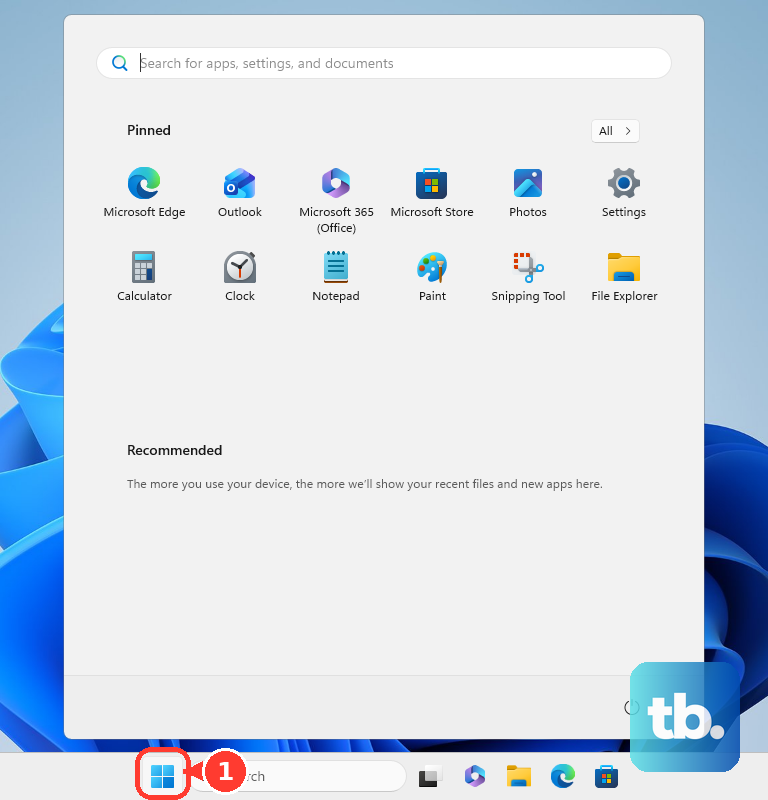
- 1.Select Start.
- 2.Select Settings.
- 3.Select Personalization.
- 4.Select Lock screen.
Open Background. Windows 10 gives you three choices there: Windows spotlight, Picture, and Slideshow.
2. Choose one photo
For a fixed lock screen image, select Start > Settings > Personalization > Lock screen.
Open Background, select Picture, then choose one of the default images.
To use your own image, select Browse, pick a picture from your device, and confirm the selection.
Windows 10 uses that picture as the lock screen wallpaper every time the lock screen appears.
3. Switch on Windows spotlight
Go to Start > Settings > Personalization > Lock screen.
Open Background.
Select Windows spotlight.
Windows spotlight replaces a fixed wallpaper with rotating Microsoft images on the lock screen automatically.
4. Build a slideshow
A slideshow works best when you already have a folder of images ready.
Open Start > Settings > Personalization > Lock screen.
Under Background, select Slideshow.
Add or select the folder, or folders, of images Windows should use.
Adjust the slideshow settings on that page.
Keep the lock screen images in the selected folder so the slideshow pulls from the set you intended.
5. Match the sign-in screen
Changing the lock screen image does not automatically mean the same picture appears where you enter your password, PIN, or other sign-in method.
To control that screen, open Start > Settings > Personalization > Lock screen, then set Show the lock screen background picture on the sign-in screen to On or Off.
6. Jump there with the keyboard
Press Windows logo key + I to open Settings.
Select Personalization > Lock screen.
Use Background to choose Windows spotlight, Picture, or Slideshow.
7. Check managed PC restrictions
On a work or school PC, your organization may control this setting through device management.
An administrator can set a lock screen picture URL in Microsoft Intune or configure the Windows personalization policy so users cannot change the image afterward.
When Background is unavailable or your selected image does not stay applied, contact the device administrator.
There is no separate consumer switch that overrides a locked organization policy.
8. Ignore old Windows 8 instructions
Older lock screen tutorials sometimes point to a Windows 8 and Windows Server 2012 Group Policy article. Do not use that as the Windows 10 consumer fix.
For a personal Windows 10 PC, use Start > Settings > Personalization > Lock screen.
For managed devices, use Microsoft’s current Windows configuration, Intune, or Personalization CSP guidance.
Frequently Asked Questions
Can Windows 10 rotate lock screen wallpapers automatically?
Yes. Open Start > Settings > Personalization > Lock screen, set Background to Windows spotlight for Microsoft images, or choose Slideshow to rotate images from selected folders.
Where is the Windows 10 lock screen wallpaper setting?
Open Start > Settings > Personalization > Lock screen. The Background menu controls Picture, Windows spotlight, and Slideshow.
Can a company force the same Windows 10 lock screen image for everyone?
Yes. Managed Windows devices can receive a locked screen picture through Intune or Windows personalization policy, and users cannot change it afterward.
Does Bing Wallpaper change the Windows 10 lock screen?
No. The verified Microsoft documentation covers Bing Wallpaper for desktop background personalization, not Windows 10 lock screen wallpaper.