When calls and texts feel alike, a vibration alone doesn't tell you which alert just arrived. Your iPhone lets you choose a built-in pattern or record your own, with separate settings for contacts, alert types, and alarms. Start with your incoming-call pattern, then adjust the alerts you want to recognize by touch.
Create your incoming-call vibration
This sets the default vibration for incoming calls. Open Settings, then tap Sounds & Haptics.
On iOS 27, tap Haptics under Ringtone. On iOS 26, open Ringtone instead. Then tap Haptics. Choose a built-in pattern, or tap Create New Vibration to record your own rhythm.
When texts need a different pattern
Changing your incoming-call vibration leaves your text vibration unchanged because texts have their own alert setting. Open Settings > Sounds & Haptics. Select Text Tone, then tap Haptics.
Choose a pattern, or tap Create New Vibration to record a separate rhythm for texts. For another alert type, return to Sounds & Haptics. Select its category, such as Calendar Alerts.
Other categories include New Voicemail, New Mail, Sent Mail, Reminder Alerts, and AirDrop. Open Haptics, then select a pattern or tap Create New Vibration.
Give an important contact a recognizable vibration
Assign separate call and text vibrations to a person whose alerts you want to recognize.
- 1.Open Contacts and select the person.
- 2.Tap Edit.
- 3.Choose Ringtone for calls or Text Tone for messages.
- 4.Tap Haptics.
- 5.Select a pattern or tap Create New Vibration to record one.
- 6.Save the contact changes.
Set a vibration for a regular alarm
Open Clock, then tap Alarms. Select an existing alarm's time, or tap Add (+) to create an alarm. Open Sound, choose a vibration, then tap Done. A sleep schedule's wake-up alarm has separate settings, so make these changes on a regular alarm.
Decide when call and alert vibrations play
Choosing a rhythm and deciding when it plays are separate adjustments. On iOS 26, open Settings > Sounds & Haptics > Haptics to set when ringtone and alert vibrations play. Select Always Play, Play in Silent Mode, Don’t Play in Silent Mode, or Never Play to match the behavior you want.
The Ring/Silent switch or an Action button assigned to Silent Mode changes the phone's mode. Your haptics playback setting determines whether call and alert vibrations play in that mode; those hardware controls do not select a rhythm.
If your chosen vibration stays silent
A playback setting that blocks vibration in Silent Mode keeps your chosen pattern from playing while the phone is silenced. Open Settings > Sounds & Haptics > Haptics, then select Play in Silent Mode.
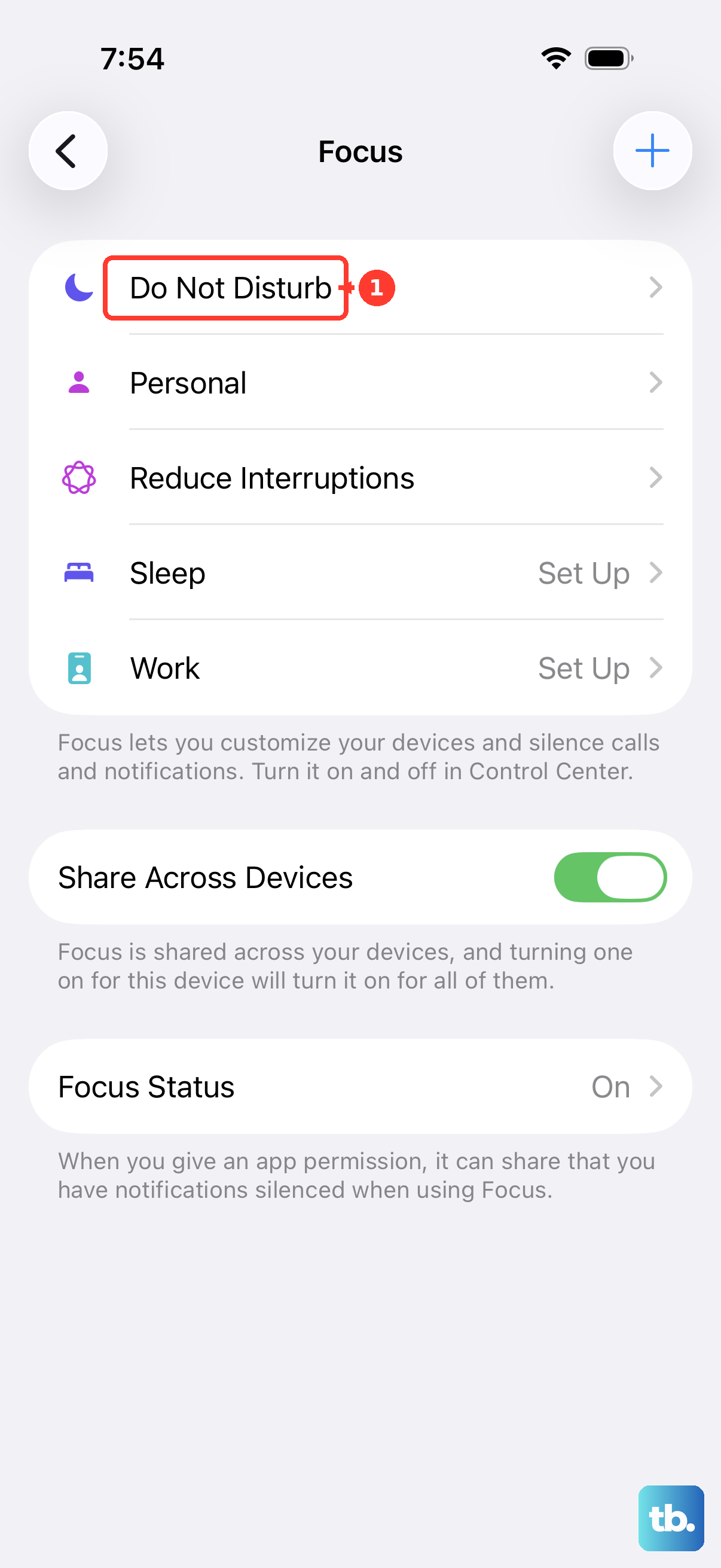
If alerts still do not arrive, open Control Center. Tap Focus, then turn off Do Not Disturb if it is highlighted.
Next, open Settings > Accessibility > Touch. Turn on Vibration if it is off. This is the global control, and turning it off also disables vibration for earthquake, tsunami, and other emergency alerts.
For a single muted message thread, open the conversation in Messages. Tap the contact or group icon, then turn off Hide Alerts to restore that conversation's notifications.
Frequently Asked Questions
Can I change the vibration pattern when I type?
The built-in keyboard has an on/off haptic control, not an editable vibration pattern. On iOS 16 or later, open Settings > Sounds & Haptics > Keyboard Feedback. Turn Haptic on or off.
Does System Haptics change my call vibration?
System Haptics controls feedback for system controls and interactions, not your call vibration pattern. On iOS 27, open Settings > Sounds & Haptics to turn System Haptics on or off.
Can I adjust vibration strength with the volume buttons?
Volume buttons and ringer sliders are not general vibration-strength controls. The Light, Medium, and Strong intensity choices in Music Haptics apply specifically to music, not calls or notifications.
Why does my iPhone repeat a message alert?
Messages has a separate repeat-alert setting. Open Settings > Notifications > Messages > Customize Notifications > Repeat Alerts. Choose an option. Repeats occur at two-minute intervals; this changes alert repetition, not the vibration rhythm.