Your iPhone can sound too quiet even when the volume buttons seem maxed out. That usually means you are changing the wrong volume type, hitting a volume limit, or dealing with a blocked speaker opening. Start with the quick controls, then move through the settings that affect calls, alerts, headphones, apps, and wireless audio.
Open the right volume control first
While a call or media is playing, the side buttons change that active call or media volume. Otherwise they control the ringer, alerts, and other sound effects, so they may be adjusting a different kind of sound than the one you meant to change.
While you are on a call or playing songs, movies, podcasts, or other media, press the Volume Up button on the side of your iPhone. That raises the active call or media volume.
Open Control Center and drag the volume slider up. This works from the Lock Screen or while using an app unless access has been restricted.
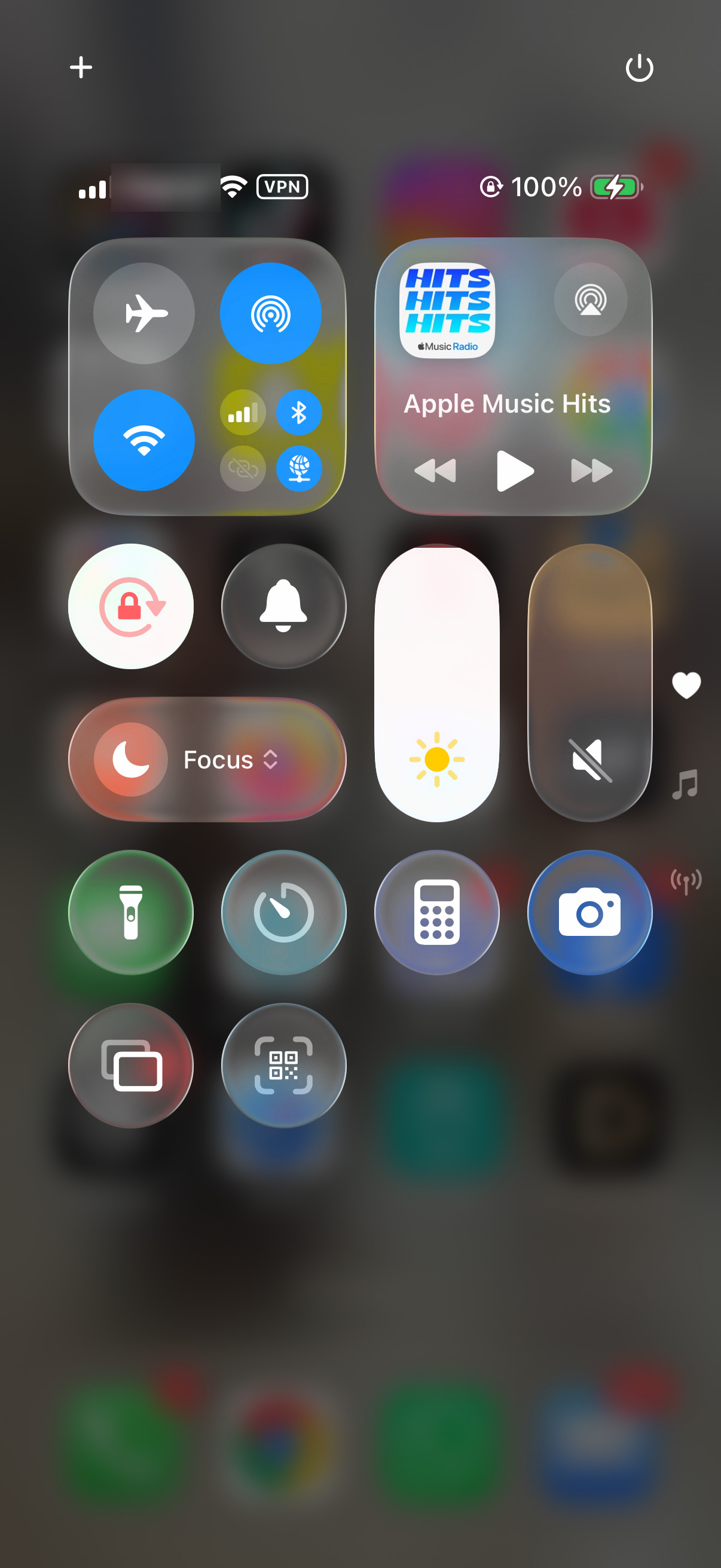
For hands-free control, activate Siri and say Turn up the volume or Set volume to 100%.
Fix quiet ringtones and alerts
Use this when incoming calls, notifications, alerts, or system sounds are too low, but music and videos sound normal.
Open Settings, tap Sounds & Haptics, then drag the Ringtone and Alerts slider to the right.
To make the side buttons change ringtone and alert volume when media or call audio is not active, stay in Settings > Sounds & Haptics and turn on Change with Buttons.
If alerts are missing or nearly silent, turn off Silent Mode. On iPhone models with a Ring/Silent switch, move the switch forward so orange is not showing. On models using the Action button for Silent mode, press the Action button.
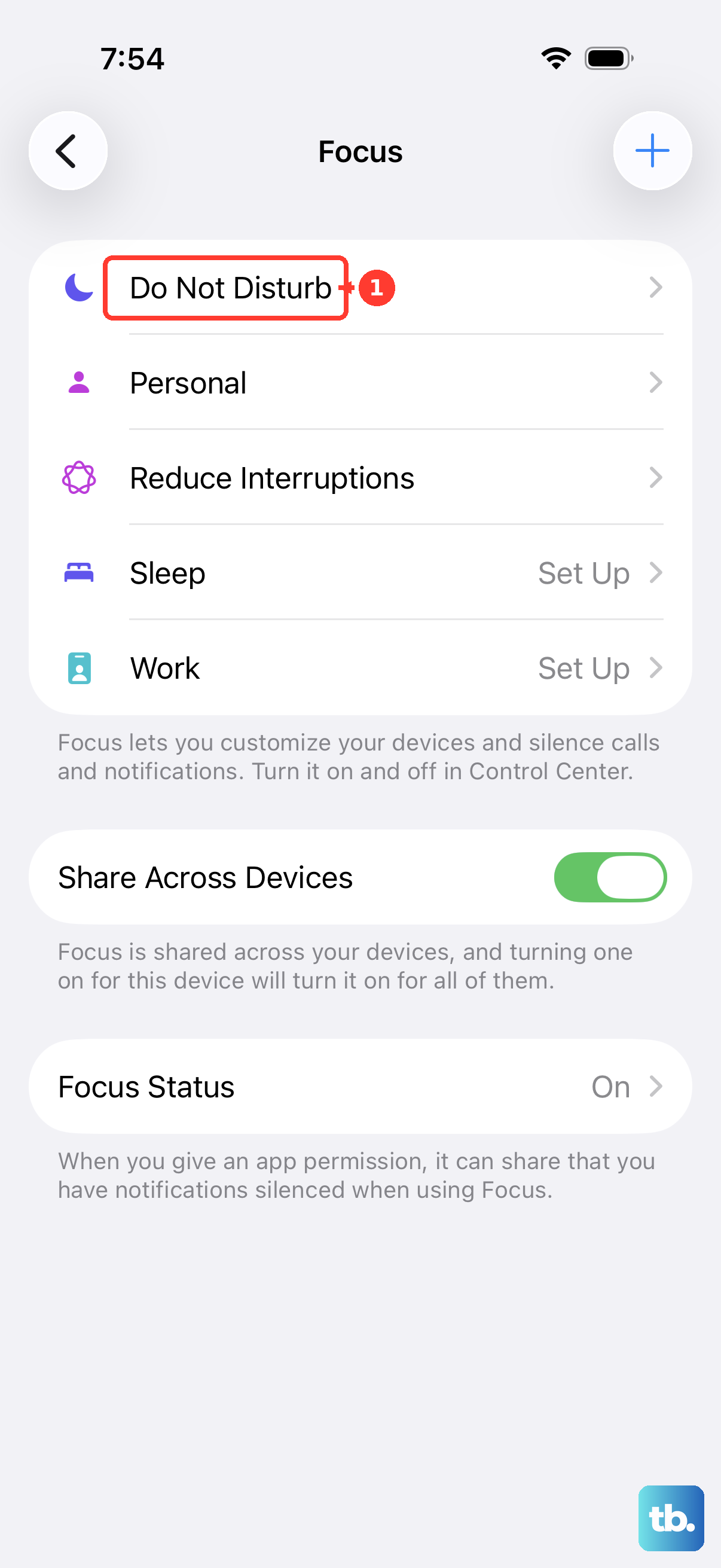
Open Settings > Focus > Do Not Disturb and make sure Do Not Disturb is off.
Remove headphone volume limits
Open Settings.
Tap Sounds & Haptics.
Tap Headphone Safety.
Turn off Reduce Loud Audio, or drag its slider higher.
Some regions require headphone safety behavior that stays active.
Lift the iPhone speaker limit
On iOS 26, a maximum speaker limit can keep the built-in speaker from reaching full output.
Open Settings, tap Sounds & Haptics, then tap Volume Limit.
Turn off Limit Maximum Volume, or drag its slider higher.
This affects the built-in iPhone speaker, not headphone output.
Clear blocked speaker openings
Use this when your iPhone is already at maximum volume but voices, music, or alerts sound muffled or distorted.
Remove any case, film, or screen protector from the iPhone.
Check the speaker opening and receiver for blockage or dirt.
If cleaning is needed, use a small, clean, dry, soft-bristled brush on the speaker or receiver opening.
Make phone calls louder
This fixes calls that are too quiet through the receiver, or calls that need a louder output device.
During the call, swipe down on the call banner.
Tap Audio.
Choose Speaker or another available audio destination, such as a Bluetooth device.
Press the side Volume Up button while the call is active.
Turn up Apple Music and Podcasts
Open the Music app and start playing a song.
Tap the MiniPlayer to open Now Playing.
Drag the volume slider to the right.
If Apple Music sounds quieter than expected, open Settings > Apps > Music and turn Sound Check off.
To shape Apple Music audio, open Settings > Apps > Music > EQ and choose an equalization setting.
In Podcasts, touch and hold the volume bar in the playback controls, then slide your finger to the right.
EQ changes Apple Music sound quality; it is not a system-wide volume booster.
Send sound to AirPods and wireless speakers
For a louder external speaker or headphones, open an audio app such as Music or Podcasts, start playback, tap the Playback Destination button, then choose your Bluetooth accessory. Adjust volume with iPhone controls after the audio is routed.
For HomePod, Apple TV, AirPlay 2 speakers, or multiple AirPlay speakers, tap the Playback Destination button in the app, Control Center, Lock Screen, or Now Playing, then select the device you want. Siri can also adjust an AirPlay room with a command such as Set the dining room volume to 10 percent.
With AirPods Pro 2 or AirPods Pro 3, place your thumb on the stem of either AirPod and swipe up on the force sensor with your index finger. With AirPods Max, turn the Digital Crown to raise the volume, then raise the iPhone volume too if it still does not get louder.
For AirPods models without stem volume swipes, use Siri, the app volume slider, the Lock Screen, Control Center, or Apple Watch Now Playing.
Use accessibility audio controls
This fixes weak headphone audio, one-sided sound, soft speech, and situations where clarity matters more than raw volume. Headphone Accommodations works only with supported Apple and Beats headphones, so pair your AirPods or other supported headphones first. Mono Audio and Stereo Audio Balance work with any audio output.
Open Settings > Accessibility > Audio & Visual > Headphone Accommodations.
Turn on Headphone Accommodations.
Under Tune Audio For, choose a frequency option.
Under Soft sounds, drag the slider to set an amplification level.
Turn on Phone, Media, or both, depending on where you want the adjustment to apply.
For one-sided or uneven headphone audio, open Settings > Accessibility > Audio & Visual, turn on Mono Audio if needed, and move the Stereo Audio Balance slider toward the center or toward the quieter side.
Frequently Asked Questions
Why is my iPhone volume low even when it is turned all the way up?
The speaker or receiver may be blocked, a headphone or speaker volume limit may be enabled, or the sound you are adjusting may not match the active audio type.
Does turning off Sound Check make iPhone louder everywhere?
No. Sound Check applies to Apple Music loudness normalization. It does not boost system-wide iPhone volume.
Can Siri increase iPhone volume?
Yes. Activate Siri and say “Turn up the volume” or “Set volume to 100%.”
Why do alerts get quieter when I look at my iPhone?
On iPhone models with Face ID, Attention Aware Features can lower some alert volume when you look at the screen. Turn it off in Settings > Accessibility > Face ID & Attention.