Desktop icons can vanish, pile up, or stop showing the Windows system shortcuts you actually want. In Windows 11, the main controls live in Settings, with a few quick options tucked into the desktop right-click menu. Here’s how to change the default icons, restore missing ones, resize them, and clean up shortcuts without digging through old Control Panel paths.
Change the default desktop icons
Use this when you want Windows system icons like This PC, Recycle Bin, Network, or User's Files on the desktop.
- 1.Select Start, then open Settings.
- 2.Go to Personalization, then select Themes.
- 3.Select Desktop icon settings.
- 4.Choose the icons you want, such as This PC, Recycle Bin, Network, or User's Files.
- 5.Select OK.
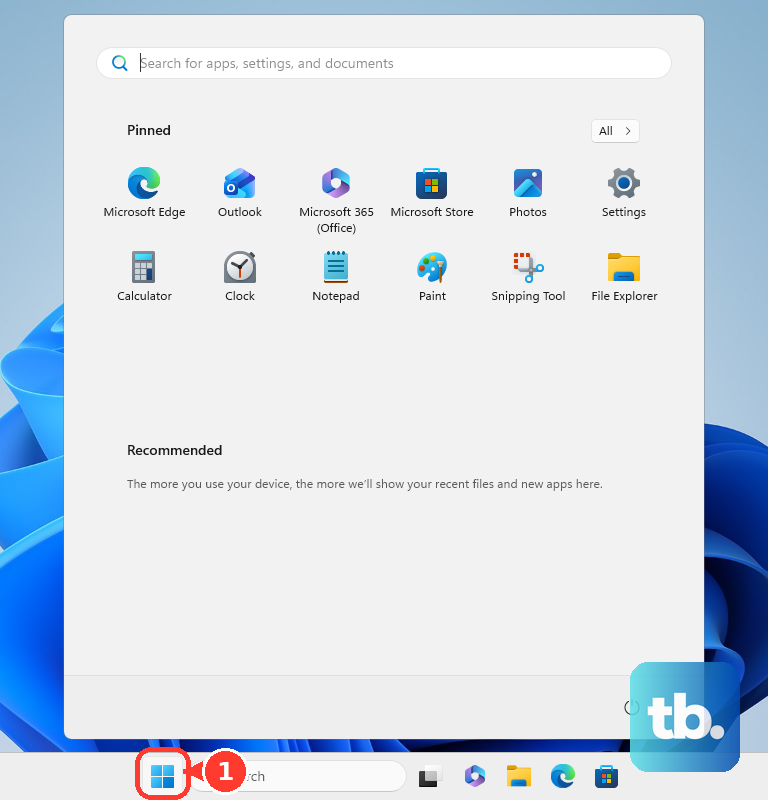
Restore icons that disappeared
The most common cause is that Windows is set to hide desktop icons from the desktop View menu.
Right-click or press and hold an empty area of the desktop.
Open View, then select Show desktop icons.
When Show desktop icons is checked, your desktop icons are visible. When it is unchecked, Windows hides them without deleting them.
Bring back only Recycle Bin
If Recycle Bin is the only icon missing, restore it from Desktop icon settings instead of treating it like a normal shortcut.
Open Start > Settings > Personalization > Themes > Desktop icon settings. Check Recycle Bin, then select OK.
If Recycle Bin still does not appear, right-click the desktop, open View, and turn on Show desktop icons.
Resize icons from the desktop
Right-click an empty area of the desktop.
Open View.
Choose Large icons, Medium icons, or Small icons.
Press and hold Ctrl while scrolling the mouse wheel to make desktop icons larger or smaller.
Tip: use the scroll-wheel shortcut when the preset sizes feel too large or too small.
Add new desktop shortcuts
This fixes a desktop that has the right system icons but is missing shortcuts to your apps, files, folders, or websites.
Right-click an empty area of the desktop, select New, then choose Shortcut. Follow the prompts to point the shortcut to a file, folder, app target, or web page.
Select Start, then All. Find the app and drag it to the desktop.
Open File Explorer and go to the file or folder. Right-click it, select Show more options, then choose Send to > Desktop (create shortcut).
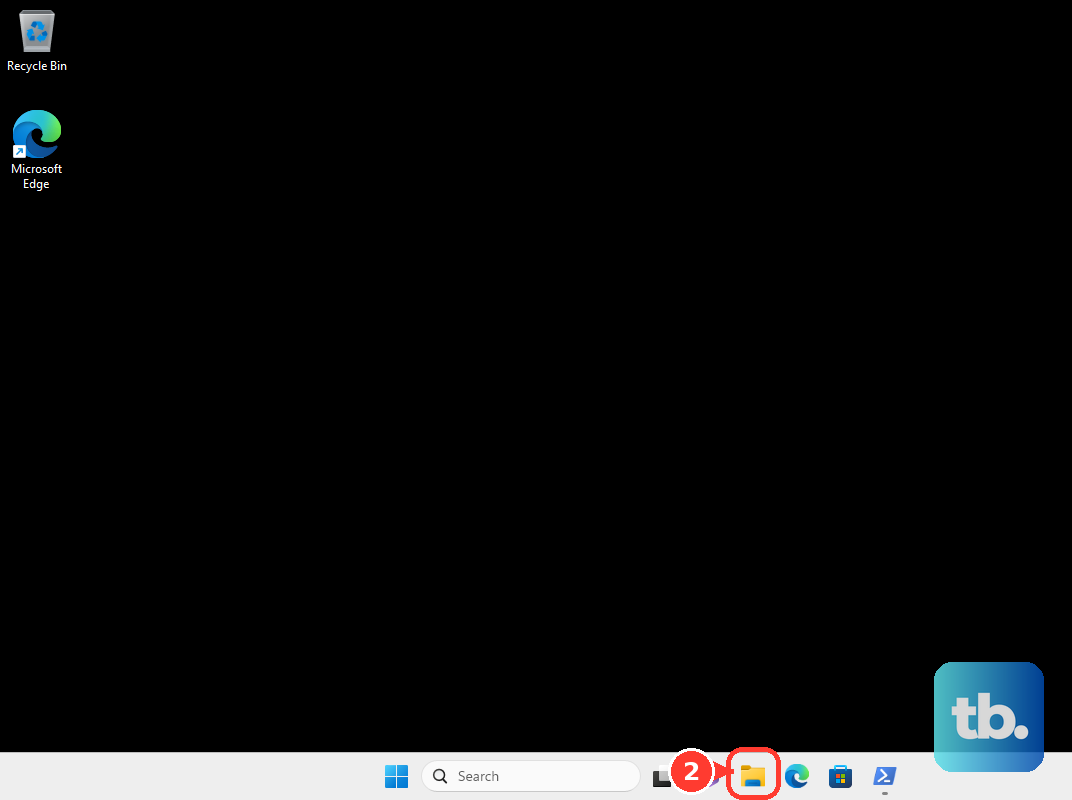
If Show more options is not there, right-click the file or folder, then choose Send to > Desktop (create shortcut).
Open the web page in your browser. Drag the site information icon next to the address, shown as a padlock or sliders icon, to the desktop.
Remove desktop icons you no longer want
Use Delete for normal desktop shortcuts and files; use Desktop icon settings for system icons.
- 1.Right-click the desktop shortcut or file you want to remove.
- 2.Select Delete.
- 3.In the Windows 11 context menu, Delete may appear as a trash icon near the top.
- 4.Hover over the icon if you need to confirm the command name.
Open desktop icon settings faster
You do not have to browse through Settings every time. Press the Windows key or select Start, type Desktop icon settings or Themes, then open the best matching Settings result.
Inside Settings, press Ctrl + E to focus the Settings search box. Type desktop icons or themes, use the arrow keys to choose the result, then press Enter.
If search does not land in the right place, use Start > Settings > Personalization > Themes > Desktop icon settings.
Fix the wrong Desktop folder
The most common cause is OneDrive folder backup or multiple Desktop folder locations, so Windows may be showing a different Desktop folder than the one with your icons.
Open File Explorer and expand your OneDrive folders.
Right-click Desktop, then open Properties > Location > Move.
Choose the folder that contains the desktop icons you want, select Select Folder, then choose Apply.
When Windows asks whether to move files from the old location to the new one, select Yes.
Check work and school restrictions
On managed Windows 11 devices, an organization can hide all desktop items, remove specific system icons, or prevent users from changing desktop icons. Those rules can make normal desktop icon settings look missing, blocked, or temporary.
For a work or school PC, contact your IT admin if the options are unavailable or keep changing back. Admins can manage these settings with desktop and personalization policies for supported Windows editions.
For a personal Windows 11 PC, use Settings > Personalization > Themes > Desktop icon settings. Older Control Panel personalization routes and Desktop Cleanup Wizard instructions are not the current consumer path for changing desktop icons.
Frequently Asked Questions
Where are desktop icon settings in Windows 11?
Open Start > Settings > Personalization > Themes > Desktop icon settings. From there, choose system icons such as This PC, Recycle Bin, Network, and User's Files.
Why did all my desktop icons disappear?
Desktop icons are probably hidden. Right-click an empty area of the desktop, open View, and turn on Show desktop icons.
Can I delete Recycle Bin from the desktop like a normal shortcut?
Use Desktop Icon Settings instead. Open Settings > Personalization > Themes > Desktop icon settings, clear Recycle Bin, then select OK.
How do I make desktop icons smaller or bigger?
Right-click the desktop, open View, and choose Large icons, Medium icons, or Small icons. You can also hold Ctrl and scroll the mouse wheel on the desktop.