Windows updates can land right before a call, a trip, or a stretch of work where you need the PC to stay exactly as it is. Windows does not offer a supported consumer switch that turns updates off forever, but it does give you several clean ways to slow them down, control restarts, and remove a bad update after it installs. Start with the pause control, then add the download and restart settings that match your situation.
1. Pause Windows 11 updates first
This is the closest supported built-in option to a temporary Windows update blocker on a regular Windows 11 PC. It delays updates for a limited time; it does not permanently turn off automatic updates.
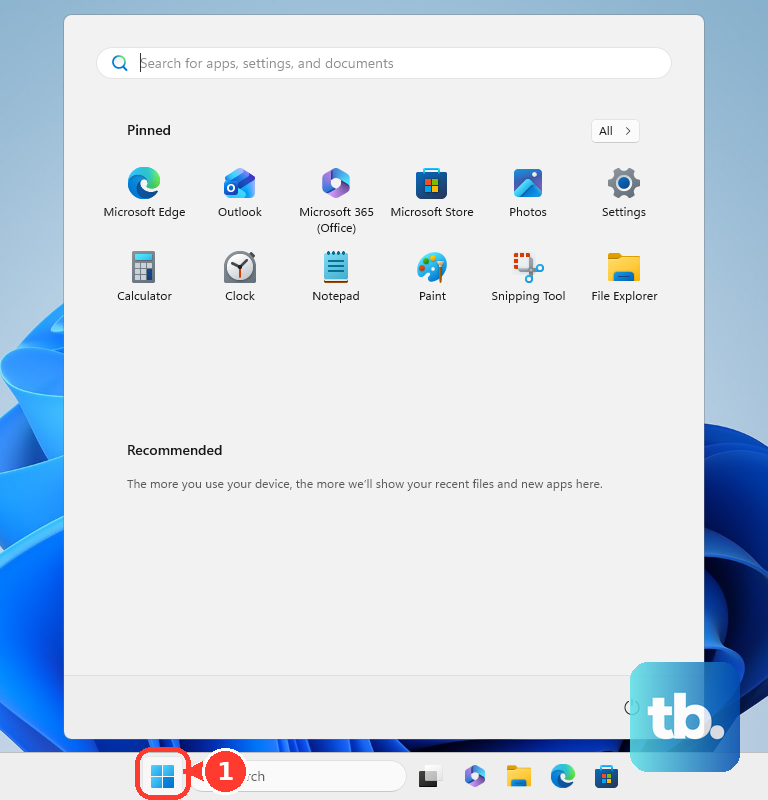
- 1.Open Start.
- 2.Select Settings.
- 3.Select Windows Update.
- 4.Find Pause updates.
- 5.Select Pick a date.
- 6.Choose an end date within the supported pause period.
On Windows 11 consumer devices, Microsoft supports pausing updates for up to 35 days from the current date. When the pause ends, Windows Update resumes.
2. Add a metered connection when downloads are the problem
For Wi-Fi, open Start > Settings > Network & internet > Wi-Fi. Select the network you are using, then turn on Metered connection.
For Ethernet, open Start > Settings > Network & internet > Ethernet. Select the network, then turn on Metered connection.
Use this when you are trying to reduce automatic update downloads on a specific network. Microsoft says some Windows updates will not install automatically on metered connections, so treat this as a download brake, not a complete update block.
Cellular connections are metered by default. After setting the network, open Start > Settings > Windows Update > Advanced options and keep Download updates over metered connections turned off.
3. Schedule the restart after Windows is ready
When updates have already downloaded or installed, focus on the restart. This does not block the update itself; it stops Windows from finishing the update at the wrong time.
Open Start. Select Settings. Select Windows Update.
Select Schedule the restart. Choose a convenient time. Use this when Windows is waiting for a restart and you need control over when the PC goes offline.
4. Set active hours for everyday restart control
Active hours tell Windows when you normally use the PC. They control restart timing, not update downloading, which makes them useful alongside pause updates or a metered connection.
Open Start > Settings > Windows Update > Advanced options > Active hours. In Adjust active hours, choose Automatically or choose Manually and set the hours yourself.
5. Turn off early optional updates
Open Start. Select Settings. Select Windows Update. Turn off Get the latest updates as soon as they’re available.
Some updates are offered early when Get the latest updates as soon as they’re available is enabled. Turn that off if you want the regular update pace instead of receiving additional non-security updates, fixes, feature updates, and improvements as soon as Microsoft offers them.
Regular security updates still install as usual, so this setting is not a full update blocker.
6. Limit Delivery Optimization traffic
Delivery Optimization does not stop Windows Update. It controls whether your PC downloads updates from other PCs or uploads update data to them, which helps keep update traffic predictable.
Open Start > Settings > Windows Update. Select Advanced options. Select Delivery Optimization. Turn off Allow downloads from other devices.
To stop internet peer sharing but still allow update sharing on your local network, choose Devices on my local network.
7. Remove a bad update after it installs
If an installed update caused the problem, remove it first, then pause updates while you check the PC.
In Windows 11, open Start > Settings > Windows Update > Update history > Uninstall updates. Select the update, then select Uninstall. Some updates cannot be uninstalled.
If Windows will not open after an update, use Windows Recovery Environment instead. Select Troubleshoot > Advanced options > Uninstall Updates, then choose Uninstall latest quality update or Uninstall latest feature update.
8. Ask IT to use policy controls on managed PCs
On work or school PCs, update behavior can be controlled by policy. Ask the administrator to use the supported Windows Update client policies (formerly Windows Update for Business) or Intune controls instead of installing a consumer blocker utility.
For Group Policy, administrators can defer feature updates for up to 365 days, defer quality updates for up to 30 days, or pause feature or quality updates for up to 35 days from a specified start date. They can also set Configure Automatic Updates to 2 - Notify for download and auto install, or enable Do not include drivers with Windows Updates when driver updates are the issue.
For Intune-managed devices, administrators can open Microsoft Intune admin center > Devices > By platform > Windows > Manage updates > Windows updates, select the Update rings tab, select the ring policy, then select Pause, choose Feature or Quality, then select OK. Intune can also target a specific Windows feature release so eligible devices do not move beyond that release while monthly quality and security updates continue.
9. Skip unsupported blocker tricks
Do not rely on disabling the Windows Update service, changing Update Orchestrator tasks, blocking Microsoft update addresses, editing undocumented registry values, using the Show or hide updates troubleshooter, or installing third-party Windows Update Blocker utilities.
Microsoft’s current consumer guidance does not present those as supported fixes.
Use the supported replacements instead: Pause updates, Metered connection, Active hours, Schedule the restart, Uninstall updates, and Get the latest updates as soon as they’re available turned off.
Frequently Asked Questions
Can I block Windows Updates permanently?
No supported consumer setting permanently turns off Windows updates. On Windows 11, the supported consumer option is a temporary pause for up to 35 days.
Is a metered connection the same as pausing updates?
No. A metered connection can stop some Windows updates from installing automatically on that network. Pause updates is the direct temporary delay control.
Will active hours stop Windows from downloading updates?
No. Active hours only control automatic restart timing while you use the PC. They do not stop update downloads.
Can I remove an update that already caused problems?
Yes. In Windows 11, use Update history and Uninstall updates in Settings. If Windows will not open, use Windows Recovery Environment and choose Uninstall Updates.
Should I use the Show or hide updates troubleshooter?
No. Microsoft’s current consumer Windows Update guidance does not present that legacy troubleshooter as the supported path. Use pause, metered connection, restart controls, or update uninstall instead.