Your inbox keeps filling with messages from the same sender, and you want them gone for good. Maybe it is a relentless mailing list, a persistent stranger, or an entire spammy domain that keeps changing its prefix.
Yahoo Mail gives you several ways to shut these senders out, but the right one depends on where you read your mail. The web interface holds the real blocking controls; the mobile app handles spam differently; and a Yahoo account added to your iPhone's native Mail app blocks at the device level.
Below are the verified methods, ordered quickest and most common first. Pick the one that matches your situation, and note the gotchas at the end so a block actually sticks.
Add an Address to the Blocked List in Settings (Web)
This is the reliable way to block a specific sender in Yahoo Mail, and it works whether or not you still have one of their messages. In New Yahoo Mail, the path is Settings > Security and Privacy.
- 1.Click the More options icon, then select "Settings".
- 2.Click "Security and Privacy".
- 3.Under "Blocked addresses", click the "Add" button.
- 4.Enter the email address you want to block.
- 5.Click "Save".
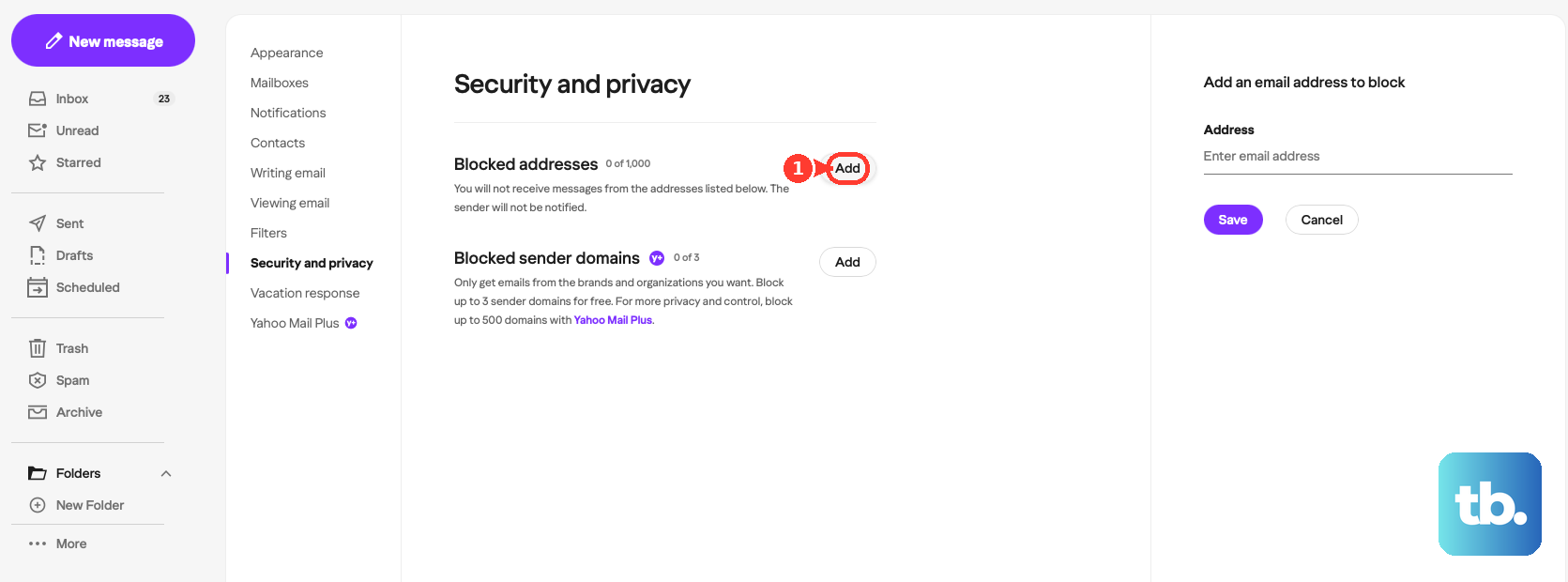
On the older, classic interface the path is slightly different: click the Settings (gear) icon, choose "More Settings", then "Security and Privacy", and use the same "Add" button under "Blocked addresses".
You can store up to 1000 addresses on this list, and blocking stays anonymous to the sender. To unblock later, return to "Security and Privacy", hover over the address in the blocked list, and click the Delete icon.
Block a Sender from an Open Message (AT&T Yahoo Mail and AOL Mail)
If your account is an AT&T Yahoo Mail account, or you use AOL Mail (which runs on the same engine), you can block a sender straight from one of their messages.
Open or select the email from the sender in your mailbox. Next, click the More icon and select "Block Senders". If you want, check the box to also delete emails you have already received from that sender, then click "Ok".
That delete option is optional, not automatic, so tick it only if you want the back catalog cleared too. Blocking is anonymous; the person is never notified. To unblock, go to the Settings icon > "More Settings" > "Security and Privacy", hover over the address, and click the Delete icon.
Mark Unwanted Mail as Spam (Mobile App)
The Yahoo Mail app for iOS and Android has no per-address block-sender control. Your tool inside the app is the spam filter, which learns from your reports.
Open an email, or select multiple emails using "Edit". Then tap the More icon (the three-dot menu; the icon differs slightly between iOS and Android), and tap "Mark as spam".
This sends the message to Spam and trains the filter so future messages from that sender are routed there automatically. To add a specific address to the actual Blocked addresses list, switch to the Yahoo Mail website (Settings > Security and Privacy) in a browser, which works on phones too.
Mark as Spam or Not Spam to Train Filtering (Web)
Spam reporting on the web works the same way and is the right tool when you want Yahoo's filter to handle a sender rather than adding them to the blocked list.
Select an email and click "Mark as spam"; future messages from that sender go to the Spam folder automatically. To reverse a mistake, open the "Spam" folder, select the email, and click "Not spam" to return it to the inbox.
For a trusted mailing list, Yahoo may offer an "Unsubscribe" option instead of "Report as spam". These spam-training features work reliably only through Yahoo's official apps or webmail; third-party email clients operate outside Yahoo's system.
Unsubscribe from a Mailing List (Mobile App)
If the sender is a legitimate list rather than a bad actor, unsubscribing is cleaner than blocking. From the Yahoo Mail app:
Open the email, tap the More icon, then tap "Unsubscribe". Alternatively, use the "Unsubscribe" view tab, tap "Unsubscribe" under the list, then tap "Unsubscribe" again to confirm.
Block an Entire Domain (Yahoo Mail Plus)
When the junk keeps arriving from the same domain under different names, blocking the whole domain is the answer. This requires a Yahoo Mail Plus subscription, which exposes the "Block unwanted sender domains" section.
On the web, click the Settings icon, then select "More Settings". After that, click "Security and Privacy". Under "Block unwanted sender domains", click "Add". Enter the domain name (for example, example.com), then click "Save".
In the Yahoo Mail app (also Plus only), tap the Profile icon, then the Settings icon. Under "Block unwanted sender domains", select your Yahoo account if several are listed. Tap "+ Add a domain". Enter the domain in the field, then tap "Ok" or "Add".
Plus lets you block up to 500 domains while the subscription is active. To remove one, click or tap the Delete (trash) icon. The domain-blocking option is offered with Yahoo Mail Plus and may not appear on every account.
Block a Yahoo Sender in Apple's Mail App (iPhone, iPad)
If you read your Yahoo account through the native Mail app on iPhone or iPad, you can block at the device level using the contact card.
Open the Mail app and tap a message from the sender you want to block. Tap the sender's name or address at the top of the message, then tap "View Contact Card". Tap "Block this Contact".
By default a blocked sender's email stays in your Inbox flagged as coming from a blocked sender (choose "Move to Trash" under Settings > Apps > Mail > "Blocked Sender Options" to reroute it to Trash instead), and the block syncs across all your Apple devices signed in to the same Apple Account. To unblock, open the Settings app, go to "Privacy and Security" > "Blocked Contacts", tap "Edit", and remove the contact.
Important: this is account-agnostic and device-synced, but it does not add the address to Yahoo's own server-side Blocked addresses list. The block will not apply when you read the same Yahoo account on the web or on a non-Apple device.
Restrict Your Inbox to Known Contacts (AOL Mail)
AOL Mail runs on the same engine as Yahoo, and it offers an aggressive allowlist option that blocks everyone you have not already saved. Use this only if you are comfortable cutting off all first-time senders.
Go to Settings > "More Settings". Open the "Security and privacy" tab, then toggle on "Block all senders except contacts". Click "Ok" to confirm.
Because every sender not in your address book is blocked, add anyone you still expect to hear from to Contacts first.
When a Block Does Not Work: Spoofed Senders
Sometimes you block an address and the mail keeps coming. The usual cause is spoofing: the visible "From:" name or address is forged, so blocking the displayed address does nothing.
To fix this, view the message's full headers and find the true sending address in the topmost "Received" or "Mailfrom" field. Block that real address instead. You can also build a filter to route it out of your inbox under Settings > More Settings > Filters.
One more thing to know: the exact folder blocked mail lands in is described inconsistently across Yahoo's own pages, while Apple's native Mail by default leaves blocked mail in the Inbox marked as blocked, unless you switch its Blocked Sender Options to Move to Trash. If you are confirming a block worked, check both your Spam and Trash folders.
Frequently Asked Questions
Can I block a specific sender from the Yahoo Mail app?
No. The Yahoo Mail mobile app has no per-address block-sender control. You can mark messages as spam in the app, but to add an address to the Blocked addresses list you must use the Yahoo Mail website (Settings > Security and Privacy) in a browser.
How many senders can I block?
The Blocked addresses list holds up to 1000 email addresses (on Yahoo and AT&T Yahoo Mail). Domain blocking, available with Yahoo Mail Plus, allows up to 500 domains while the subscription is active.
Will the person know I blocked them?
No. Blocking is anonymous, and the blocked person is not notified.
Why do I still get mail from an address I already blocked?
The sender's address is likely spoofed, meaning the "From:" field is forged. View the full message headers, find the real address in the topmost "Received" or "Mailfrom" field, and block that one instead, or filter it out of your inbox.
Does blocking a Yahoo sender in my iPhone's Mail app block them everywhere?
No. Blocking through Apple's native Mail applies at the Apple Account and device level and syncs across your Apple devices, but it does not update Yahoo's server-side block list. You would still see that sender when reading the account on the web or another non-Apple device.
I do not see a "Block senders" or Security and Privacy option. What now?
Availability is not universal; some AOL and Yahoo users report the blocking option missing on their account. As a fallback, mark unwanted messages as spam to train the filter, or use a filter to route them out of your inbox.