You spend time writing the perfect email, then realize you have been typing your name and details by hand at the bottom of every single message. A signature fixes that for good. Once you set one up in Yahoo Mail, your contact info, job title, or a friendly sign-off gets added automatically so you never have to repeat yourself.
Yahoo Mail lets you create a signature on the web and inside the mobile apps for both iPhone and Android. The setup is slightly different depending on where you are working, and you can even assign a separate signature to each email address connected to your account. This guide walks through every option so you can pick the one that matches how you use Yahoo Mail.
Why a Saved Signature Beats Typing It Every Time
A signature is simply a block of text that Yahoo Mail appends to your outgoing messages. Instead of manually adding your name, phone number, or company line each time you hit compose, the email client drops it in for you.
This matters most if you send a high volume of mail or use Yahoo for anything professional. Consistency looks polished, and you remove the risk of forgetting a detail on an important message. Yahoo Mail also lets you create individual signatures for each mail username added under your account, regardless of the mail provider, so a personal address and a work address can each carry their own sign-off.
Setting Up a Signature in New Yahoo Mail on the Web
If you check your mail through a browser at mail.yahoo.com, this is the version most people see today. The signature controls live inside the settings panel rather than the compose window, so you only configure them once.
Sign in first at the standard Yahoo login page, then open your inbox. From there, follow the steps below to reach the signature toggle and enter your text.
- 1.Click the More options icon, then select Settings.
- 2.In Settings, navigate to the Writing email section.
- 3.Click the Toggle button to enable a signature for that email address.
- 4.Enter or edit your signature in the text box.
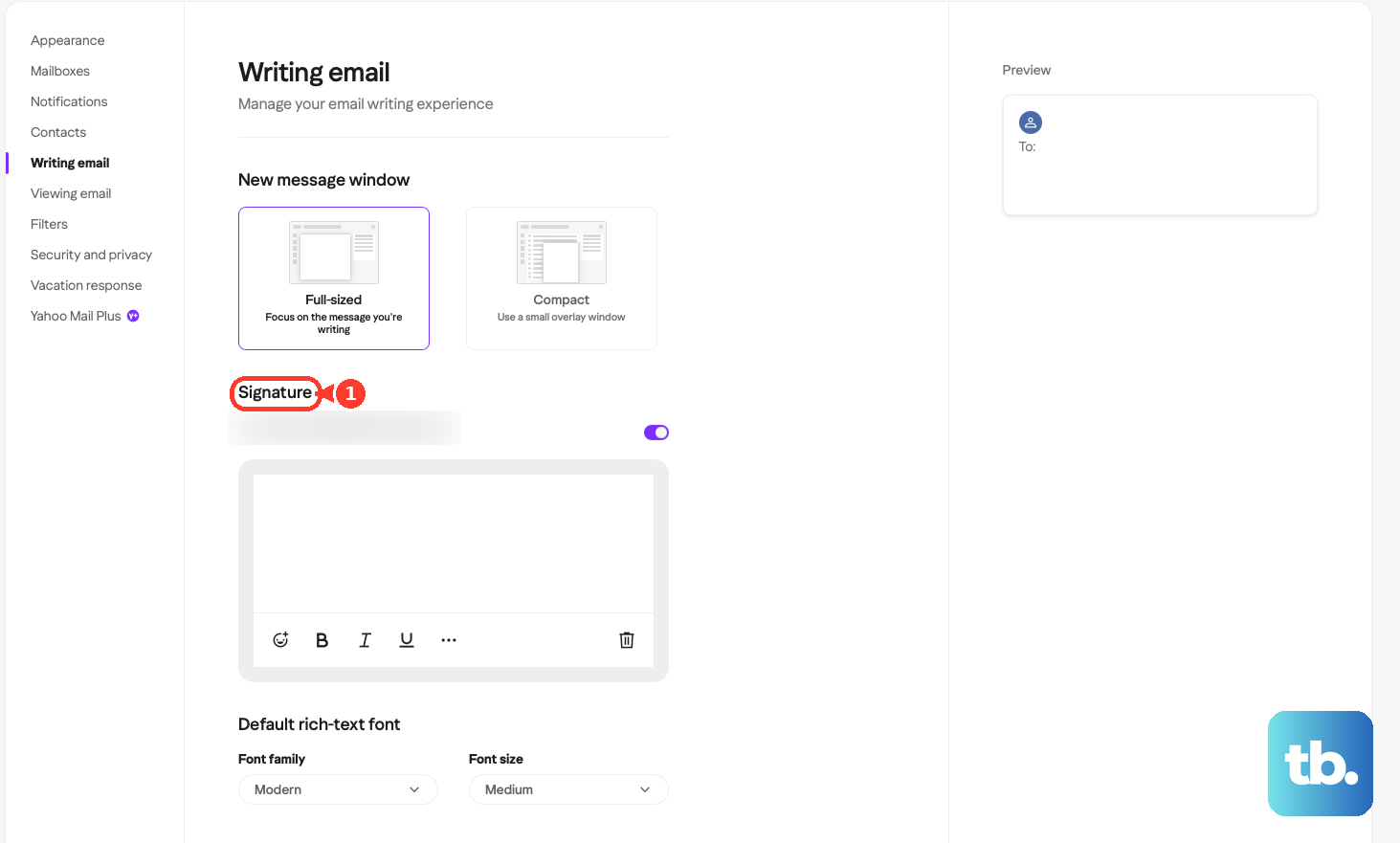
Because the toggle is tied to a specific address, you can repeat these steps for any other usernames you have added. Switch to a different email address in the same panel, flip its toggle on, and give it its own signature text. Turning the toggle off removes the signature from that address without deleting anything else.
Adding a Signature in the Classic Yahoo Mail Desktop View
Some accounts still use the older desktop layout for Yahoo Mail on the web. The path to the signature settings is nearly identical, with one small difference in how you reach the menu.
Instead of the More options icon, you open the Settings Menu and choose the expanded options. Once you are in the right place, the toggle and text box work the same way as the newer version.
Click the Settings Menu icon and select More Settings.
Click Writing email.
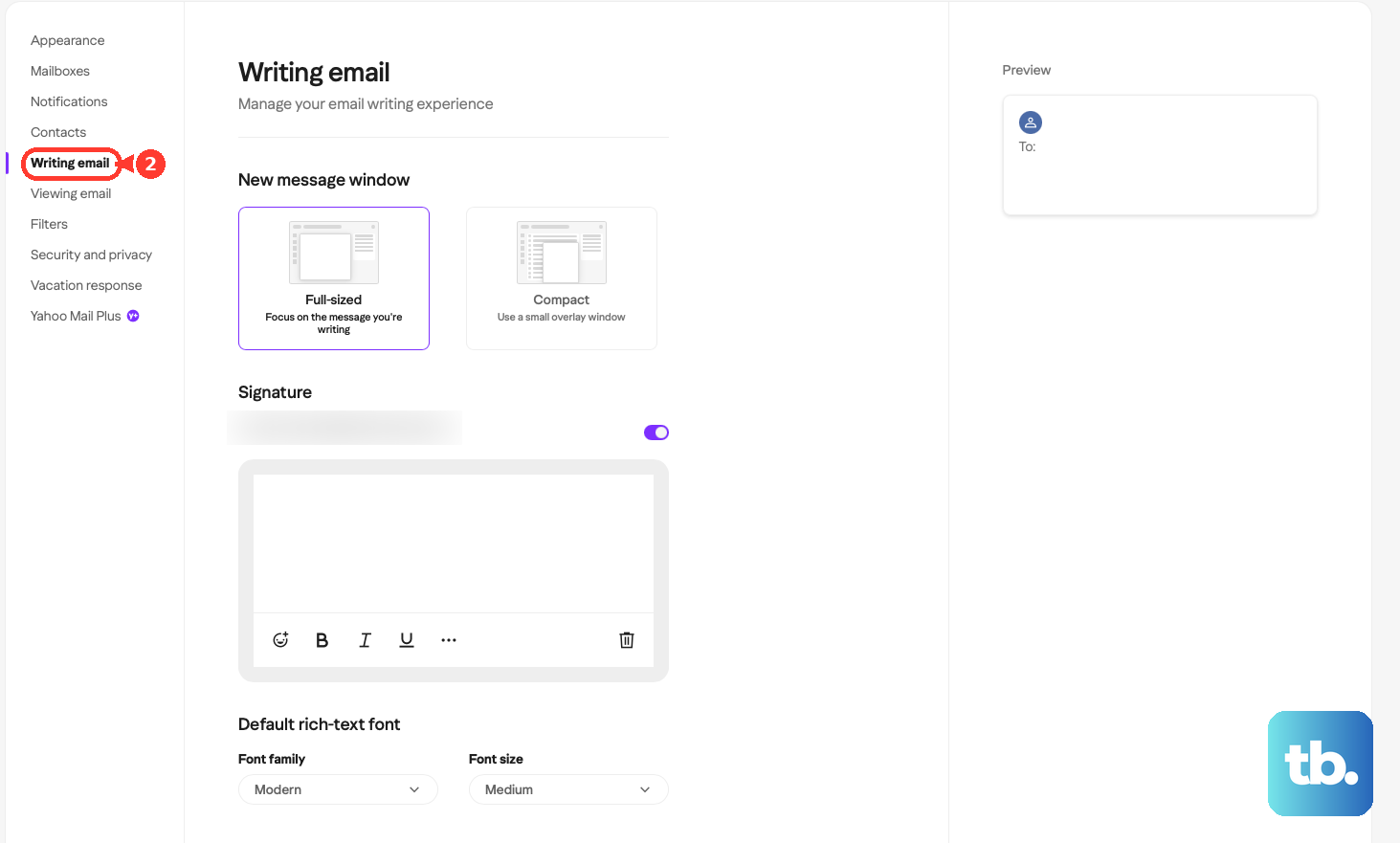
Click the Toggle button to enable a signature for your email address.
Enter or edit your signature in the text box.
The same per-address logic applies here. If your account holds more than one mail username, each one can carry a distinct signature, and you control each through its own toggle inside the Writing email section.
Creating a Signature in the Yahoo Mail App on iPhone
The Yahoo Mail app for iOS keeps signature settings under your profile rather than in the compose screen. This means you set it up once and it applies whenever you write a new message from that account.
Start by opening the app and tapping into your account menu. The Signatures option sits inside the General settings, and from there you can toggle it on, type your text, and assign different signatures to different usernames.
Tap the Profile icon, tap Settings, then tap Signatures under General.
Tap the toggle button to enable the signature.
Tap below each username to enter or edit your signature.
Tap the back arrow at the top left to save and return to the account screen.
One detail worth noting on iOS: tapping below each username means you can write a separate signature per address right on this screen. If you only manage one inbox, just fill in the single field. The back arrow is what commits your changes, so do not close the app before tapping it.
Creating a Signature in the Yahoo Mail App on Android
On Android, the Yahoo Mail app gives you a choice between one shared signature for everything or a custom signature for each account. You reach both options through the same starting point in your profile.
Open the app, tap into Settings, and find the Signatures section under General. Which steps you follow next depends on whether you want a single signature everywhere or a tailored one per inbox.
Use One Signature for All Accounts
If you would rather keep things simple and apply the same sign-off to every message, the app offers a single toggle for that. This is the quickest route when you only have one address or you do not need to vary the wording.
Tap the Profile icon, tap Settings, then tap Signatures under General.
Toggle on "Include signature in new messages".
Tap below to enter or edit your signature.
Tap the back arrow at the top left to save and return to the account screen.
Set a Different Signature for Each Account
When you manage several inboxes and want each to sound distinct, the Android app lets you customize per account. You enable a separate option, then pick the specific account before typing its text.
Tap the Profile icon, tap Settings, then tap Signatures under General.
Toggle on "Customise for each account".
Tap the account you want to edit.
Tap below to enter or edit your signature.
Tap the back arrow at the top left to save and return to the account screen.
As with iOS, the back arrow is what locks in your work on Android. Repeat the account selection step for every inbox you want to cover, and each one will carry the signature you assigned to it.
Getting the Most Out of Your Yahoo Signature
Once your signature is live, it is worth sending yourself a test message to confirm it looks the way you expect. Open a new email, and the saved text should appear at the bottom automatically.
Keep in mind that the signature toggle is the master switch in every version. If your signature suddenly stops showing up, the first thing to check is whether that toggle is still enabled for the address you are sending from. Editing the text later is just as easy: return to the same Writing email or Signatures screen, update the box, and confirm your change.
Because signatures live in your account settings rather than the message itself, they travel with you across the web and the apps. Setting one up on your phone and another on the desktop view simply gives you control wherever you happen to be writing from.
Frequently Asked Questions
Can I have a different signature for each Yahoo email address?
Yes. On the web, each email address has its own toggle in the Writing email section, so you can give every username a unique signature. On the Yahoo Mail app for iPhone you can tap below each username to enter a separate signature, and on Android you toggle on "Customise for each account" to set one per inbox.
Where do I find the signature setting in the Yahoo Mail mobile app?
Open the app, tap the Profile icon, tap Settings, then tap Signatures under General. This is the same starting path on both iPhone and Android, after which you enable the toggle and enter your text.
How do I turn my Yahoo Mail signature off?
Go back to the same place where you set it up, the Writing email section on the web or the Signatures screen in the app, and tap the toggle button to disable it. The toggle enables or disables the signature for that email address without erasing the text you saved.
My signature is not appearing on new emails. What should I check?
Confirm that the toggle is switched on for the exact address you are sending from, since the signature is tied to each individual email address. On mobile, also make sure you tapped the back arrow at the top left after editing, because that is the action that saves your changes.
Can I add a signature in the older classic Yahoo Mail on desktop?
Yes. In the classic desktop view, click the Settings Menu icon, select More Settings, click Writing email, toggle the signature on for your email address, and enter or edit your text in the box.