The Pixel 9 Pro XL relies on an ultrasonic fingerprint sensor. Unlike old optical scanners that shine a bright light on your finger, this one uses sound waves to map the ridges of your print. It's fast and secure, when it works. If you're getting "Couldn't process fingerprint" errors or the sensor just isn't responding, work through these fixes in order.
Re-register Your Fingerprints
This is the first thing you should try. Go to Settings > Security & privacy > Face & Fingerprint Unlock and enter your PIN. Delete any existing fingerprints and tap "Add fingerprint." Rotate your finger as instructed to capture the full print. Press firmly enough on the display, the ultrasonic sensor needs good contact to work consistently.
Make sure your hands are clean and dry during the registration process. If your finger is slightly damp or greasy, the initial scan won't be accurate enough for reliable daily use.
Clean the Sensor and Screen
A dirty screen is a common culprit. The area directly above the fingerprint sensor needs to be clean for the ultrasonic waves to pass through clearly. Wipe the screen down with a soft, dry microfiber cloth. Don't use liquid cleaners. Wash and dry your hands thoroughly before trying again.
Force Restart the Phone
A quick force restart clears out temporary software glitches without deleting anything. Press and hold the Power button and Volume up button simultaneously. When the menu appears on screen, select Restart. Let the phone boot back up completely and test the fingerprint scanner immediately.
Is a Screen Protector the Culprit?
Ultrasonic sensors handle screen protectors better than optical ones do. But some thick tempered glass protectors still cause problems. If the protector is too thick or doesn't have the right adhesive layer, the sound waves can't map your fingerprint properly. Try removing the screen protector temporarily. If the scanner starts working perfectly, you'll need to find a protector specifically designed for the Pixel 9 Pro XL's ultrasonic sensor.
Some users have reported success by re-registering their fingerprints immediately after applying a new protector. The sensor adapts to the slight change in distance.
Update the Software
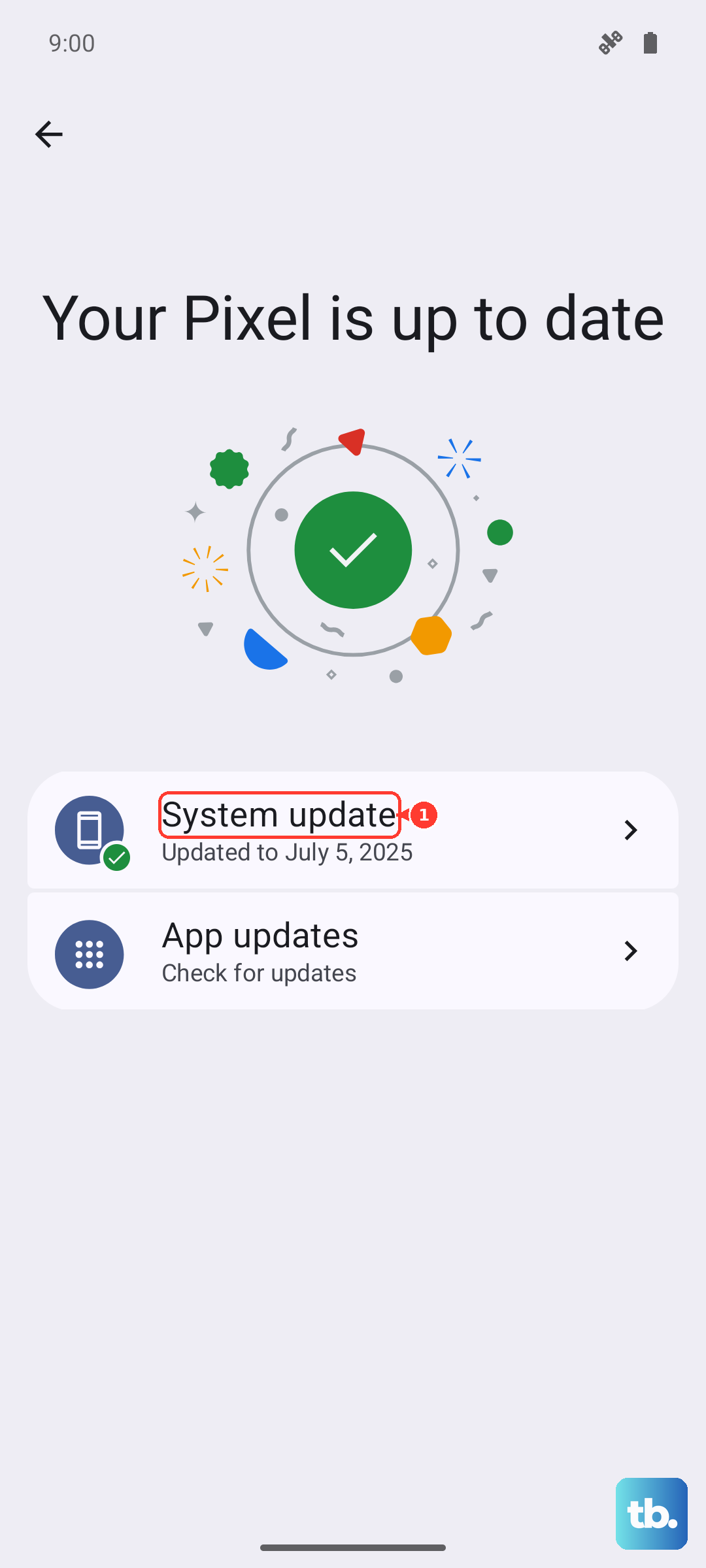
Google rolls out regular updates that improve the fingerprint sensor's performance and reliability. Go to Settings > System > System update and check for pending updates. If there's a security patch or Android update available, install it. I've seen this fix erratic sensor behavior on a lot of Pixel devices running Android 14.
Register the Same Finger Twice
You already deleted and re-added your prints. Now take it a step further. The Pixel 9 Pro XL allows up to four fingerprint registrations. If you primarily use your right thumb, register it in two separate slots. This gives the sensor twice as much data to compare against, which can drastically improve recognition speed and accuracy, especially if your hands change texture throughout the day.
Boot into Safe Mode
Third-party apps with accessibility permissions can interfere with the fingerprint service. Long-press the Power button, then long-press the "Restart" option on the screen. Tap "OK" to boot into Safe Mode. Test the scanner while in Safe Mode. If it works flawlessly, a downloaded app is the problem. Restart the phone normally and start uninstalling recently added apps, especially any that manage security, gestures, or battery optimization.
Update Android and test Safe mode
Use Pixel's supported troubleshooting steps instead of a recovery-cache wipe. Restart the phone, install any update under Settings > System > Software update, then test the fingerprint sensor again.
If the issue started after installing an app or utility, start the phone in Safe mode. If the sensor works in Safe mode, remove recently installed apps one by one and restart normally after each removal.
Check for Wireless Charging Interference
The Pixel 9 Pro XL supports 23W wireless Qi charging. Heat buildup or electromagnetic noise from the charging coil can occasionally confuse the under-display sensor. If your fingerprint scanner acts up while the phone is sitting on a wireless charger, lift it off and let it cool down for a minute. Try again unplugged to see if the problem goes away.
Factory Reset the Phone
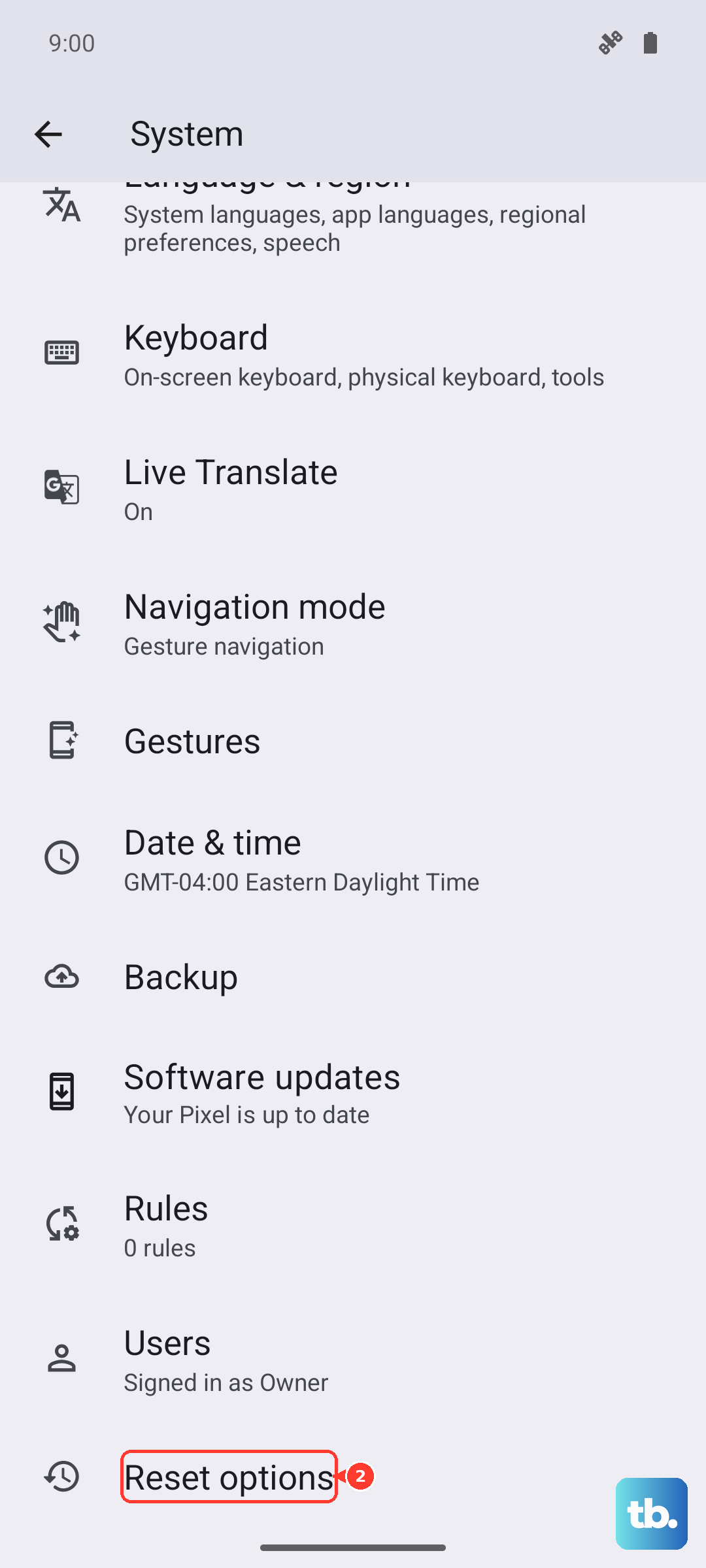
If nothing else has worked, a factory reset is the last software-based step. This will erase all data on your phone, photos, accounts, settings, everything. Make sure you have a backup first. Go to Settings > System > Reset options > Erase all data (factory reset). If the fingerprint sensor continues to malfunction after a clean reset, it's likely a hardware issue that will need servicing.