
When your Google Pixel 9 starts restarting on its own, it's a major disruption. This can happen for a few reasons, often tied to a recent app update or a minor software hiccup. The good news is you can usually fix it yourself with a few simple steps.
Before you start, it's a smart idea to make sure your data is backed up. You can use Google One backup or just sync your photos and files to Google Drive. This protects your stuff just in case you need to take more serious steps later.
Force Restart Your Pixel 9
This is almost always the first thing to try. A force restart clears the phone's temporary memory and can stop a restart loop caused by a minor glitch. For the Pixel 9, it's straightforward. Just press and hold the Power button for about 30 seconds. Don't let go when you see the Google logo, keep holding until the screen goes black and the phone starts booting up again.
Check for a Problematic App
If the force restart worked but the random reboots come back, a specific app is often the culprit. Think about what you installed or updated right before the trouble started. You can boot into Safe Mode to test this. Press and hold the Power button, then tap and hold the "Power off" option on your screen until you see the Safe Mode prompt. Tap it to restart.
If the phone is stable in Safe Mode, you know a third-party app is causing the issue. Restart normally to exit Safe Mode, then head to the Play Store and manually update all your apps. If that doesn't help, you may need to uninstall recent apps one by one to find the offender.
Update Android and Your Apps
Running outdated software is a common cause of instability. Go to Settings > System > System update to check for the latest Android security patch or Feature Drop. I've seen Pixel phones act up right after a major update, only to be fixed by a follow-up patch a few days later.
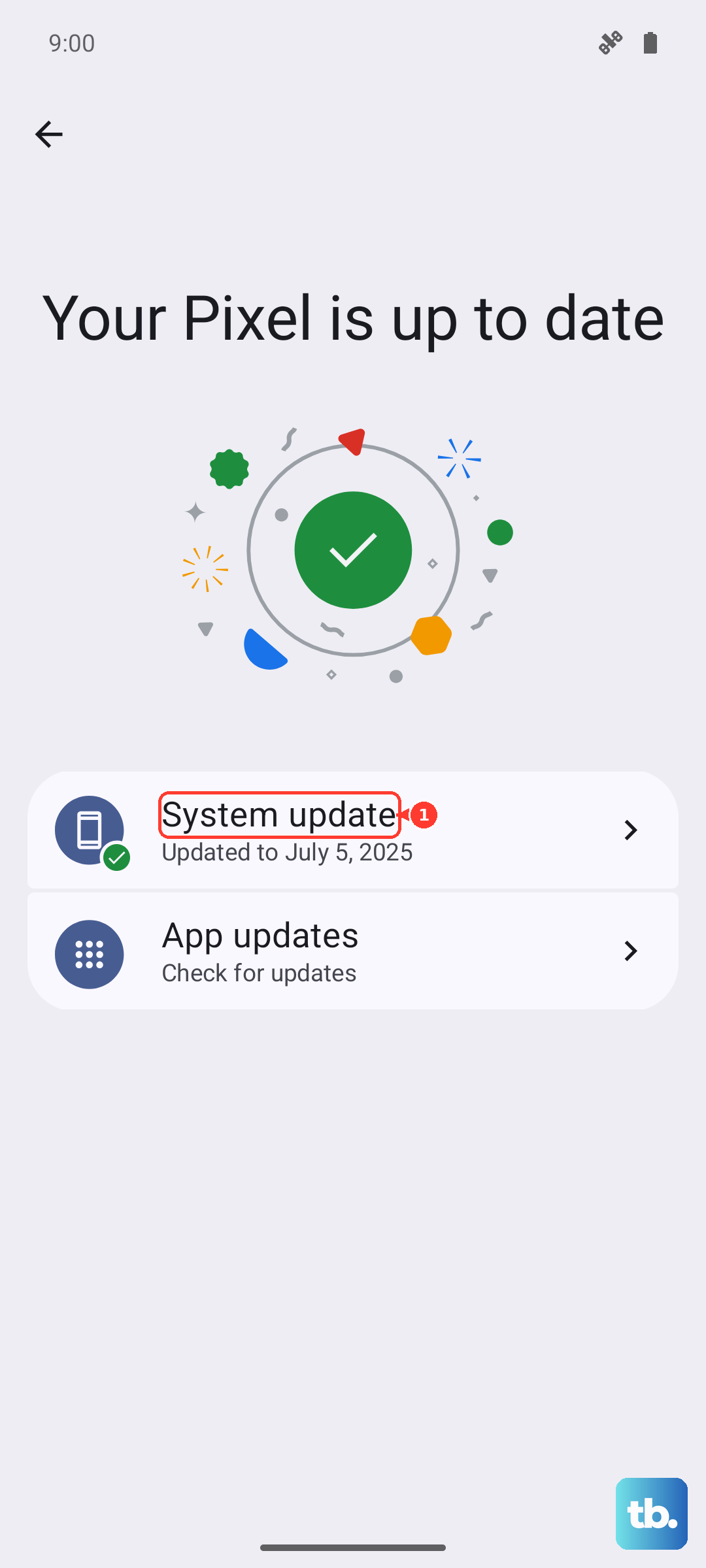
Also, open the Google Play Store, tap your profile icon, and go to Manage apps & device. Tap "Update all" to ensure every app is current. Sometimes a single outdated app can conflict with the new system software and cause crashes.
Review Battery and Adaptive Features
Pixel's smart battery features can sometimes be misinterpreted as a problem. Go to Settings > Battery and look at the usage graph. If you see the charge holding at 80% overnight, that's likely Adaptive Charging doing its job to protect battery health. You can toggle it off here if you want.
Also, check if Extreme Battery Saver is on. This mode aggressively limits background activity and can sometimes make the system feel unstable or cause odd behavior. Turning it off might resolve your restart issues.
Clear Storage Space
When your phone's storage is critically full, the operating system doesn't have room to work properly, which can lead to crashes. Go to Settings > Storage to see how much space you have left. If you're below 10% free space, start cleaning up.
The storage menu will offer suggestions like deleting old downloads, clearing app caches, or removing backed-up photos. You can also use the Files by Google app to easily find and delete large, unused files. Freeing up several gigabytes can make a big difference.
Check for Overheating
The Pixel 9 will automatically restart if it detects the internal temperature has reached a critical level to prevent damage. Was the phone in direct sunlight, running a demanding game, or charging rapidly before it rebooted? Let it cool down completely.
Try using it again in a cooler environment. If it restarts when cool and under light use, the issue is likely software. If it only happens when the device is warm, focus on closing intensive apps and avoiding wireless charging, which can generate more heat.
Reset All Settings
This is a more thorough step that won't delete your personal data like photos or messages. It resets all your system settings back to default, things like Wi-Fi passwords, Bluetooth pairings, and display preferences. Go to Settings > System > Reset options.
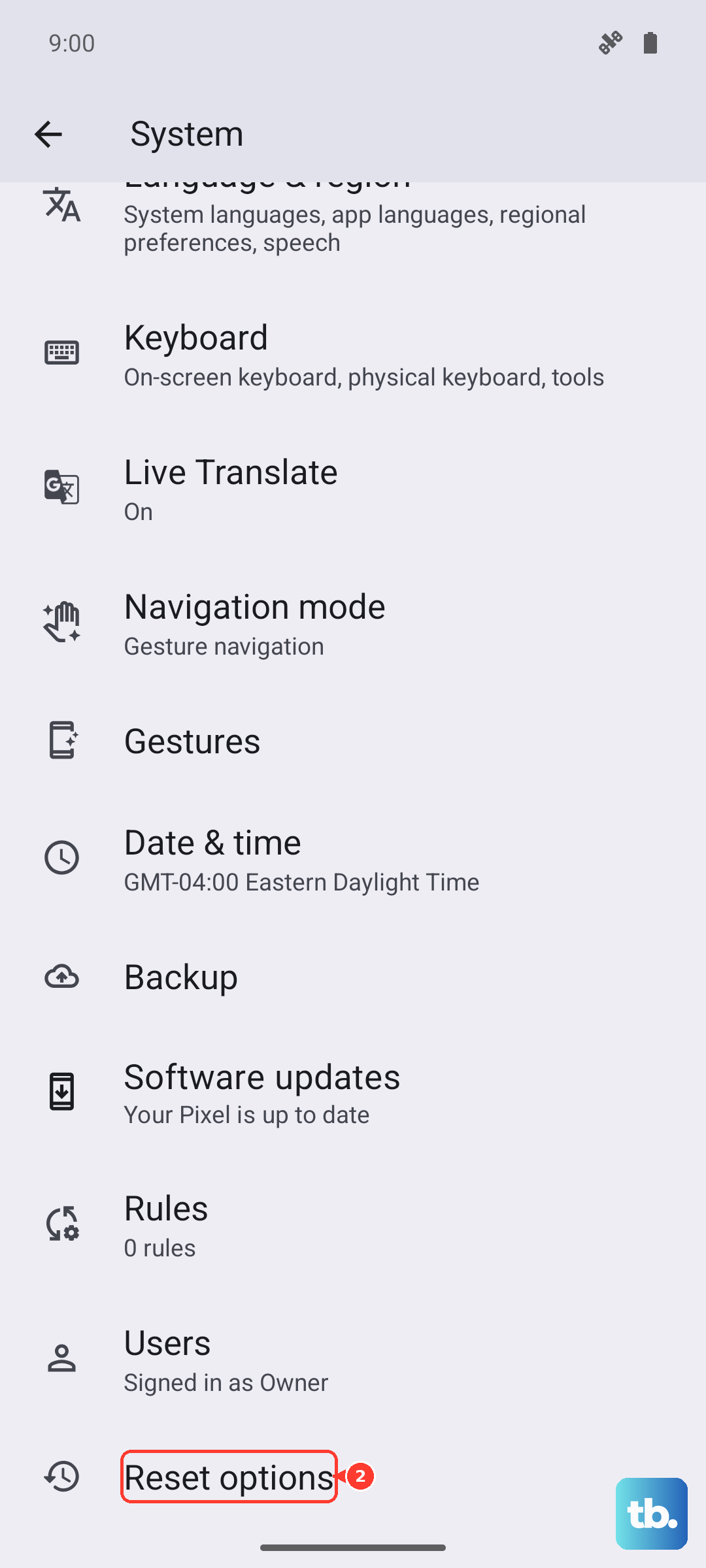
Tap "Reset all settings" and confirm. After the phone reboots, you'll need to re-enter your Wi-Fi password and reconfigure any custom settings. This can resolve conflicts caused by a corrupted system setting that's hard to pinpoint.
Perform a Factory Reset
If nothing else has worked, a factory reset is the final software step. This will erase everything on your phone and return it to its original out-of-the-box state. Make absolutely sure your data is backed up first. Go to Settings > System > Reset options > Erase all data (factory reset).
Follow the prompts to confirm. The phone will take several minutes to reset and restart. After setup, test the phone for a while before restoring your apps from the backup. Sometimes restoring a bad app backup can bring the problem back, so you may want to install apps fresh.
Use Android Flash Tool for a Clean Install
For persistent, severe restart loops that even a factory reset doesn't fix, the problem might be with the core Android system image. Google provides a web-based tool called the Android Flash Tool that lets you install a fresh, clean version of the software from your computer.
You'll need a USB-C cable and a Chrome browser on a computer. The website will guide you through putting your Pixel 9 into bootloader mode and flashing the latest factory image. This is more technical but often resolves deep-seated software corruption that other methods can't touch.