
Unlock your Pixel 10 from carrier restrictions and use any network provider you want
What to Know
- Network Unlock Code is an 8-16 digit code that removes the carrier lock from your Google Pixel 10.
- Contact your carrier first – they are legally required to provide it for free if you meet their requirements.
- Your IMEI is key – you'll need this unique number, found in Settings > About phone, to request the code.
- Third-party services are an option if your carrier can't or won't help, but choose carefully.
- Enter codes carefully – too many incorrect attempts on a Pixel can trigger a permanent network lock.
If you've finished your contract or paid off your Google Pixel 10, you shouldn't be stuck with one carrier. The process to unlock it is straightforward, but you need the right code. I'd start by contacting your current provider.
Get Your Unlock Code from Your Carrier
This is almost always the best and safest first step. Carriers in many regions are obligated to unlock your phone upon request if you're eligible. The requirements are usually simple: your account must be in good standing, the device must be paid off, and it can't be reported lost or stolen.
First, find your Pixel 10's IMEI number. Go to Settings > About phone > IMEI. You can also dial *#06# from the Phone app. Have this 15-digit number ready before you call.
Next, contact your carrier's customer support. Be clear that you are requesting a "network unlock code" or "SIM unlock code" for your Google Pixel 10. They will verify your account and, if you qualify, initiate the request. Processing can take anywhere from a few hours to several business days.
Once approved, they'll send the code to you via email or text message. Save it somewhere safe. You won't need it until you insert a SIM card from a different carrier into your powered-off Pixel.
Using the Unlock Code on Your Pixel 10
When you're ready to switch networks, the process on Android 15 is generally automatic. Power your Pixel 10 down completely. Remove the old SIM card tray and insert the SIM from your new carrier.
Turn the phone back on. If the device is locked, it should recognize the foreign SIM and automatically prompt you to enter the network unlock code. Carefully type in the code you received from your carrier or service.
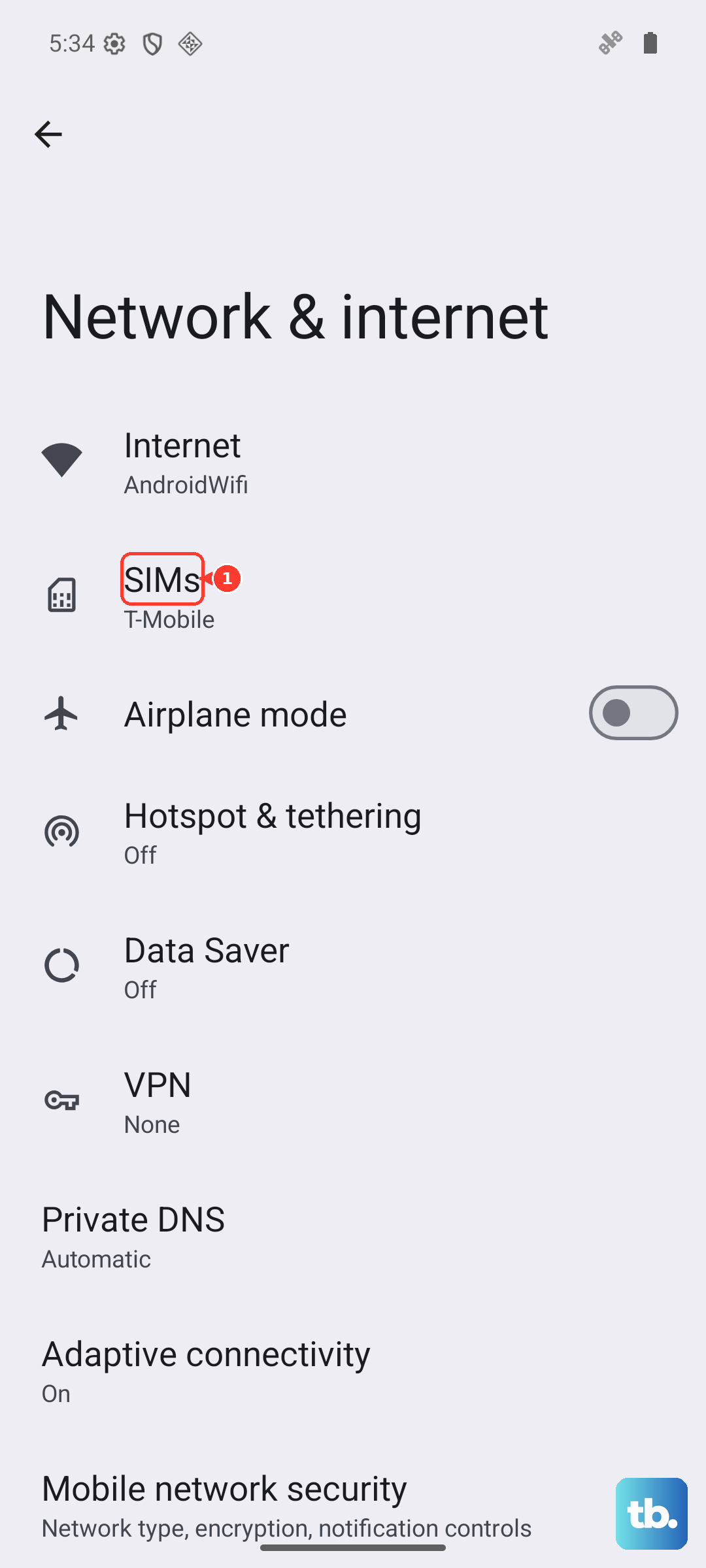
After a successful entry, you should see a confirmation message like "Network unlock successful." Your Pixel 10 will restart and will now be able to connect to the new carrier's network. If you don't get a prompt, the phone might already be unlocked, or you may need to check for a manual entry option in the settings under Network & internet.
If Your Carrier Can't Help
Sometimes a carrier might refuse, or you might be using a phone from a previous owner whose account status is unclear. In these cases, third-party unlocking services are a common alternative. These services use your IMEI number to generate a code, often within 24 to 48 hours.
It's crucial to pick a reputable service. Look for sites with clear guarantees, positive user reviews, and a history of working with Pixel devices. Be wary of any service promising "instant" or "free" unlocks, as these are frequently scams. You'll provide your Pixel 10's IMEI, pay a fee, and wait for the code to arrive via email.
The usage steps are identical to a carrier-provided code. The main difference is you're paying for the convenience and bypassing the carrier's eligibility checks. I've seen this work reliably for many Pixel models when the official channel is blocked.
Troubleshooting Unlock Problems
If you enter the code and get an error, don't just keep guessing. First, double-check that you've entered every digit correctly. On a Pixel, you typically get a limited number of attempts before the phone asks for a PUK or "network lock" code, which is much harder to obtain.
A "SIM network PIN blocked" message means you've exceeded the attempt limit. You will now need a different code, often called a Master Unlock Code or Unfreeze Key, to reset the counter. You must contact the provider who gave you the original unlock code to request this.
If your Pixel 10 doesn't prompt for a code at all with a new SIM, it might already be unlocked. You can verify this in a couple of ways. Check for any unlock-related messages in your notification shade upon booting with the new SIM. You can also look in Settings > Network & internet > SIMs for any unlock status indicators.
For persistent issues, a factory reset is sometimes suggested as a last resort, but this will erase all data on your phone. Make sure you have a complete backup in Google One before considering this. After the reset, the unlock prompt may appear when you set the phone up again with the non-carrier SIM.











