
When your Google Pixel 10 Pro's fingerprint sensor stops responding, it can lock you out of your phone and apps in an instant. The good news is that this is usually a software hiccup or a simple fix you can handle yourself. Let's get it working again.
I'd start with a quick restart. Press and hold the Power button and Volume Up button together for about ten seconds until you see the Google logo. This clears out any temporary glitches that might be confusing the sensor. Give it a try right after the phone boots up.
Clean the Screen and Your Finger
The Pixel 10 Pro uses an under-display ultrasonic sensor, which means it reads your fingerprint through the screen. Any smudges, grease, or moisture on the glass can block the scan. Wipe the screen down with a soft, dry microfiber cloth, paying extra attention to the lower third where the sensor is located.
Make sure your finger is clean and dry, too. A little bit of lotion, sweat, or dirt is often the culprit. I've seen this simple fix resolve the issue more times than I can count.
Re-register Your Fingerprint
If a restart and clean didn't help, the next step is to delete your old fingerprint and set it up again. Head to Settings > Security & privacy > Device unlock > Fingerprint Unlock. You'll need to enter your PIN, pattern, or password to proceed.
Tap on the fingerprint you're having trouble with and select Remove. Then, tap Add fingerprint to enroll it again. When you're scanning, press a bit firmer than you think you need to and make sure to roll your finger to capture the edges, not just the pad.
Check for a Problematic Screen Protector
Not all screen protectors play nicely with under-display fingerprint sensors. If you recently installed a new one, especially a thick tempered glass model, it could be interfering with the sensor's ultrasonic waves.
Try removing the protector temporarily and see if the fingerprint reader starts working. If it does, you'll need to look for a protector that's specifically marketed as compatible with the Pixel 10 Pro's fingerprint sensor. Some brands even include a special mode in their installation kit for this.
Update Your Software
Outdated software can cause all sorts of weird behavior, including biometric failures. Google is pretty good about pushing fixes for these kinds of issues. Open Settings and go to System > System update to check for and install any available updates.
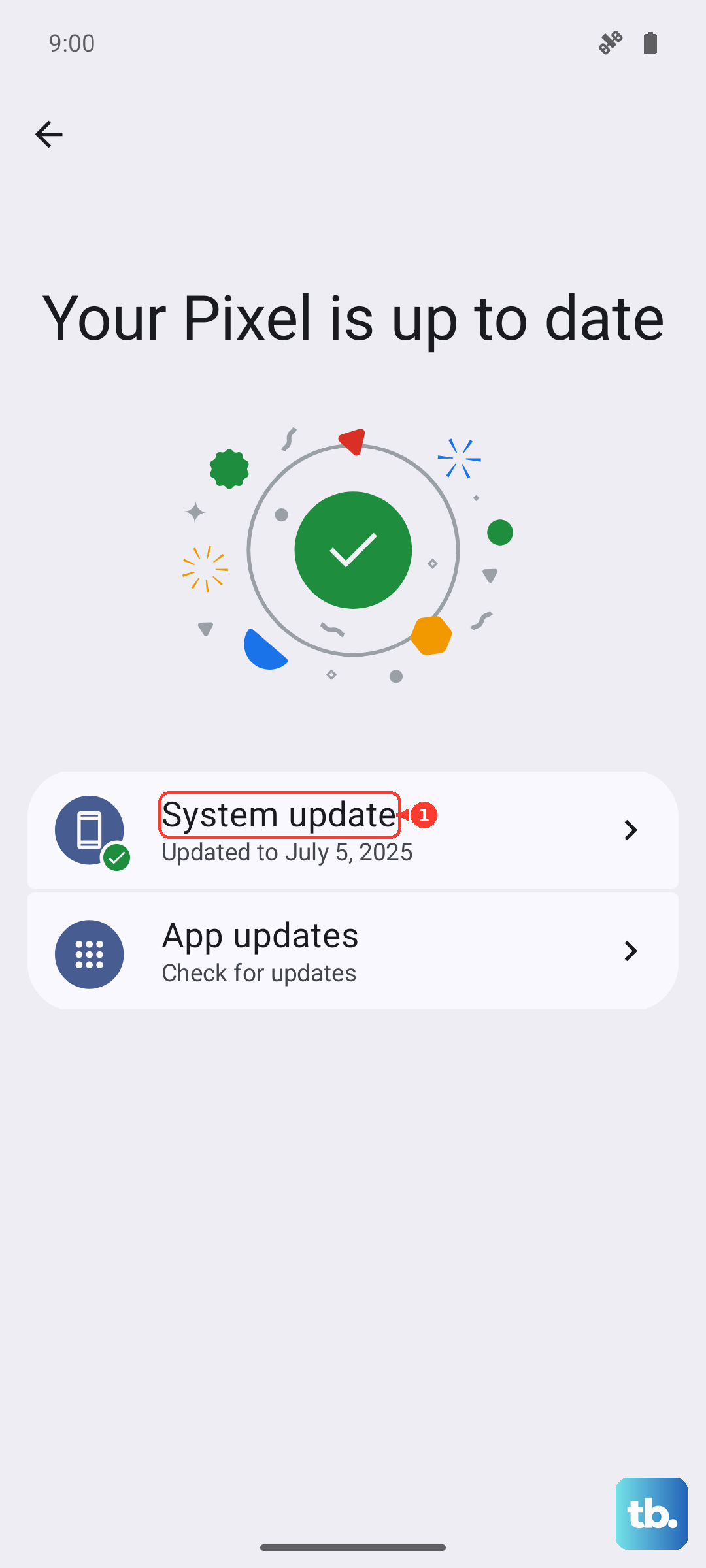
Make sure your phone is connected to Wi-Fi and has a decent charge before you start the update. It's a good habit to check this monthly, even when things are working fine.
Boot into Safe Mode
Sometimes, a recently installed third-party app can conflict with system functions like the fingerprint reader. Booting into Safe Mode temporarily disables all those downloaded apps.
To do this, press and hold the Power button on the screen until the power menu appears. Then, tap and hold the Power off option. You'll get a prompt to reboot to Safe Mode. If your fingerprint works perfectly in Safe Mode, you know a downloaded app is the problem. You'll need to uninstall apps one by one to find the culprit.
Clear the Biometrics Cache
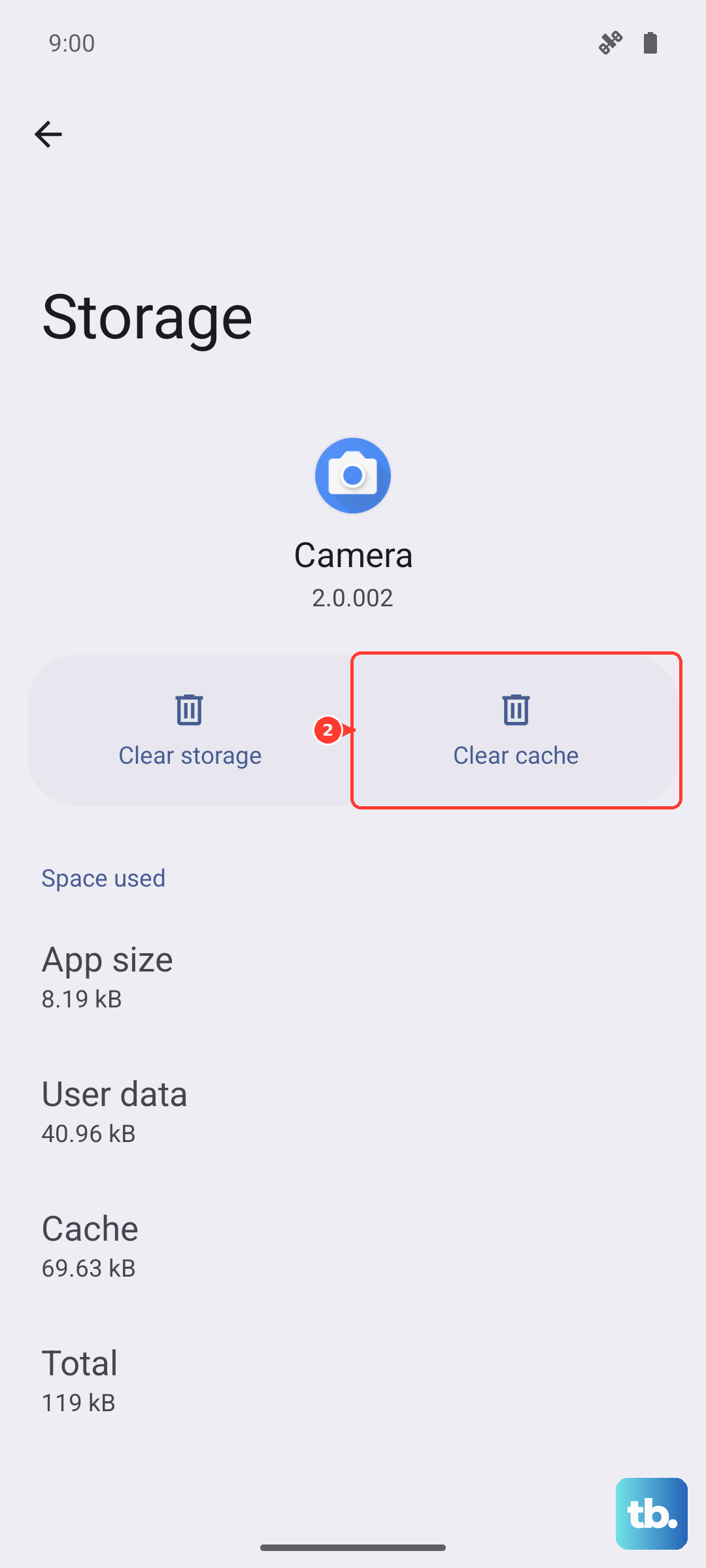
Android stores temporary data for system services, and the biometrics service is no exception. Clearing this cache can resolve corruption without deleting your actual fingerprints. Go to Settings > Apps > See all apps.
Tap the three-dot menu in the top right and select Show system. Scroll down and find Biometrics in the list. Tap on it, then go to Storage & cache and tap Clear cache. Restart your phone afterward and test the sensor.
Check Your Fingerprint Settings
There are a couple of settings worth verifying. First, go back to Settings > Security & privacy > Device unlock > Fingerprint Unlock. Make sure the toggle for Unlock device is turned on.
Also, look for an option called "Screen protector mode" or "Increase touch sensitivity." On the Pixel 10 Pro, enabling this can improve fingerprint recognition when you're using a protector. It's not always in the same spot, so you might find it under Display settings as well.
If you've worked with your hands a lot or had any minor injuries, your fingerprints can change slightly over time. It's a good idea to register the same finger twice under different names, like "Right thumb" and "Right thumb backup," to give the system more data to work with. Also, always make sure your PIN, pattern, or password is something you remember easily, as you'll need it to re-setup the sensor if all else fails.











