When your Google Pixel 10's volume buttons get stuck or stop responding, it can feel like you've lost a basic function. You press the rocker, but nothing happens on screen. The good news is that most of the time, this is a software hiccup or a simple obstruction that you can fix yourself without needing a trip to a repair shop.
I'd start with the quickest solutions first, as they often do the trick.
Remove Your Phone Case
Take your Pixel 10 out of its case. Sometimes, a case that's slightly misaligned or has worn out over time can put pressure on the volume rocker, preventing it from clicking properly. This is especially true for cases with very tight button covers.
Perform a Force Restart
A force restart is the go-to fix for many Android glitches, including unresponsive buttons. It clears the phone's temporary memory without touching your personal data. For the Pixel 10, press and hold the Power button and the Volume Up button together for about 10 seconds.
Keep holding until you see the Google logo appear on the screen, then let go. After the phone boots back up, test the volume buttons immediately.
Clean the Volume Rocker
Dust, lint, and pocket debris are common culprits. The slim design of the Pixel's buttons means even a small particle can jam the mechanism. Use a can of compressed air to blow gently around the edges of the volume rocker.
For any sticky residue, you can dampen a cotton swab with a tiny amount of isopropyl alcohol (90% or higher is best) and carefully clean around the button. Be gentle and avoid pushing any gunk further inside the device.
Check for App Interference
Try using the volume buttons in different apps. Open YouTube, play a song in Spotify, or try to adjust the ringer volume from the home screen. If the buttons work in some apps but not others, the issue might be with a specific app's settings or permissions.
You can also boot into Safe Mode to see if a third-party app is causing the problem. Hold the power button, then tap and hold the "Power off" option on your screen until you see the Safe Mode prompt. In Safe Mode, only pre-installed apps run.
Test the Buttons Repeatedly
Sometimes the mechanical switch inside can get temporarily stuck. Firmly press the volume up and down buttons several times in succession. You're not trying to break it, but a series of presses can help free up a component that's just lodged in one position.
Adjust Your Sound Settings
While you're troubleshooting, you can still control your volume on screen. Swipe down from the top of your display twice to open the full Quick Settings panel, and use the volume slider there.
You can also go to Settings > Sound & vibration to adjust volume levels for media, calls, and alarms directly. This confirms whether the issue is with the physical button or the phone's audio system as a whole.
Update Android
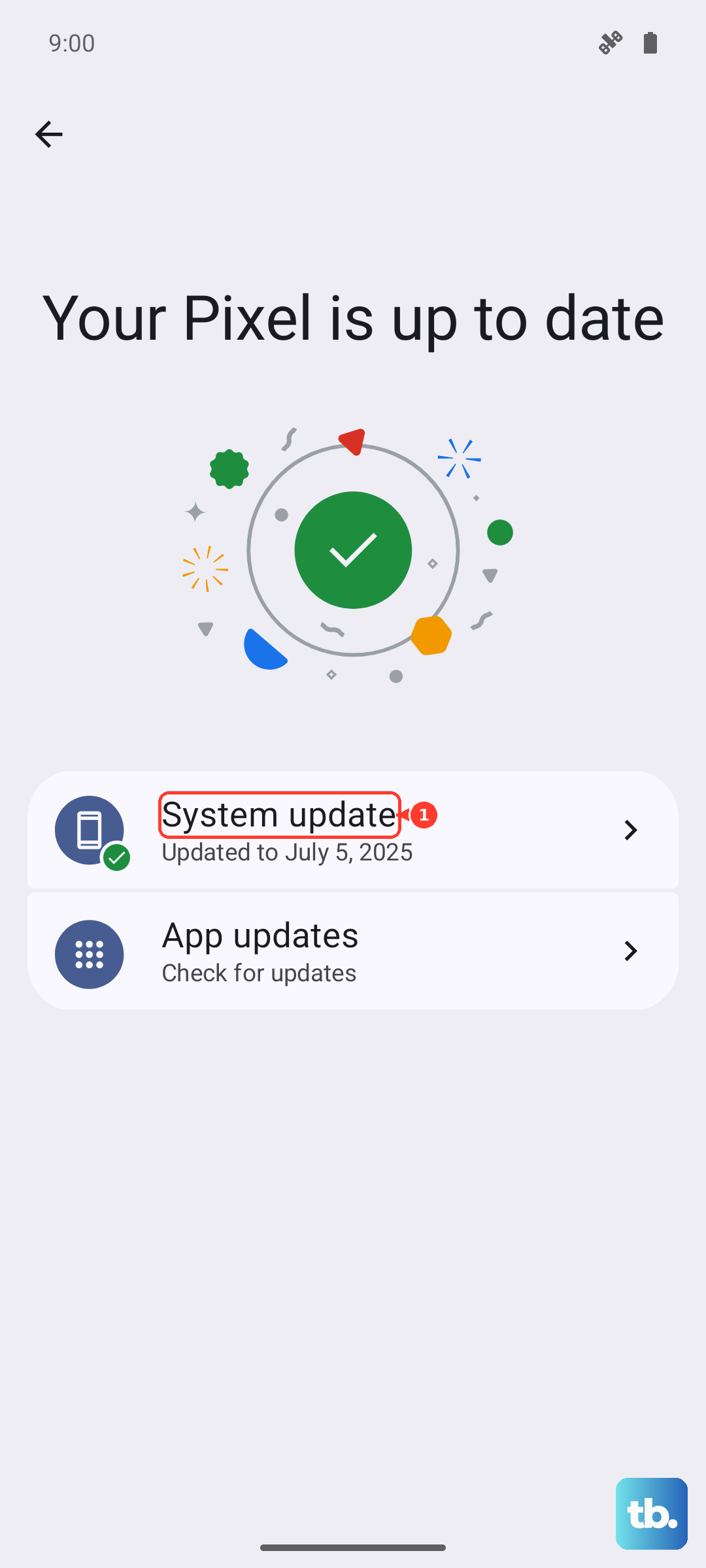
Software bugs in Android 15 can sometimes cause input issues. Making sure your Pixel 10 has the latest update can resolve these glitches. Connect to Wi-Fi and plug in your charger.
Then, go to Settings > System > System update and tap "Check for update." Download and install any available updates. After the phone restarts, check if the volume rocker is working again.
Enable Accessibility Menu
Similar to iPhone's AssistiveTouch, Android has an Accessibility Menu that provides virtual buttons. Enabling and using it can sometimes help reset the system's connection to the physical buttons. Go to Settings > Accessibility > Accessibility Menu and turn it on.
A small person icon will appear on your screen. Tap it, then tap the volume controls within the menu. Use the virtual buttons a few times, then try your physical volume rocker again.
Check for Physical Damage
Look closely at the volume rocker on your Pixel 10. Is it visibly cracked, loose, or sitting at an odd angle compared to the power button? Even a minor drop can damage the internal flex cable that connects the button to the motherboard.
If you see any signs of physical damage, or if the button feels mushy and doesn't click, the issue is likely hardware-related.
Factory Reset (Last Resort)
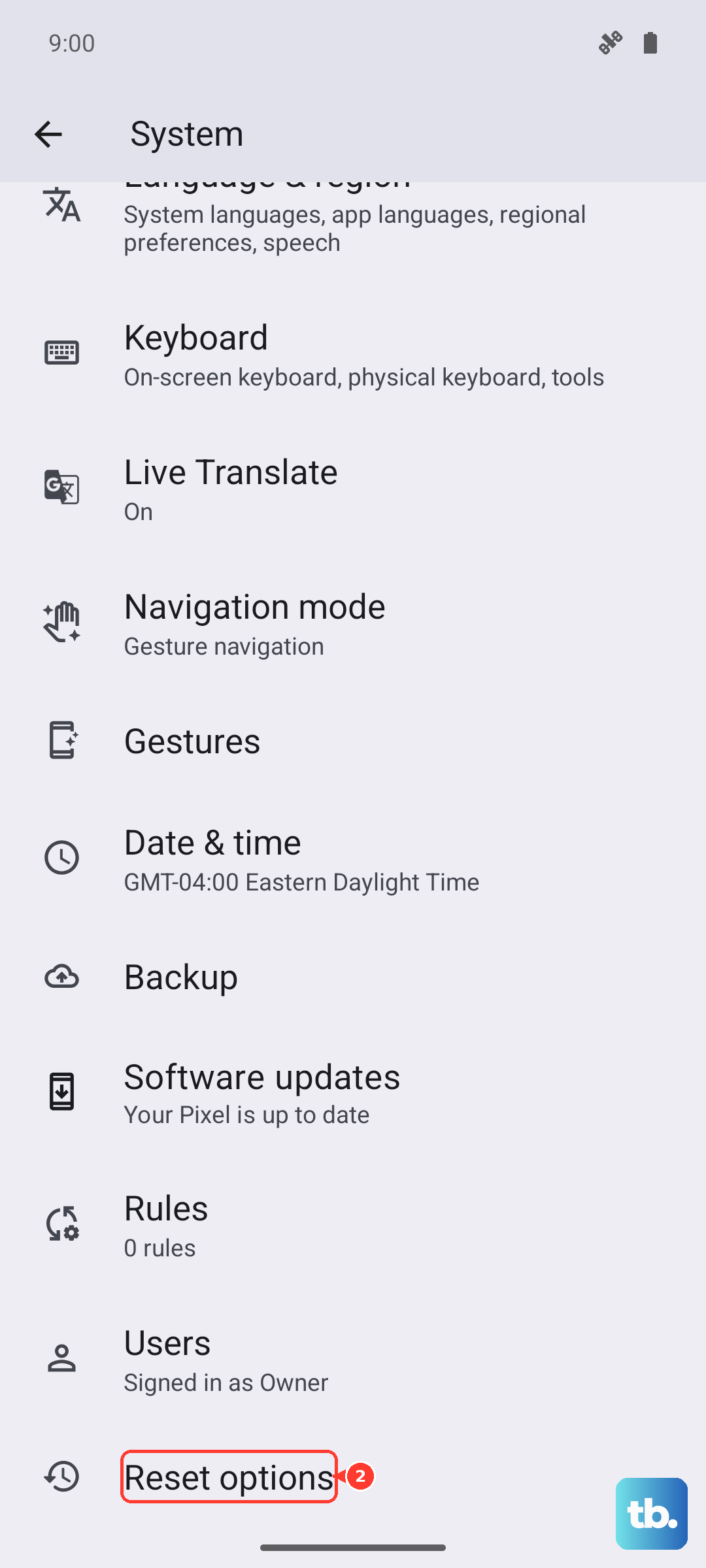
If every other step fails, a factory reset can eliminate deep-seated software corruption. This will erase all data from your Pixel 10, so it's crucial to back up everything important first. Use Google One backup or manually transfer files to a computer.
Once backed up, go to Settings > System > Reset options > Erase all data (factory reset). Follow the prompts to complete the reset. After the phone is restored to its out-of-the-box state, set it up and test the buttons before restoring your data.