When your Google Pixel 10 Pro won't send pictures, it's usually a quick network or app setting that needs a nudge. The photo might get stuck with a "Sending..." message forever, or fail with an error. Let's get your photos moving again.
Check Your Mobile Data and MMS Settings
This is the most common fix. If you're trying to send a picture via text (SMS/MMS) and not an app like WhatsApp, your mobile data needs to be on. Go to Settings > Network & internet > Mobile network and make sure "Mobile data" is enabled.
While you're there, tap into Advanced and ensure "MMS messages" is turned on. Some carriers require this setting to be active for picture messages to go through, even if you have data.
Verify Your Internet Connection
A weak or unstable connection is a prime culprit. If you're on Wi-Fi, check the icon in your status bar. Try toggling Wi-Fi off and back on in your quick settings panel.
For cellular sends, look at your signal strength. Moving to a window or a different room can sometimes make all the difference. If the picture is very large, a strong 5G or LTE connection is essential.
Force Close and Reopen Your Messaging App
A temporary glitch in your messaging app can hang up the sending process. Swipe up from the bottom of your screen and hold to enter the recent apps view.
Find your messaging app (Google Messages or your carrier's app) and swipe it all the way up to close it. Then, tap its icon to reopen it fresh and try sending the picture again.
Clear the Messaging App's Cache
If force-closing didn't help, the app's temporary data (cache) might be corrupted. Go to Settings > Apps > See all apps and find your messaging app.
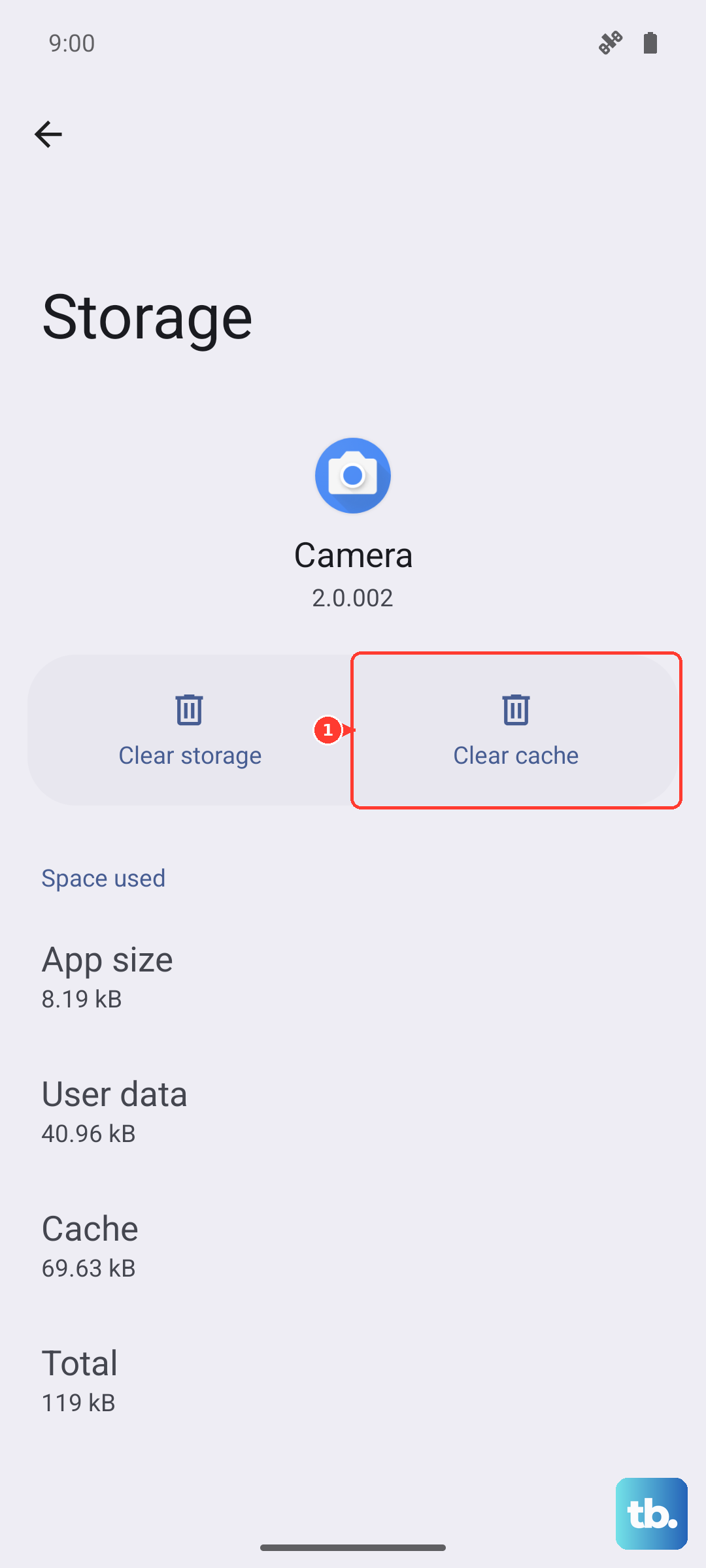
Tap on it, then go to Storage & cache. Tap "Clear cache." This won't delete your messages, just temporary files. I'd try this before clearing app data.
Restart Your Pixel 10 Pro
A classic reboot clears out minor software hiccups that can affect network services. Just press and hold the Power button and Volume Up button together until the power menu appears, then tap "Restart."
If the phone is unresponsive, you can force a restart by pressing and holding the Power button and Volume Up button together for about 10 seconds until the Google logo appears.
Check for Carrier Services Updates
Your carrier pushes configuration updates that can affect MMS. Open the Google Play Store, tap your profile icon, and go to Manage apps & device > Manage.
Tap "Updates available" and look for an app called "Carrier Services." If it's listed, update it. This often resolves sending issues after a network change or OS update.
Switch Between Wi-Fi and Mobile Data
Sometimes, the phone gets confused about which network to use for MMS. If you're on Wi-Fi, try turning it off completely so the message sends solely over your cellular data.
Conversely, if mobile data is spotty, connect to a strong Wi-Fi network and try sending through an internet-based app like Google Chat, WhatsApp, or Telegram instead of traditional MMS.
Review App Permissions
Your messaging app needs permission to access your photos, media, and possibly your phone's storage. Go to Settings > Apps > [Your Messaging App] > Permissions.
Ensure that "Photos and videos" or "Files and media" permission is set to "Allow." Without this, the app can't attach the picture from your gallery to the message.
Update Android and Your Messaging App
An outdated app or system software can have bugs that break MMS. Head to the Play Store and check for updates to "Google Messages" or your preferred texting app.
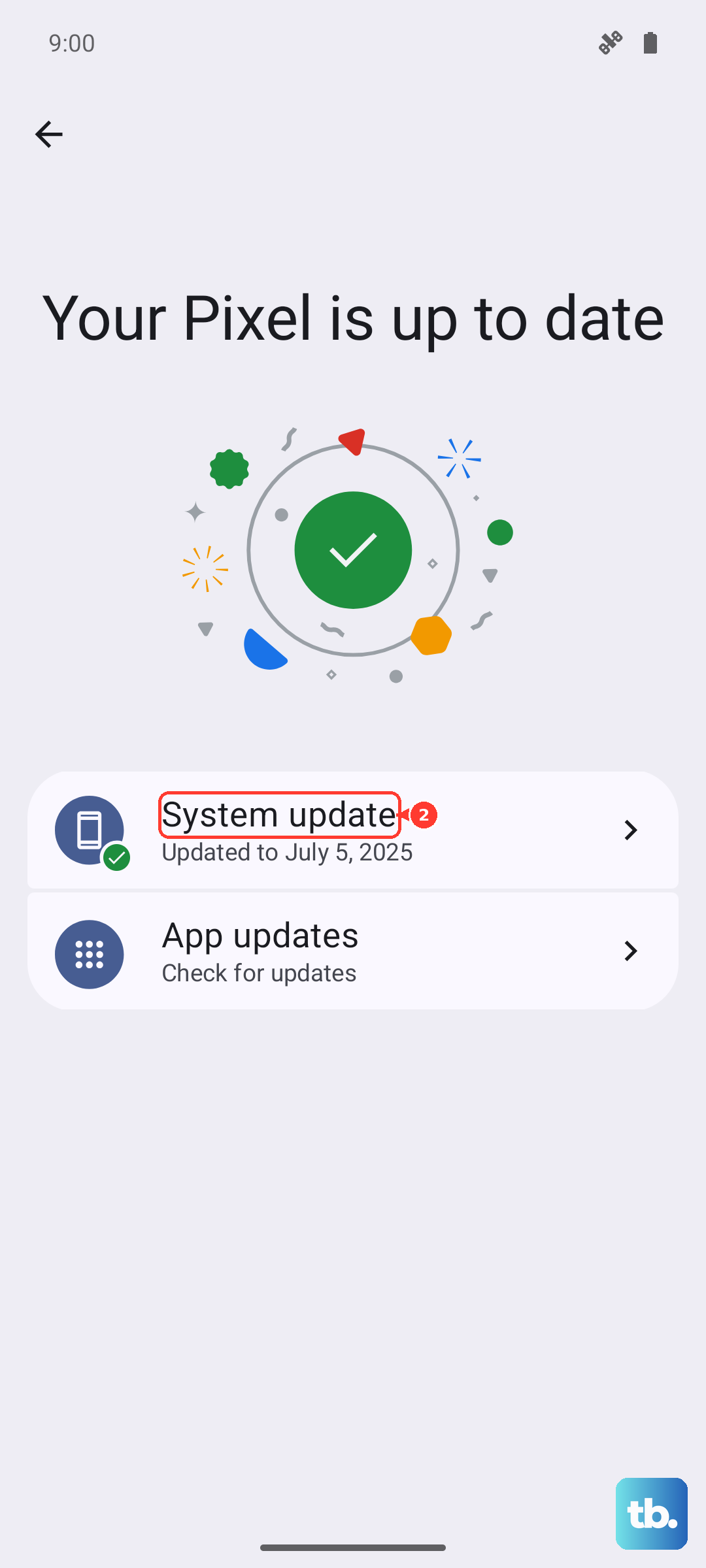
Then, check for a system update by going to Settings > System > System update. Installing the latest Android 15 update can patch known connectivity issues.
Reset Your Network Settings
If you've tried everything else, this step can clear deeper network configuration problems. It will erase saved Wi-Fi passwords and paired Bluetooth devices, so be ready to re-enter them.
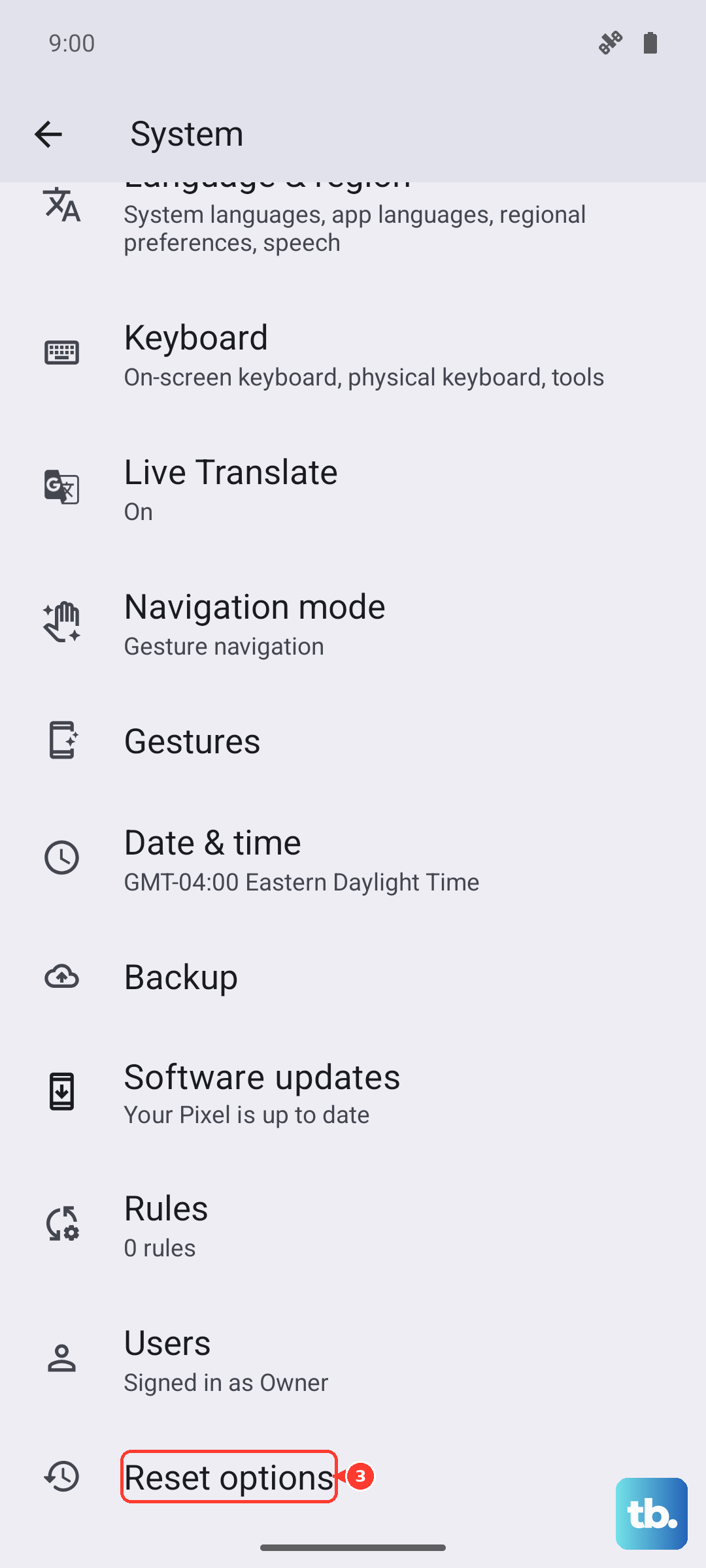
Go to Settings > System > Reset options. Tap "Reset Wi-Fi, mobile & Bluetooth" and confirm. After your phone restarts, reconnect to your network and test the picture send again.