
When your Google Pixel 10's keyboard suddenly disappears or you get an error message, it can stop you from sending a text or replying to an email. The good news is, this is usually a temporary software hiccup that you can fix yourself in a few minutes.
Restart the Keyboard App
The quickest fix is often to force stop and restart the keyboard app. This clears any temporary glitch that's causing it to freeze or crash. On your Pixel 10, open Settings and go to Apps > See all apps.
Find and tap on Gboard (or the name of your third-party keyboard if you use one). On the app info screen, tap Force stop and confirm. Then, simply open any app where you type to test it.
Clear the Keyboard's Cache and Data
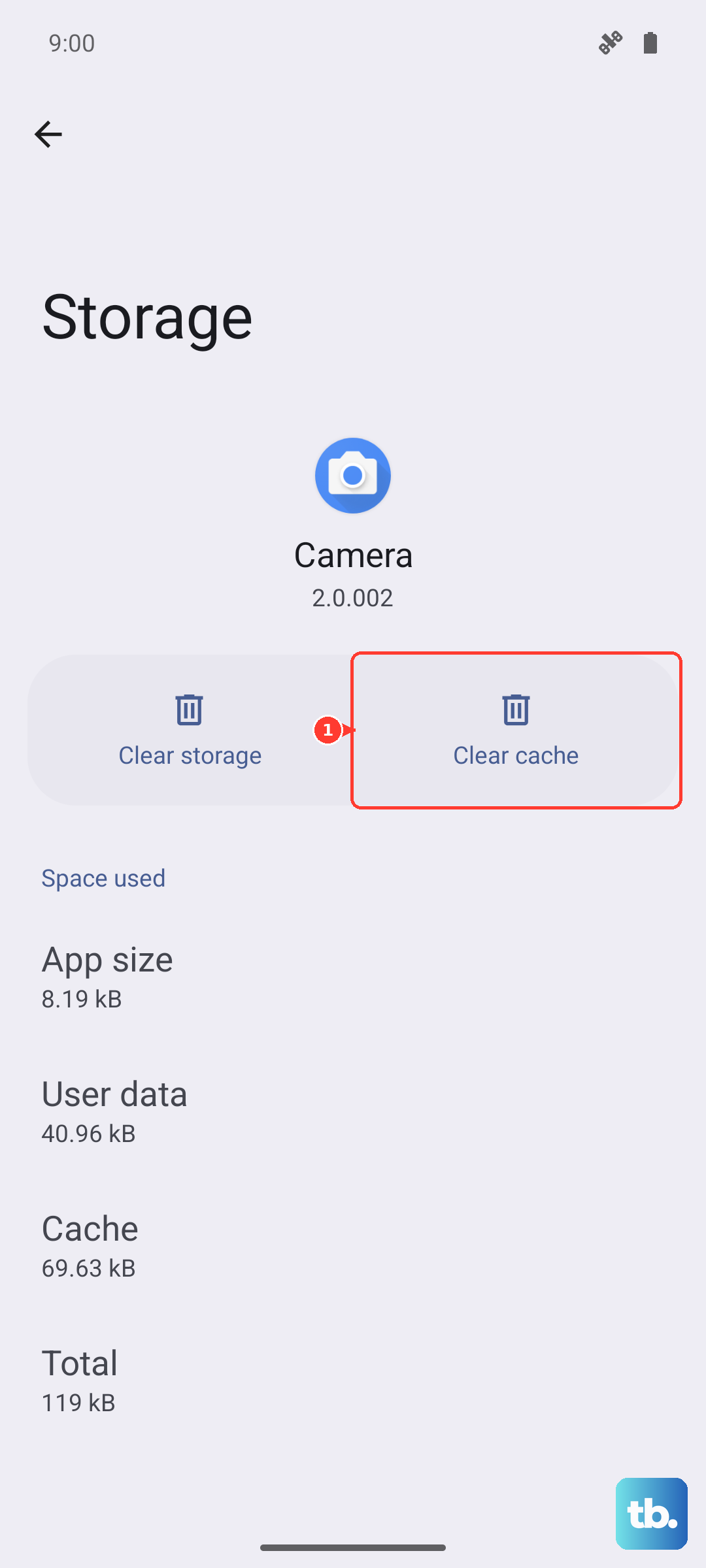
If a restart didn't work, the app's stored data might be corrupted. Clearing the cache is safe and won't delete your personal dictionary or saved snippets. Go back to Settings > Apps > Gboard and select Storage & cache.
Tap Clear cache first. If the problem persists, you can try Clear storage or Clear data. Be aware this will reset Gboard to its default settings, so you'll lose any custom themes or adjustments.
Reboot Your Pixel 10
Sometimes the issue isn't just with the keyboard app, but with the system overall. A simple reboot can clear out minor software conflicts. Just press and hold the Power button and Volume Up button together until the power menu appears, then tap Restart.
If your screen is completely unresponsive and you can't access the menu, use Google's force restart step instead: press and hold the Power button for up to 60 seconds, then release it when the "G" logo appears.
Check for App and System Updates
An outdated version of Gboard might have a bug that's causing your issue. Open the Google Play Store, tap your profile icon, and go to Manage apps & device. Under "Updates available," see if Gboard is listed and update it.
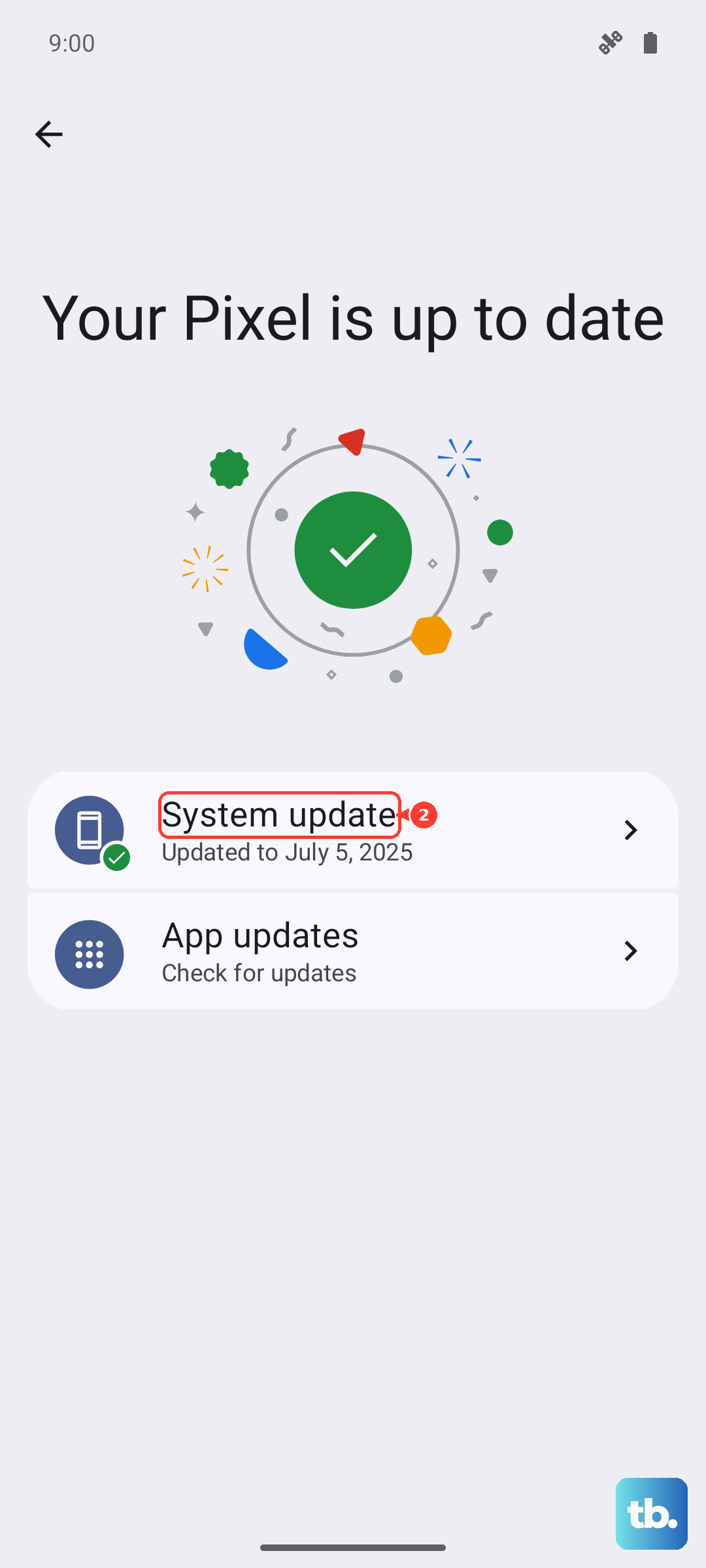
It's also wise to check for a system update. Go to Settings > System > Software updates. Pixel 10 launched with Android 16, so install the latest Pixel software update available for your phone.
Try a Different Keyboard Temporarily
Installing a different keyboard from the Play Store, like Microsoft SwiftKey, is a great way to see if the problem is specific to Gboard or a wider system issue. After installing a new keyboard, you'll need to enable it.
Go to Settings > System > Keyboard > On-screen keyboard. Turn on your newly installed keyboard. You can then switch between keyboards by tapping the keyboard icon in your navigation bar.
Boot Into Safe Mode
If the keyboard works fine with a fresh install but not with your usual setup, a third-party app might be interfering. Booting into Safe Mode temporarily disables all apps you've downloaded. To enter Safe Mode on the Pixel 10, press and hold the Power and Volume Up buttons for a few seconds.
On the power menu, tap and hold the Restart option. Your phone will ask if you want to reboot to Safe Mode; tap OK. If the keyboard works normally here, you know a downloaded app is the culprit. Start by removing recently installed apps one by one.
Reset App Preferences
This is a useful middle-ground step that resets permissions, default apps, and background restrictions without deleting any personal data. It can resolve conflicts where another app has taken over input controls. Go to Settings > System > Reset options.
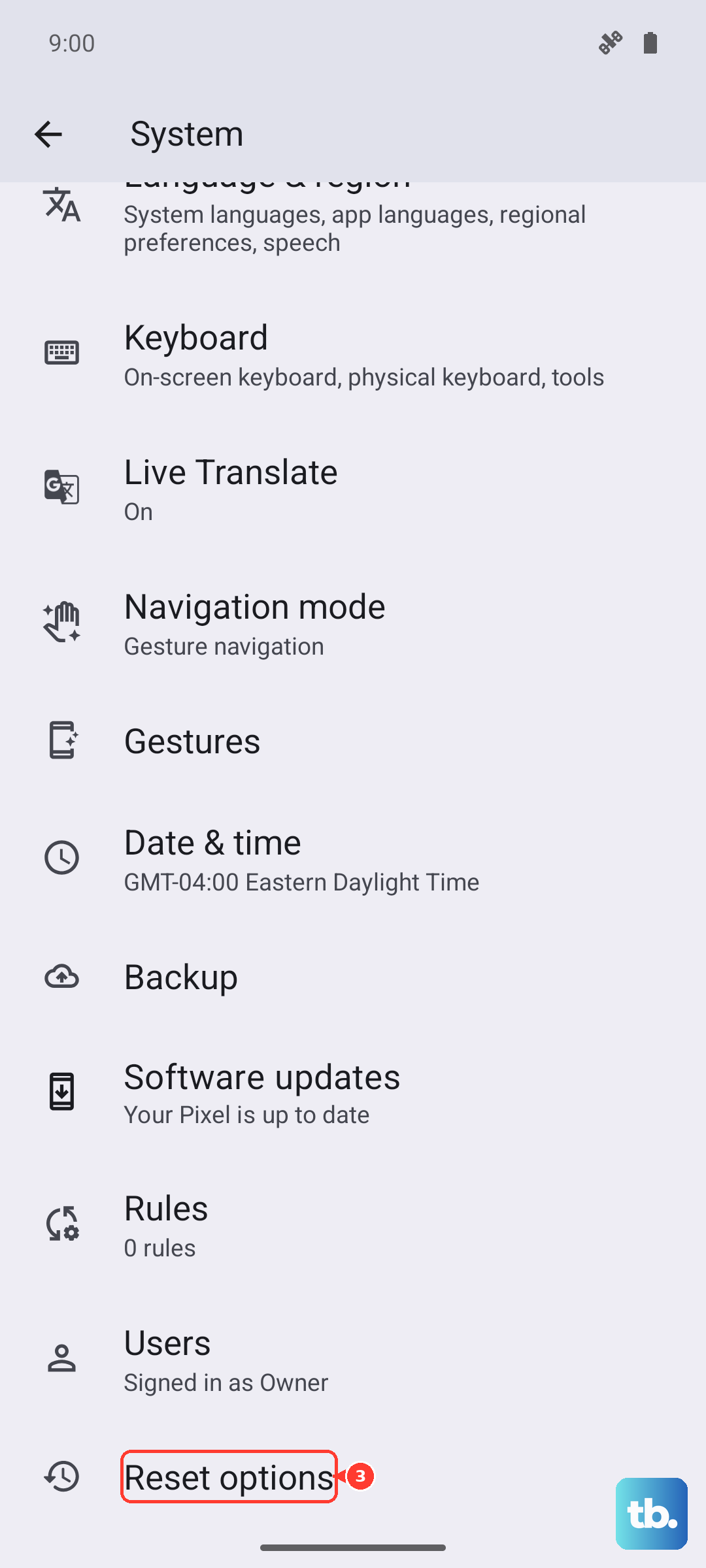
Tap Reset app preferences and confirm. You'll then need to re-grant permissions to apps when you use them next, but it often clears up persistent input issues.
Check for Accessibility Service Conflicts
Certain accessibility services, like screen readers or voice control tools, can sometimes conflict with the keyboard's input. Go to Settings > Accessibility and look at the list under "Downloaded apps."
If you have any enabled, try turning them off temporarily to see if your keyboard returns. If it does, you can try re-enabling them one by one to find the specific service causing the problem.
Update Google Play System
Beyond the regular Android update, there's a separate Google Play system update that handles core components. I've seen this fix odd app behavior on Pixels before. Go to Settings > Security & privacy > System & updates.
Tap on Google Play system update and check for an update. If one is available, install it and restart your phone. This ensures the underlying services your apps rely on are current.











