
When the volume buttons on your Google Pixel 10 Pro XL stop responding, it's easy to assume it's a hardware problem. But in most cases, a stuck button or a software glitch is the real culprit. I've seen this fix play out countless times with Pixel devices, and the good news is you can probably get them working again without a trip to the repair shop.
Take off the case
This sounds too simple, but it's the first thing to check. Some cases, especially thick or semi-rigid ones, can press against the side buttons or block their travel. Pop the case off and see if the volume buttons work normally. If they do, the case was the issue you might need a different style or a more precise cutout.
Force restart the phone
A force restart clears temporary software hiccups without deleting any of your data. On the Pixel 10 Pro XL, press and hold the Volume up and Power buttons simultaneously for about 10 seconds. Keep holding until you see the Google logo, then release. This resets the system and can fix unresponsive buttons caused by a hung process.
Check the volume button settings
Android 16 includes a setting that controls whether physical buttons adjust media volume or ringtone volume. Go to Settings > Sound & vibration and make sure Use volume keys for media is turned on. Also verify your silent mode and Do Not Disturb settings if the ringer is set to silent, the volume-down button won't change the ringtone, but it should still affect media.
Blow out any dust or debris
Dirt can easily lodge around the volume rocker on the Pixel 10 Pro XL, especially if you carry the phone in a pocket. Grab a can of compressed air and give the button area a few short bursts. You can also use a soft, dry toothbrush to gently dislodge anything stuck in the crevice. Avoid sharp objects or liquids.
Press the buttons repeatedly
Sometimes a volume button can get temporarily stuck in one position. Try pressing the volume up and down buttons quickly about ten times each. This can help free up a sticky mechanical switch. If you hear a faint click when you press, the mechanism is likely fine and the issue is probably software.
Use the on-screen volume controls
While you're troubleshooting, you can still adjust sound using the slider that appears when you press any side button. If that slider doesn't respond either, try using the volume slider in Settings > Sound & vibration or expand the Quick Settings panel and tap the volume icon. If the sliders work but the physical buttons don't, focus on the buttons themselves.
Test in different apps
Open a few different apps YouTube, a music player, a game and try adjusting volume with the side buttons. If they work in some apps but not others, the issue might be app-specific. For example, some apps have their own volume controls that can override the hardware keys. Update the affected app or clear its cache in Settings > Apps.
Try Accessibility shortcuts
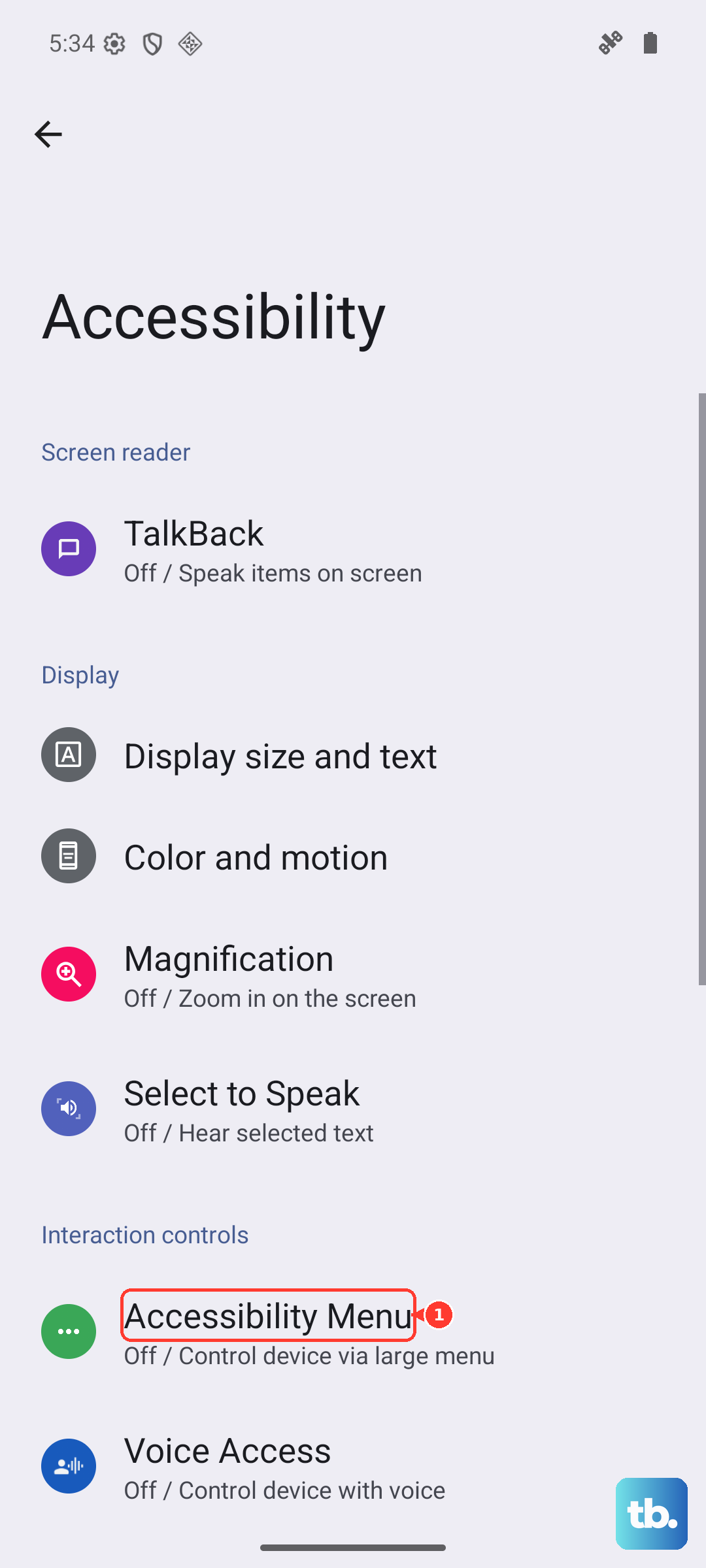
Android's Accessibility menu can act as a fallback for volume control. Go to Settings > Accessibility > Accessibility Menu and turn it on. A floating icon will appear. Tap it, then select Volume up or Volume down. Using these virtual buttons a few times can sometimes nudge the software back in sync with the physical buttons.
Update your software
Software bugs that affect button behavior get patched in Android updates. Make sure your Pixel 10 Pro XL is running the latest available version of Android. Go to Settings > System > Software update and install any pending updates. A simple restart after an update can also resolve lingering glitches.
Factory reset (last option)
If nothing else has worked and the buttons still don't respond, a factory reset can eliminate deep software corruption. Back up your data first this erases everything on the phone. Go to Settings > System > Reset options > Erase all data (factory reset). After the phone restarts, set it up as new and test the volume buttons before restoring any apps. If they work on a clean system, third-party software was likely the cause.