
MMS messages not sending on your Google Pixel 10 Pro XL can be pretty frustrating, especially when you need to share a photo or a group message right now. The issue usually comes down to one of a few things: a flaky data connection, misconfigured settings, or a software glitch. Let's work through the most common fixes, starting with the quickest ones.
Check Your Mobile Data Connection
MMS relies on a mobile data connection to send photos, videos, and group messages. Wi-Fi alone won't cut it. Pull down the quick settings panel and make sure mobile data is toggled on. If you see a weak signal, try moving to a spot with better reception or switching off Wi-Fi temporarily to see if that helps.
Force Restart the Pixel 10 Pro XL
Before diving into settings, a force restart can clear out temporary software hiccups that might be blocking MMS. Press and hold the Volume up and Power buttons simultaneously for 10 seconds, then release when the device restarts. This is a deep restart that can fix a lot of transient issues without wiping any data.
Check MMS Settings in Google Messages
Google Messages is your default messaging app on the Pixel 10 Pro XL, and it has a few settings that control MMS behavior. Open the app, tap your profile picture in the top right, then select Messages settings. Tap Advanced and make sure Auto-download MMS is on. Also switch on Auto-download MMS when roaming if you're outside your home area.
Clear the Messages App Cache
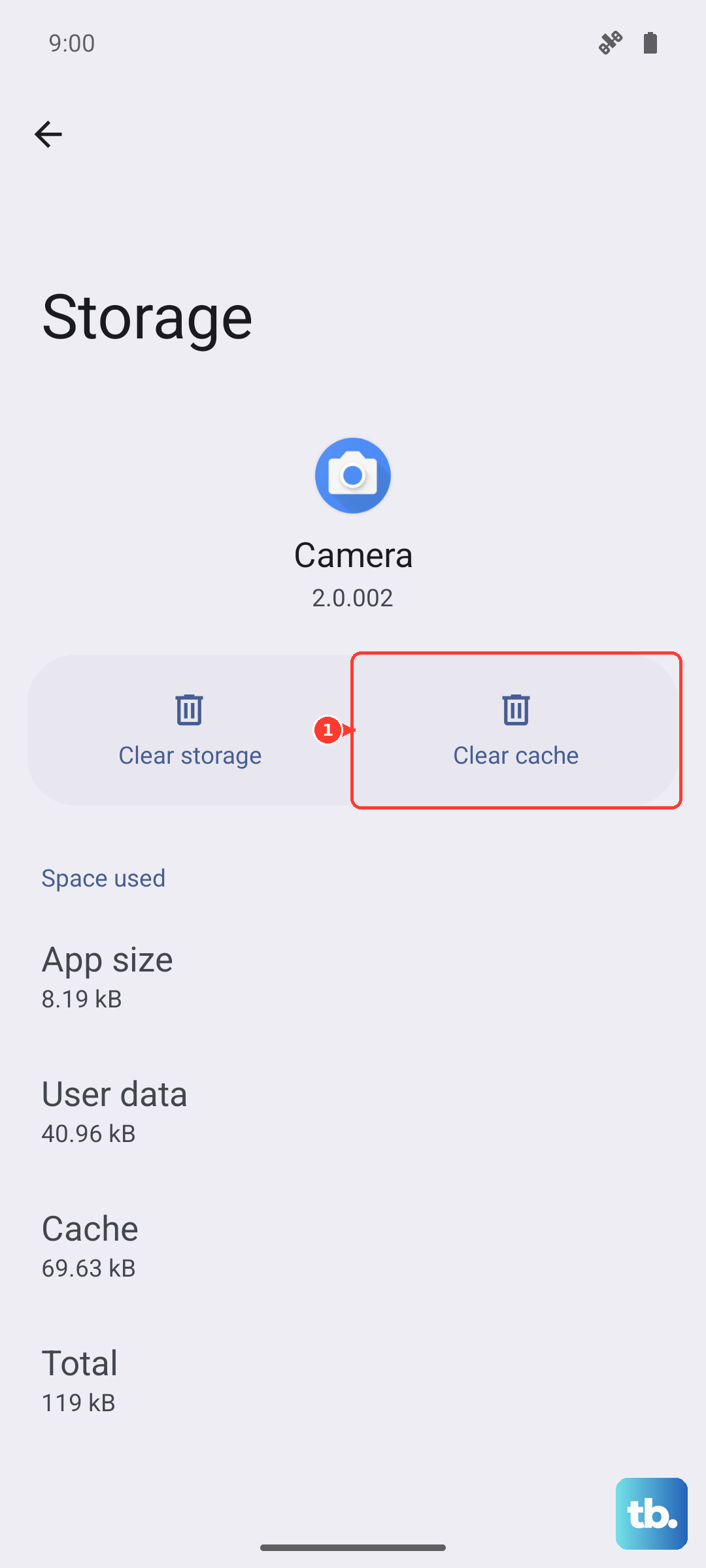
Corrupted temporary files can stop MMS from working properly. Go to Settings > Apps > Messages > Storage & cache. Tap Clear cache first, which won't delete any messages. If that doesn't help, you can tap Clear storage, but keep in mind that will delete your message history, so back anything up first if you can.
Verify APN Settings
Your Access Point Name (APN) settings tell the phone exactly how to connect to your carrier's MMS service. If these got messed up, MMS won't go through. Go to Settings > Network & internet > SIMs > Access Point Names. Check that the MMSC, MMS proxy, and MMS port fields match what your carrier provides. You can usually find these on your carrier's support page or give them a call.
Check for Android 16 Software Updates
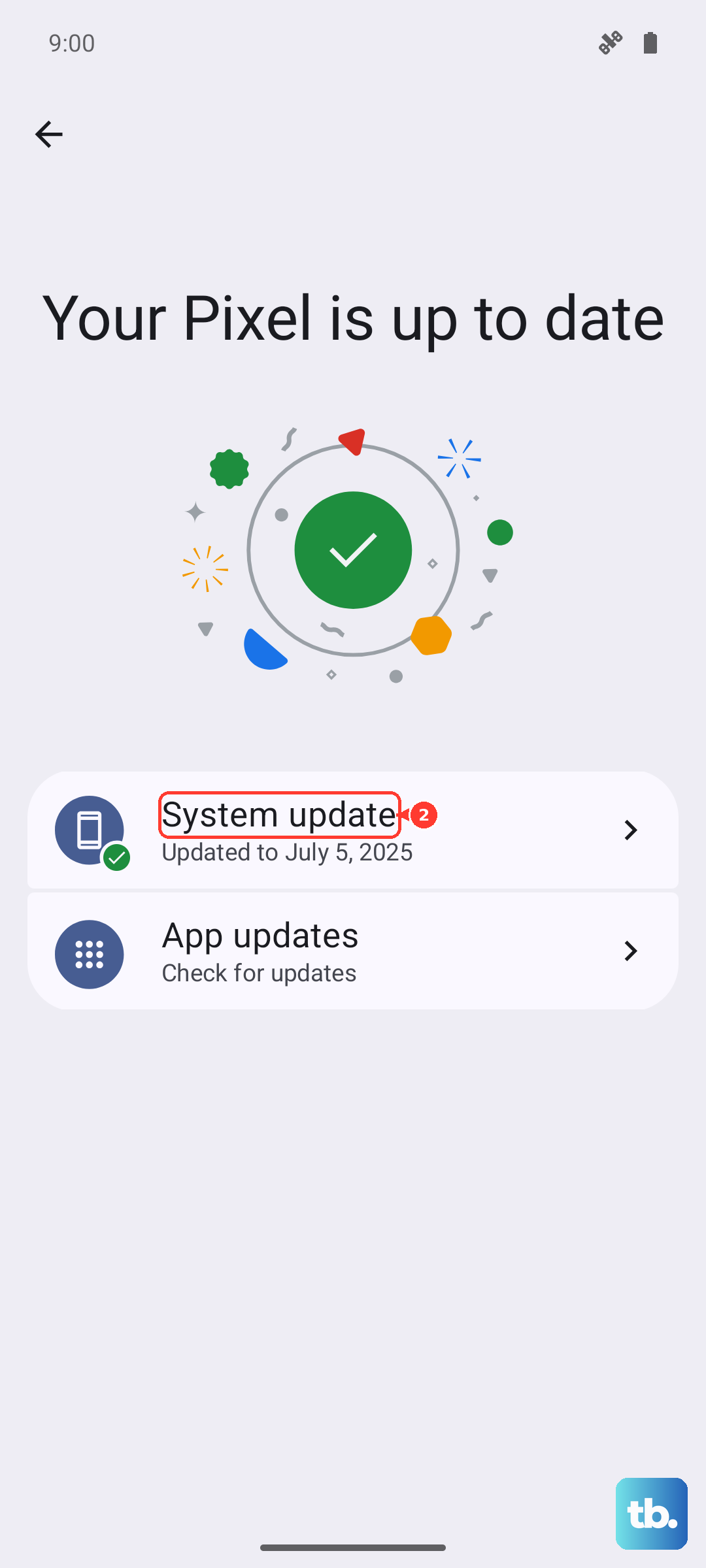
Software bugs can cause MMS issues, and Google is pretty good about pushing fixes through updates. Go to Settings > System > System update and tap Check for update. If there's one available, download and install it. A reboot after the update is a good idea to make sure everything takes effect.
Free Up Storage Space
A full phone storage can interfere with messaging services trying to save incoming attachments. Go to Settings > Storage and check how much free space you have. Try to keep at least a couple of gigabytes open. Delete old message threads with large photos or videos, clear out the Trash folder in Files, and offload any unnecessary apps.
Reset Network Settings
If none of the simpler fixes worked, resetting your network settings can wipe out any deeper misconfigurations. Go to Settings > System > Reset options > Reset Wi-Fi, mobile & Bluetooth. This will forget saved Wi-Fi networks and paired Bluetooth devices, so you'll need to set those up again. It won't touch your photos, apps, or other personal data.
Remove the Phone Case
This one might sound odd for an MMS problem, but the Pixel 10 Pro XL has a known tendency to overheat, especially during charging or heavy use. A thick case traps heat, and excessive heat can throttle the modem and cause connectivity issues, including MMS failures. Pop the case off and try sending your message again.
Switch to a 30W+ PPS Charger
The Pixel 10 Pro XL charges fastest with a USB-C PPS charger rated at 30W or higher. Some cheaper chargers don't play nicely with the phone's charging circuitry, which can cause the device to slow down or overheat. If you've been using a low-wattage or generic charger, switch to a proper Pixel-compatible one and see if that stabilizes the phone enough for MMS to work.