
Is your Google Pixel 10 Pro feeling sluggish, lagging, or just not as snappy as it should be? Even a powerful phone running Android 15 can start to slow down over time. The good news is you can usually fix this yourself with a few simple steps.
Performance issues often come from a few common places. Too many apps running in the background, storage space getting full, or a pending software update can all make your Pixel feel slow. Let's start with the quickest fix you can try right now.
Force Restart Your Pixel 10 Pro
This is the digital equivalent of taking a deep breath. A force restart clears out temporary glitches and stops any rogue background processes that might be hogging resources.
Just press and hold the Power button and the Volume Up button together for about 10 seconds. Keep holding until you see the Google logo appear on the screen, then let go. Your phone will reboot, and that alone can solve a lot of temporary lag.
Check for Android and App Updates
Outdated software is a common culprit for performance problems. Google frequently releases updates that include bug fixes and performance improvements for the Pixel 10 Pro.
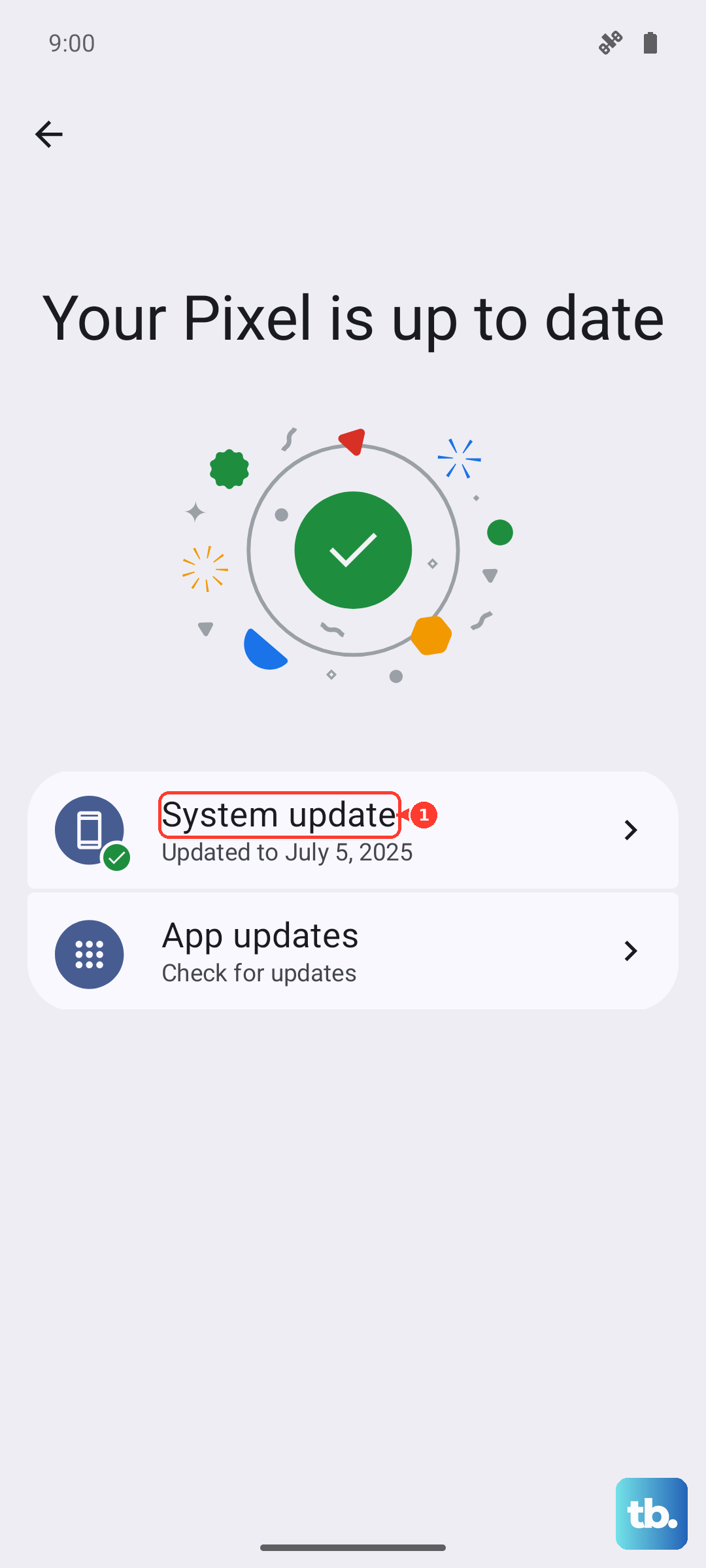
Head to Settings > System > System update to check for the latest Android version. While you're there, open the Google Play Store, tap your profile icon, and go to Manage apps & device > Updates available. Installing all pending updates can give your phone a noticeable speed boost.
Close Unused Apps Running in the Background
Android is good at managing memory, but having dozens of apps suspended in the background can still drain resources. To close them, swipe up from the bottom of the screen and hold to enter the app overview.
You'll see all your recent apps. Swipe left or right to find the ones you want to close, then swipe each one up to the top of the screen to remove it. I'd start by closing any apps you haven't used in the last day.
Free Up Storage Space on Your Device
When your internal storage gets too full, your phone has less room to operate efficiently. This can cause apps to stutter and the system to lag. Go to Settings > Storage to see what's taking up space.
The Pixel 10 Pro makes this easy with its storage management tools. You can quickly delete downloaded files, clear app caches, and offload photos and videos to Google Photos. Aim to keep at least 10% of your storage free for optimal performance.
Review and Limit Background Activity
Some apps are a little too eager to run in the background, constantly checking for updates or data. You can rein them in. Go to Settings > Apps > See all apps and select an app that might be causing issues.
Tap Battery and then Background restriction. For apps that don't need constant updates, selecting "Restricted" can save battery and free up processing power. Also, check Settings > Network & internet > Internet and turn off "Adaptive connectivity" temporarily to see if it helps.
Enable Adaptive Battery and Charging
Your Pixel 10 Pro has smart features designed to improve performance over the long term. Adaptive Battery learns your app usage patterns and limits power for apps you rarely use.
Make sure it's on by going to Settings > Battery > Adaptive preferences. While you're there, enable Adaptive Charging. This helps with battery longevity by slowing down charging overnight, which can prevent performance throttling related to battery health over time.
Clear the Cache for Problematic Apps
An app's cache stores temporary data to help it load faster, but when that cache gets too big or corrupted, it can have the opposite effect. If one specific app is lagging, try clearing its cache first.
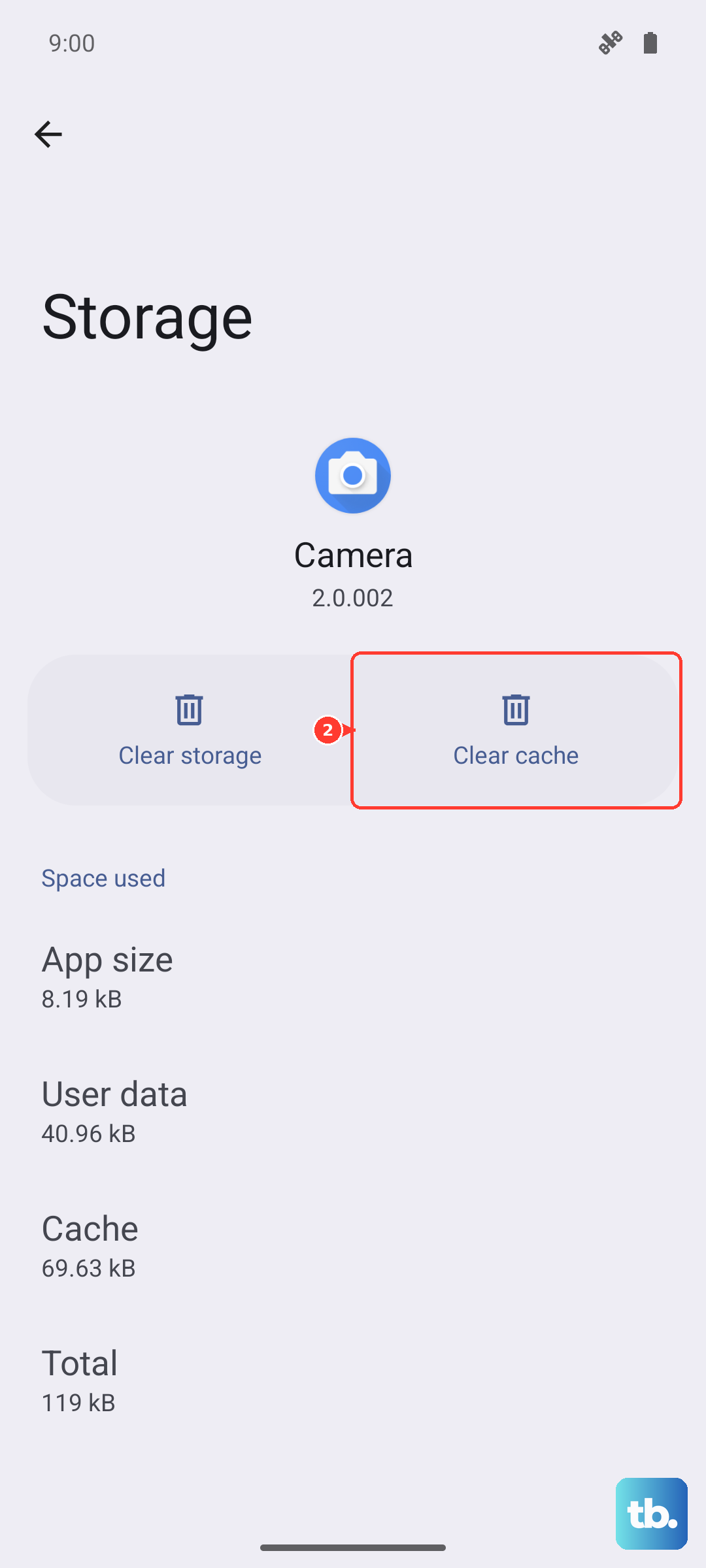
Go to Settings > Apps > See all apps, select the problematic app, then tap Storage & cache. Tap "Clear cache." This won't delete your login info or personal data within the app, just the temporary files.
Reduce Animations and Visual Effects
The smooth animations on the Pixel look great, but they require processing power. If you're looking for a snappier feel, you can scale them back. You'll need to enable Developer Options first by going to Settings > About phone and tapping "Build number" seven times.
Then, go back to Settings > System > Developer options. Scroll down to the "Drawing" section. You can adjust the "Window animation scale," "Transition animation scale," and "Animator duration scale." Setting these to 0.5x makes UI transitions feel much quicker.
Check for Problematic Apps in Safe Mode
If your phone is only slow sometimes, a third-party app you installed might be the cause. Booting into Safe Mode temporarily disables all downloaded apps. Open your phone's power menu, then tap and hold the "Power off" option until the Safe Mode prompt appears.
Tap "OK" to reboot into Safe Mode. If your Pixel runs smoothly now, you know a downloaded app is the problem. Reboot normally to exit Safe Mode, then try uninstalling apps you recently added one by one to find the culprit.
Perform a Network Settings Reset
Sometimes, performance issues, especially with web browsing or streaming, are tied to network problems. A corrupted network configuration can cause your phone to work harder than it needs to. Resetting these settings can clear that up.
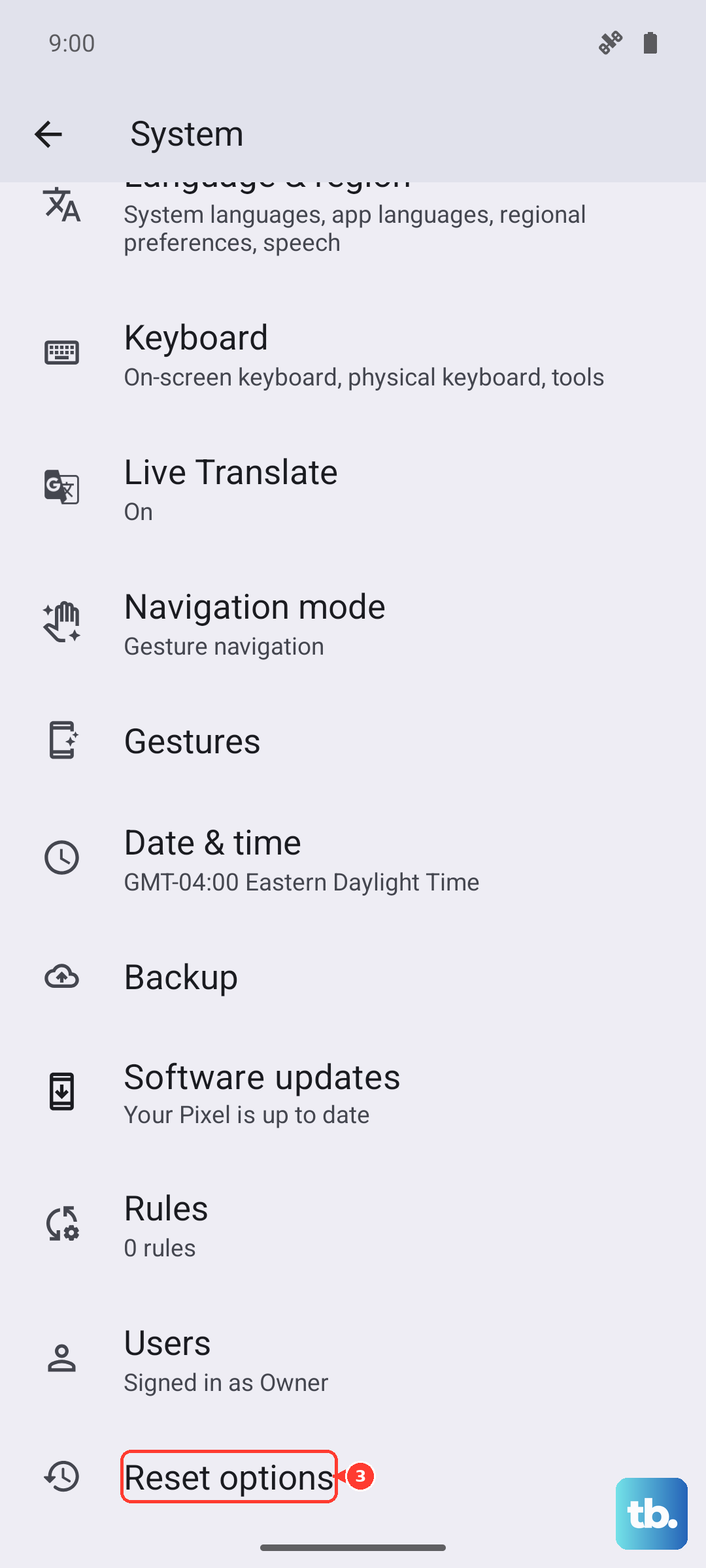
Go to Settings > System > Reset options. Tap "Reset Wi-Fi, mobile & Bluetooth." This will erase all saved networks, Bluetooth pairings, and mobile settings, so you'll need to reconnect to your Wi-Fi and re-pair devices afterward. It often resolves connectivity-related lag.
Consider a Factory Reset (Last Resort)
If you've tried everything and your Pixel 10 Pro is still struggling, a factory reset can be a clean slate. This will erase all data from your phone, so it's absolutely crucial to back up everything important first using Google One or your preferred method.
Once backed up, go to Settings > System > Reset options > Erase all data (factory reset). Follow the prompts to confirm. After the reset, you can set up the phone as new or restore your backup, though setting up as new avoids potentially restoring the original problem.