
When you plug your Dell Inspiron 15 into a second monitor and get nothing but a blank screen, it's usually a quick settings or driver fix. Let's get that display working.
Press Windows + P
This is the fastest thing to try. Press the Windows + P keys together on your Inspiron's keyboard. A menu will pop up on the right side of your screen.
Select Duplicate or Extend. If it's set to "PC screen only," your laptop is intentionally blocking the external display signal. Toggle through the options to see if one triggers the connection.
Check Your Cable and Ports
Unplug the HDMI cable from both your laptop and the monitor, then firmly reconnect it. A loose connection is a common culprit. I'd also try a different HDMI cable if you have one handy, as cables can fail internally without looking damaged.
Make sure your monitor is powered on and set to the correct input source, like HDMI 1 or HDMI 2. You'd be surprised how often that's the simple fix.
Restart Your Laptop with the Monitor Connected
Shut down your Dell Inspiron 15 completely, then power it back on with the external monitor already plugged in and turned on. This forces the graphics system to re-initialize and often detects the display during the boot process when it might have been missed before.
Update Your Display Drivers
Outdated graphics drivers are a prime suspect for HDMI issues. For the most reliable fix, go directly to Dell's support site. Enter your Inspiron 15's Service Tag at support.dell.com to get the model-specific drivers.
Download and install the latest Intel, AMD, or NVIDIA graphics driver listed for your exact configuration. This is more reliable than using Windows Update for display drivers on Dell machines.
Run the Display Troubleshooter
Windows has a built-in tool for this. Go to Settings > System > Troubleshoot > Other troubleshooters. Find and run the "Video Playback" troubleshooter.
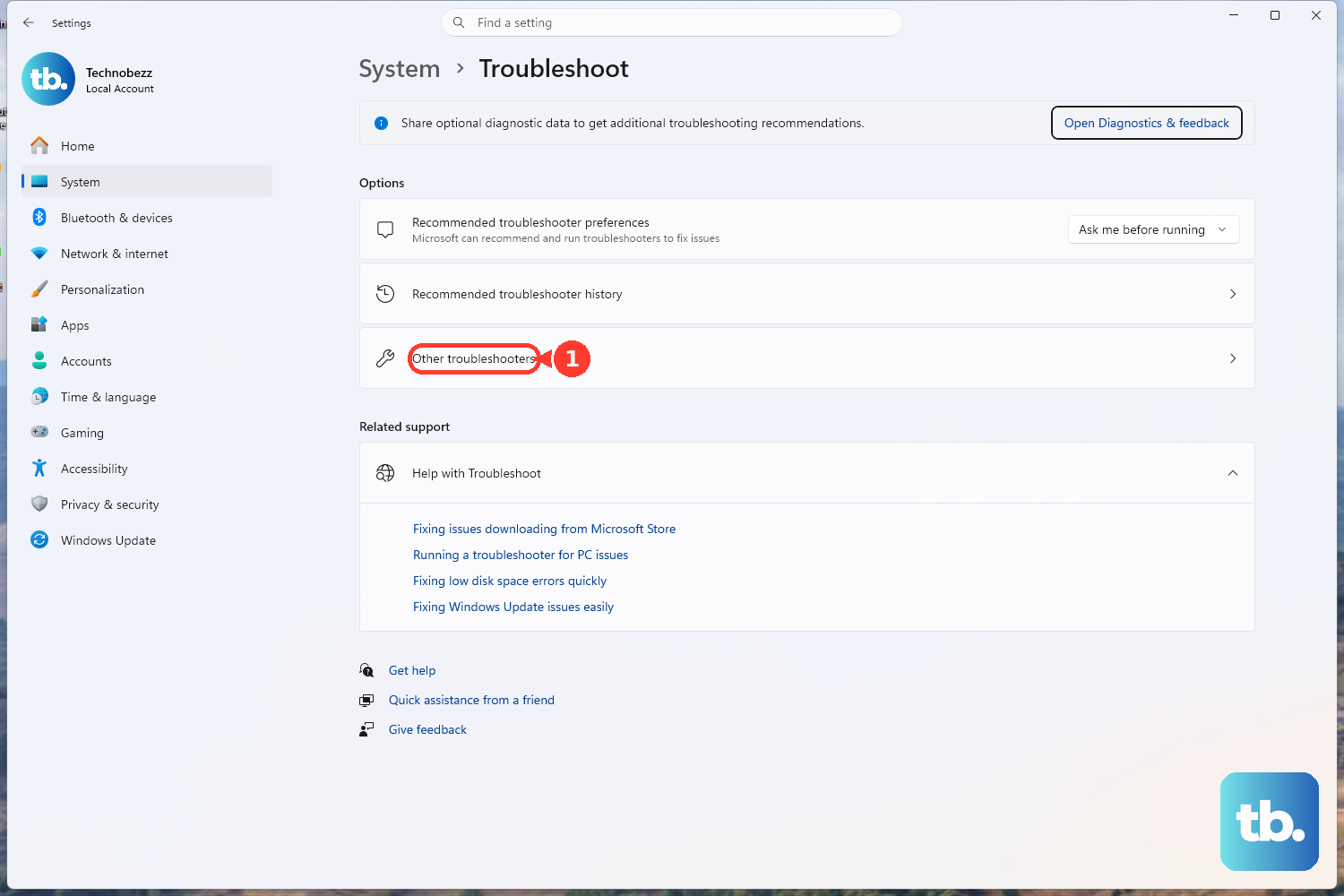
It will scan for common display problems and can sometimes automatically reset your display adapter or apply a fix.
Check and Adjust Display Settings
Head to Settings > System > Display. Click the Detect button. If Windows sees your monitor, it will appear as a second screen here.
You can then click on it and adjust the resolution and refresh rate. Try setting it to a common resolution like 1920x1080 if it's currently on something unusual.
Disable and Re-enable the Display Adapter
This refreshes your graphics driver without a full reboot. Press Windows + X and select Device Manager. Expand the "Display adapters" section.
Right-click on your graphics adapter (like Intel UHD Graphics) and select Disable device. Wait about 10 seconds, then right-click it again and choose Enable device. Your screen will flicker as it resets.
Try a Different Port or Adapter
If your Inspiron 15 has a USB-C port, it might support DisplayPort Alt Mode. Try connecting your monitor using a USB-C to HDMI adapter instead of the built-in HDMI port.
If the external display works through the adapter but not the dedicated HDMI port, the physical port on your laptop might be damaged.
Check BIOS Settings
It's rare, but a BIOS setting can affect video output. Restart your laptop and immediately start tapping the F2 key to enter the BIOS setup.
Look for any display or video-related settings. Different BIOS versions vary, but ensure nothing is set to disable external display support. If you're unsure, you can note your current settings and try loading BIOS defaults, then save and exit.