For most people moving from one Windows 11 PC to another, the best way to transfer files from PC to PC is Windows Backup with OneDrive. It brings over your main folders and selected Windows settings during new-PC setup when you sign in with the same personal Microsoft account.
The caveat is storage and privacy. If your files are larger than your available OneDrive space, or you do not want private files stored in Microsoft's cloud, use an encrypted external drive instead.
Nearby sharing is better for a few files between two nearby Windows PCs. Windows file sharing is better for bulk transfers on a trusted home network. A migration tool such as PCmover only makes sense when you need to move selected apps, settings, and profile data, not just documents.
Use Windows Backup for the normal new PC move
- 1.On the old Windows 11 consumer PC, open Start, type backup, and open Windows Backup.
- 2.Turn on the folders you want to move, including Desktop, Documents, Pictures, Videos, and Music.
- 3.Expand the settings categories and choose what should follow you, including Installed apps, Accessibility, Accounts, Wi-Fi network and passwords, Personalization, Language preferences and dictionary, and Other Windows settings.
- 4.Select Back up and wait for Windows to upload the selected data to OneDrive.
- 5.On the new PC, go through setup, sign in with the same personal Microsoft account, and choose the backed-up PC when Windows offers to restore it.
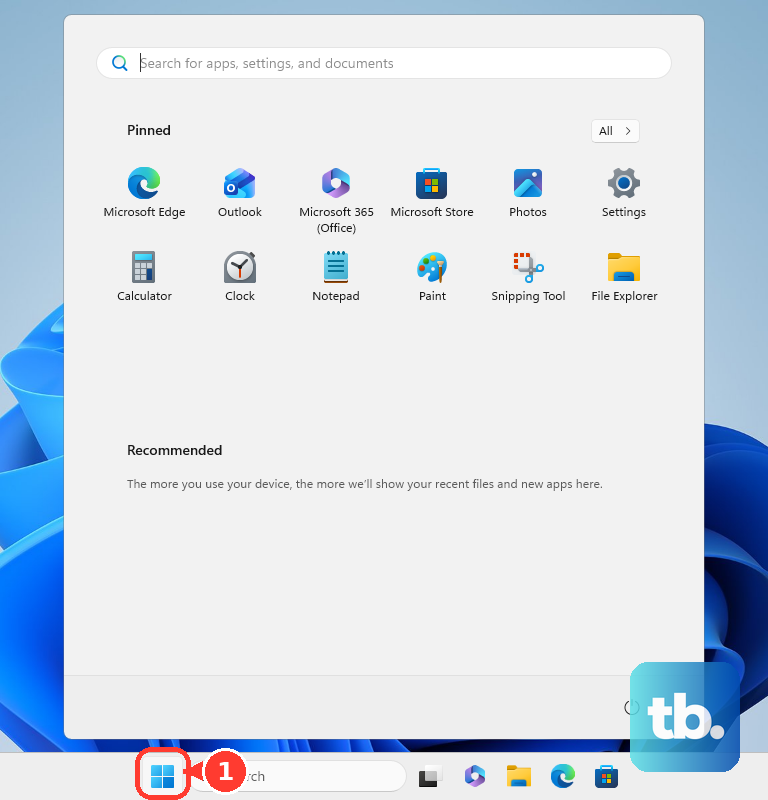
You can also find these controls from Settings > Accounts > Windows backup.
Use an external drive for large or private transfers
This fixes the storage limit and cloud privacy problem.
- 1.Connect a USB drive, SD card, external SSD, or external hard drive to the old PC.
- 2.Open File Explorer and select the files or folders you want to move.
- 3.Hold Ctrl while clicking if you need to select multiple items.
- 4.Right-click the selection, choose Show more options, open Send to, and select the external storage device.
- 5.Open the external drive and verify that the copied files are there.
- 6.Use Eject before unplugging the drive.
- 7.Connect the drive to the new Windows 11 PC, open it from File Explorer > This PC, copy the files, browse to the destination folder, and choose Paste.
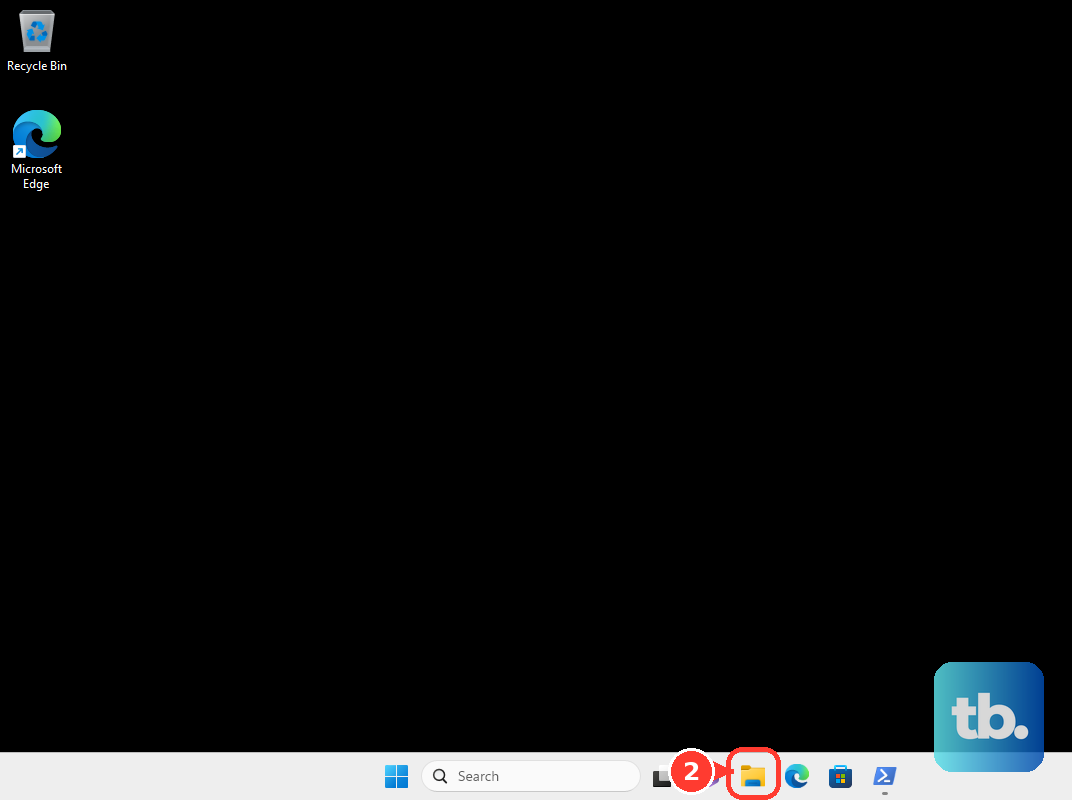
Use BitLocker or another encrypted drive before carrying sensitive files.
Use OneDrive directly for selected files
Use OneDrive directly when you want selected files without a full Windows Backup restore. Sign in at Microsoft's OneDrive transfer instructions, open the destination folder, then use Upload > Files or Upload > Folders.
On the new PC, sign in to OneDrive in a browser and choose Download, or sign in to the OneDrive sync app so the files appear in File Explorer.
This fits a controlled set of folders when the old PC is not already configured for full sync. OneDrive sync is better for ongoing use across PCs.
Install or sign in to OneDrive, open File Explorer, drag files into OneDrive in the left folder list, then sign in on the new PC with the same account.
The tradeoff is privacy and storage. Files placed in OneDrive are stored in Microsoft's cloud, and free Microsoft accounts include 5 GB of storage, while some Microsoft 365 plans include more.
Use Nearby sharing for a few nearby files
- 1.On both PCs, open Start > Settings > System > Nearby sharing.
- 2.Choose who can share with you under Nearby sharing.
- 3.If needed, use Save files I receive to > Change and choose a receiving folder.
- 4.On the sending PC, open File Explorer, select a file, and choose Share from the toolbar or right-click menu.
- 5.Select the destination PC name, then on the receiving PC choose Save & open or Save.
Nearby sharing is the cleanest Windows method for sending a small batch without setting up a cloud folder.
Use home network sharing for bulk local transfers
The most common cause of risky network transfers is turning on broad sharing outside a trusted home LAN.
Use this method only when both PCs are on the same trusted network. If the PCs are on Wi-Fi, set the network to Private before turning on sharing.
Open Start and search for Manage advanced sharing settings. Under Private networks, turn on Network discovery and File and printer sharing.
To share a folder, open File Explorer, right-click the folder, choose Give access to > Specific people, then choose the user who should have access. Avoid Everyone unless you understand who can reach that network.
From the other PC, open Network in File Explorer, or map the folder by selecting This PC in the left pane and choosing More > Map network drive on the File Explorer ribbon. If Map network drive is not on the More menu, right-click the This PC node in the folder pane and use the command there. Choose a drive letter, enter the folder path or use Browse, then select Finish.
Do not turn off password protected sharing on public or shared networks because it can expose files to people you did not intend to include.
Use Google Drive or Dropbox when that is already your cloud
- 1.For Google Drive in a browser, open drive.google.com, select New > File upload or Folder upload, then download the files from Drive on the new PC.
- 2.For Google Drive for desktop, install the app, drag files into the Google Drive folder on the old PC, then sign in on the new PC and access them from File Explorer.
- 3.To keep all My Drive files local with Google Drive for desktop, open Settings > Preferences > Folders from Drive and choose Mirror files under My Drive syncing options.
- 4.For Dropbox, install the desktop app, sign in, move or copy files into the Dropbox folder in File Explorer, then sign in on the new PC to access the same folder.
- 5.Use the official download pages for Google Drive and Dropbox.
These services make sense when your files already live there or you are moving between Windows and macOS.
Use PCmover when apps and settings matter
Choose PCmover when reinstalling and reconfiguring software would take more time than a guided migration. Skip it when the goal is simply to move personal files.
File transfers and PC migrations are not the same job. If you only need documents, photos, videos, and music, Windows Backup, OneDrive, an external drive, Nearby sharing, or network sharing is the better fit.
Laplink PCmover is built to move selected programs, files, settings, and user profile data through a wizard. You install it on both PCs, connect the machines using Wi-Fi, a Laplink High-Speed Transfer Cable, or a network cable, then choose what to transfer.
This is not a clone of every app on every PC. PCmover Home has edition limits, including logged-on local user only, C: to C: only, no domain users, and no multiple drives, and some DRM apps, antivirus or antispyware tools, hardware drivers, and incompatible programs may not move cleanly.
Use Bluetooth or email only for small files
Bluetooth applies when there is no network, no internet, and the files are small. It is slower and less reliable than Nearby sharing or USB, so treat it as a fallback.
- 1.Pair the devices first.
- 2.On Windows 11, open Start > Settings > Bluetooth & devices > Devices > Related settings > Send or receive files via Bluetooth.
- 3.Choose Send files, select the receiving device, choose Next, use Browse to select the file, then choose Next and Finish.
- 4.On the receiving PC, choose Receive files, wait for the sender, pick a save location or accept the default, then choose Finish.
Email is more limited. Use File Explorer > Share only when a desktop mail app is installed and the file is small enough for the mail provider's attachment cap.
Avoid old transfer methods
The most common cause of bad transfer advice is an old Windows tutorial that still points to removed or legacy features.
Do not plan a current Windows 11 migration around Windows Easy Transfer. Microsoft says that older transfer feature is no longer available and points users to Windows Backup and restore instead.
Do not use HomeGroup as your file sharing plan either. Microsoft changed Windows file and folder sharing and removed HomeGroup from the current path, so use Nearby sharing or normal Windows file sharing over a network.
Quick Share for Windows should not be treated as the normal answer for direct PC-to-PC transfer. Google's current Windows instructions cover Windows-to-Android and Android-to-Windows transfers, so use it only when an Android device is part of the move.
Managed work or school PCs can be different. Organization policies may block Bluetooth transfer, removable storage, network discovery, OneDrive, Google Drive, Dropbox, or other sharing surfaces, so check with the administrator when those options are missing or disabled.
Frequently Asked Questions
What is the easiest way to move files to a new Windows 11 PC?
Use Windows Backup with OneDrive if your main folders fit in available OneDrive storage and you are using a personal Microsoft account.
What is the best way to transfer a very large photo or video library?
Use an external SSD or hard drive. It avoids cloud storage limits and is better for large local libraries, especially if the drive is encrypted.
Can I transfer files without internet?
Yes. Use an external drive, Nearby sharing over local wireless, Bluetooth for small files, or Windows file sharing on a trusted home network.
Does Windows Backup move all installed programs?
No. It focuses on folders and Windows settings. Use PCmover only if moving selected applications and profile data matters.