You rest your ASUS ROG Phone 9 on a wireless charging pad, wait for the battery icon to start climbing, and nothing happens. No chime, no charging animation, just a phone sitting on a powered pad. The good news is that the ROG Phone 9 genuinely does support wireless charging, so this is almost always a placement, accessory, or software hiccup rather than a missing feature. Work through the fixes below in order, starting with the quickest and safest, and save the reset and repair steps for last.
Before you start, it helps to know what your phone expects. ASUS rates the ROG Phone 9 for wireless charging at "Output: Up to 15W, compatible with Qi 1.3 standard." That means it is a Qi device, not a MagSafe or Qi2 phone, and it charges far more slowly over a pad than it does over the bundled 65W wired adapter.
Start by confirming your pad is genuinely Qi compatible
The single most common reason wireless charging never starts is a pad the phone cannot negotiate with. Your ROG Phone 9 charges at up to 15W on the Qi 1.3 standard, so the pad needs to be a real Qi-compliant unit, not a generic or low-power knockoff. ASUS goes a step further in its guidance: "For optimal performance, we recommend to use a QC2.0 charger and a wireless charging pad that supports the EPP protocol." If you are using a no-name pad or one powered by a weak adapter, swap to a Qi-certified pad with EPP support and try again.
Get the phone centered over the pad's coil
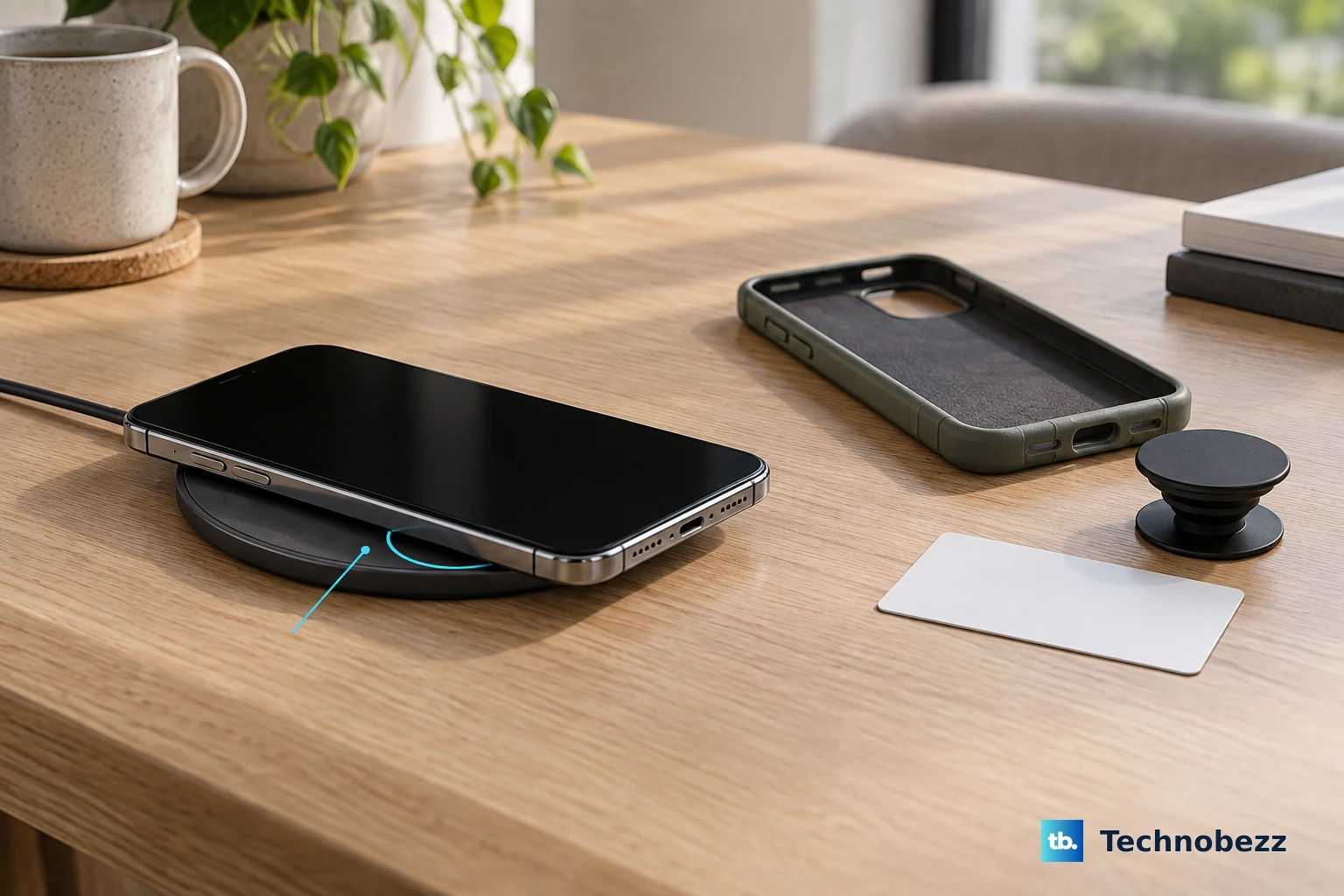
Qi charging only works when the phone's coil lines up with the pad's coil, and a few millimetres off-center is enough to stop it. Place the pad on a flat, stable surface first. Then, in the manufacturer's words: "With the phone screen facing up, align the central area of the phone with the wireless charging pad." Nudge the phone around slightly until the charging indicator appears, because the sweet spot can be smaller than you expect.
Strip off the case and anything metal between phone and pad
Wireless charging passes through plastic, but metal, magnets, and chips block or disrupt it. ASUS warns that placing "magnetic materials (e.g., metal objects), credit cards, or items with RFID chips between the phone and the charging pad ... may damage these items or affect charging efficiency," and advises: "If your protective case contains any of the mentioned items, please remove it before charging." Take off thick cases, pop-sockets, and wallet attachments, then set the bare phone on the pad to confirm whether the case was the problem.
Let a hot phone cool before it will charge
The ROG Phone 9 manages its battery temperature while charging and can pause charging when it runs too warm, which is easy to trigger after a gaming session or charging in a hot room. If the phone has been working hard, stop, remove the case, move it somewhere cool and well-ventilated, and give it several minutes to cool down before placing it back on the pad. Charging usually resumes on its own once the temperature drops.
Rule out the pad's cable, adapter, and wall outlet
A wireless pad is only as reliable as the power feeding it, so treat that chain like any wired charger. Check the pad's USB cable and adapter for damage or bent pins, clear any debris from the connectors, re-seat the cable firmly, and try a different cable, adapter, and power outlet. A loose connector or an underpowered adapter can cause charging to cut in and out or never begin, so test the pad on a known-good adapter and a separate outlet before assuming the phone is at fault.
Force restart to clear a stuck charging service
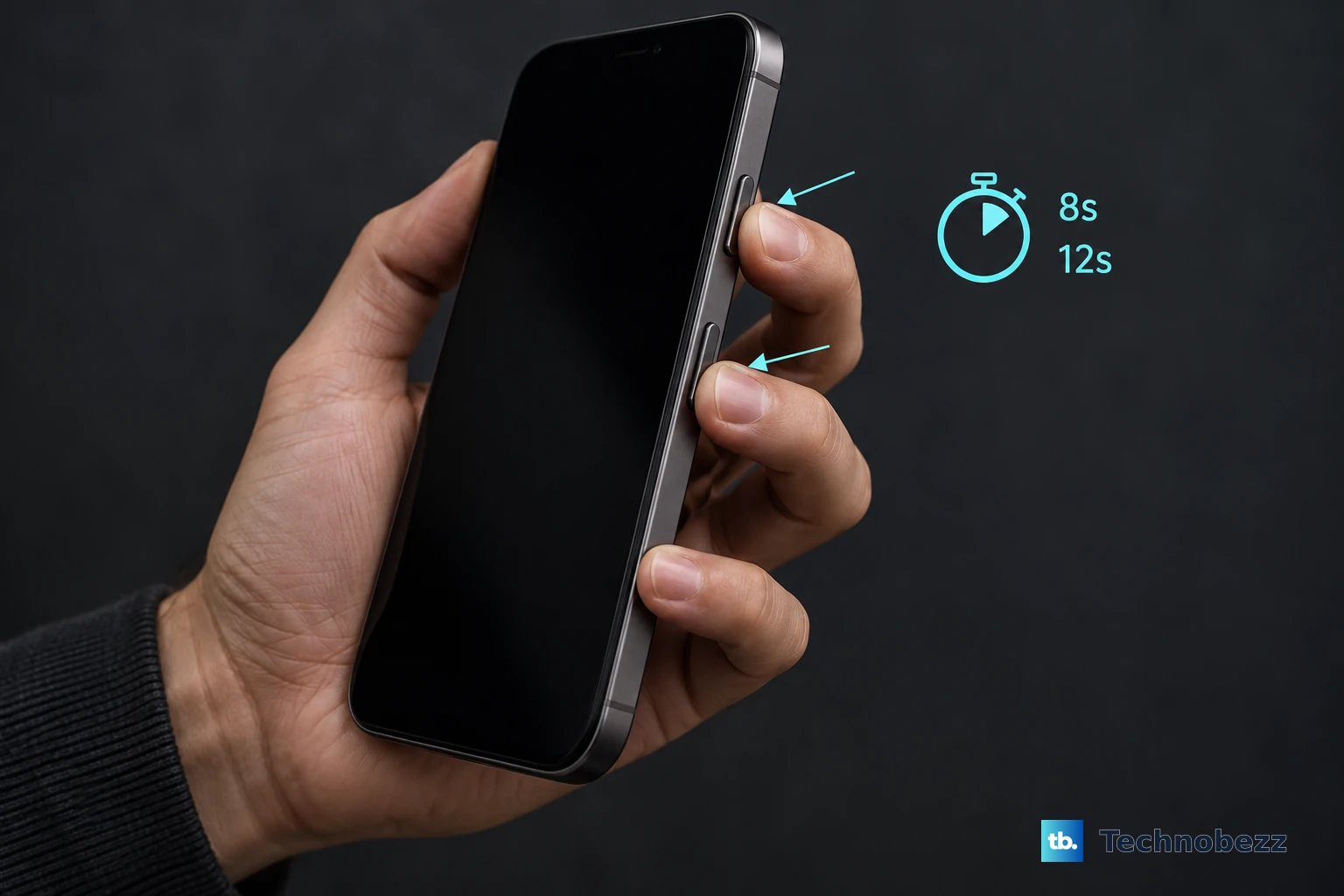
If the phone refuses to charge even on a known-good setup, a frozen system service may be to blame, and a force restart clears it without erasing anything. For the ROG Phone 9 generation, ASUS specifies the exact sequence.
- 1.Press and hold volume down and power simultaneously for at least 8 seconds.
- 2.If the phone does not restart, keep holding both buttons for 12 seconds.
Note that holding only the Power button is not the ASUS force-restart method; you must hold Volume Down and Power together. Once the phone reboots, place it back on the pad and check.
Install the latest ROG Phone 9 firmware
Charging and power-management bugs are sometimes fixed in software updates, so make sure you are running the newest build. The ROG Phone 9 has already received an official Android 16 update, and a pending update can resolve exactly this kind of issue.
- 1.Open Settings > System > System update.
- 2.Tap Check Update.
- 3.Follow the on-screen steps to download and install any available firmware.
Make sure the phone has plenty of battery before you start so the update does not interrupt partway through.
Boot into Safe Mode to catch a misbehaving app
A recently installed app can interfere with charging, and Safe Mode is the quickest way to find out because it temporarily disables third-party apps. Boot the phone into Safe Mode, then test the pad again. If wireless charging works in Safe Mode but fails when you reboot normally, a recently installed app is the culprit, so restart the phone and uninstall whatever you added around the time the problem started.
Back up, factory reset, then contact ASUS
If nothing above works, a factory reset rules out a deeper software fault before you assume the hardware has failed. This step erases everything, so back up your photos, accounts, and files first. ASUS warns: "Once the Factory Reset is completed, all data, apps, settings and personal information will be deleted from the device."
- 1.Open Settings > System > Reset options > Erase all data (factory reset).
- 2.Tap Erase all data and unlock the phone if prompted.
- 3.Confirm by tapping Erase all data again.
If wireless charging still fails after a clean reset, it is most likely a hardware fault. At that point, contact the ASUS Customer Service Center for inspection or repair.
Frequently Asked Questions
How fast does the ROG Phone 9 charge wirelessly?
ASUS rates wireless charging at "Output: Up to 15W, compatible with Qi 1.3 standard." That is much slower than wired charging, which supports 65W chargers over the bundled USB-C to USB-C cable, so use the wired adapter when you need a quick top-up.
Does the ROG Phone 9 support MagSafe or Qi2?
No. The phone is a Qi 1.3 device, not MagSafe or Qi2, and it has no built-in magnetic alignment. Because there are no magnets to snap it into place, centering the phone manually on the pad matters more.
Why does my phone stop charging partway through?
The most common cause is heat. The phone can pause charging when the battery gets too warm and resume once it cools down, so remove the case and move the phone somewhere cool and well-ventilated.
What kind of pad does ASUS recommend?
ASUS recommends "a wireless charging pad that supports the EPP protocol" powered by "a QC2.0 charger" for optimal performance. A genuine Qi-certified pad with EPP support and a capable adapter gives the most reliable results.
Is the force restart safe for my data?
Yes. Holding Volume Down and Power together for at least 8 seconds (or 12 seconds if needed) simply reboots the phone and does not erase anything. Only the factory reset deletes your data.