
A flashing white light on the AirPods Pro 2 case means the buds are in pairing mode, actively shouting for a device to connect to. That light keeps blinking until something says yes. If nothing pairs, the case stays in that state, which can feel like a loop. The good news: it's almost always a simple handshake problem, not a hardware failure.
To rule out the headphones themselves, try a quick headphone test in the browser. If every tone plays cleanly, focus on the device settings covered next.
Start with the obvious: make sure your iPhone is unlocked and within a few feet of the open case. Pairing mode requires a Bluetooth handshake, and that won't happen if the iPhone is asleep or locked. Wake it up, unlock with Face ID or passcode, and hold the open case near the phone for about ten seconds. The setup card should slide up.
One quick thing to verify before you dig deeper: check that your iPhone is signed into iCloud with Find My enabled. Go to Settings > [your name] > iCloud > Find My iPhone. AirPods rely on an iCloud handshake for first-time pairing, and a signed‑out account can silently block the setup card from appearing.
Check Bluetooth and Force Restart the iPhone
Open Settings > Bluetooth and make sure the toggle is on. If you see other devices responding, Bluetooth is working fine. But if the list looks frozen or no devices show up at all, the iPhone's Bluetooth stack might be hung. Force restart the phone: press Volume Up, then Volume Down, then hold the Side button until the Apple logo appears. Try pairing again after the restart.
Forget and Re‑pair if Already Connected
If these AirPods Pro 2 were previously paired to your iPhone, the old pairing record can interfere with a fresh connection. Go to Settings > Bluetooth, tap the blue (i) icon next to your AirPods, and choose Forget This Device. Now open the case lid near the unlocked iPhone. The pairing card should appear because the phone treats them as new.
Reset the AirPods Pro 2 Properly
If the case is still flashing white and nothing pairs, do a full reset. Put both buds in the case, leave the lid open, and press and hold the setup button on the back of the case for about 15 seconds. You'll see the status light flash amber, then flash white again. (This is the correct reset for AirPods Pro 2 the newer tap‑twice method only applies to AirPods Pro 3 and AirPods 4.)
The reset clears the internal pairing state completely. After it finishes, the case returns to pairing mode, but now from a clean slate. Bring your unlocked iPhone nearby and the connection should go through.
Check for Find My Activation Lock
If you bought the AirPods Pro 2 used, they might be locked to the previous owner's Apple ID. Apple added activation lock for AirPods in iOS 17.3, and it prevents pairing to any other Apple ID until the original owner removes them from their iCloud account. There's no workaround the previous owner has to open iCloud Find My, select the AirPods, and remove them. Until then, the case will keep flashing white and refusing to connect.
Try Pairing to a Different Apple Device
Bring the open case near another iPhone, iPad, or Mac signed into the same iCloud account. If the AirPods pair there, the problem was with your original phone, not the buds. Once paired anywhere on your iCloud, they'll sync across all your devices automatically. If they won't pair to any Apple device, the AirPods themselves may need service an Apple Store visit is the fastest option.
Pair One Bud at a Time
Sometimes a stereo handshake gets stuck. Try removing one AirPod from the case, leaving the other inside with the lid open, and bring it near your unlocked iPhone. A single bud advertising can break the logjam. Once that bud pairs, drop it back in, take out the second bud, and they'll sync as a pair on next use.
A Word on the Case Light
Make sure you're reading the light correctly. A flashing white light means pairing mode. A solid amber or green light means the case is charging, not in pairing mode. A solid white light when the lid is closed usually indicates a firmware update in progress. And a flashing amber light (without a preceding white flash) means an error that's different and may require a reset.
Still Stuck? Check for iOS Updates
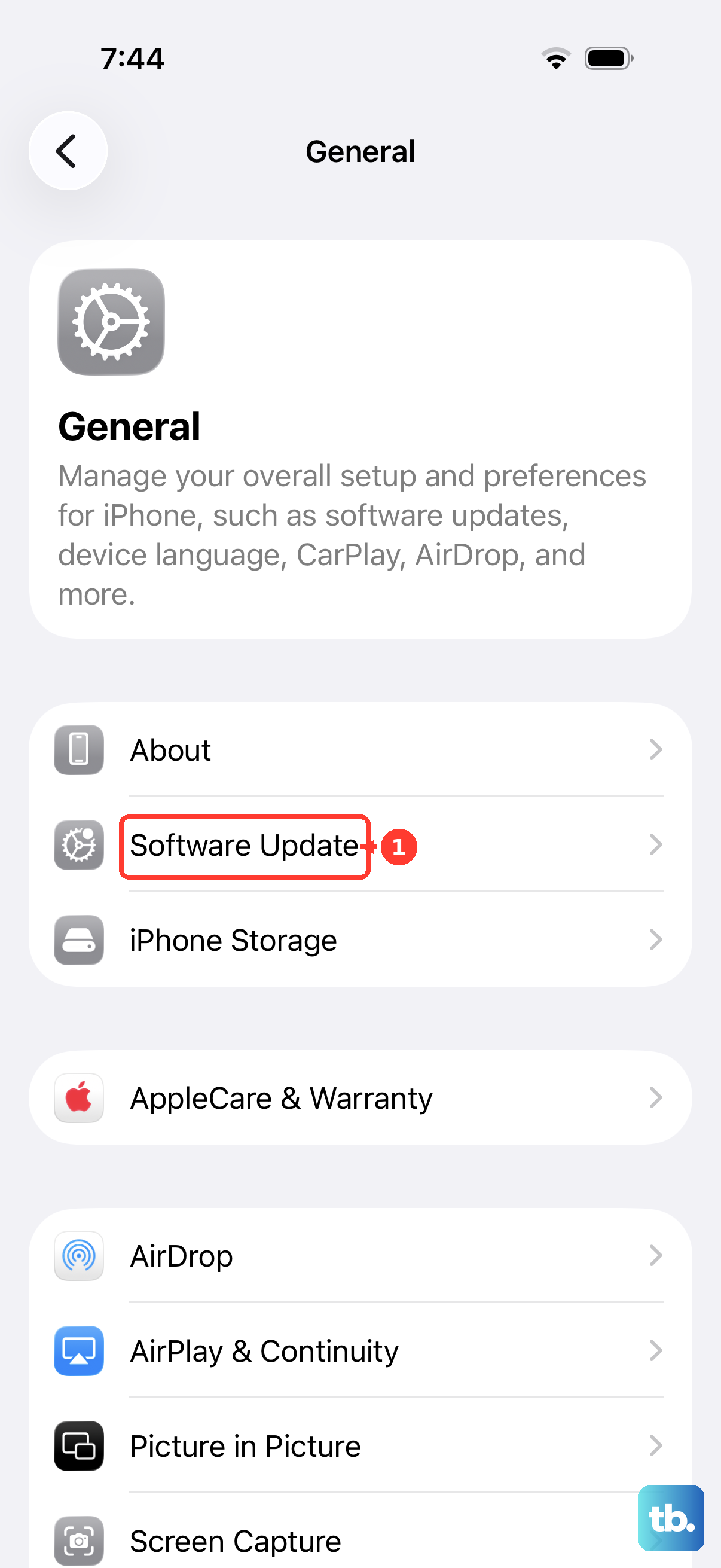
AirPods Pro 2 rely on the latest iOS for smooth pairing, especially with features like the H2 chip and Personalized Spatial Audio. Make sure your iPhone is running iOS 18.1 or later (iOS 26 or later is recommended for full feature support). Go to Settings > General > Software Update and install any available updates. A buggy Bluetooth stack in older iOS versions can cause pairing to hang.
If you've gone through every step and the case still flashes white without connecting, the hardware itself likely has an issue. Apple's support page for AirPods service is the next stop but in my experience, one of the fixes above resolves it every time.