
Your AirPods Pro 3 show up in Bluetooth but won't actually connect. The case light blinks, your iPhone acts confused, and nothing works. This is fixable without an Apple Store appointment, but you need the right reset method because Apple changed it completely for the Pro 3.
Start with a free left and right audio test that checks left and right channels, stereo order, bass, and treble. Two minutes there tells you whether the hardware needs attention at all.
The fastest fix is the new double-tap reset. The 15-second button hold from older AirPods does nothing on the AirPods Pro 3. Apple completely changed the process for this generation.
Start by closing the lid and waiting 30 full seconds. Open the lid while you're next to your unlocked iPhone. While the status light is on, double-tap the front of the case.
When the light flashes white, double-tap again. When it flashes faster, do a third double-tap. The light will flash amber and then white, which confirms the reset worked. Try pairing after this.
Make Sure Your iPhone Is on iOS 26
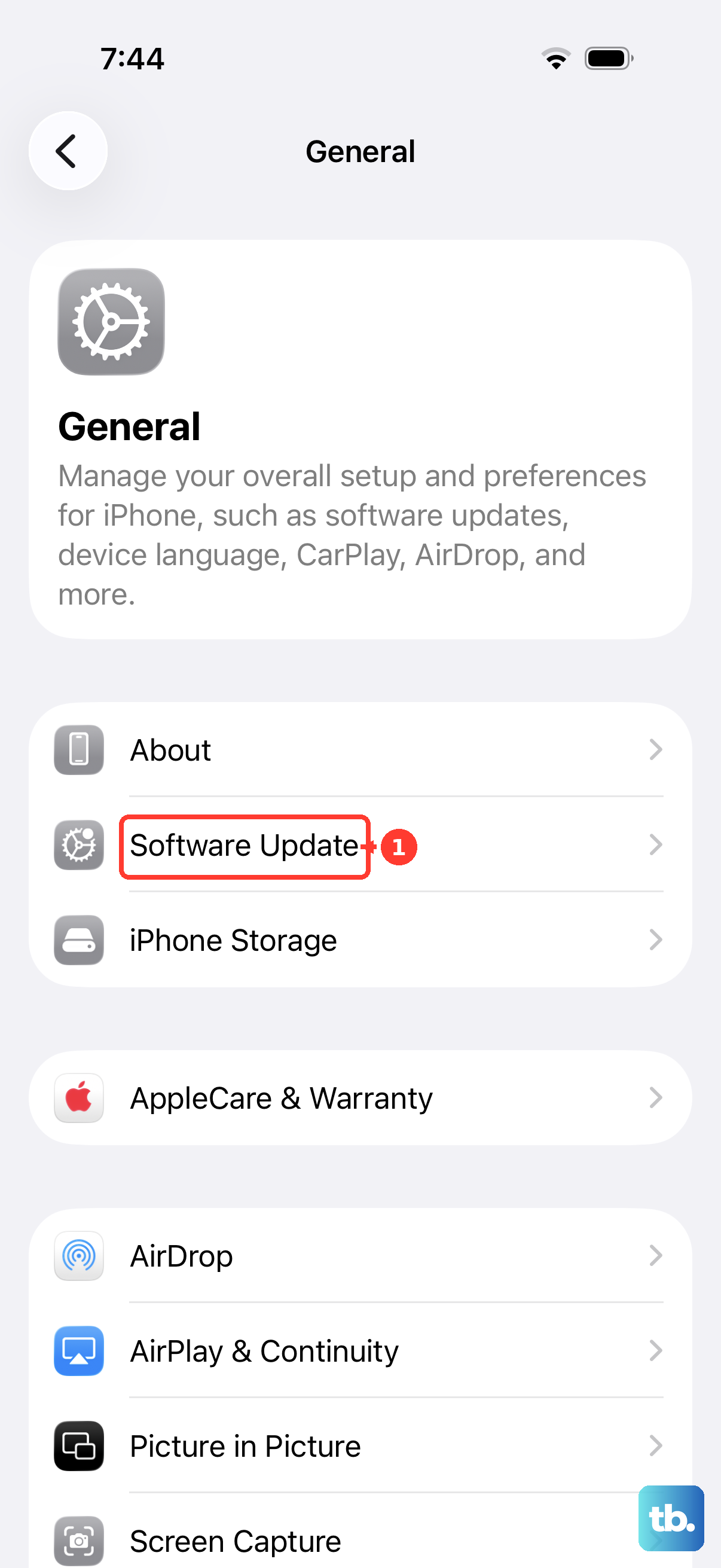
The tap-twice case reset, heart rate monitoring, and Live Translation all need iOS 26. If your iPhone is running anything older, pairing can fail or feel buggy. Open Settings > General > Software Update and install the latest version available. This is a hard requirement, not a suggestion.
Charge the Case (Yes, Really)
Low battery is a common cause of pairing failures on the AirPods Pro 3. The case needs a minimum charge to complete the Bluetooth handshake. Plug it into power for at least 5 minutes before trying again.
The case supports USB-C, MagSafe, Qi wireless pads, and the Apple Watch charger. Any of those work. The status light tells you the charge level: green means good, amber means low, flashing amber means critically low.
Force Restart Your iPhone
Sometimes the issue lives on the iPhone side, not the AirPods side. A quick force restart clears up Bluetooth driver issues and takes about 15 seconds. Press and release Volume Up, press and release Volume Down, then press and hold the Side button until the Apple logo appears.
Once the iPhone reboots, open the AirPods case next to it and check for the pairing card. If it pops up, you're done.
Forget the AirPods and Re-Pair
If your AirPods Pro 3 are already listed in Bluetooth settings but won't connect, the saved pairing record is likely corrupted. Open Settings > Bluetooth, tap the (i) icon next to your AirPods, and select Forget This Device. Confirm the action.
Now perform the double-tap reset on the case. Bring the open case near your unlocked iPhone. The setup card should appear automatically within a few seconds.
Check for the Find My Lock
If you bought these used and they refuse to pair, they might be locked to the previous owner's Apple ID. Apple's Activation Lock applies to AirPods just like it does to iPhones. The original owner has to remove the AirPods from their iCloud Find My account before anyone else can pair them. There is no workaround for this.
If you bought them new from Apple and still see this issue, contact Apple Support with your receipt. They can sometimes unlock them for you with proof of purchase.
Clean the Charging Contacts
Dirt on the charging contacts can prevent the case from detecting the AirPods, which breaks the entire pairing process. Pull both AirPods out and inspect the metal pins inside the charging wells. Use a dry, soft-bristle brush like a clean toothbrush to gently clear any debris.
Avoid using alcohol or liquids on the contacts. Apple advises against it for AirPods Pro 3. If the contacts look corroded or pitted, that's hardware damage and needs service.
Reset Network Settings on Your iPhone
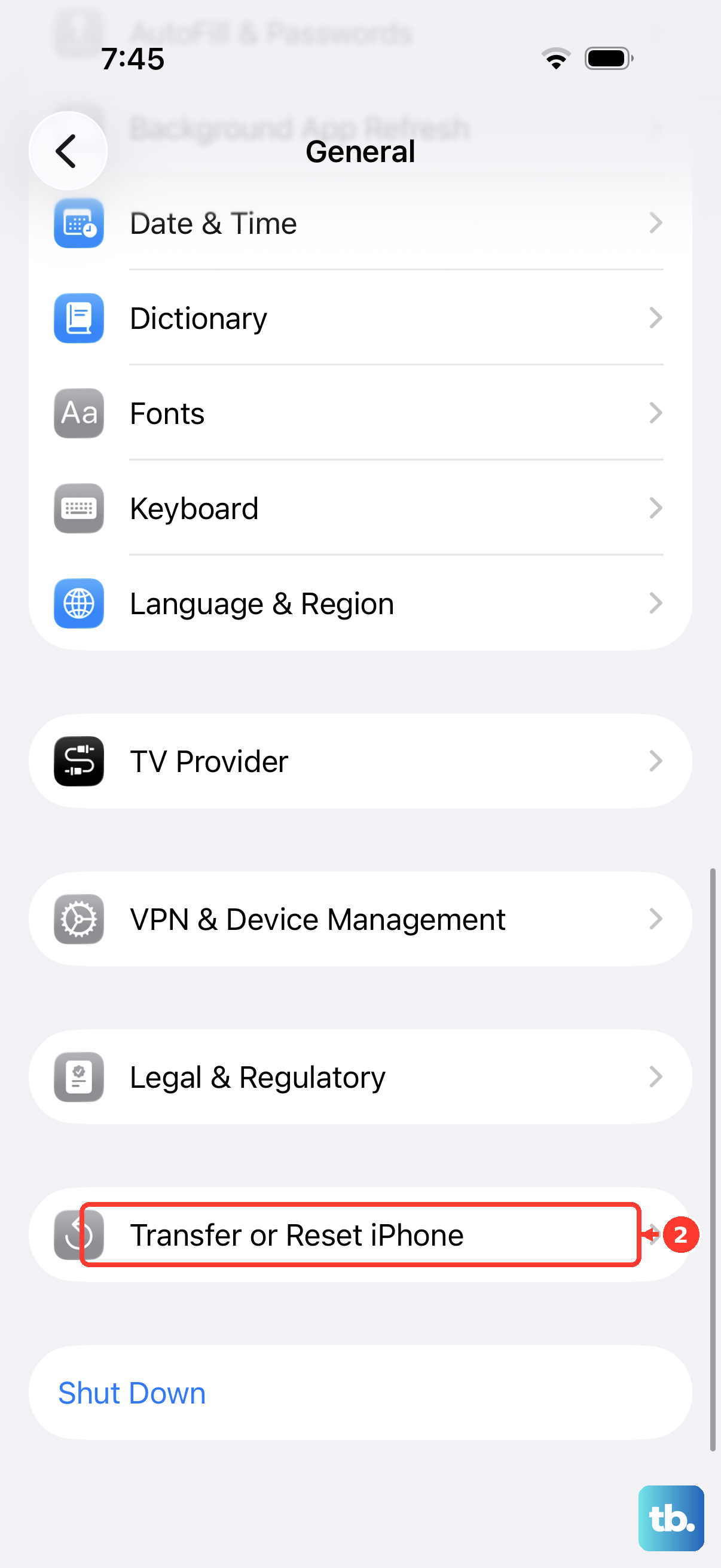
If nothing else has worked, resetting your iPhone's network settings clears out deep Bluetooth cache corruption. Open Settings > General > Transfer or Reset iPhone > Reset > Reset Network Settings. This wipes all saved Wi-Fi passwords, VPN configurations, and Bluetooth pairings.
You'll need to reconnect to Wi-Fi networks manually afterward. Once the reset finishes, try pairing the AirPods Pro 3 from scratch.
Try a Different Apple Device
This is the fastest diagnostic test you can do. Try pairing the AirPods Pro 3 with another iPhone, iPad, or Mac. If they pair and work fine, the issue is with your original iPhone. If they refuse to pair with any device, the AirPods themselves likely have a hardware problem.
Restore the Firmware Using a Mac
This is the deepest fix available and only worth doing if everything above failed. There is no way to manually restore AirPods firmware with a Mac (Apple Configurator does not support AirPods). Instead, put both AirPods in the case, close the lid, plug the case into power with the USB-C cable, and keep it within Bluetooth range of your Wi-Fi-connected iPhone for at least 30 minutes so the firmware updates automatically over the air.
The whole process takes about 10 minutes. After it finishes, the AirPods come up in a factory state and you can pair them to your iPhone normally. If pairing still fails after this, it's time for Apple to take a look at them.