
When Bluetooth stops working on your Acer Nitro V 15, your wireless gaming headset, mouse, or controller suddenly becomes useless. The connection might drop mid-game, a device won't pair, or the Bluetooth icon might vanish completely. Here's how to get it all working again.
Toggle Bluetooth Off and On
Click the network or action center icon in your taskbar and make sure the Bluetooth tile is turned on. If it's already on, click it off, wait a few seconds, and click it back on. This simple reset of the Bluetooth radio can clear up a lot of temporary connection hiccups.
Restart Your Nitro V 15
A full system restart is a reliable first step. It reloads all the drivers and services, including the Bluetooth stack, which can get stuck after the laptop wakes from sleep. I'd start with this one, especially if you haven't rebooted in a while.
Forget and Re-Pair Your Device
Go to Settings > Bluetooth & devices. Find the problematic headset or controller in the list and click the three dots next to it, then select Remove device. Put your Bluetooth device back into pairing mode, then click Add device on your laptop to set it up fresh. Corrupted pairing data is a very common culprit.
Run the Windows Bluetooth Troubleshooter
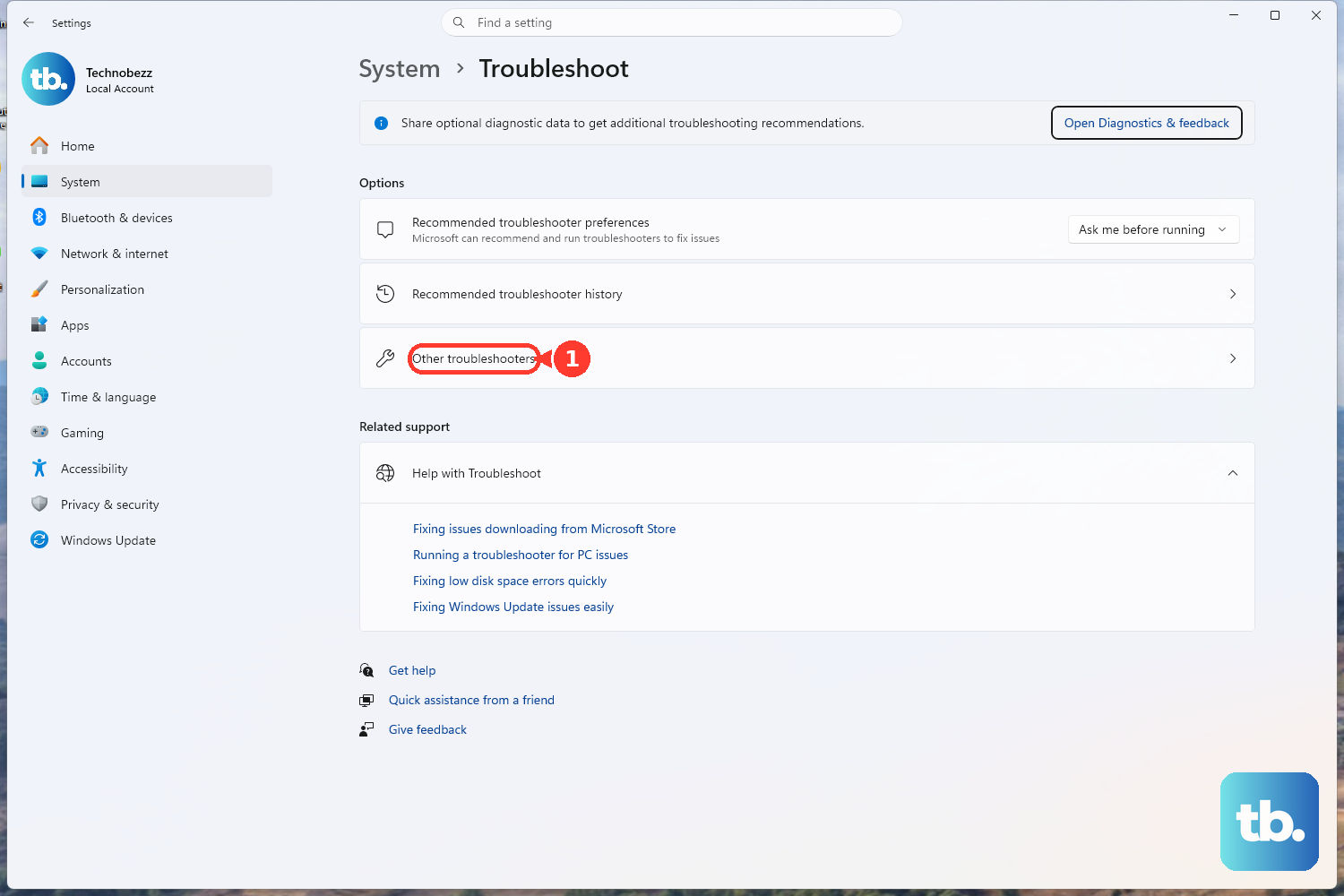
Windows has a built-in tool for this. Go to Settings > System > Troubleshoot > Other troubleshooters. Find the Bluetooth troubleshooter in the list and click Run. It will scan for common configuration problems and often apply a fix automatically.
Update Your Bluetooth Drivers
Outdated or corrupted drivers are a frequent cause. Press the Windows key + X and select Device Manager. Expand the Bluetooth section, right-click on your Bluetooth adapter (it might be listed as Intel or Realtek), and choose Update driver > Search automatically for drivers. Let Windows look for the latest version.
Get Drivers Directly from Acer
If the automatic search doesn't find anything, you should check Acer's support site. Visit the Acer driver page for the Nitro V 15, enter your serial number, and download the latest Bluetooth driver package. Installing the manufacturer's driver can resolve issues that generic Windows drivers don't.
Restart the Bluetooth Support Service
Press Windows key + R, type services.msc, and hit Enter. In the Services window, scroll down and find Bluetooth Support Service. Right-click on it and select Restart. Also, double-check that its Startup type is set to Automatic so it runs every time you boot up.
Check for Wireless Interference
The Nitro V 15's WiFi and Bluetooth often share an internal card, and they both use the 2.4GHz band. If you're on a crowded 2.4GHz WiFi network, try switching your laptop to the 5GHz band. Also, keep USB 3.0 devices like external drives away from your Bluetooth mouse or dongle, as they can cause signal interference.
Install All Windows Updates
Go to Settings > Windows Update and click Check for updates. Install any available feature or quality updates. Microsoft regularly patches Bluetooth connectivity and audio issues through Windows Update, so this is an important step.
Reinstall the Bluetooth Adapter
If nothing else works, a clean driver reinstall might be necessary. Go back to Device Manager, right-click your Bluetooth adapter under the Bluetooth section, and select Uninstall device. Check the box that says "Attempt to remove the driver for this device" if it appears. Restart your laptop, and Windows will automatically reinstall the driver on startup.