When an Android app freezes, crashes to the home screen, or shows a "keeps stopping" message, it usually points to one of a few fixable causes: a corrupted cache, low storage, an outdated app, missing permissions, or the system killing the app to free up memory. Most cases clear up in under a minute.
The fixes below are ordered from fastest and safest to most involved. Start at the top and stop as soon as the app behaves normally. Menu names vary slightly between One UI, Pixel, and other Android skins, so treat the paths as a guide and look for the closest matching option.
Common Reasons Apps Close
Apps that depend on the internet, such as social, streaming, and email apps, often crash when Wi-Fi or mobile data drops out or runs slow. A weak connection alone can force an unstable close.
Outdated app code is another frequent cause, since older versions carry bugs that developers have already patched. Low storage and overloaded memory also play a role, because Android closes background apps to keep the system stable when resources run short.
Restart the App
The quickest fix is closing the app completely and reopening it. Open the Recent apps view (swipe up and hold, or tap the recents button) and swipe the app away, then launch it again.
This clears a stuck session and any temporary glitch from the current run. If the crash returns immediately, move on to a full force stop.
Force Stop the App
A force stop ends every process the app is running and removes it from active memory, which is more thorough than swiping it from recents.
Open Settings > Apps.
Select the app that keeps closing.
Tap Force stop, then confirm.
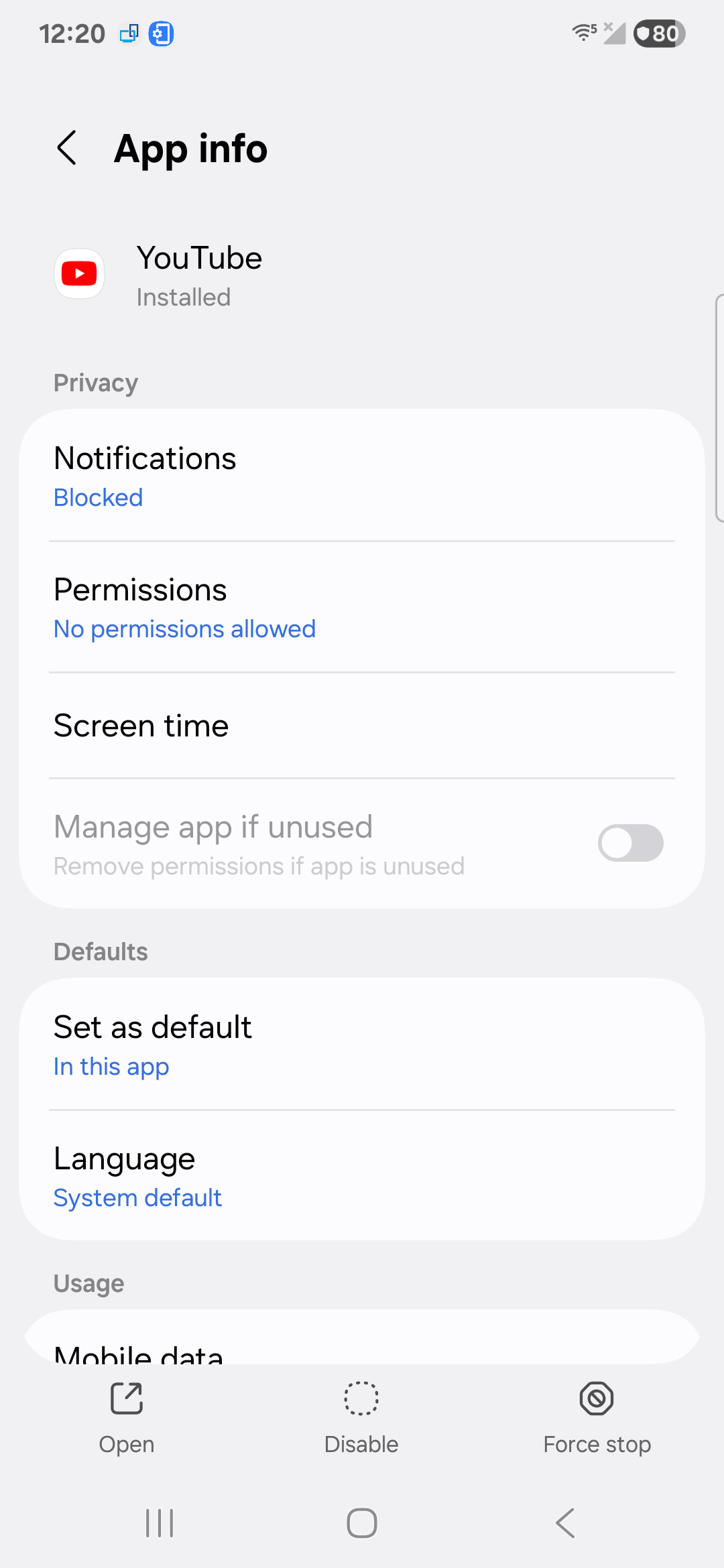
Reopen the app.
If the app runs normally afterward but starts crashing again later, continue with the cache and update steps below.
Restart Your Phone
Restarting clears temporary system files, frees up memory, and resets background services that may be interfering with the app. It is one of the most reliable fixes for vague, hard to pin down crashes.
Press and hold the power button (or the power and volume up buttons together on many newer phones), then tap Restart. If your phone has no restart option, power it off, wait a few seconds, and turn it back on.
Check Your Internet Connection
Apps that load live data crash when the connection is unstable. Confirm Wi-Fi or mobile data is actually working by opening a website or another online app.
If the connection is the problem, toggle Airplane mode on and off, switch between Wi-Fi and mobile data, or restart your router. A stable connection often stops crashes in streaming, messaging, and email apps with no other changes.
Update the App
Running an outdated version is one of the most common reasons a single app keeps closing. Updates ship the bug fixes that resolve known crashes.
Open the Google Play Store.
Tap your profile icon in the top right.
Tap Manage apps & device.
Under Updates available, tap See details.
Tap Update next to the app, or tap Update all.
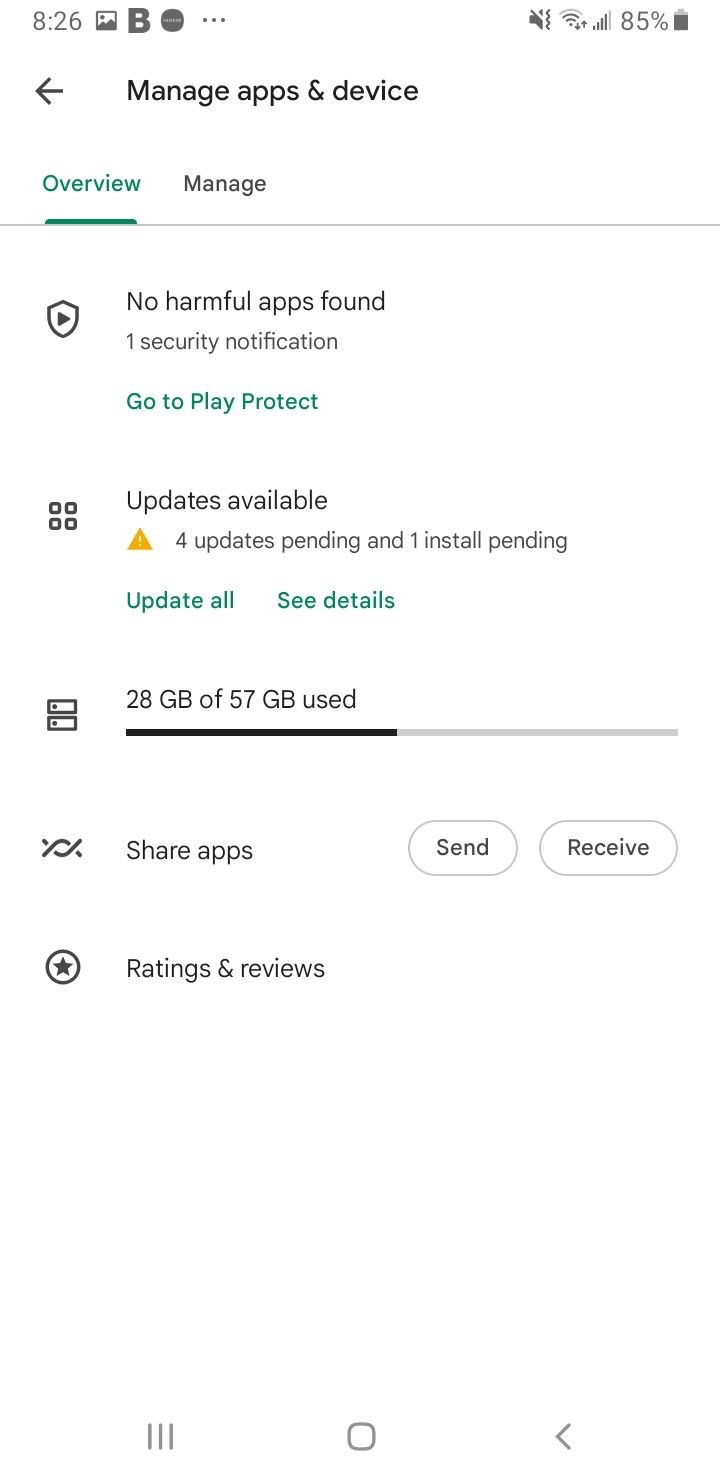
If no update is listed, your app is already current and the cause lies elsewhere.
Clear the App Cache
Cache files speed apps up, but when they get corrupted they cause freezes and crashes. Clearing the cache gives the app a clean start without deleting your account or settings.
Start in Settings > Apps.
Select the problem app.
Tap Storage (or Storage & cache).
Tap Clear cache.
Reopen the app.
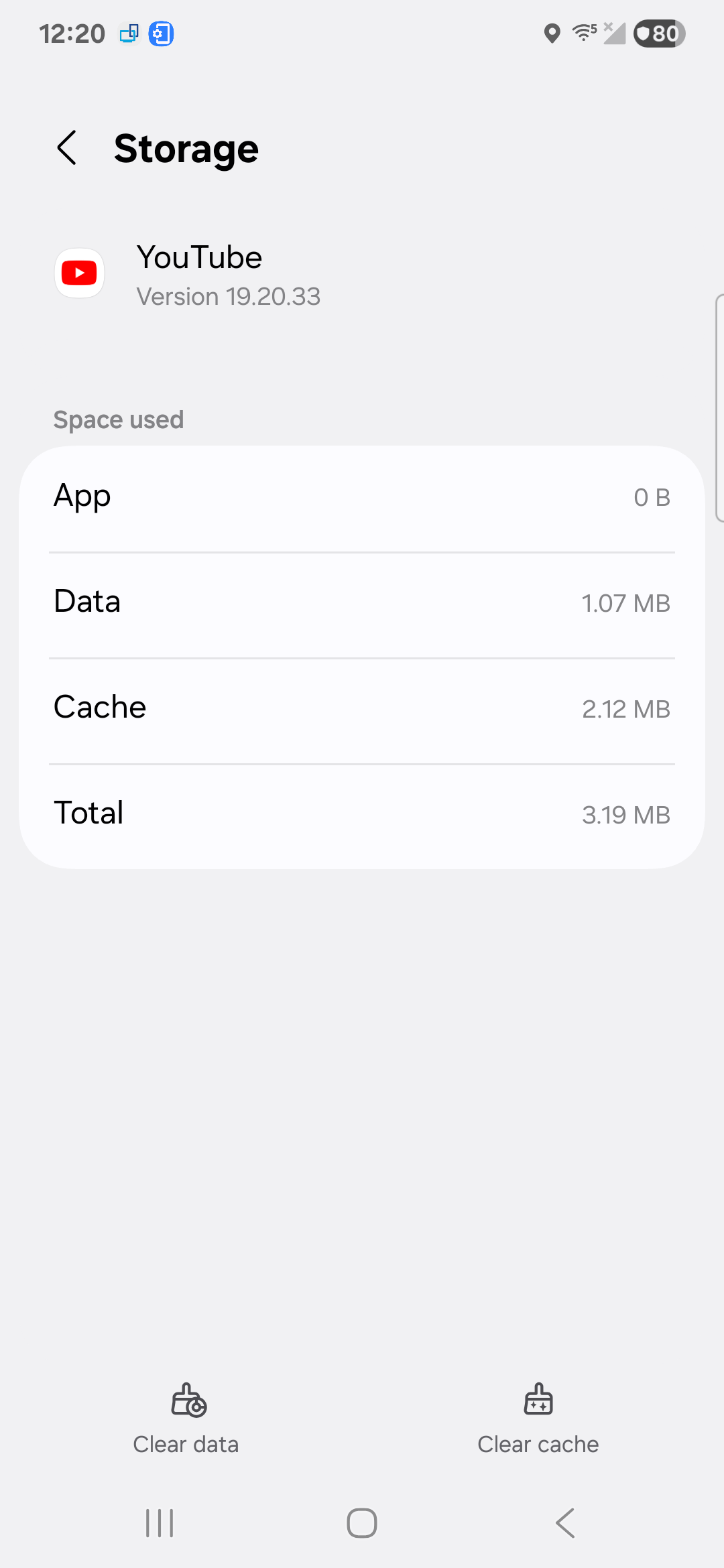
This is safe to do anytime and is often the single fix that resolves a persistently crashing app.
Clear App Data
If clearing the cache does not help, clearing data resets the app to its freshly installed state. This removes corrupted settings that survive a cache clear.
Open Settings > Apps > the problem app.
Tap Storage (or Storage & cache).
Tap Clear data (or Clear storage), then confirm.
Clearing data signs you out and erases in app preferences and any locally saved content, so you will need to log back in. Files stored in your account or the cloud are not affected.
Free Up Storage Space
When storage runs low, apps cannot write the temporary files they need and start closing on their own. Aim to keep a few gigabytes free.
Uninstall apps you no longer use.
Delete old photos, videos, and downloads, or back them up to the cloud.
Clear cached files across apps from Settings > Storage.
On many phones you can sort apps by size to find the heaviest offenders under Settings > Apps > More options > Sort by > Size.
Check App Permissions
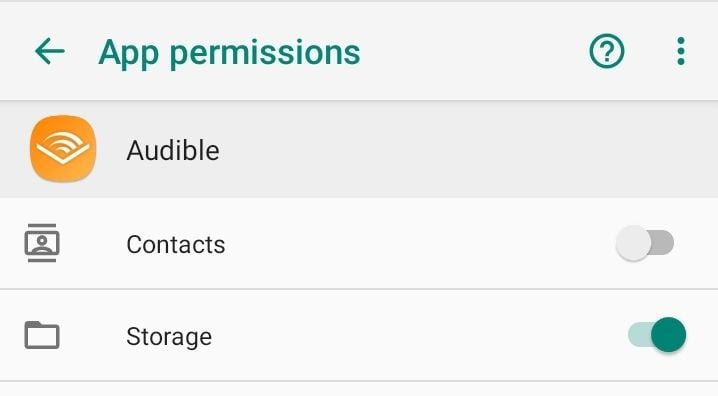
Some apps crash when a permission they rely on, such as storage, camera, or location, is turned off. Granting the needed permissions can stop the closures.
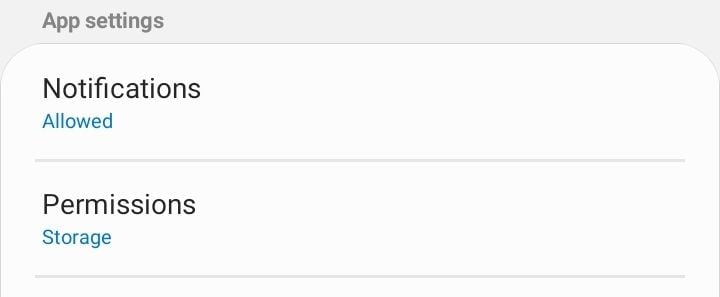
Open Settings > Apps > the problem app.
Tap Permissions.
Enable any required permission that is currently denied.
Reinstall the App
If updating and clearing data do not work, a full reinstall replaces every app file and clears out a damaged installation. This is one of the most effective fixes for a single stubborn app.
Press and hold the app icon, then tap Uninstall (or remove it from Settings > Apps).
Open the Google Play Store and search for the app.
Tap Install to download a fresh copy.
Reinstalling pulls the latest stable version and rebuilds the app from scratch.
Update Android
System updates include performance fixes and compatibility patches that often resolve crashes affecting newer apps. An outdated OS can leave apps unable to run correctly.
Open Settings > Software update (or System > System update on some phones).
Tap Download and install.
Install any available update and let the phone restart.
Keep your phone on Wi-Fi and charged while it updates.
Clear Google Play Services
Google Play Services powers logins, notifications, and background features for many apps, and a corrupted cache here can crash apps that depend on it.
Open Settings > Apps.
Tap See all apps and select Google Play Services.
Tap Storage & cache > Clear cache.
Restart your phone.
Try clearing the cache first. If problems continue, you can tap Manage space or Clear storage, though that resets Play Services data.
Turn Off Battery Optimization for the App
Aggressive battery management can close apps in the background without warning, which feels like a random crash. Setting the app to unrestricted keeps it running.
Open Settings > Apps > the problem app.
Tap Battery.
Select Unrestricted (labeled Don't optimize on some phones).
Also check whether Battery Saver is on, since it can force apps closed. Set unrestricted for only the few apps you truly need running, as exempting too many drains the battery.
Test in Safe Mode
Safe Mode boots Android with only built in apps, which helps you tell whether a third party app is the cause. If crashes stop in Safe Mode, a downloaded app is to blame.
Press and hold the power button, then touch and hold Power off until Reboot to safe mode appears, and tap it. Use your phone normally, and if everything behaves, restart to exit Safe Mode and uninstall apps you added around the time the trouble started, beginning with the most recent.
Wipe the Cache Partition
On supported phones, wiping the system cache partition from recovery mode clears system level temporary files without touching your personal data. This option exists mainly on Samsung Galaxy devices.
Power off, then hold the volume up and power buttons (newer Galaxy models may need a USB connection to a computer) until the recovery menu appears, use the volume keys to highlight Wipe cache partition, and confirm with the power key. Pixel phones and many newer devices no longer include this option, so use the per app cache and Play Services steps above instead.
Check the Background Process Limit
If you previously enabled Developer options and changed the background process limit, a strict setting can cut off apps that need to run in the background and make them appear to crash.
Open Settings > Developer options > Background process limit and set it back to Standard limit. If Developer options is not visible, you never enabled it and can skip this step. Leaving the limit at standard is best for most users.
Factory Reset as a Last Resort
If nothing else works and crashes affect many apps, a factory reset wipes the phone and returns it to its original software state. This erases everything, so back up your data first.
- 1.Back up photos, contacts, and files to the cloud or a computer
- 2.Open Settings > General management > Reset (or System > Reset options)
- 3.Tap Factory data reset and follow the prompts
Reserve this for stubborn, system wide problems after every other fix has failed.
Quick Reference
| Symptom | Most likely cause | Fastest fix |
|---|---|---|
| One app crashes, others are fine | Corrupted app cache or data | Clear cache, then clear data |
| App closes right after opening | Outdated or broken install | Update or reinstall the app |
| Many apps crash or freeze | Low storage or memory | Free up storage, restart phone |
| App closes in the background | Battery optimization | Set the app to unrestricted |
| Streaming or chat app crashes | Unstable connection | Fix Wi-Fi or mobile data |
| Crashes started after an update | App and OS version mismatch | Update Android, then the app |
Frequently Asked Questions
Why does one app keep crashing but others work fine?
A single crashing app usually means a problem inside that app, such as a corrupted cache, an outdated version, or a denied permission, rather than a system wide fault. Clear its cache, update or reinstall it, and check its permissions.
Does clearing app data delete my files?
Clearing data resets the app and removes its in app settings and locally saved content, and it signs you out. Anything stored in your account or the cloud stays safe, but you will need to log back in. Clearing only the cache does not affect your data.
Will a factory reset fix apps that keep closing?
A factory reset often resolves deep, system wide crashes by returning the software to its original state, but it erases everything on the phone. Treat it as a last resort and only after backing up your data and trying every other fix.
Why do apps close after an Android update?
New system versions can be incompatible with older app versions until the developer updates them. Update your apps in the Play Store, clear the affected app's cache, and clear the Google Play Services cache if crashes continue.
Why does my phone close apps in the background on its own?
Battery optimization and Battery Saver can shut down background apps to save power, which looks like a crash when you return to them. Set the affected app to unrestricted under its Battery settings and check that Battery Saver is not forcing it closed.