The Google Play Store throws a "No connection" or "Error retrieving information from server" message when it cannot reach Google's servers, even when the rest of your phone is online. It is one of the most common Play Store errors, and most of the time the network is not actually the problem.
The fixes below are ordered fastest first, so start at the top and work down. Each step lists the exact menu path for current Android, with separate callouts for Samsung One UI and Pixel where the menus differ.
Read more - Why Your Android Phone Won't Download Apps and How to Fix It
Quick Fix Summary
Use this table to jump straight to the fix that matches what you are seeing. The top rows solve most "No connection" errors in under a minute.
| Symptom | Likely cause | Fix to try |
|---|---|---|
| Error appears the moment you open the Play Store | Network handshake stalled | Toggle airplane mode, then switch Wi-Fi and data |
| Works on mobile data but not Wi-Fi | Wi-Fi network blocks Google ports | Switch networks or change DNS |
| Search loads but downloads stall | Stale Play Store cache | Clear Play Store cache, then data |
| Random errors after a system or app update | Corrupted Play services data | Clear Google Play services storage |
| Error only on Wi-Fi at work, school, or a hotel | Firewall blocking port 5228 | Use mobile data or a different network |
| Nothing connects to Google at all | Wrong date and time | Set date and time automatically |
1. Toggle Airplane Mode
The quickest fix is forcing your phone to rebuild its network connection. Open the quick settings panel, tap Airplane mode on, wait about ten seconds, then tap it off again.
This drops and re-establishes every radio on the device, which clears a stalled handshake between the Play Store and Google's servers. Reopen the Play Store and check whether the error is gone.
2. Switch Between Wi-Fi and Mobile Data
If the Play Store fails on Wi-Fi, switch to mobile data and try again. The store needs Google's connectivity ports open, and some Wi-Fi networks at offices, schools, and hotels block TCP and UDP ports 5228 to 5230, which the Play Store relies on.
Pull down the quick settings panel, turn Wi-Fi off, and turn mobile data on. If the store connects instantly on mobile data, the Wi-Fi network is the culprit, and you can fix it with the DNS change in step 13 or by using a different network.
3. Restart Your Device
A full restart clears temporary glitches and refreshes every network connection in one go. Press and hold the power button, then tap Restart, or tap Power off and turn the phone back on after a few seconds.
On many phones the power button now opens an assistant, so you may need to hold power and volume up together to reach the power menu. Restarting fixes a surprising number of "No connection" errors that survive a simple app close.
4. Confirm Your Internet Actually Works
Before changing any settings, make sure the connection itself is healthy. Open a browser and load any website, or stream a short video, to confirm data is flowing.
If pages also fail to load, the problem is your network and not the Play Store, so reconnect to Wi-Fi or move to an area with a stronger signal. A weak or captive Wi-Fi network that needs a sign-in page will also block the Play Store until you complete the login.
5. Force Stop the Play Store
Force stopping ends the app completely so it relaunches with a clean session. Go to Settings > Apps > Google Play Store and tap Force stop, then confirm.
On Samsung One UI the path is Settings > Apps > Google Play Store > Force stop. Reopen the store afterward and let it reconnect from scratch.
6. Clear the Play Store Cache
A corrupted cache is one of the most common causes of this error, and clearing it is safe because it only removes temporary files. Go to Settings > Apps > Google Play Store > Storage and cache, then tap Clear cache.
On Samsung the path is Settings > Apps > Google Play Store > Storage > Clear cache. Reopen the store and check the connection before moving on.
7. Clear the Play Store Data
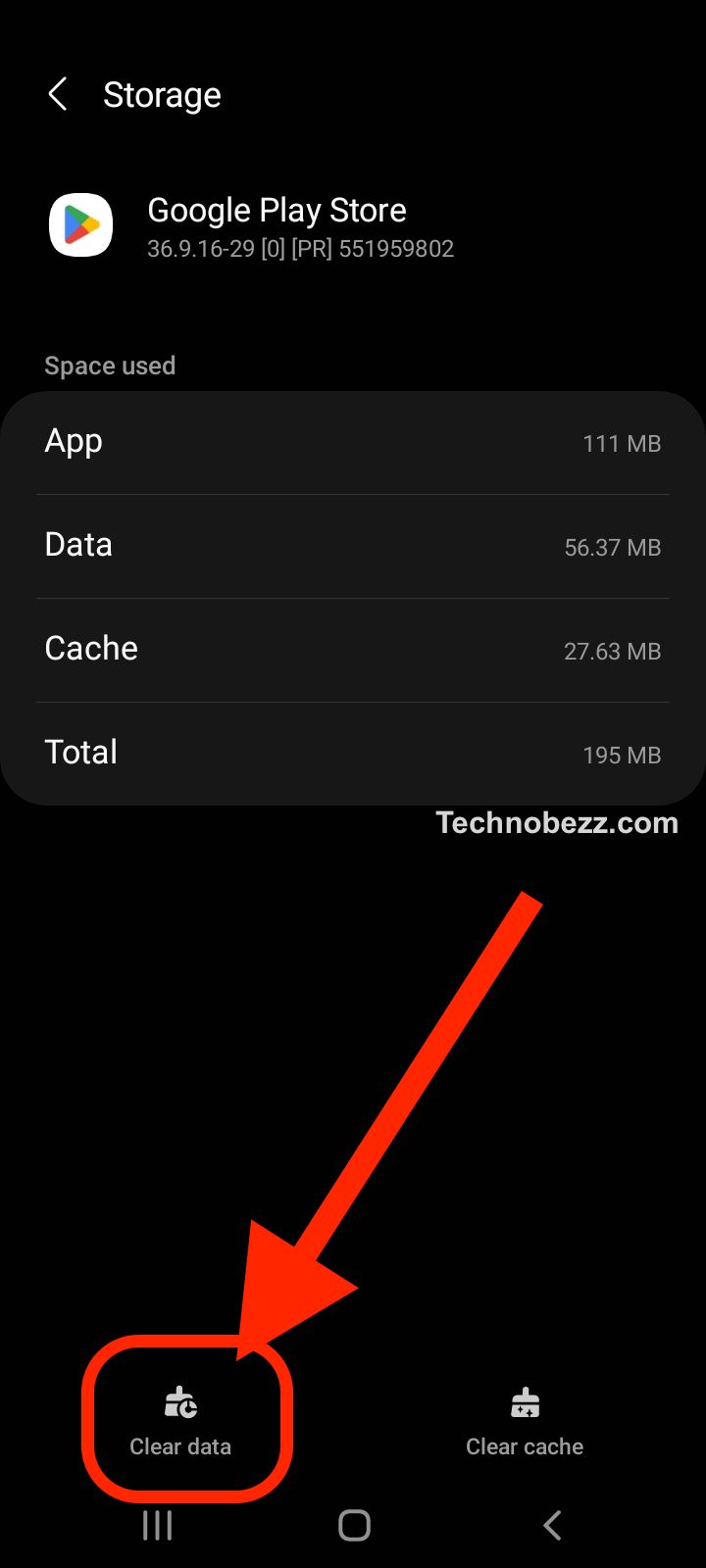
If clearing the cache did not help, clear the app's data to reset it to a fresh state. On the same Storage screen, tap Clear storage or Clear data, then confirm.
Clearing Play Store data does not delete any apps you have installed. It only resets the store's own settings and sign-in, so you may need to accept the terms of service again the next time you open it.
8. Clear Google Play Services Cache and Data
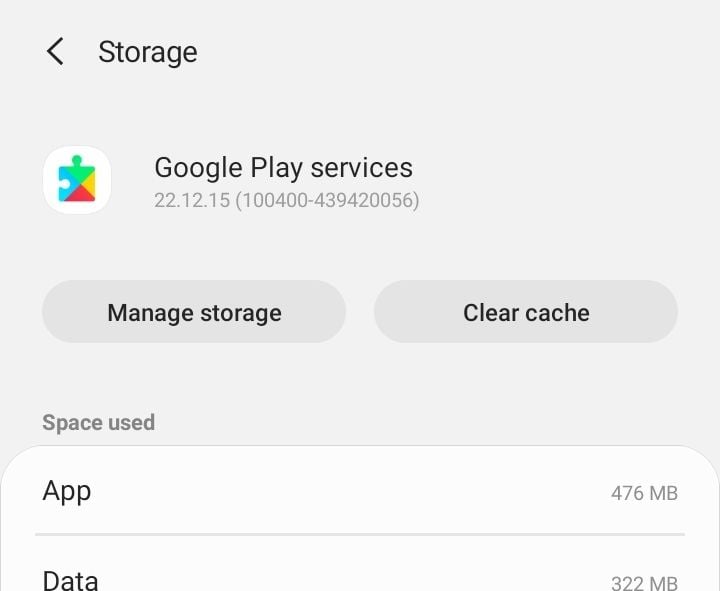
Google Play services handles the connection between your apps and Google's servers, so corrupted data here breaks the Play Store directly. Go to Settings > Apps > Google Play services > Storage and cache and tap Clear cache first.
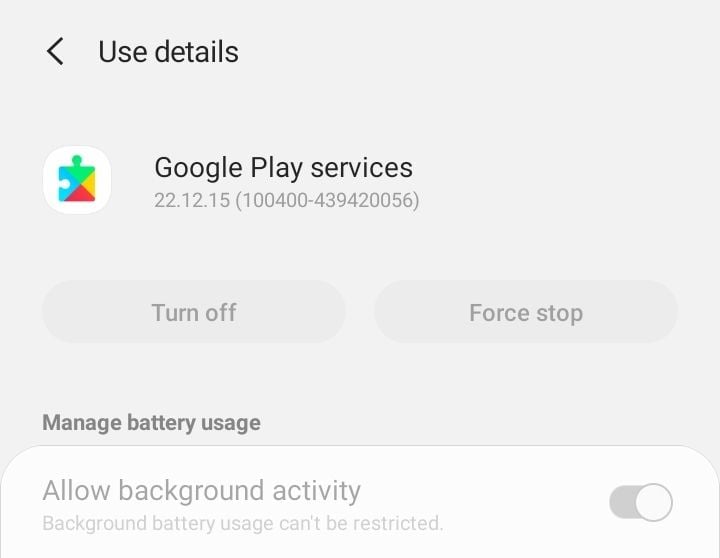
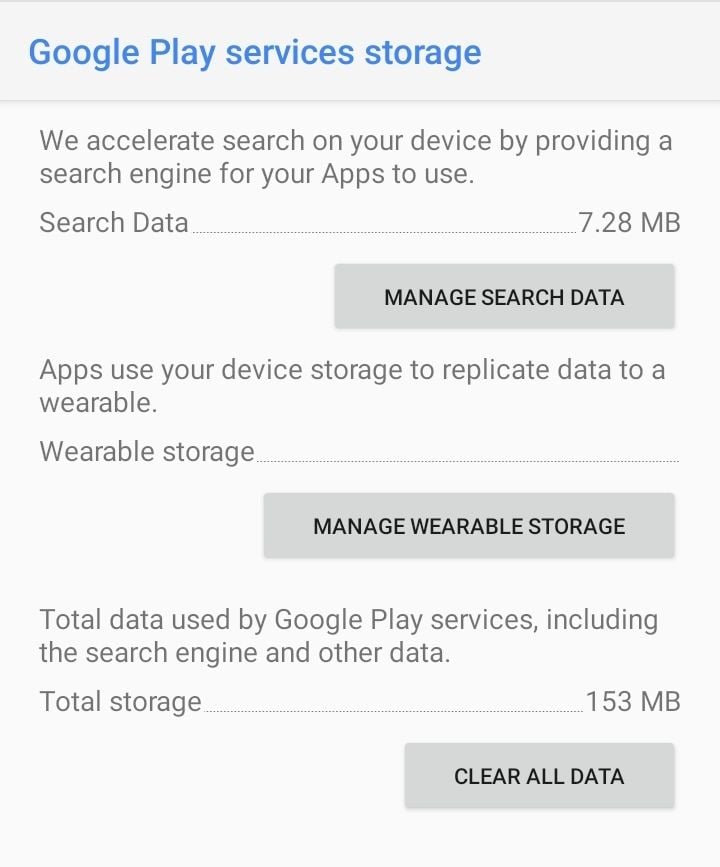
If the error continues, tap Manage space or Manage storage, then Clear all data. Be aware that clearing Google Play services data can remove saved items such as offline payment cards and may sign you out of some services, so you will need to set those up again.
9. Set Your Date and Time Automatically
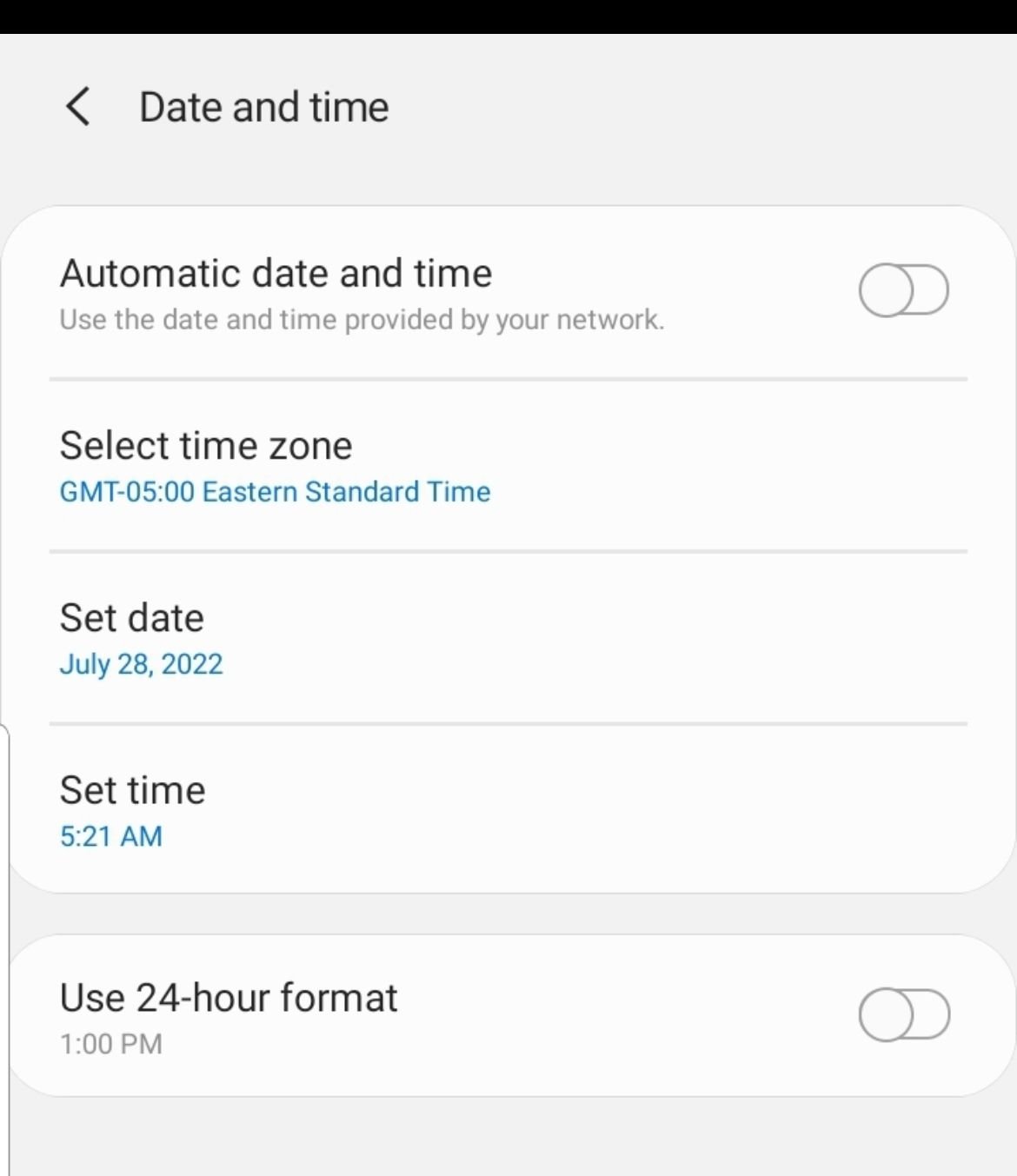
An incorrect clock breaks the secure connection to Google's servers, because the security certificates fail to validate. Set the device to network time so the clock stays accurate.
On stock Android and Pixel, go to Settings > System > Date and time and turn on Set time automatically and Set time zone automatically. On Samsung One UI, go to Settings > General management > Date and time and enable Automatic date and time and Automatic time zone.
10. Disable Your VPN or Proxy
A VPN or proxy can route your traffic through an IP address that Google flags as unusual, which triggers a connection block. Turn off any active VPN app, then check the system VPN slot too.
Go to Settings > Network and internet > VPN, or on Samsung Settings > Connections > More connection settings > VPN, and make sure nothing is connected. Reopen the Play Store with the VPN off to see if it connects.
11. Free Up Storage Space
The Play Store cannot complete updates or downloads when internal storage is nearly full, and a stuck update can surface as a connection error. Check your free space and clear room if you are low.
Go to Settings > Storage to see what is available. Android warns you and can block installs when the device is running low on free space, so delete unused apps, photos, or downloads until you have a comfortable buffer.
12. Update or Roll Back the Play Store
A bad Play Store version can cause repeated connection failures, and the store updates itself silently in the background. To force an update, open the Play Store, tap your profile picture, go to Settings, tap About, then tap the Play Store version line to trigger an update.
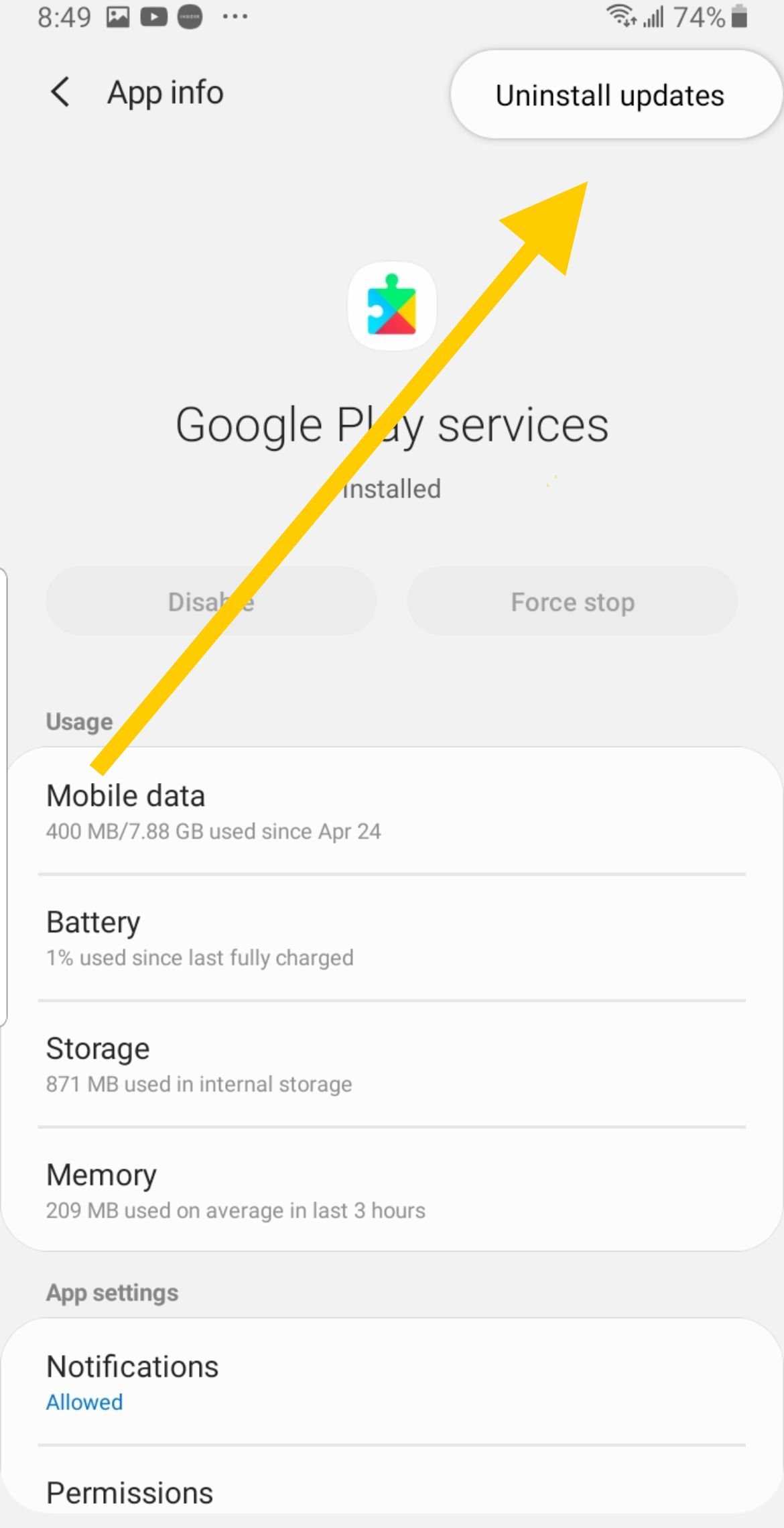
If the error started right after an update, do the opposite and roll it back. Go to Settings > Apps > Google Play Store, tap the three dots in the top corner, and select Uninstall updates, then let the store reinstall the current version on its own.
13. Change Your DNS to Google Public DNS
If the Play Store only fails on one Wi-Fi network, that network's DNS may be misrouting Google's servers. Switching to a reliable public resolver often fixes it.
On Android 9 and later, go to Settings > Network and internet > Private DNS, choose Private DNS provider hostname, and enter dns.google, then save. On Samsung the path is Settings > Connections > More connection settings > Private DNS. Reopen the Play Store afterward to confirm the connection.
14. Check the Download Manager Is Enabled
The Play Store relies on Android's built-in Download Manager, and if it has been disabled, downloads and connection checks can fail. Make sure it is turned on.
Go to Settings > Apps, tap the three-dot menu and choose Show system apps, then find Download Manager in the list. If it shows as disabled, tap Enable, and clear its cache and data from the Storage screen while you are there.
15. Reset Network Settings
If a specific connection setting is broken, resetting all network settings restores them to default without touching your apps or files. This clears saved Wi-Fi passwords and paired Bluetooth devices, so have your Wi-Fi password ready.
On Pixel and stock Android, go to Settings > System > Reset options > Reset Wi-Fi, mobile and Bluetooth. On Samsung, go to Settings > General management > Reset > Reset network settings, then confirm. Reconnect to your Wi-Fi afterward and reopen the Play Store.
Refresh Your Account and Sync
If the store still will not connect, refreshing your Google account often clears a stuck session. First force a sync by going to Settings > Accounts, tapping your Google account, then Account sync, and using the menu to sync now.


If syncing does not help, remove the account and add it back. Go to Settings > Accounts, select your Google account, tap Remove account, restart the phone, then add the account again from Settings > Accounts > Add account.
Confirm Play Services Permissions
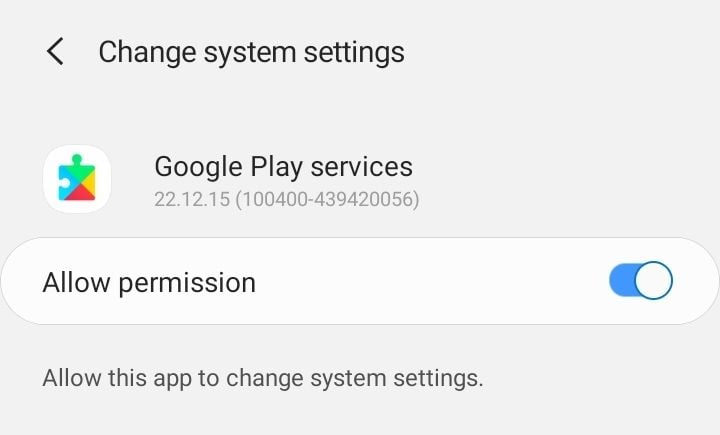
Google Play services needs the right permissions to talk to the network and storage. Missing permissions can quietly block the Play Store connection.
Go to Settings > Apps > Google Play services > Permissions and make sure the key permissions are allowed. While you are in this screen, confirm nothing is set to restrict the service.
Factory Reset as a Last Resort
If every step above fails, a deeper software problem is likely, and a factory reset wipes it clean. This erases everything on the phone, so back up your photos, messages, and files first.
On Samsung, go to Settings > General management > Reset > Factory data reset. On Pixel and stock Android, go to Settings > System > Reset options > Erase all data. Only use this when nothing else has worked.
Frequently Asked Questions
Why does the Play Store say no connection on Wi-Fi but work on mobile data
Some Wi-Fi networks, especially at offices, schools, and hotels, block the ports the Play Store needs, including TCP and UDP 5228 to 5230. Try changing your DNS to dns.google, or simply use mobile data on that network.
How do I reset Google Play services
Go to Settings > Apps > Google Play services > Storage and cache, tap Clear cache, then tap Manage space and Clear all data. Restart your phone afterward and sign back into any services that ask.
Does clearing Play Store data delete my apps
No. Clearing the Play Store's cache or data does not remove any installed apps. It only resets the store's own settings, so you may need to accept the terms of service again on the next launch.
Why does the Play Store keep showing no connection after a restart
If a restart does not help, the cause is usually a corrupted cache, a wrong clock, or a network setting. Work through clearing the Play Store and Google Play services data, set the date and time automatically, then reset network settings.
Will resetting network settings delete my data
No. Resetting network settings only clears saved Wi-Fi networks, paired Bluetooth devices, and mobile network preferences. Your apps, photos, and files stay untouched, but you will need to reconnect to Wi-Fi.
Could a VPN cause the Play Store no connection error
Yes. A VPN or proxy can route your traffic through an IP address Google treats as suspicious, which blocks the connection. Turn off your VPN and check the system VPN slot, then reopen the Play Store.
First published October 15, 2025. Last updated June 4, 2026.