
If your Tecno Spark 30 Pro is running out of juice way too quickly, you're not alone. The Helio G100 processor inside is a budget chip, and it can struggle with power management, especially if the software is bogged down. The good news is there are several straightforward tweaks you can make to get your battery life back on track.
Check What's Draining Your Battery
Before you start changing settings, it's smart to see where your power is actually going. Head into your phone's Settings and tap on Battery. Here, you'll find a breakdown of which apps have been using the most battery over the last 24 hours or week.
Look for any apps showing unusually high percentages, especially ones you don't use often. This is your first clue. I've seen social media apps or pre-installed games from Tecno quietly draining power in the background.
Manage Background Activity and Notifications
Many apps on the Spark 30 Pro will continue to run and check for updates even when you're not using them. To rein this in, go to Settings > Apps and select any power-hungry app from your battery list. Tap on Mobile data & Wi-Fi and look for the option to Restrict background activity.
Turning this on for a few apps can make a noticeable difference. Also, consider muting non-essential notifications. Each alert that lights up your screen costs a little bit of power.
Adjust Your Display Settings
The screen is one of the biggest battery consumers on any phone. On your Spark 30 Pro, try lowering the brightness a bit from the quick settings panel. You can also set a shorter screen timeout. Go to Settings > Display > Sleep and choose 30 seconds or 1 minute.
Using a dark wallpaper and enabling Dark Mode (in Settings > Display > Dark mode) can help too, as it puts less strain on the display. It's a simple change that adds up over a full day.
Review Location and Connectivity Services
GPS is another major drain. Open Settings > Location and review which apps have access. Change any apps from "Allow all the time" to "Allow only while using the app" if you can. You can also toggle off location access entirely for apps that don't really need it.
Turn off Wi-Fi and Bluetooth when you're not actively using them. The constant searching for networks or devices uses up battery. The same goes for mobile data. If you're in an area with a weak signal, your phone works harder to maintain a connection, which drains the battery faster.
Deal with Pre-installed Apps and Updates
The HiOS software on the Spark 30 Pro comes with a fair amount of pre-installed apps, some of which you may never use. You can't always uninstall them, but you can often disable them. Go to Settings > Apps, find the app, and tap Disable. This stops them from running and updating.
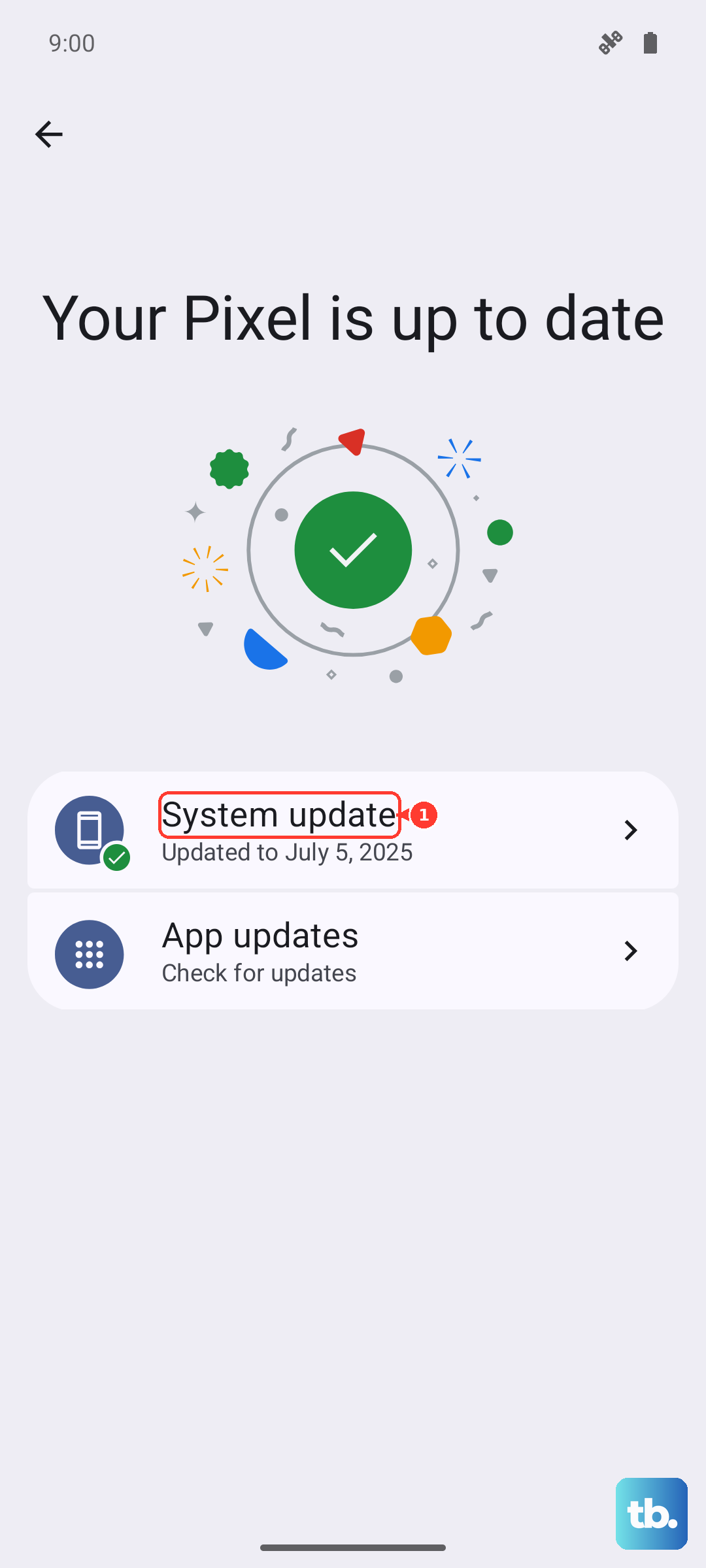
On the other hand, make sure your core software is up to date. Sometimes, a bug in the system software is the culprit. Check for updates in Settings > System > System updates. Keeping your apps updated through the Google Play Store can also fix battery-draining bugs.
Use Battery Saver and Optimized Charging
Your phone has a built-in tool for this. Pull down your notification shade and tap the battery icon to enable Power saving mode. This limits background data, reduces performance slightly, and turns off some visual effects to extend your battery life.
For the long-term health of your battery, try to avoid letting it drop to 0% all the time. The included 33W charger is pretty fast, so you can top up quickly when you're around 20-30%. Avoid leaving it plugged in at 100% for days on end if you can.
Perform a Soft Reset
If your phone is acting sluggish and the battery is plummeting, a simple restart can clear out temporary glitches. Just press and hold the Power button and tap restart. If the phone is unresponsive, you can force a restart by pressing and holding the Power button and the Volume Down button together for about 10 seconds until you feel it vibrate and restart.
Reset All Settings
If you've tried everything and the drain persists, a more thorough step is to reset your network and system settings. This won't delete your photos or apps, but it will reset Wi-Fi passwords, Bluetooth connections, and system preferences to default. Go to Settings > System > Reset options. Then, tap Reset Wi-Fi, mobile & Bluetooth or Reset app preferences as a first step.
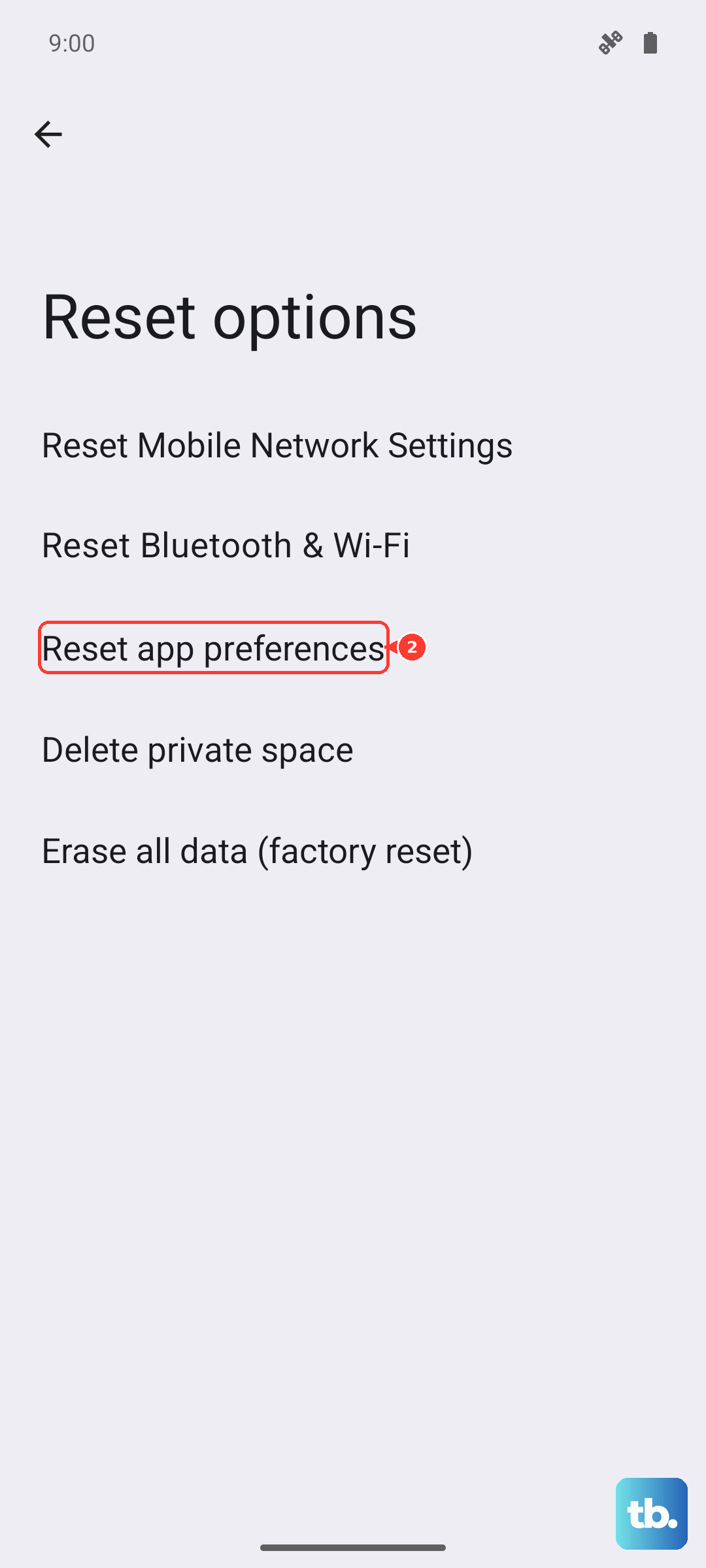
If you're still out of options, you can choose Reset all settings. This is a bigger reset but can sometimes resolve a deep-seated software issue causing the abnormal battery drain.