
Seeing the "Unfortunately, Settings has stopped" message pop up on your Galaxy Z Fold 6 can really stop you in your tracks. This error usually means the Settings app has crashed or its data has gotten a bit scrambled. The good news is you can almost always fix it yourself without losing any of your stuff.
Restart Your Galaxy Z Fold 6
Let's start with the simplest trick in the book. A quick restart clears out temporary glitches in the system memory that can cause apps like Settings to misbehave. Just press and hold the side button and volume down button together, then tap "Restart" on the screen.
If the phone is completely frozen and you can't get to the power menu, you'll need to force a restart. Press and hold the volume down button and the side button simultaneously for about 10 seconds. Keep holding them until you see the Samsung logo appear, then you can let go.
Clear the Settings App Cache
Your phone stores little bits of temporary data, called cache, to help apps load faster. Sometimes this cache gets corrupted. Clearing it for the Settings app is a safe first step that often solves the problem.
You'll need to get into your app list. Swipe up from the bottom of your home screen to open the app drawer, then find and open the "Settings" app. If it crashes immediately, try opening it from the notification shade by pulling down twice and tapping the gear icon.
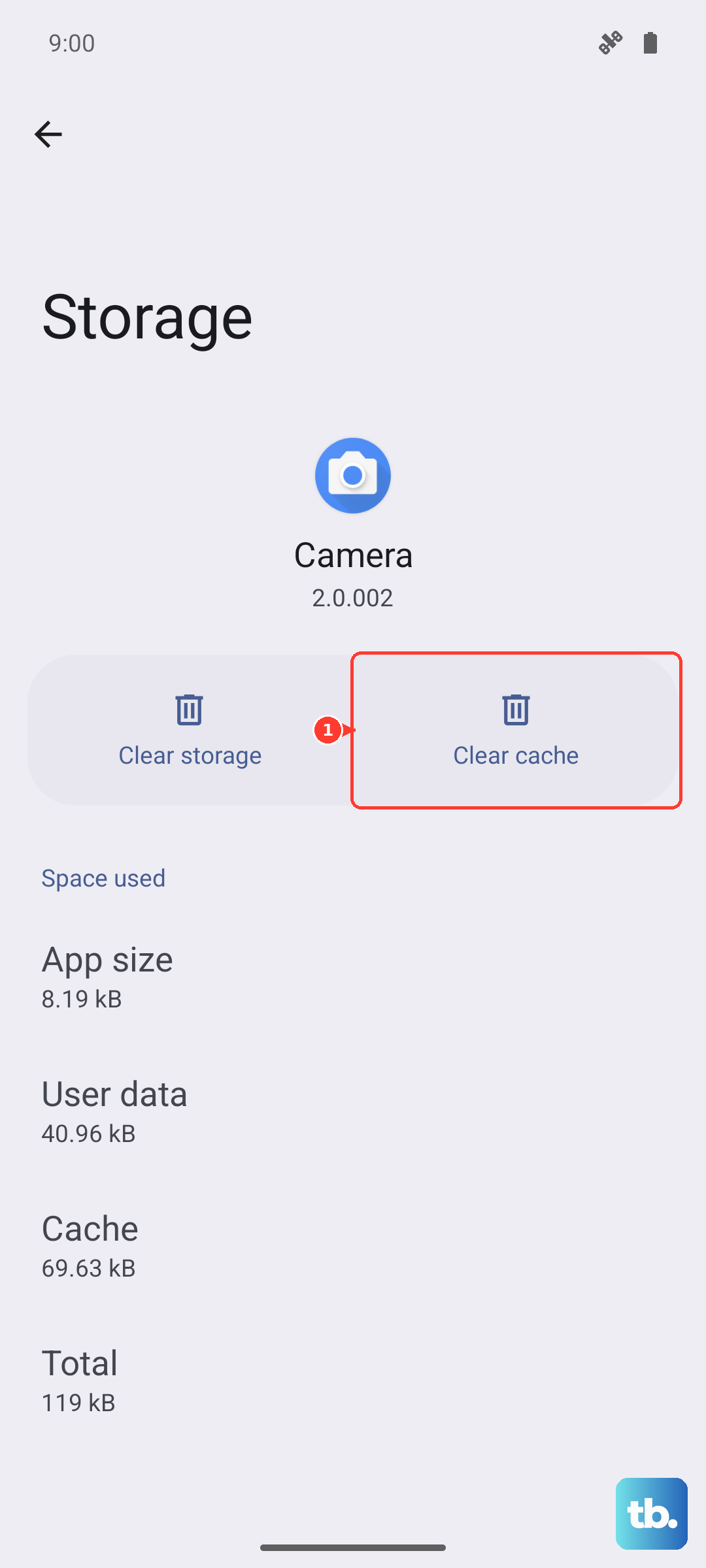
Once you're in, go to Apps, then find and select "Settings" from the list. Tap on Storage, and then tap Clear Cache. You won't lose any personal data or preferences by doing this.
Force Stop the Settings App
If clearing the cache didn't help, the next thing to try is force stopping the app. This completely shuts it down and lets it start fresh the next time you open it. It's like giving it a quick nap.
Head back to Settings > Apps and find "Settings" again. This time, tap on Force Stop and confirm. After you do this, go ahead and try opening the Settings app again. It should reload cleanly.
Check Google Play Services
Google Play Services works in the background to help your apps and system talk to each other. If it has an issue, it can sometimes cause system apps like Settings to crash. Let's make sure it's running smoothly.
First, try force stopping it. Go to Settings > Apps, find "Google Play Services" in the list, and tap Force Stop. Then, open its storage menu and tap Clear Cache. I'd hold off on clearing its data right away, as that can sometimes cause other apps to act up.
Uninstall Recent Google Play Store Updates
A recent automatic update to the Play Store itself can occasionally introduce a bug that conflicts with system services. Rolling it back to the factory version can break that conflict.
Navigate to Settings > Apps, find "Google Play Store", and tap on it. Tap the three-dot menu in the top right corner and select Uninstall updates. Confirm, then restart your phone. The Play Store will update itself again automatically, often with a cleaner version.
Install Any Pending Software Updates
Samsung regularly releases updates for One UI that fix known bugs. If your Z Fold 6 is running an older version, the "Settings has stopped" error might be a problem they've already solved.
Go to Settings > Software update and tap Download and install. Make sure your phone is connected to Wi-Fi and has a good battery charge. After the update installs, your phone will restart. This is one of the most reliable fixes for persistent system app issues.
Boot Into Safe Mode
If the error keeps happening, a third-party app you installed might be causing the trouble. Booting into Safe Mode temporarily disables all downloaded apps, so you can see if the problem goes away.
To get into Safe Mode on the Z Fold 6, press and hold the side button until the power off menu appears. Then, press and hold the "Power off" option on your screen. A prompt will ask if you want to reboot to Safe Mode, tap "OK". If Settings works fine in Safe Mode, you'll need to find the problematic app by uninstalling your most recent downloads one by one.
Reset All App Preferences
This is a useful step before considering a full factory reset. It resets all your app permissions, default apps, and background data restrictions back to their original settings, but it won't delete any of your personal data like photos or messages.
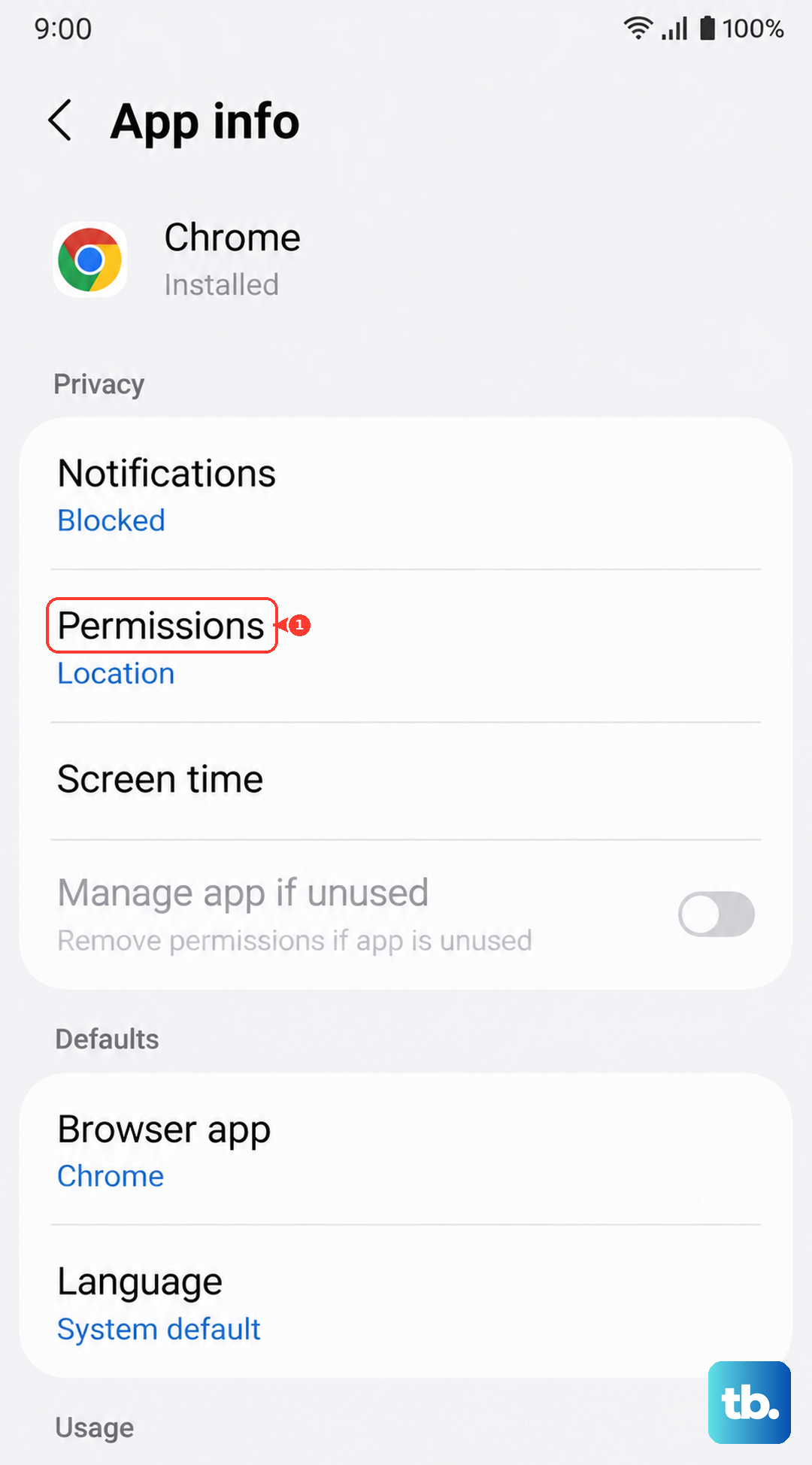
Go to Settings > Apps, tap the three-dot menu, and select Reset app preferences. Confirm your choice. After your phone resets, you'll need to re-grant permissions to apps when you use them next, but it can clear up deep-seated conflicts causing the Settings app to crash.