
Bluetooth acting up on your Galaxy Z Fold 6 can be a real pain, especially when you're trying to connect to your Galaxy Buds, a smartwatch, or your car's infotainment system. The good news is that most connection problems are just temporary glitches you can clear up in a few minutes. Let's walk through the fixes that work for this specific phone.
I'd start with the most common quick fix. Pull down the notification shade from the top of your screen and tap the Bluetooth icon to turn it off. Wait about ten seconds, then tap it again to turn it back on. This simple reset of the Bluetooth radio often clears up pairing or audio stuttering issues right away.
Restart Your Phone and the Accessory
A full restart clears out the phone's temporary memory and can stop a lot of weird behavior. For the Z Fold 6, press and hold the Volume Down button and the Side button together for about ten seconds until you see the Samsung logo appear.
Don't forget to power cycle the device you're trying to connect to as well. Turn your headphones, speaker, or car stereo completely off and then back on. Once both devices are fresh, try the pairing process again from the beginning.
Forget and Re-Pair the Device
If the connection is spotty or keeps dropping, the pairing data might have gotten corrupted. Go into your phone's settings and remove that device completely, then set it up like it's brand new.
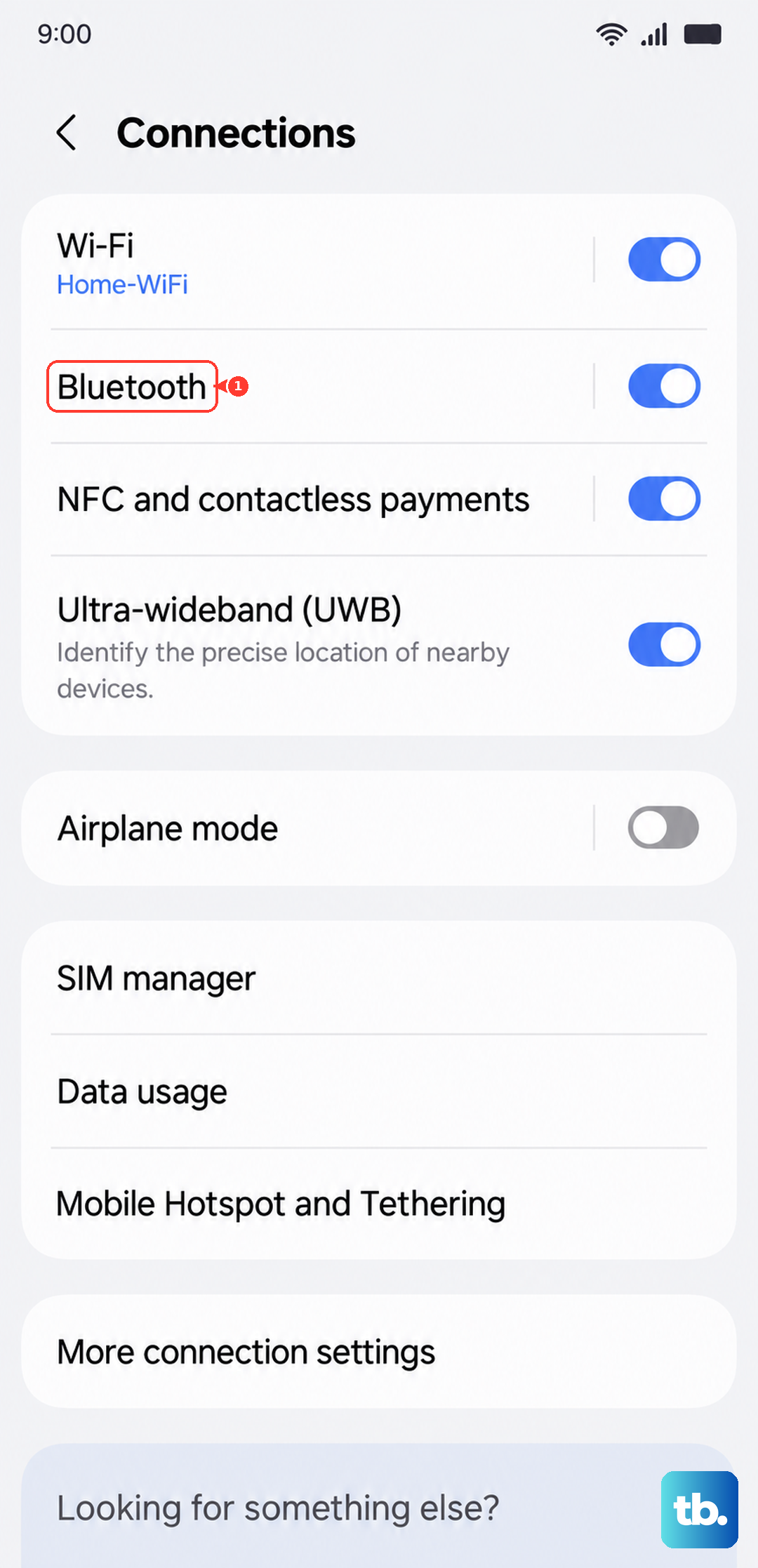
Open Settings > Connections > Bluetooth. Find the problematic device in your list of paired gadgets and tap the gear icon next to it. Select Unpair or Forget. After it's removed, put your accessory back into its discovery mode and tap its name on your Z Fold 6's Bluetooth screen to pair fresh.
Clear the Bluetooth System Cache
Android's system services, including Bluetooth, store temporary cache files. Sometimes these files get messed up and start causing problems. Clearing them is safe and doesn't delete your personal data or paired devices.
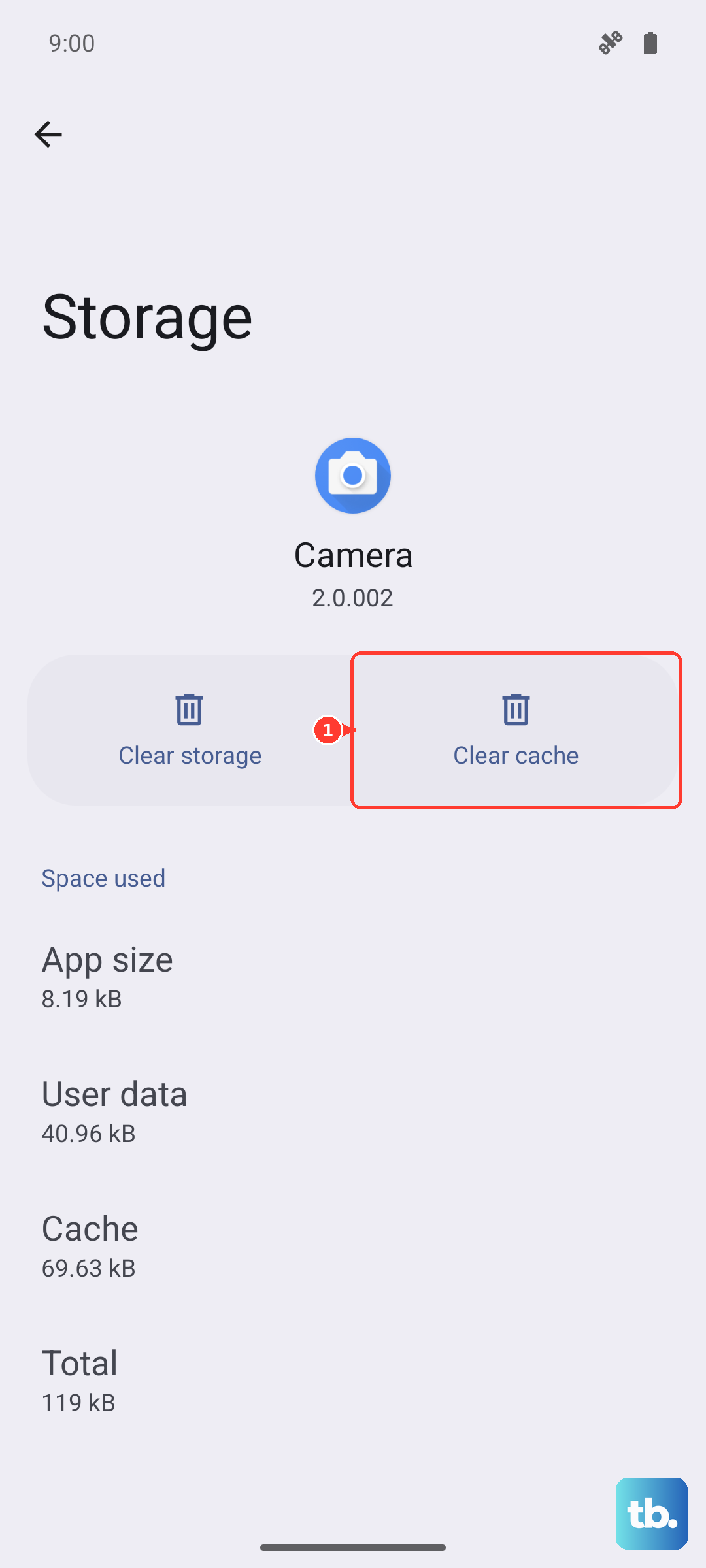
Go to Settings > Apps. You might need to tap the three-dot menu and select Show system apps to find the right one. Scroll down and tap on Bluetooth. Then, tap Storage and hit Clear Cache. Restart your phone afterward and test your connection.
Check for Software Updates
Samsung frequently releases updates that fix bugs and improve compatibility with accessories. An outdated version of One UI could be the reason your Bluetooth isn't behaving.
Head to Settings > Software update and tap Download and install. If an update is available, let it install completely. It's also a good idea to check the companion app for your accessory, like the Galaxy Wearable app for earbuds, to see if there's a firmware update waiting.
Reset Your Network Settings
This is a more thorough step that resets all wireless communications back to their factory state. It will erase your saved Wi-Fi networks, paired Bluetooth devices, and mobile data settings, so you'll have to reconnect to everything afterward.
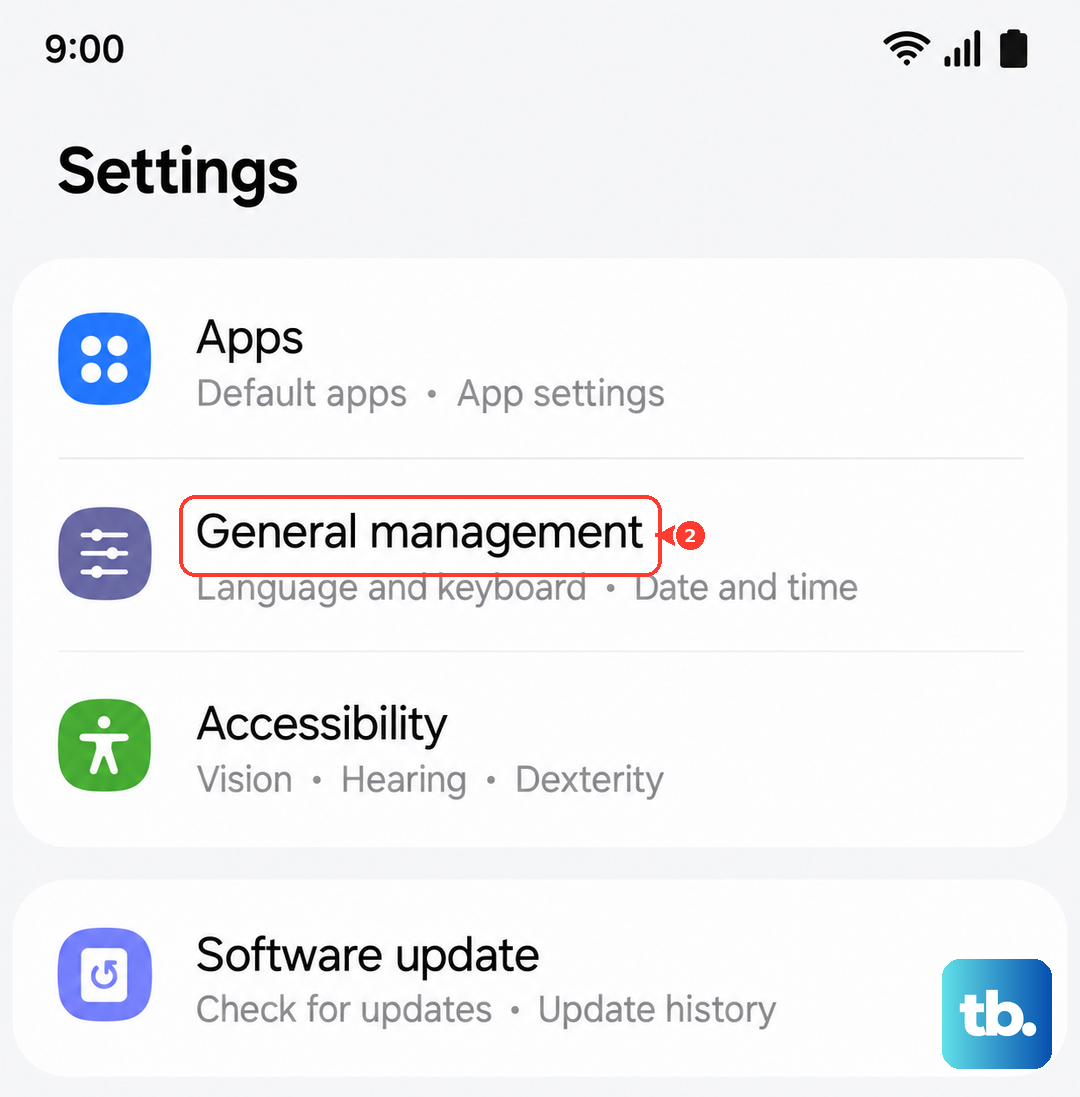
To do this, open Settings > General management > Reset. Tap on Reset network settings and confirm. Your phone will reboot. After it comes back on, you can go back into Bluetooth settings and re-pair your devices from scratch.
Test in Safe Mode
If Bluetooth suddenly stopped working after you installed a new app, that app could be interfering. Booting into Safe Mode temporarily disables all third-party apps so you can test.
Press and hold the Side button to bring up the power menu. Then, tap and hold the Power off option on your screen until you see a prompt to reboot into Safe Mode. Tap OK. If Bluetooth works perfectly in Safe Mode, you know a downloaded app is the culprit. Restart normally and try uninstalling your most recent apps one by one to find the bad one.
Address Z Fold 6 Specific Considerations
The unique design of the Fold can sometimes play a role. If you're having issues only when the phone is folded or unfolded, it's worth checking a couple of things. First, make sure you're not covering the antenna lines with your hand, as this can weaken the Bluetooth signal.
Also, if you've recently applied a new screen protector, especially a thick or metal-lined one for the inner display, it could potentially interfere with signal transmission. Try using Bluetooth without a case on for a moment to rule out any physical obstruction.
For persistent problems with Samsung accessories like Galaxy Buds or a Galaxy Watch, I've found that using the dedicated Galaxy Wearable app to manage the connection and updates is more reliable than just using the standard Bluetooth menu.











