If your brand new Samsung Galaxy S26+ is refusing to pair with your headphones, car, or smartwatch, it's a frustrating roadblock. Bluetooth issues can pop up, especially with a fresh device running the latest One UI 8.5. The good news is they're usually solvable with a few targeted steps.
Let's get your wireless connections working again. I'd start with the quick toggle and restart, as those fix most temporary glitches on Samsung phones.
Toggle Bluetooth and Restart Your Phone
Swipe down from the top of your screen to open the Quick Settings panel. Tap the Bluetooth icon to turn it off, wait about ten seconds, then tap it again to turn it back on. Try pairing your device now.
If that doesn't work, give your S26+ a fresh start. Press and hold the Volume Down button and the Side/Power button together for about ten seconds. Release when you see the Samsung logo appear on the screen.
Don't forget to restart the Bluetooth device you're trying to connect to as well. A simple power cycle on both ends clears up a lot of communication errors.
Forget and Re-Pair the Problem Device
Your phone might be holding onto a corrupted connection profile. Go into your phone's settings and remove that specific device to start fresh. Open Settings > Connections > Bluetooth.
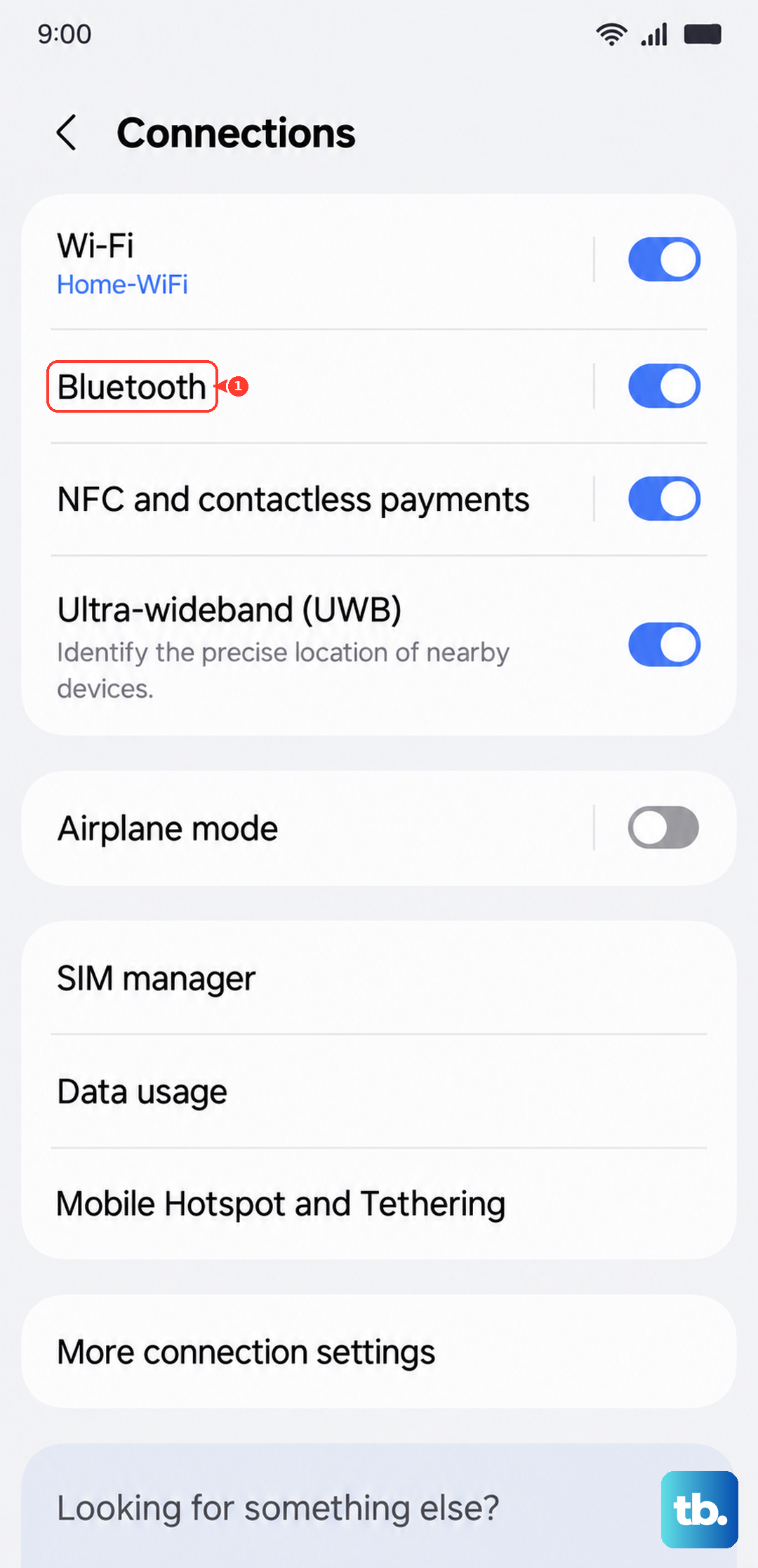
Find the device that won't connect in your list of paired devices. Tap the gear icon next to its name, then select Unpair or Forget. Once it's removed, put your accessory back into pairing mode and try to connect as if it were a brand new device.
Clear the Bluetooth System Cache
Sometimes the temporary files used by the Bluetooth service get corrupted. Clearing them is a safe, effective fix that doesn't delete your paired devices. Go to Settings > Apps.
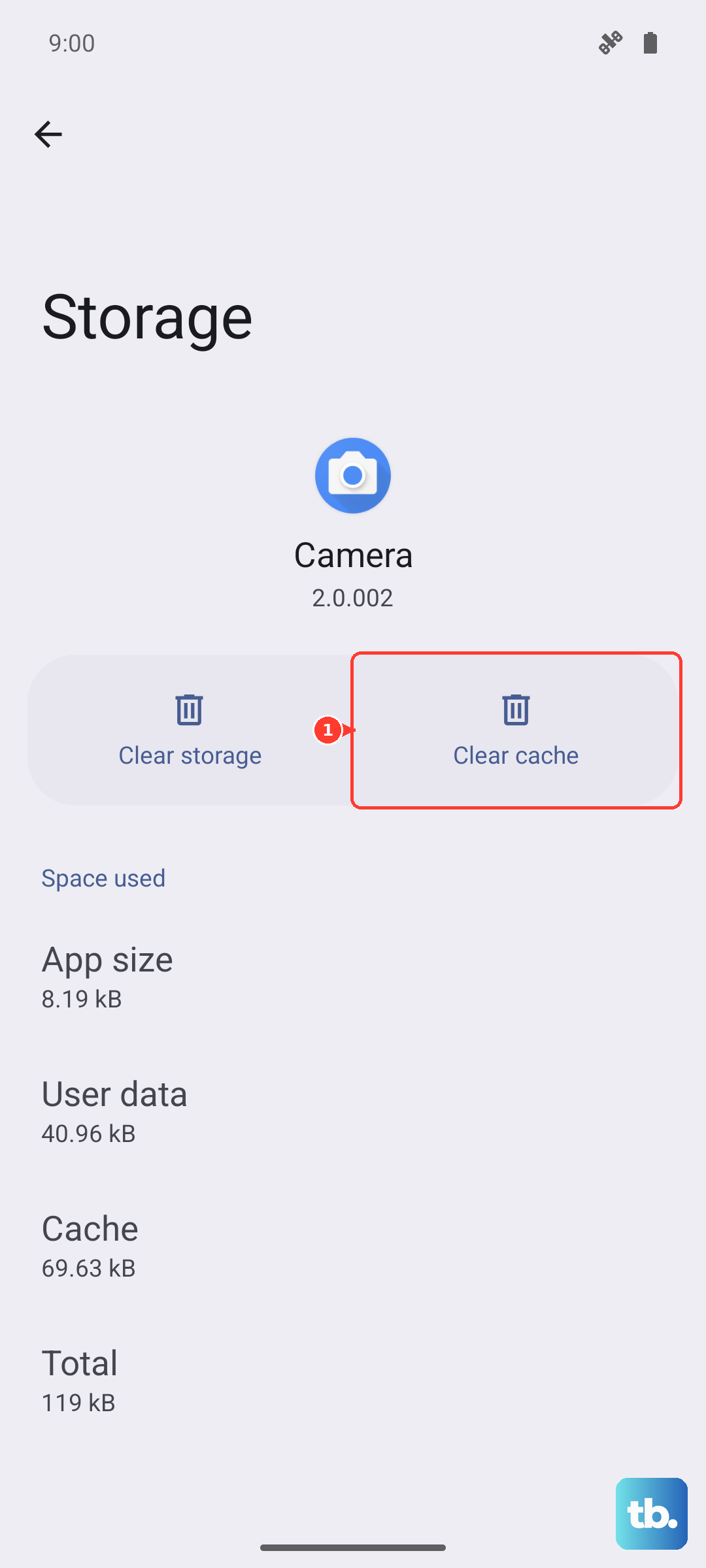
Tap the three-dot menu in the top right and select Show system apps. Scroll down and find the app simply named "Bluetooth" in the list. Tap on it, then select Storage.
Tap Clear Cache. After it's done, restart your phone and test your Bluetooth connection again. This often resolves random pairing failures.
Check for a Software Update
Since the Galaxy S26+ is a new 2026 model, early software bugs in One UI 8.5 are a real possibility. Samsung frequently releases patches to fix these kinds of connectivity issues. It's one of the first things I check.
Navigate to Settings > Software update > Download and install. If an update is available, install it and restart your phone. Also, check the Galaxy Wearable or accessory-specific app for any firmware updates for your earbuds or watch.
Reset Your Network Settings
This step resets all wireless radios, Bluetooth, Wi-Fi, and mobile networks, back to their default states. You'll need to re-enter Wi-Fi passwords and re-pair Bluetooth devices afterward, but it can wipe out deeper configuration problems.
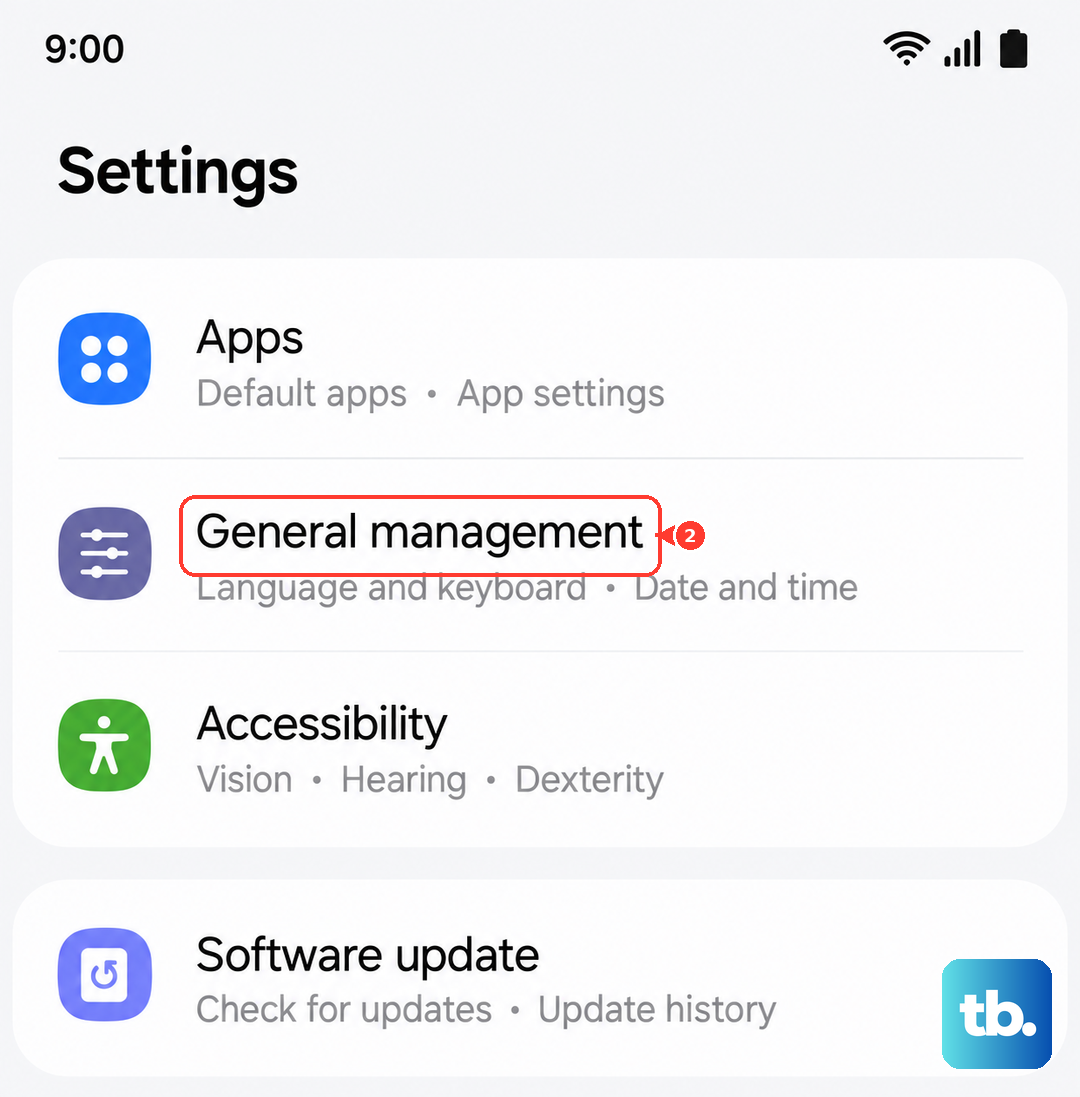
Go to Settings > General management > Reset. Select Reset network settings. Confirm the action, and your phone will reboot. This is a very reliable fix for persistent wireless issues on Samsung devices.
Boot Into Safe Mode
If a recently downloaded third-party app is interfering with Bluetooth, Safe Mode will tell you. To enter Safe Mode on the S26+, press and hold the Side/Power button until the power menu appears.
On the menu, tap and hold the Power off option. You'll see a prompt to reboot to Safe Mode. Tap it. If Bluetooth works perfectly in Safe Mode, you know a downloaded app is the culprit. Restart normally and try uninstalling recent apps one by one.
Clear Bluetooth App Data
This is a more thorough step than clearing the cache. It will erase all Bluetooth pairing information from your phone, giving you a completely clean slate. Only do this after trying the cache clear.
Follow the same path: Settings > Apps > Show system apps > Bluetooth > Storage. This time, tap Clear data instead of Clear Cache. Confirm, restart your phone, and you'll need to pair every device from scratch.
Check for Physical and Setting Conflicts
Make sure you're within about 30 feet of the device without major obstructions. Other wireless signals, like a crowded Wi-Fi channel or even a microwave, can cause interference. Try moving to a different room.
Also, check if a battery-saving mode is enabled. Go to Settings > Battery. If a power-saving mode is on, it can sometimes limit Bluetooth functionality. Try turning it off temporarily.
Address Car Bluetooth Specifically
Car systems are notoriously finicky. The most effective method is to clear the pairing on both sides. Delete your S26+ from your car's infotainment system memory, and forget the car in your phone's Bluetooth list.
With both devices cleared, restart your car's stereo system and your phone. Then initiate the pairing process from your car's menu, not your phone. This often establishes a more stable connection.
Consider a Factory Reset
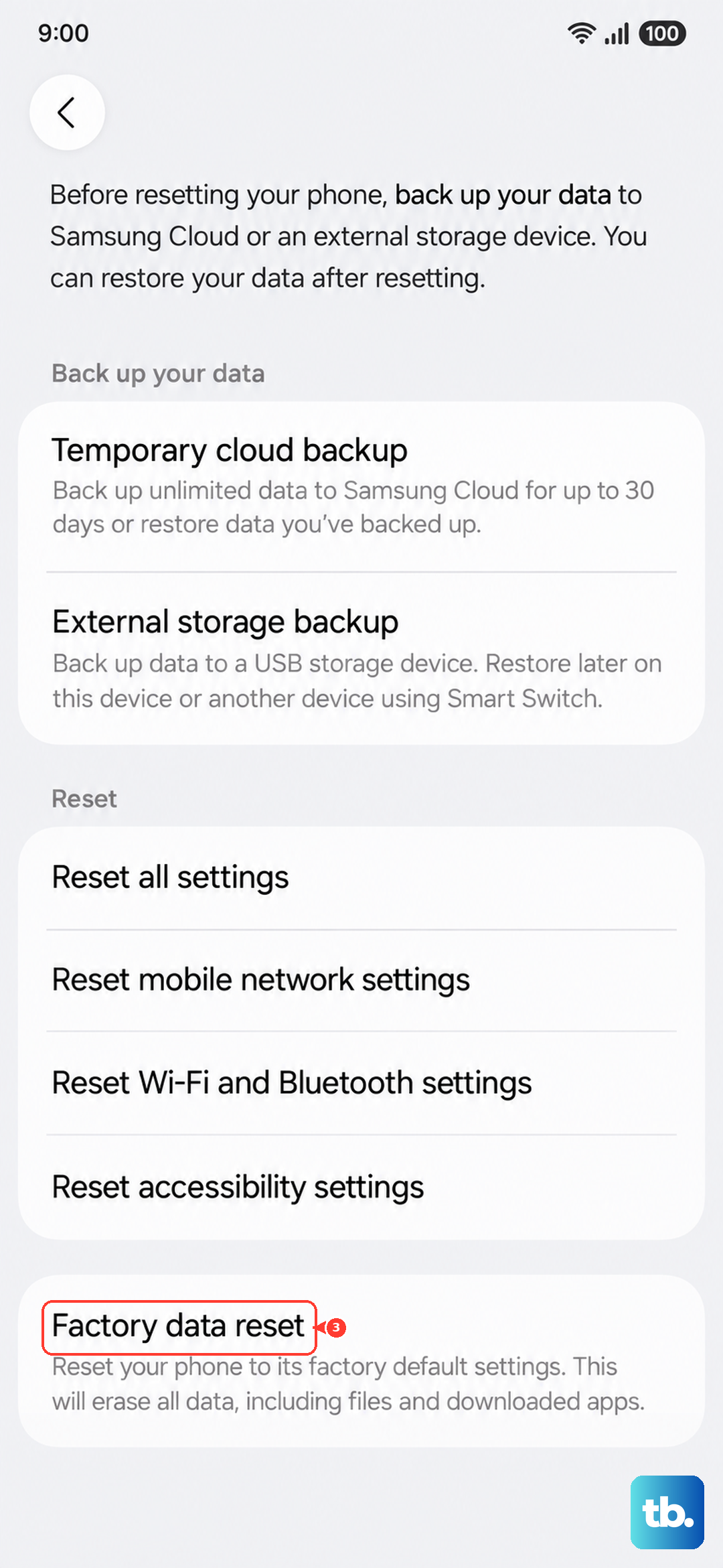
If you've tried everything and Bluetooth is completely non-functional, a factory reset is the final software step. This will erase all data on your phone, so you must back up everything important first using Samsung Cloud or a computer.
To proceed, go to Settings > General management > Reset > Factory data reset. Follow the prompts. After the reset, set up your phone as new before restoring your data, and test Bluetooth immediately to see if the issue is resolved.