When the screen on your Samsung Galaxy Z Flip 7 stops responding, it's usually a software hiccup rather than broken hardware. The folding glass display and its internal flex cable can be sensitive, but a few simple steps often bring it back to life. Start with the quickest fix and work your way through the list.
Force a Restart
Press and hold the Volume Down button and the Side key simultaneously for 10 to 15 seconds. Keep holding them even after the screen goes black. The Samsung logo will pop up, and the phone should boot up with a working touchscreen.
Check the Screen and Screen Protector
The inner display on the Z Flip 7 is delicate. A cracked screen protector or a piece of dust lodged under the edge can cause dead spots or erratic touches. Remove the phone from its case and take off any screen protector if you have one installed.
Wipe the screen down with a soft, dry microfiber cloth. Pay special attention to the crease area, where debris tends to collect.
Boot Into Safe Mode
If the screen works sometimes but not others, a third-party app could be interfering. Press and hold the Side key to bring up the power menu. Tap and hold the Power off icon until you see the Safe mode prompt. Tap Safe mode.
If the touchscreen works perfectly in Safe mode, you'll need to uninstall any recently downloaded apps. Start with games or apps that have overlays.
Turn On Touch Sensitivity
Go to Settings > Display and toggle on Touch sensitivity. This setting is designed for screen protectors, but it can also help if the screen feels sluggish or unresponsive. It draws a tiny bit more power, but it's worth it for a working screen.
Clear the System Cache
Corrupted cache files can mess with the digitizer. Power off the phone completely. Connect it to a computer or charger via the USB-C cable. Press and hold Volume Up and the Side key until the Samsung logo appears, then release.
Use the volume buttons to scroll to Wipe cache partition and press the Side key to select it. Confirm on the next screen. Once it finishes, select Reboot system now.
Install Software Updates
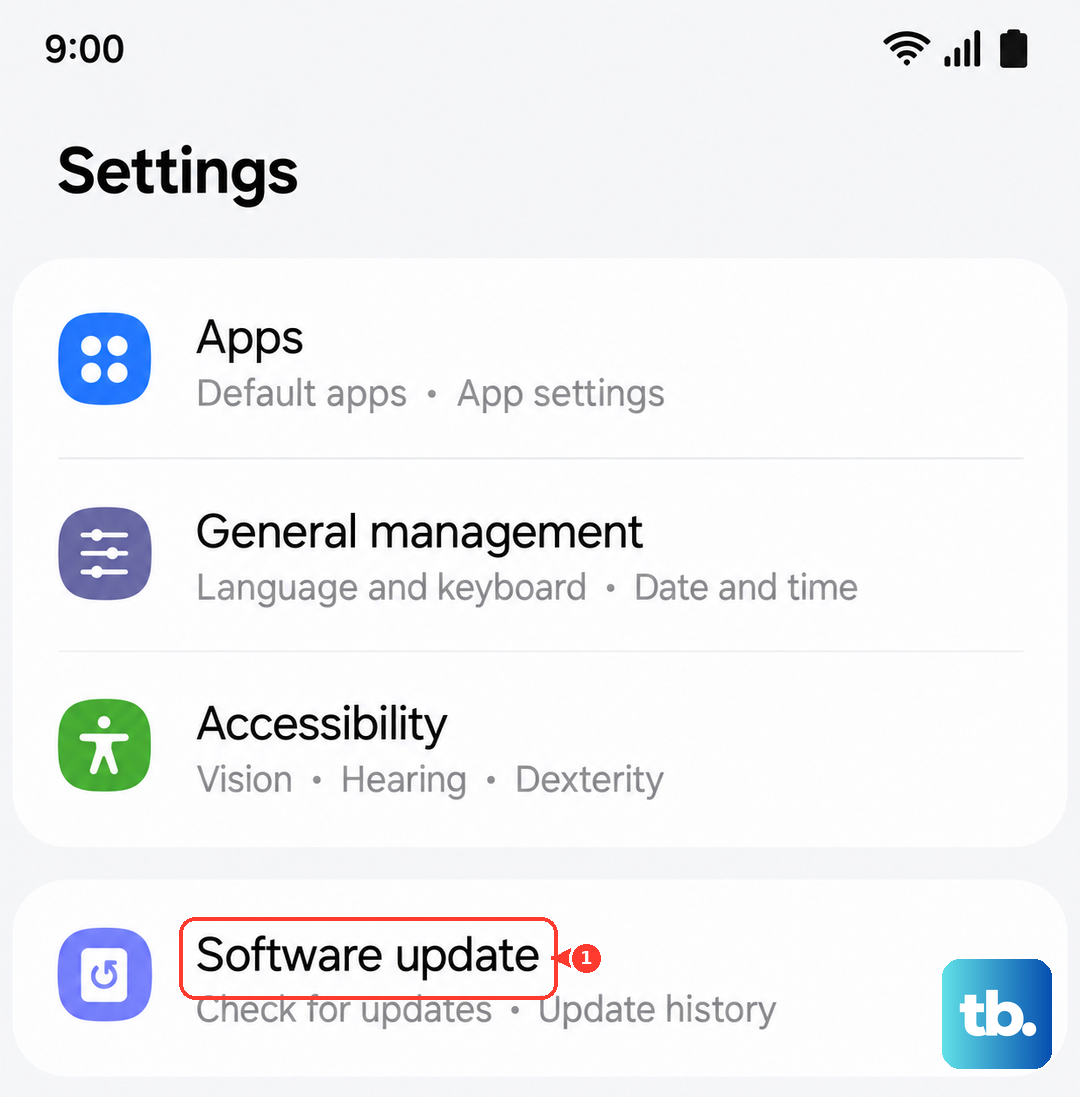
Go to Settings > Software update > Download and install. Samsung rolls out updates regularly that fix known bugs. Early Z Flip 7 units had some touch sensitivity issues that were addressed in later patches. Make sure you are on the latest firmware.
Run the Hardware Diagnostic
Open the Phone app and dial *#0*#. This launches Samsung's secret hardware test menu. Tap Touch or TSP Dot(s). Draw your finger across every part of the screen, including the edges and the crease.
If the trace skips or breaks in a specific area, the digitizer itself might be damaged. In my experience, this is rare on the Z Flip 7, but it can happen after a drop.
Factory Reset as a Last Resort
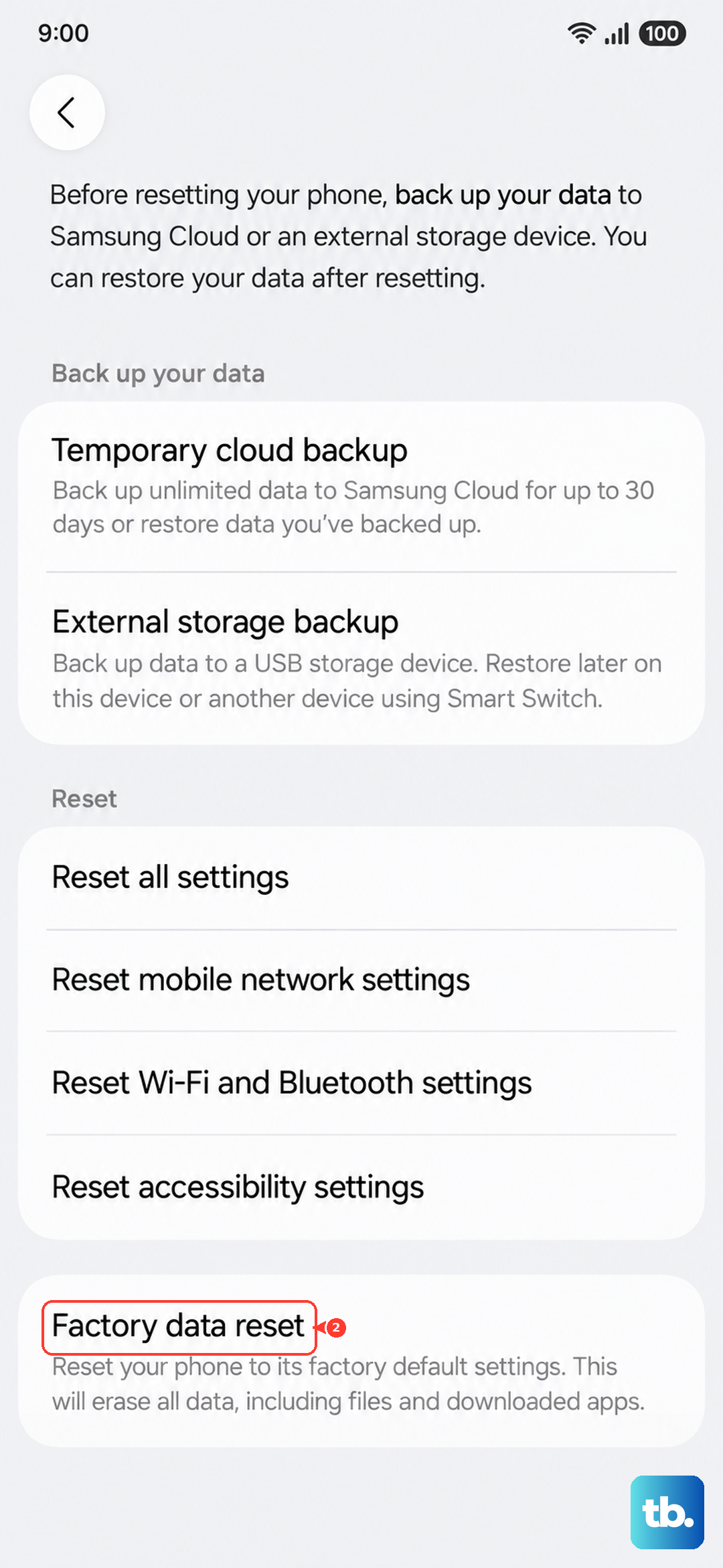
If none of the software fixes work, a factory reset can wipe out deep-level corruption. Back up your photos and data first. Go to Settings > General management > Reset > Factory data reset. Confirm and let the phone do its thing.