
Missing calls because your Samsung Galaxy Z Flip 7 won't ring is beyond annoying. You see the missed call notification, but the phone stayed dead silent. Let's get that ringer working again.
Check the Sound Mode First
The quickest fix is making sure your phone isn't on silent or vibrate-only. Swipe down from the top of the screen to open the notification panel and look for the "Sound" icon. Tap it to cycle through Sound, Vibrate, and Mute.
You can also check in Settings: go to Settings > Sounds and vibration > Sound mode and make sure "Sound" is selected. If you have a Bixby Routines or Modes schedule that automatically switches to silent, that could be the culprit too.
Turn Off Do Not Disturb and Modes
Android 16 includes Do Not Disturb and Modes that can silence calls while showing them in your notification history. Swipe down twice to open the full quick settings panel and look for the Do Not Disturb icon (a circle with a minus sign or a moon). If it's highlighted, tap it to turn it off.
For a deeper check, go to Settings > Modes and Routines. Tap Do Not Disturb and make sure it's disabled. Also review any custom Modes you've set up that might be triggering during certain times or locations. A common one is Sleep Mode, which mutes calls automatically.
Turn Up the Ringer Volume
Your ringer volume might be turned all the way down even with sound mode on. Press the Volume Up button on the right side of the Galaxy Z Flip 7 while on the home screen. You'll see a slider for Media volume, but tap the down arrow on the slider to reveal the Ringtone volume control. Drag it to the right.
Alternatively, go to Settings > Sounds and vibration > Volume and slide the "Ringtone" bar up. Make sure "Media" isn't the only thing turned up.
Change Your Ringtone
Sometimes the ringtone file itself gets corrupted or the sound profile gets stuck. Go to Settings > Sounds and vibration > Ringtone. Pick a different default ringtone and give yourself a test call to see if it rings now.
If you use a custom ringtone from a third-party app, that might be the issue. Switch to a system ringtone first to rule it out.
Disconnect Bluetooth Devices
If your Galaxy Z Flip 7 is connected to a Bluetooth headset, speaker, or even your car, calls might ring through those devices instead of the phone speaker. Open the quick settings panel and tap the Bluetooth icon to turn it off temporarily. Then test a call.
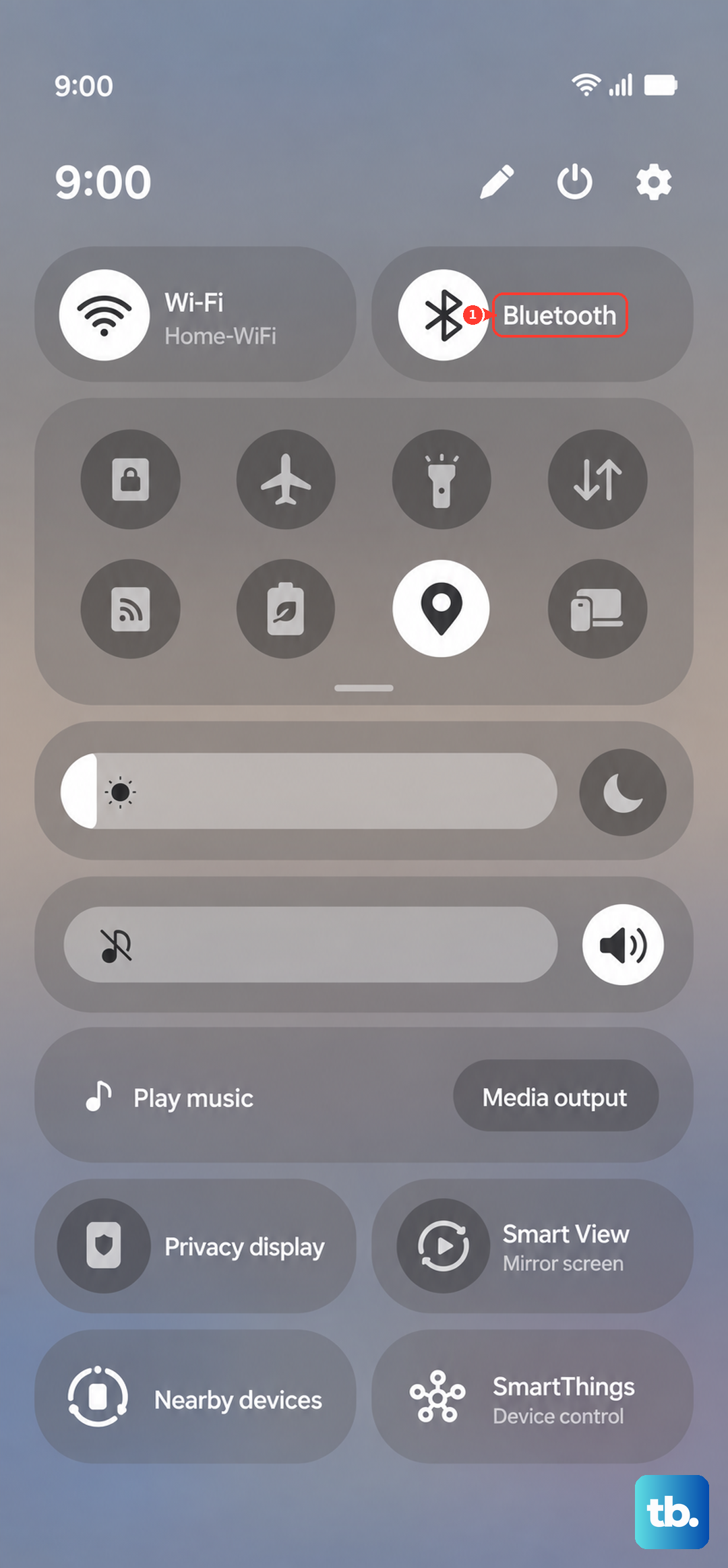
You can also go to Settings > Connections > Bluetooth and disconnect or forget any paired devices. I've seen cases where a smartwatch was routing call audio away from the phone.
Check for Blocked Contacts
You might have accidentally blocked the person who's calling. Go to Phone (the dialer app) > tap the three dots in the corner > Settings > Block numbers. Look through the list and remove anyone who shouldn't be blocked.
Disable Call Forwarding
Call forwarding sends incoming calls to another number, so your Z Flip 7 won't ring at all. Open the Phone app, tap the three dots, go to Settings > Supplementary services > Call forwarding. Make sure all forwarding options are set to "Not Forwarding" or "Off."
Turn Off Silence Unknown Callers
Samsung phones have a feature that silences calls from unknown numbers. Go to Phone > three dots > Settings > Caller ID and spam protection or look for Block unknown callers or Silence unknown callers depending on your carrier. Make sure it's disabled if you want all calls to ring.
Restart Your Galaxy Z Flip 7
A simple restart clears out temporary glitches. Press and hold the Side key and Volume Down together for a couple of seconds, then tap Restart. Or just hold Volume Down + Side key for 10 15 seconds until the device restarts that's the force restart method, which works even if the screen is frozen.
Update Software
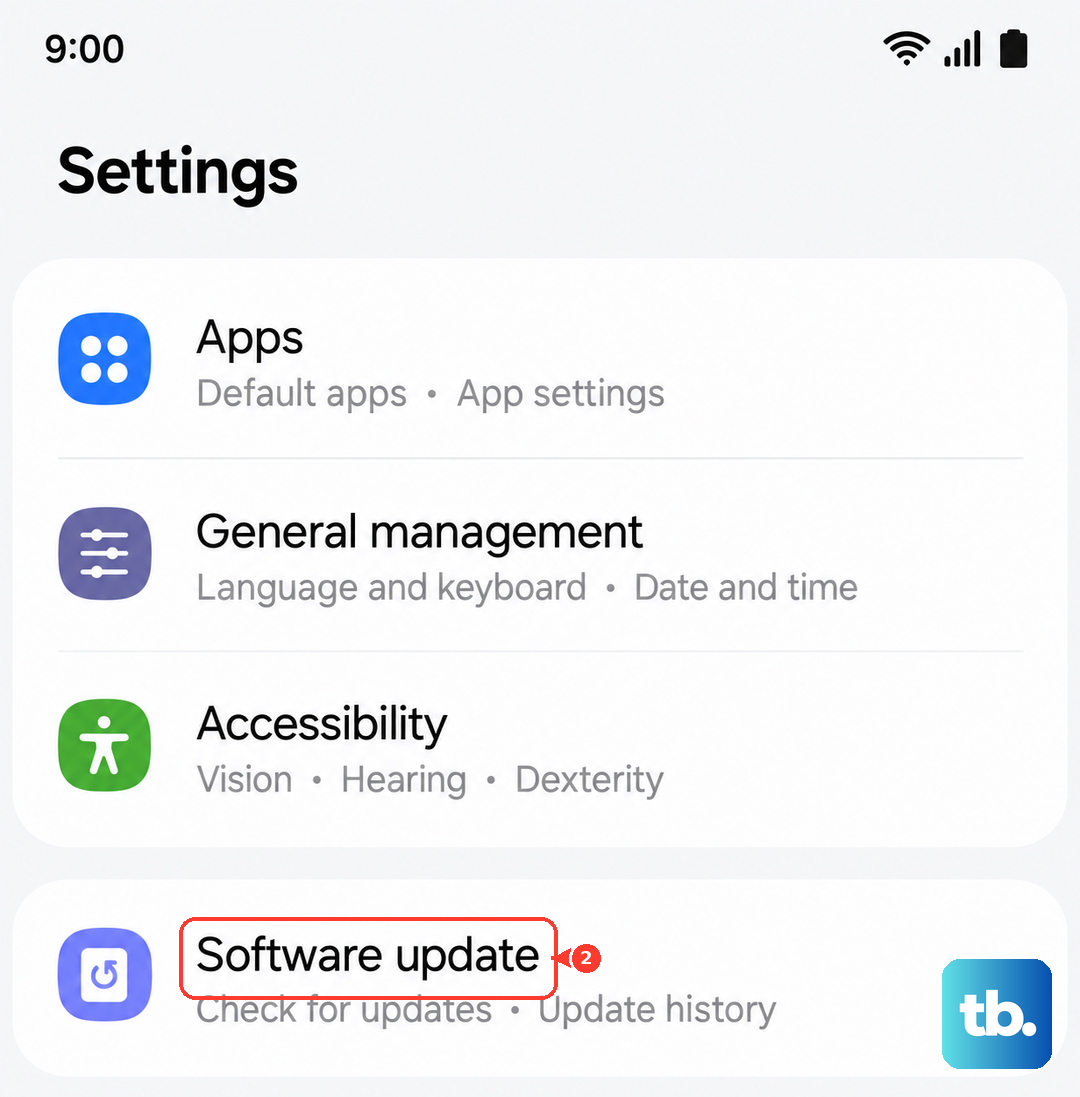
Samsung regularly pushes updates that fix bugs including call audio issues. Go to Settings > Software update > Download and install. Make sure you're on the latest Android 16 build for the Z Flip 7. If an update is available, install it and test again.
Reset All Settings
If nothing above worked, you can reset all settings without losing your apps or data. Go to Settings > General management > Reset > Reset all settings. This restores network, sound, and display settings to default. You'll need to re-enter Wi-Fi passwords, but your files and apps stay put.
Factory Reset (Last Resort)
If the ringer still won't work, a factory reset may be necessary. Back up your important data first your Z Flip 7 will wipe everything clean. Go to Settings > General management > Reset > Factory data reset. This is a nuclear option, but it will eliminate any deep software corruption preventing the phone from ringing.
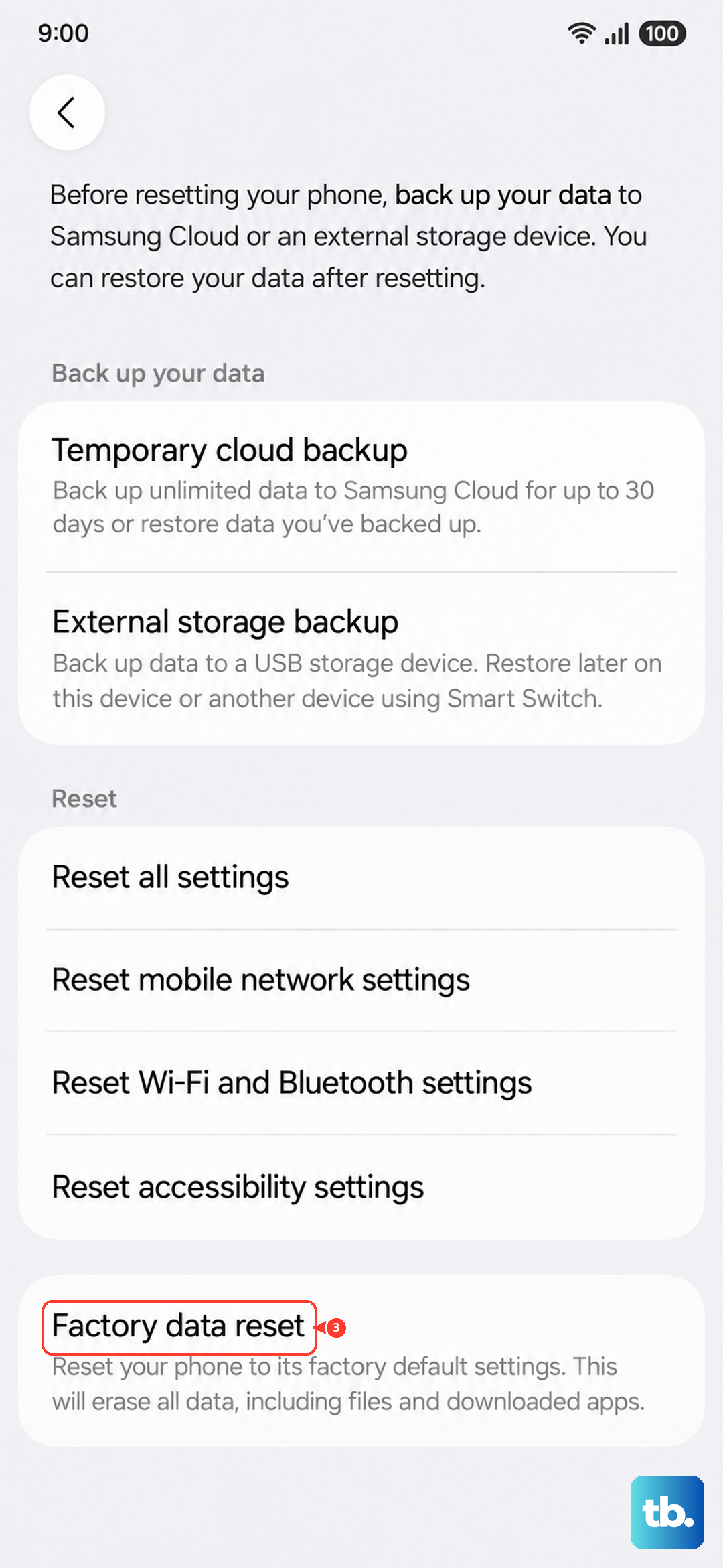
After the reset, set up the phone without restoring a backup first to see if the ringer works. Then add your data back gradually.











