
If your Galaxy Z Flip 7 has stopped vibrating for calls, texts, or notifications, it's usually a quick software fix rather than a hardware failure. Let's run through the most likely culprits in order of how often they pop up.
Force restart the phone first
Before diving into any settings, try the hard reboot. Press and hold Volume Down + Side key for 10 15 seconds until device restarts. This clears out any temporary system glitches that could be keeping the vibration motor offline.
I'd estimate this alone fixes the issue about half the time. It only takes a few seconds, so it's worth doing right now before you move on to anything else.
Check your sound mode
It sounds obvious, but your Z Flip 7 might be set to complete silence. Swipe down from the top of the screen to open the quick settings panel. Tap the sound mode icon until it switches to Sound or Vibrate. If it's on Mute, vibration is automatically disabled for everything.
Verify the vibration settings
Navigate to Settings > Sounds and vibration. Make sure Vibrate while ringing is toggled on. Tap Vibration intensity and slide all three sliders, for calls, notifications, and touch interactions, up to a level you can actually feel.
While you're in that menu, scroll down to Vibration pattern and try switching to a different one. The default pattern can sometimes get corrupted, and picking a new option forces the motor to re-engage.
Don't overlook system vibrations
If you're only missing haptic feedback while typing or using the navigation bar, go to Settings > Sounds and vibration > System sounds and vibration. Enable Keyboard vibration and Touch vibration. This is also a quick way to confirm the motor itself is physically working.
Run the built-in hardware test
The Galaxy Z Flip 7 includes a diagnostic tool that lets you check the vibration motor directly. Open the Phone app and dial *#0*#. Tap the Vibration button on the screen. If the phone buzzes, the motor is fine and the issue is strictly software-related. If nothing happens, you might be dealing with a hardware defect.
Look at individual app settings
Is vibration working for incoming calls but not for a specific app like WhatsApp, Instagram, or Samsung Messages? Go to Settings > Apps, select the problematic app, tap Notifications, and make sure Allow notifications and Vibrate are enabled for each notification category.
For Samsung Messages specifically, you need to enable vibration for both General Notifications and New messages separately. It's a common place to get tripped up.
Boot into Safe Mode
If the vibration issue started right after you installed a new app, Safe Mode can help you isolate it. Turn the device off. Press and hold the Side key and Volume Down key. When the Samsung logo appears, release the Side key but keep holding Volume Down until Safe mode appears in the bottom-left corner.
Test the vibration while in Safe Mode. If it works normally, a third-party app is causing the conflict. Restart the phone to exit Safe Mode, then uninstall any apps you added around the time the problem started.
Install any available updates
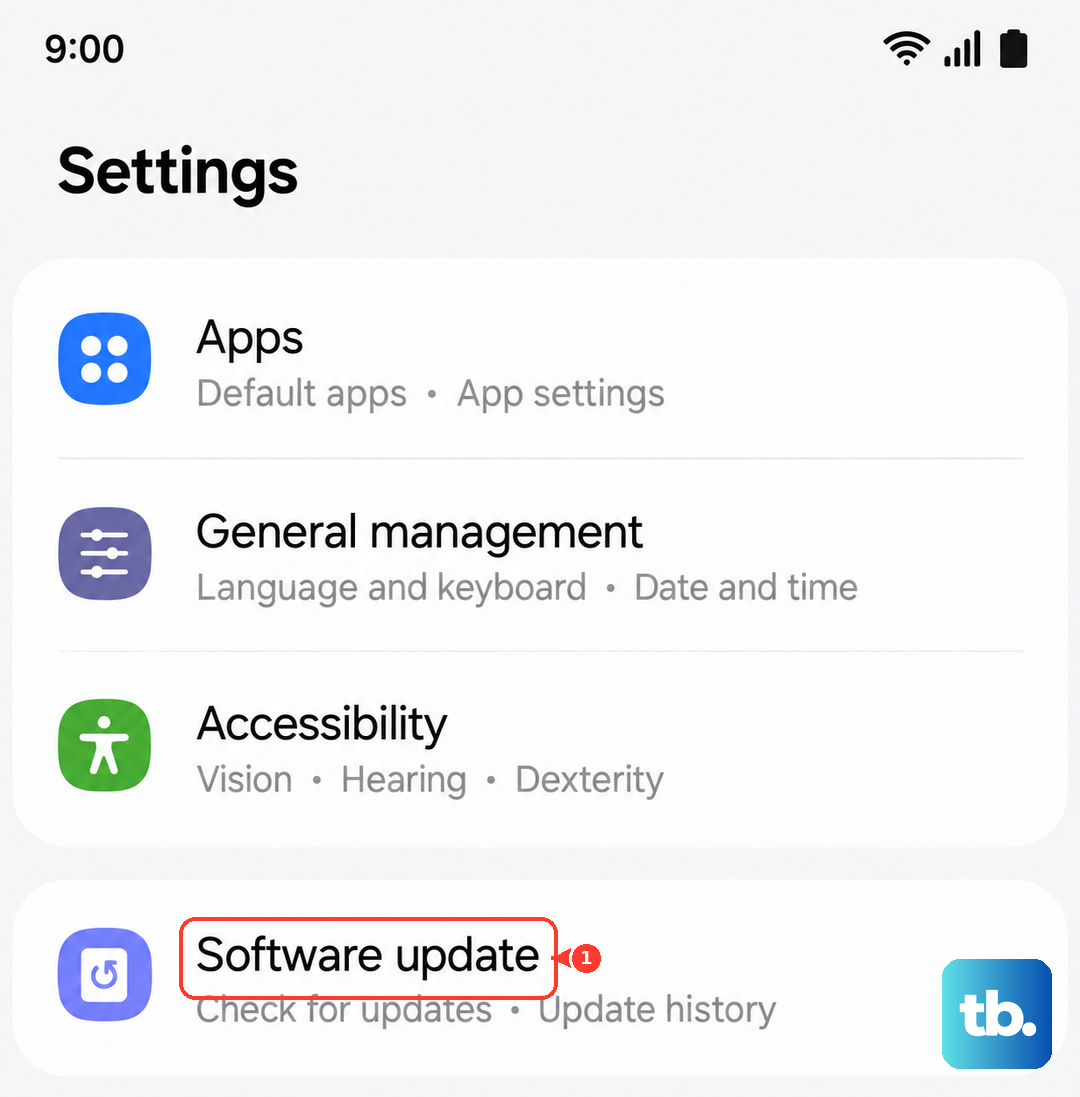
Samsung regularly pushes patches for Android 16 that address haptic feedback bugs. Go to Settings > Software Update > Download and install. If there's an update waiting, install it and test the vibration afterward. A software patch is a clean, permanent fix if you're dealing with a known bug.
Reset settings without wiping data
If nothing else has worked, you can reset all system settings without losing your photos, apps, or accounts. Go to Settings > General Management > Reset > Reset settings. Confirm the action and wait for the phone to restart. This reverts your network, sound, and accessibility settings to default, which can clear up deep-seated glitches that regular toggling won't touch.











