
When your Bluetooth headphones refuse to connect to the Galaxy Z Flip 7, you're stuck with on‑speaker audio for calls and music. The phone might not discover them, pair partway and drop, or connect but play through the phone speaker. Let's get them working.
Before working through the fixes, run a quick left and right audio test in your browser. It plays the left and right sides separately, so you can tell right away whether one channel is actually dead.
Force Restart the Phone
This clears temporary software glitches that can block Bluetooth. Press and hold Volume Down + Side key for 10 15 seconds until the device restarts. You won't lose any data. Audio‑routing hiccups often vanish after this.
Check Headphone Battery and Power
Make sure your headphones have enough charge. Put them in their case and check the LED indicator. A dead battery makes the phone think nothing is there. Charge the case fully, then try pairing again.
Forget and Re‑Pair the Headphones
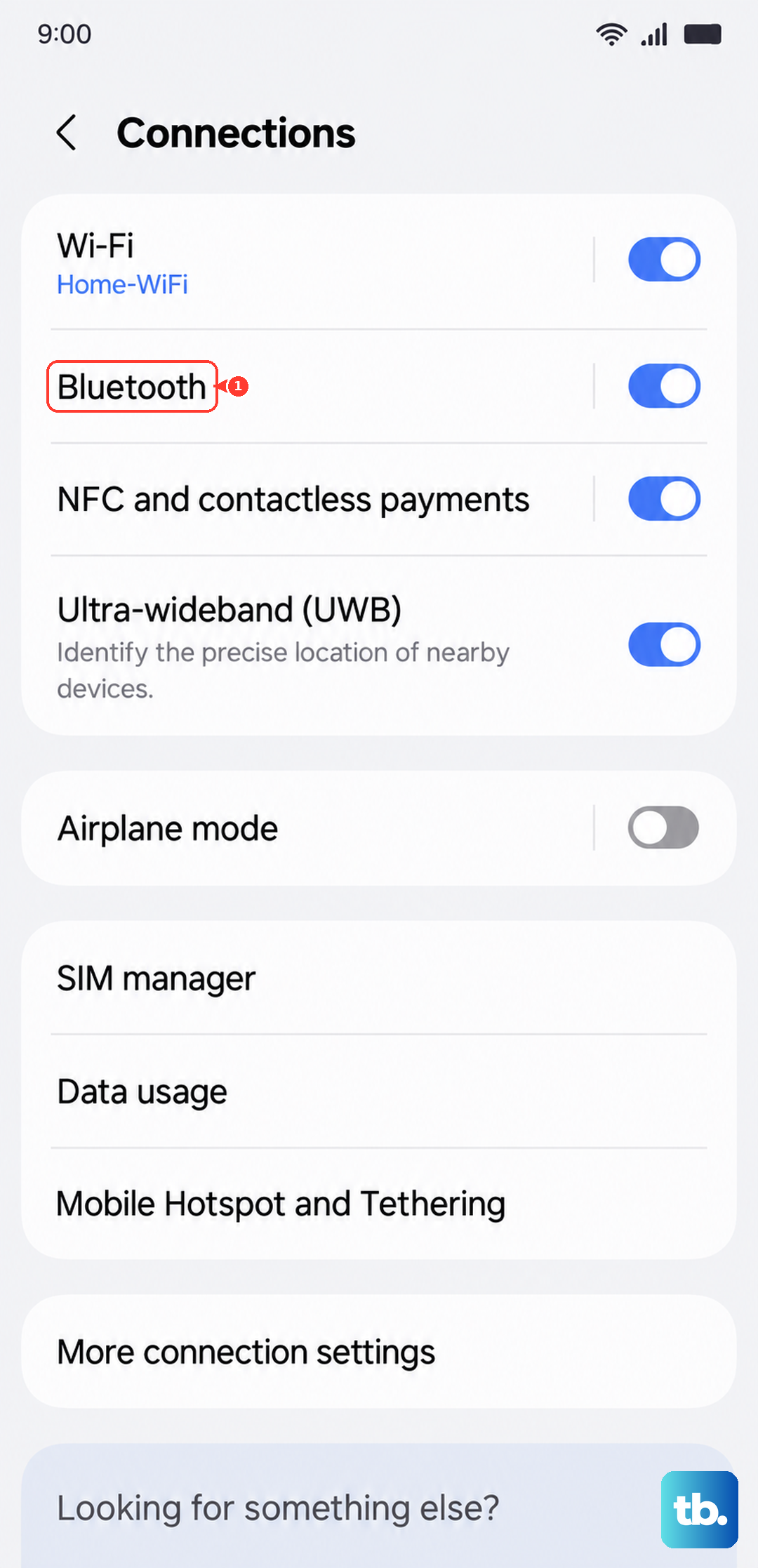
Go to Settings > Connections > Bluetooth. Tap the gear icon next to your headphones, then select Unpair or Forget. Put the headphones into pairing mode (usually holding the power button for a few seconds) and reconnect them from scratch. A fresh pairing fixes corrupted profiles.
Turn Bluetooth Off and Back On
Still in Settings > Connections, toggle Bluetooth off. Wait 10 seconds, then turn it on again. This refreshes the Bluetooth stack and can resolve stubborn connection issues without unpairing everything.
Clear the Bluetooth System Cache
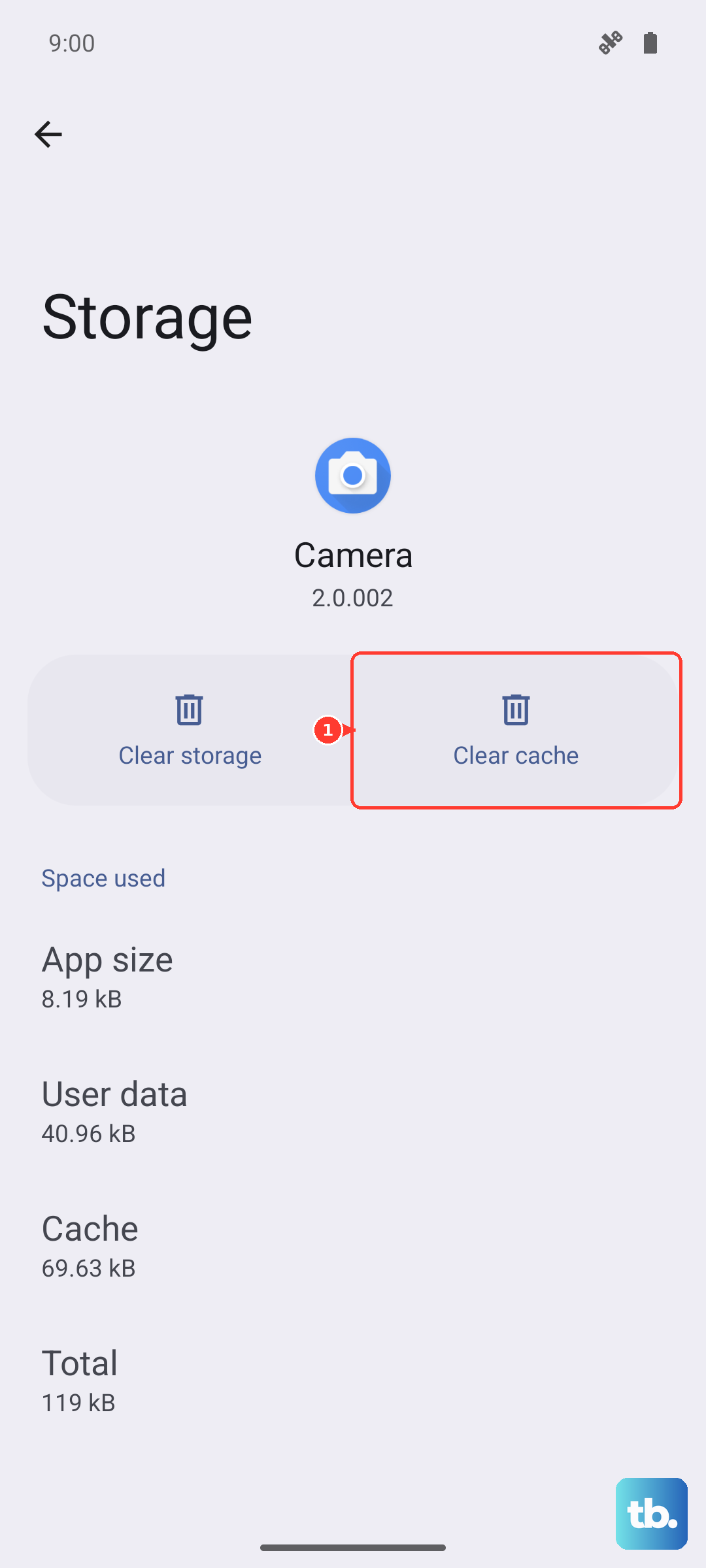
Android keeps a cache for Bluetooth. Corrupted data here can prevent pairing. Go to Settings > Apps > Show system apps (tap the three‑dot menu), find Bluetooth, then Storage > Clear cache. Don't tap Clear data unless you want to re‑pair all devices. After clearing cache, try connecting again.
Check for Dual Audio or Media Output Problems
The Z Flip 7 can send audio to multiple Bluetooth devices at once. If it's sending sound to a second device you forgot, your headphones may appear connected but stay silent. Open the quick settings panel and tap the Media output button (the speaker icon). Make sure only your headphones are selected. If you see a second device, tap it to disconnect.
Update the Phone's Software
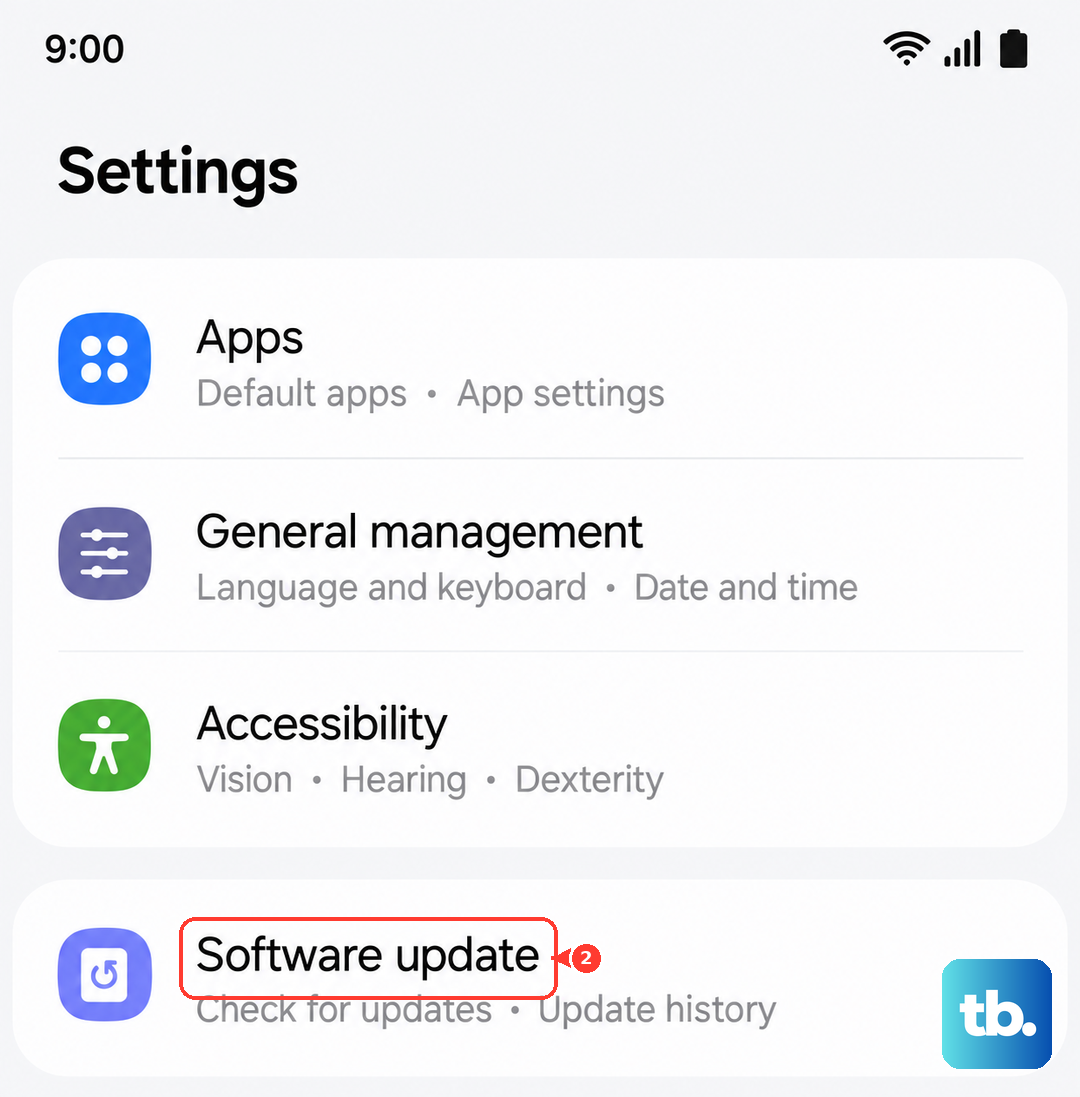
Bluetooth bugs are frequently patched in Android updates. Go to Settings > Software update > Download and install. If an update is available, install it and restart. This also applies to the headphones' firmware, some models update through their companion app.
Reset Network Settings
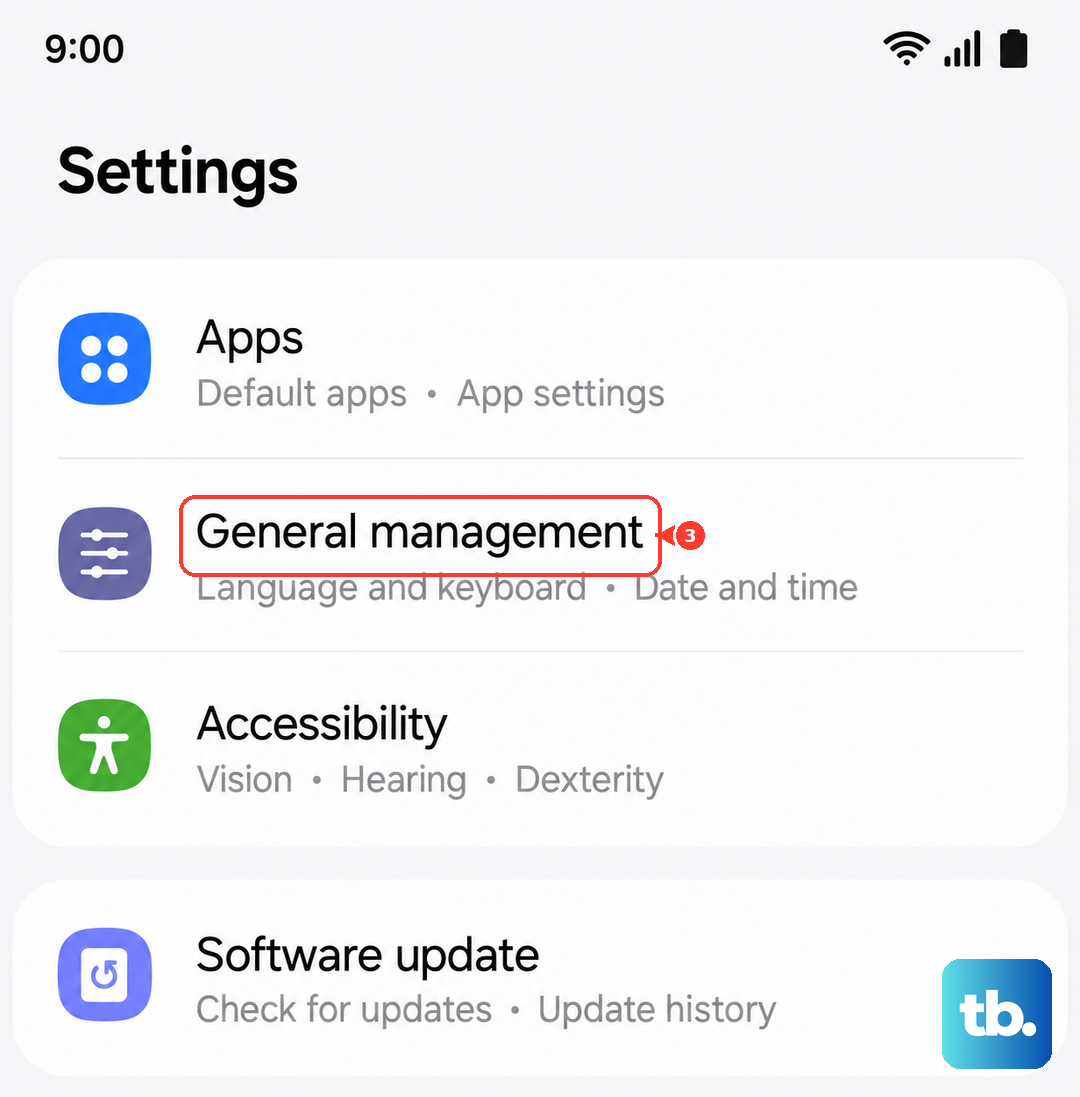
This clears all stored Bluetooth devices, Wi‑Fi networks, and cellular settings. It's more thorough than a cache clear. Go to Settings > General management > Reset > Reset network settings. You'll need to re‑pair your headphones and re‑enter Wi‑Fi passwords, but it often fixes persistent Bluetooth failures.
Check for Interference
Strong Wi‑Fi signals, other Bluetooth devices, and even USB 3.0 cables can cause interference. Move your Z Flip 7 and headphones away from other electronics. Bring the phone close to the headphones during pairing. If the connection drops when you pocket the phone, try carrying it on the same side as the headphones.
Test the Headphones on Another Device
If none of the above helps, try pairing your headphones with a different phone or tablet. If they don't connect there either, the headphones are the issue. Contact their manufacturer or check for a reset procedure specific to that model.