
Your Samsung Galaxy Z Flip 7 keyboard keeps crashing or the "Unfortunately, Samsung Keyboard has stopped" error keeps popping up. This usually points to a corrupted cache file or a conflict with a recent app update, but it's rarely a hardware problem on a 2025 phone.
Force Stop the Keyboard App
Start with the quickest fix. Go to Settings > Apps, tap the three-dot menu, and select Show System Apps. Find Samsung Keyboard, tap it, then hit Force Stop.
This kills the process and lets it restart fresh. Test the keyboard after you exit Settings. If you use Gboard or SwiftKey instead, force stop that app instead.
Restart Your Z Flip 7
A standard restart clears out temporary glitches that might be hanging the keyboard. Press and hold the Volume Down and Side key together for about 10 to 15 seconds until the device restarts. That's the force restart method for this model, and it works even if the screen is frozen.
Once the phone boots back up, open any text field and see if the keyboard behaves normally.
Clear the Keyboard Cache and Data
Corrupted cache files are the most common cause of keyboard errors on Samsung phones. Go to Settings > Apps, find Samsung Keyboard, and tap Storage. Tap Clear Cache first, then tap Clear Data and confirm.
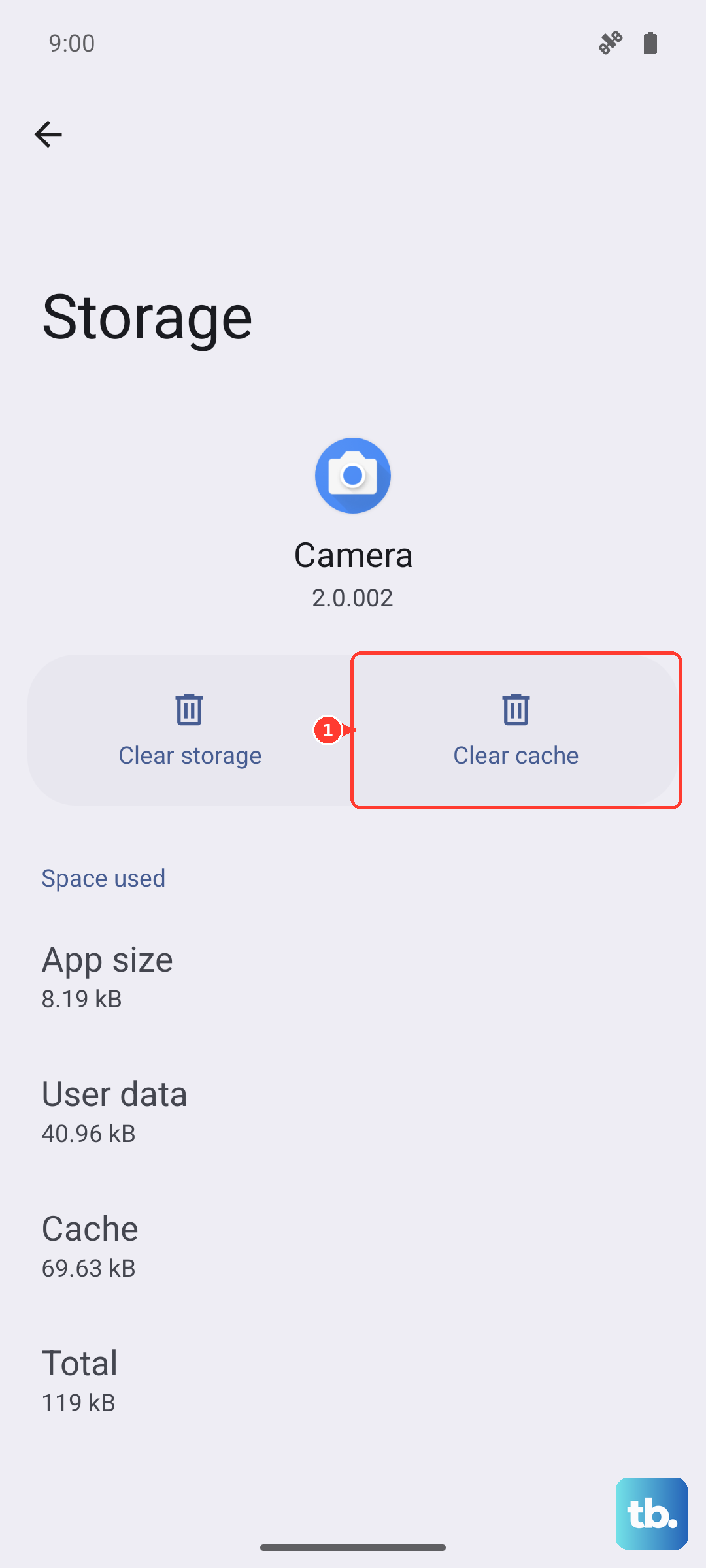
You will lose custom keyboard settings like your saved words and autocorrect history, but no personal data gets deleted. Restart the phone afterward to make sure the changes take effect.
Clear the Dictionary App Data Too
The keyboard leans heavily on a separate Dictionary app for predictions and autocorrect. If that app has corrupted files, the keyboard can crash. Go to Settings > Apps > Show System Apps, find Dictionary, tap Storage, then clear both cache and data.
Some Samsung phones label this as "Samsung Dictionary" or just "Dictionary Provider." Use whichever shows up.
Update the Keyboard and System Software
An outdated keyboard app can develop compatibility issues, especially after a system update on Android 16. Open the Google Play Store, tap your profile picture, select Manage apps & device, and check for updates to Samsung Keyboard.
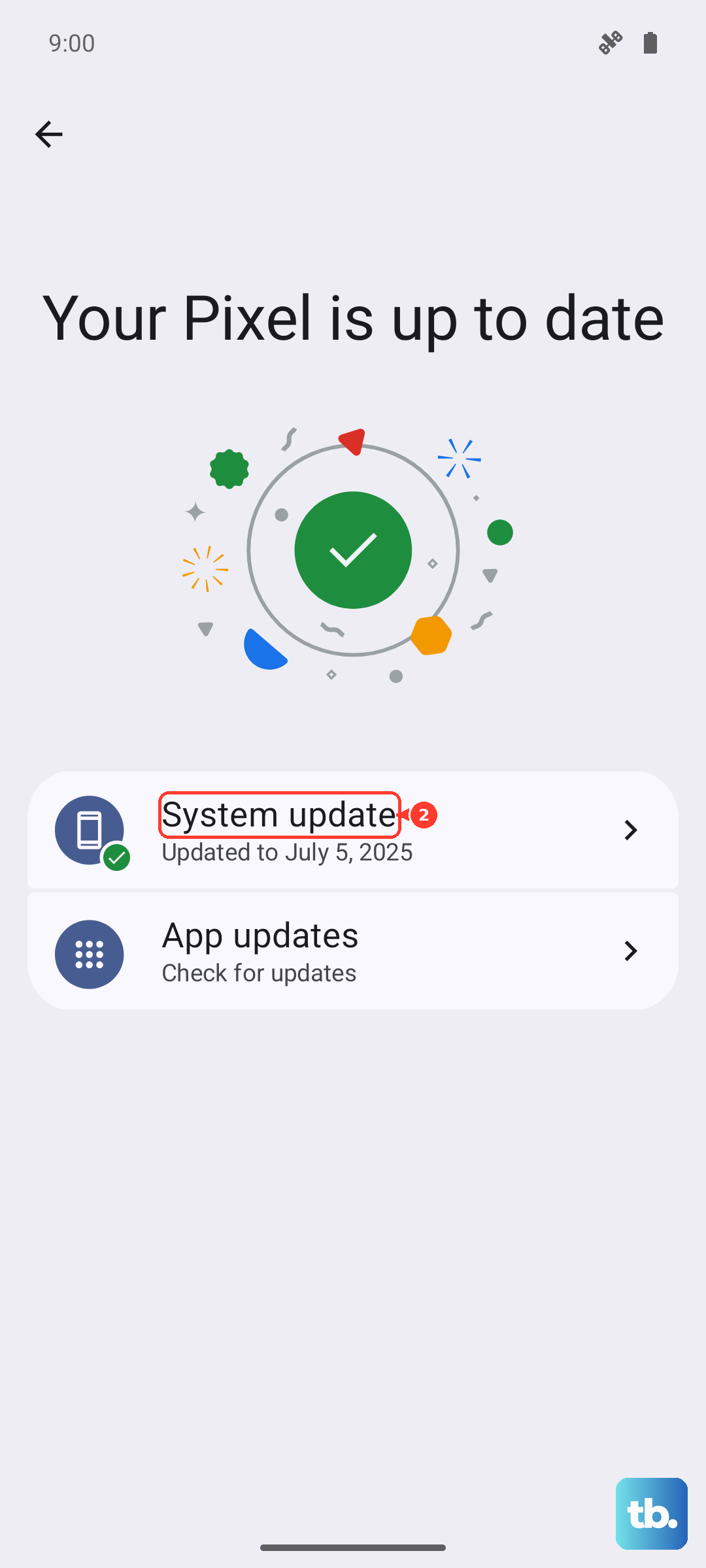
You should also check for a system update. Go to Settings > Software Update > Download and Install. Samsung regularly pushes fixes for known keyboard bugs through these updates.
Reset Keyboard Settings to Default
If you've tweaked keyboard settings and something went wrong, resetting them can clear out the conflict. Go to Settings > General Management > Language and Input > On-screen keyboard > Samsung Keyboard. Tap Reset to default settings at the bottom.
This won't delete your saved words or personal data. It just reverts layout, sound, and vibration settings back to factory defaults.
Switch to a Different Keyboard Temporarily
If you still see crashes, try installing Gboard or Microsoft SwiftKey from the Play Store. Switch to it by going to Settings > General Management > Language and Input > On-screen keyboard and selecting the new keyboard as your default.
This isn't a permanent fix, but it gives you a working keyboard while you troubleshoot the Samsung one. The Z Flip 7's foldable display handles third-party keyboards well in both Flex Mode and the unfolded state.
Boot Into Safe Mode
Safe mode disables all third-party apps. If the keyboard works fine here, a downloaded app is causing the problem. To enter safe mode, press and hold the Side key, then tap and hold Power off until you see the safe mode prompt. Tap Safe mode to confirm.
While in safe mode, open a text field and test the keyboard. If it works, restart the phone normally and start uninstalling recently added apps one at a time until the issue stops.
Disable the Dictionary Provider
Some Z Flip 7 users have found that disabling the Dictionary app entirely stops the keyboard from crashing. Go to Settings > Apps > Show System Apps, find Dictionary Provider or Samsung Dictionary, tap it, and select Disable.
This will turn off predictive text and autocorrect, but your keyboard will work. You can re-enable it later if you want those features back.
Reset All Settings
As a last step before a factory reset, try resetting all system settings. Go to Settings > General Management > Reset > Reset all settings. This doesn't delete your photos, apps, or accounts, but it does reset things like Wi-Fi passwords, Bluetooth pairings, and keyboard preferences.
It also clears any system-level conflicts that might be interfering with the keyboard service.