
If your Galaxy Z Flip 6 is stuck in one orientation and won't flip when you open or tilt it, that's a common hiccup. The auto-rotate feature relies on both software settings and physical sensors, and a glitch in either can cause it to freeze.
I'd start by checking the quick settings toggle, as that's the fix for most people. From there, we can move through other solutions specific to the Flip's foldable design and One UI software.
Toggle Auto Rotate from the Quick Panel
The fastest way to check is to pull down the notification shade twice to open the full Quick Settings panel. Look for the icon labeled "Portrait" or "Auto rotate." If it's gray or shows a lock symbol, tap it to enable it.
When active, the icon should turn blue. Try rotating your phone or opening it to a different angle to see if the screen follows. Remember, the inner main screen and the outer cover screen have independent rotation settings, so check both if you're having issues on a specific display.
Enable Home Screen Rotation in Settings
By default, Samsung's One UI home screen doesn't rotate to landscape, even with auto-rotate on. If you want your home screen and app drawer to rotate when you use the phone in Flex Mode or hold it sideways, you need to enable it separately.
Swipe down and tap the text "Portrait" under the quick settings icon. In the menu that pops up, toggle on "Rotate to landscape mode." This setting also controls whether your phone's dialer rotates during calls.
Restart Your Galaxy Z Flip 6
A simple restart clears out temporary system glitches that can confuse the accelerometer. Press and hold the side key and either volume button until the power menu appears, then tap "Restart."
Wait for the phone to fully reboot. This takes about 30 seconds. Once it's back on, test the rotation again by opening an app like Gallery or YouTube and tilting the device.
Perform a Force Restart
If a normal restart doesn't cut it, a force restart is a stronger refresh that doesn't delete your data. For the Galaxy Z Flip 6, press and hold the Volume Down button and the Side key simultaneously for about 10 seconds.
Keep holding until you see the Samsung logo appear on the screen, then release. The phone will boot up normally. This can resolve deeper software hiccups affecting the sensors.
Check for App-Specific Rotation Lock
Some apps, especially games or video players, have their own internal rotation settings that override the system. If rotation only fails in one app like Instagram or Chrome, the issue is likely with that app.
First, try force-stopping the problematic app. Go to Settings > Apps, select the app, and tap "Force stop." Then reopen it. If that doesn't work, check the app's own settings for a rotation or display lock option. Clearing the app's cache from that same info page can also help.
Update Your Phone's Software
Software bugs in Android or One UI can sometimes break sensor functionality. Samsung regularly releases updates that include fixes for these kinds of issues. Make sure your Z Flip 6 is running the latest version.
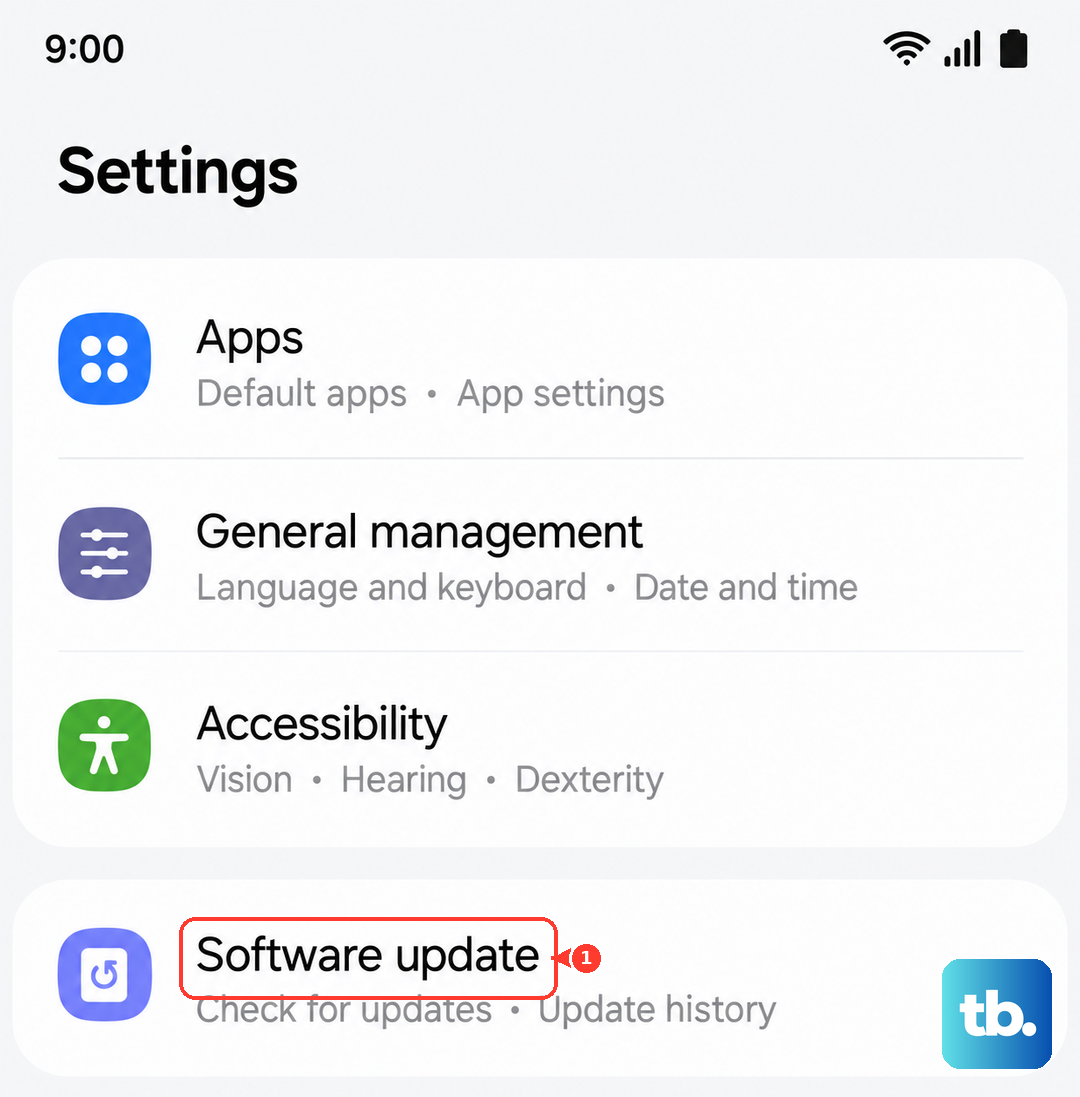
Go to Settings > Software update > Download and install. If an update is available, connect to Wi-Fi and let it install. After the update completes, your phone will restart. It's a good practice to check for updates monthly.
Test the Sensors with Diagnostic Mode
The Z Flip 6 uses an accelerometer and gyroscope to detect motion. You can test these directly using Samsung's secret diagnostic menu. Open your Phone dialer and type *#0*# to enter the test mode.
Tap on "Sensor" from the grid of options. You'll see a screen with live data. Tilt and rotate your phone; the X, Y, and Z axis values should change rapidly. If they're stuck at zero or don't respond, there could be a hardware fault with the sensors.
Consider Flex Mode and the Hinge
Because the Z Flip 6 is a foldable, its rotation behavior is tied to the hinge position. The "Flex Mode" feature, which splits apps when the phone is partially folded, can sometimes interfere. Try fully closing and then reopening the phone to reset the hinge sensor.
Also, avoid having any debris or a screen protector near the hinge area, as this can physically obstruct the folding mechanism that the system monitors. If the hinge feels unusually stiff or makes new sounds, it might be affecting the internal sensors that tell the phone its orientation.