
Missing calls on your Samsung Galaxy S24 because the ringer is silent is a common headache. You might see the screen light up with a missed call notification, but never hear a sound. The issue usually comes down to a setting that got changed, a software hiccup, or a feature working a little too well in the background.
Let's start with the quick fix. The most common reason is that your phone is in Silent or Vibrate mode. Swipe down twice from the top of your screen to open the full Quick Settings panel. Look for the "Sound" or "Vibrate" icon. If it's highlighted, tap it to switch back to "Sound" mode. You can also quickly press the volume up button on the side and tap the settings icon that pops up to ensure the ringtone volume slider is all the way up.
Check Do Not Disturb and Modes
One UI's Do Not Disturb and Modes features are powerful for silencing distractions, but they can easily be left on. Pull down your notification shade and check for a moon icon in the top right. If you see it, Do Not Disturb is active. Tap it to turn it off.
You should also dive into your Modes. Go to Settings > Modes and routines. Here, you might have a Mode like "Sleep" or "Work" that's scheduled to turn on automatically. Tap on any active Mode and make sure the "Calls and notifications" settings aren't set to silence all calls. I've seen the Sleep routine silence phones for many people overnight, and sometimes it doesn't turn off as expected in the morning.
Adjust Your Volume and Sound Settings
On the Galaxy S24, there are separate volume sliders for media, notifications, and ringtones. It's easy to lower the ringer by accident. Press a volume button, then tap the three-dot menu below the slider. This opens all the individual volume controls. Make sure the "Ringtone" slider is maxed out.
While you're there, go to Settings > Sounds and vibration > Volume. This gives you the same master control. Also, check your ringtone itself. Go to Settings > Sounds and vibration > Ringtone and tap on your current tone to preview it. If you don't hear anything, select a different default Samsung tone and test a call.
Disconnect Bluetooth and Check Call Settings
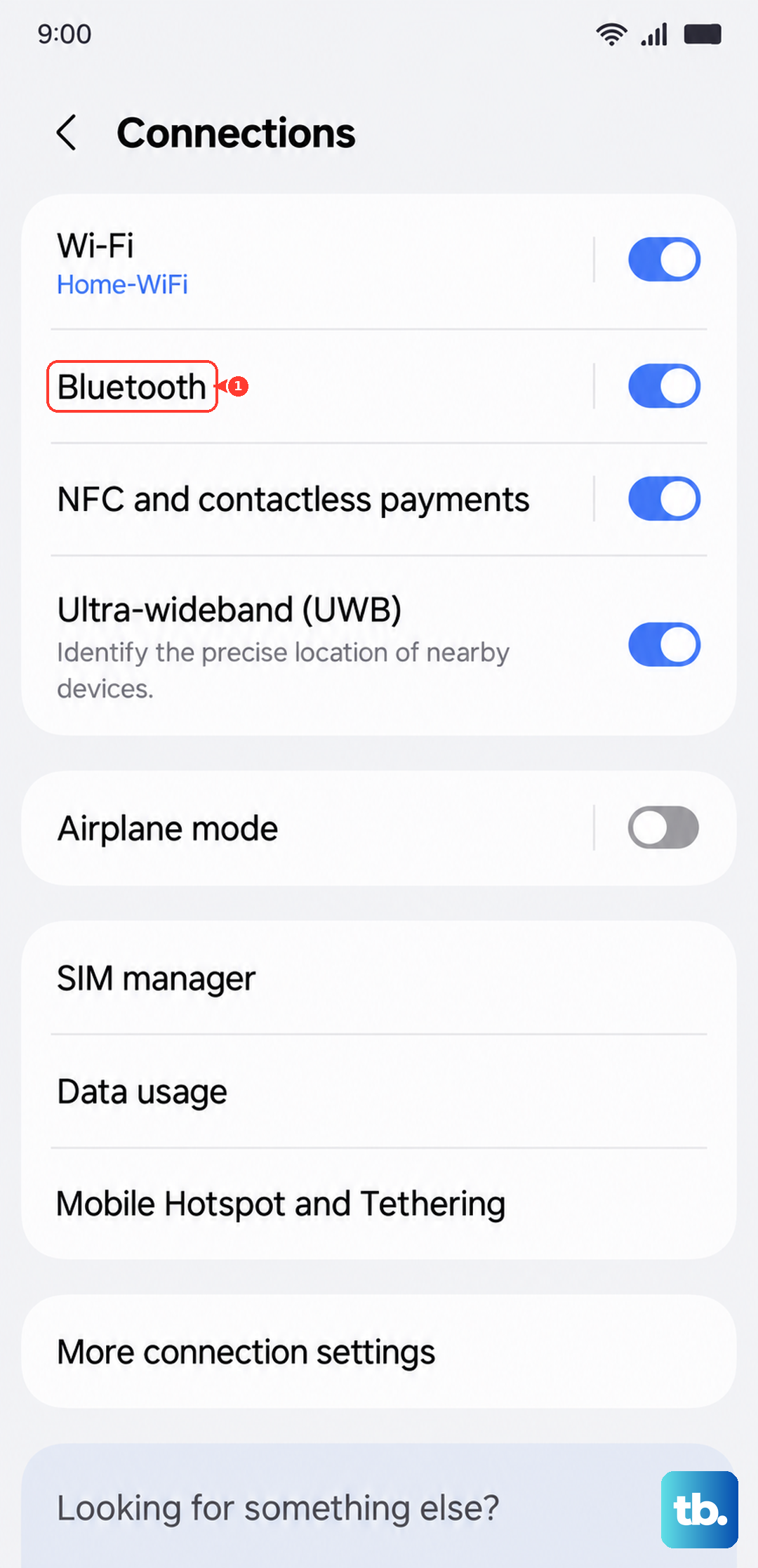
If your S24 is connected to a Bluetooth speaker, headphones, or your car, incoming calls will often route audio there instead of the phone's speaker. Swipe down and tap the Bluetooth icon to turn it off temporarily, or go to Settings > Connections > Bluetooth and toggle it off. See if your next call rings normally.
A few other call settings can intercept rings. Open the Phone app, tap the three-dot menu, and go to Settings > Block numbers. Verify the caller isn't on your block list. Also, check for call forwarding. In the same Phone settings menu, look for "Call forwarding" and ensure all options are set to "Turn off" or your carrier's default.
Review App Notifications and Permissions
The Phone app itself needs permission to make sound. Go to Settings > Notifications > App notifications and find "Phone" in the list. Tap it and ensure notifications are turned on. Then, tap "Notification categories" and look for "Incoming calls." Make sure it's enabled and set to "Sound" or "Sound and pop-up."
This is also where you can check if "Silence unknown callers" is on. In the Phone app settings, there's often a toggle for this. If it's enabled, calls from numbers not in your contacts will be silenced, which might explain why some calls ring and others don't.
Perform a Software Update and Restart
A simple restart can clear out temporary glitches that affect sound. Press and hold the Volume Down button and the Side key (power button) together for about 10 seconds until you see the Samsung logo. This forces a reboot.
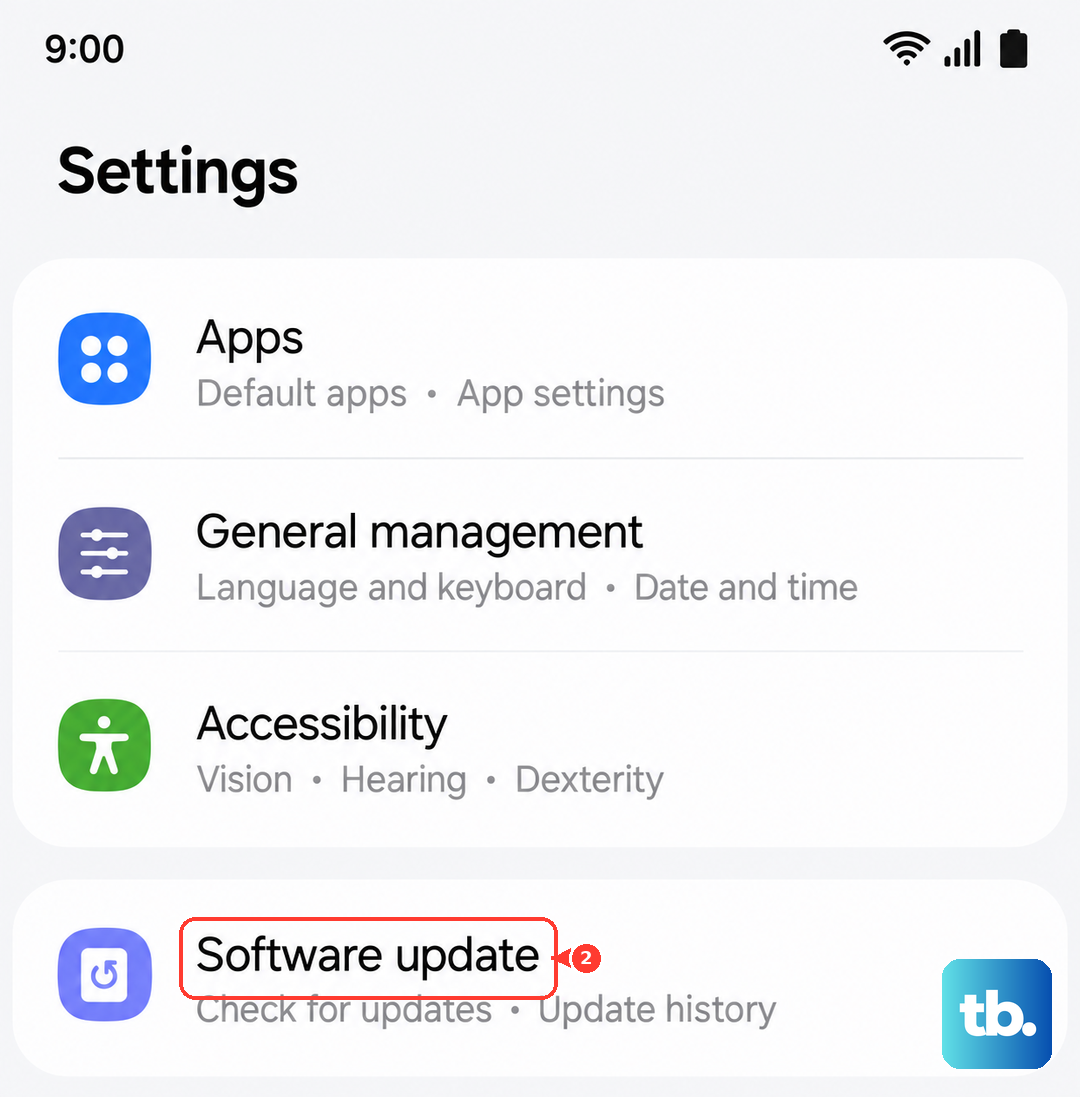
After restarting, check for a software update. Go to Settings > Software update > Download and install. Updates frequently include bug fixes for audio and calling issues. Make sure you're connected to Wi-Fi and have good battery life before starting the update.
Reset App Preferences or Network Settings
If the problem seems linked to the Phone or Contacts app, try resetting app preferences. This won't delete any personal data. Go to Settings > Apps, tap the three-dot menu, and choose "Reset app preferences." This resets notification settings and permissions for all apps back to their defaults.
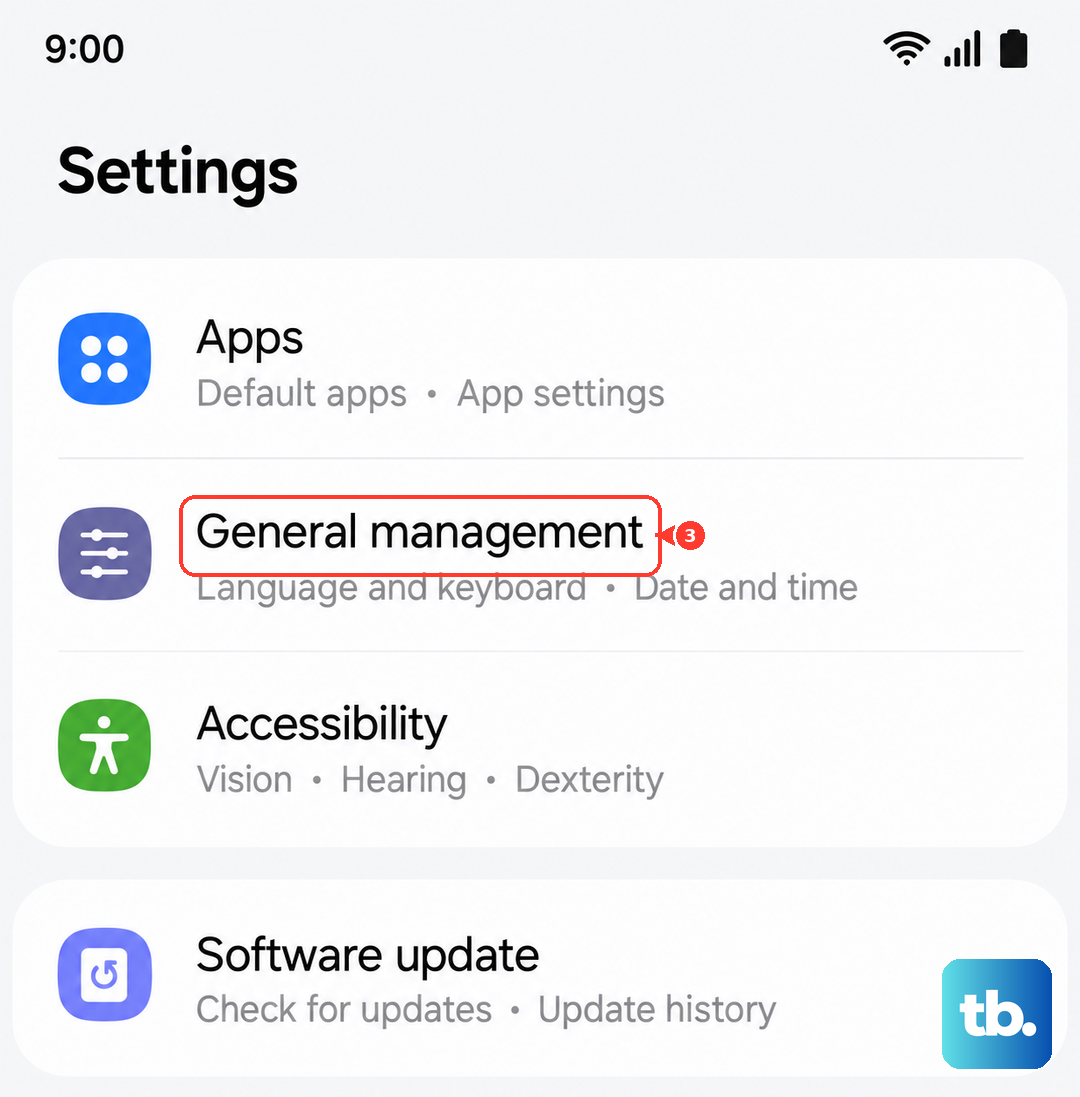
For issues that might be network-related, like calls going straight to voicemail, you can reset network settings. Go to Settings > General management > Reset > Reset network settings. You'll need to re-enter Wi-Fi passwords and re-pair Bluetooth devices afterward.
Check for Physical and System-Wide Issues
Ensure nothing is physically blocking the top speaker grill. A case or a piece of debris can sometimes muffle sound. Also, if you've recently enabled any accessibility features like "Mute all sounds," turn them off in Settings > Accessibility > Hearing enhancements.
As a broader step, you can reset all settings. This will revert your sound, display, and connection settings to factory defaults without touching your photos or apps. Go to Settings > General management > Reset > Reset all settings. You'll just need to set up your wallpapers and ringtones again afterward.