
If your Samsung Galaxy Tab S9 feels unusually warm to the touch, you're not alone. This powerful tablet packs a lot of performance into a slim frame, which can sometimes lead to heat buildup during demanding tasks. The good news is that a few simple adjustments can usually cool things down quickly.
Let's start with the most common fix. If your tablet is hot right now, close all your open apps. Swipe up from the bottom of the screen and hold, then tap "Close All" on the app carousel. Next, pull down the Quick Settings panel twice and toggle on "Power saving" mode. This immediately reduces background activity and processor speed, which should help it cool off within a few minutes.
Check for Rogue Apps and Updates
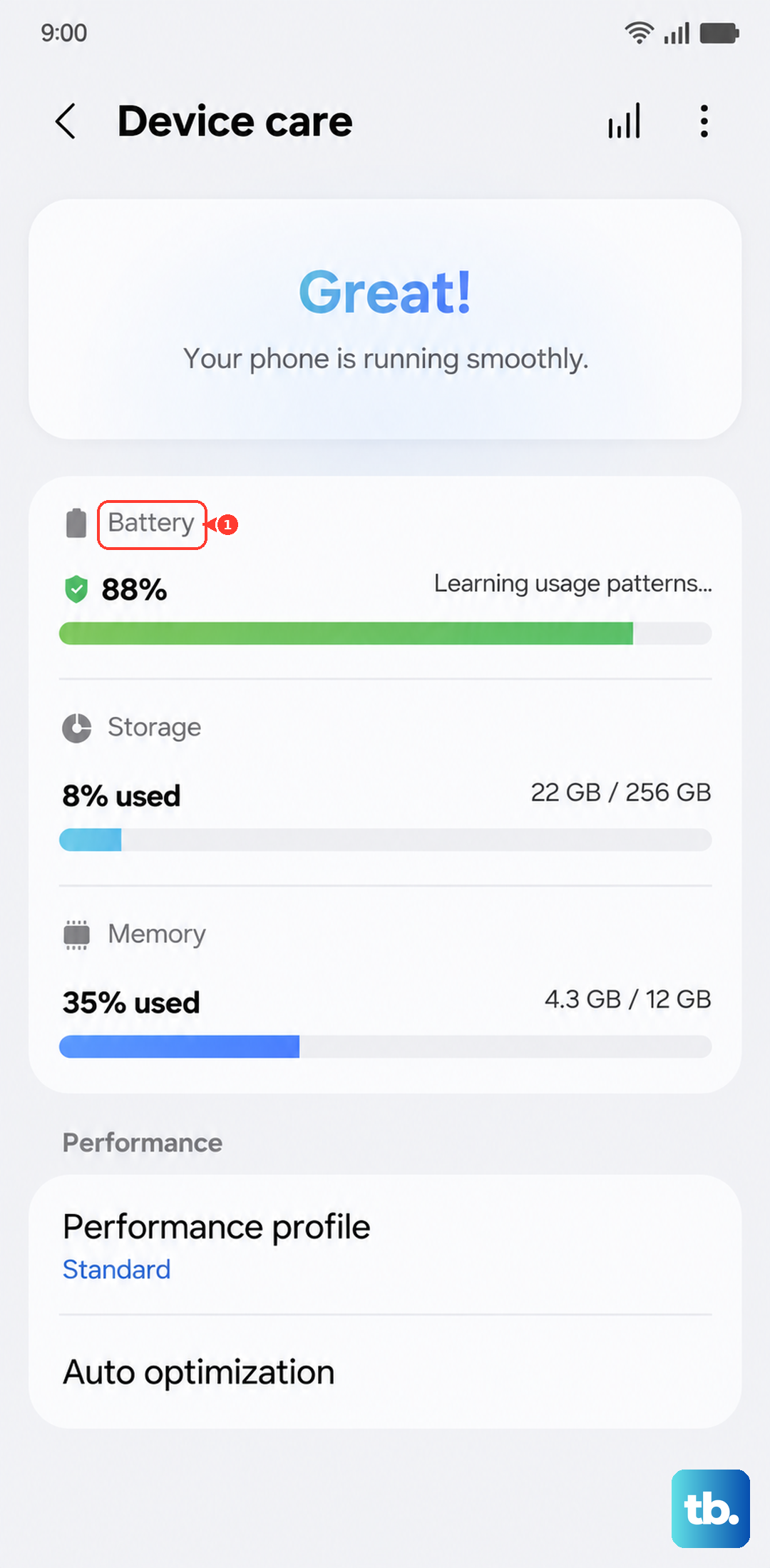
Sometimes, a single misbehaving app is the culprit. Head to Settings > Battery and device care > Battery. Look at the usage graph below; it shows which apps have been using the most power recently. If you see an app you don't recognize or one that's using a disproportionate amount of battery, that app might be running wild in the background and generating heat.
For a deeper look, go to Settings > Apps, select the suspicious app, and tap "Force stop". You can also check if it's set to "Put app to sleep" or "Deep sleeping" in the battery settings to prevent future issues. Keeping your software updated is equally important, as updates often include thermal management improvements. Go to Settings > Software update and tap "Download and install".
Adjust Your Display and Performance Settings
The stunning 11-inch display on the Tab S9 is a major power draw. Reducing the screen brightness is one of the fastest ways to cut down on heat. You can also lower the screen refresh rate. Navigate to Settings > Display > Motion smoothness. Switching from "Adaptive" (which can go up to 120Hz) to "Standard" (60Hz) makes a noticeable difference in power consumption and heat.
For a more comprehensive approach, change your performance profile. Go to Settings > Battery and device care > Battery > More battery settings > Performance profile. Selecting "Light" mode limits the CPU speed and graphics performance, which is perfect for general browsing and reading and will keep your tablet much cooler. I'd switch to this if you're just streaming video or reading.
Manage Your Charging Habits
Charging generates heat, and using the wrong charger makes it worse. The Galaxy Tab S9 supports up to 45W wired charging. If you're using a low-wattage phone charger (like a standard 15W or 20W brick), the tablet has to work harder to negotiate power, and it will charge very slowly, often getting quite warm in the process.
For the best results, use Samsung's official 45W charger. Also, make sure you're using a high-quality USB-C cable capable of handling the power. A pro tip is to turn the screen off while charging. The tablet charges significantly faster with the display off, which reduces the total time it spends plugged in and warm. If you're using Samsung DeX mode, be aware that it's very power-intensive. With a low-wattage charger, the tablet might actually discharge slowly even while plugged in.
Give Your Tablet a Fresh Start
If the overheating seems sudden and isn't linked to a specific app, a software glitch might be to blame. Start with a simple restart. Hold the Side button and the Volume Down button together for about ten seconds until you see the Samsung logo. This force restart clears the device's memory and stops all processes.
For more persistent issues, try wiping the cache partition. First, power off your tablet completely. Press and hold the Volume Up button and the Side button simultaneously until the Android Recovery screen appears. Use the volume buttons to navigate to "Wipe cache partition" and press the Side button to select it. Confirm the action, then select "Reboot system now". This clears temporary system files that can sometimes cause performance and heating problems.
Optimize Your Usage Environment
Where and how you use your tablet has a big impact. Avoid using it on soft surfaces like beds, couches, or blankets, as these can block the vents and insulation traps heat around the device. Always use it on a hard, flat surface like a table or desk to allow for proper airflow.
Also, be mindful of the ambient temperature. Don't leave your Tab S9 in a hot car or in direct sunlight for extended periods. Using it outdoors on a very hot day will naturally cause it to heat up faster. If you're doing something intensive like gaming or video editing, take short breaks every 30-45 minutes to let the internals cool down.
Review Accessibility and Background Services
Certain accessibility features can increase CPU load. Go to Settings > Accessibility and review the features you have turned on. If you're not actively using options like "TalkBack" or "Sound detectors," consider turning them off temporarily to see if it affects the temperature.
Background syncing for accounts like email and social media can also contribute. You can adjust sync intervals by going to Settings > Accounts and backup > Manage accounts. Select an account and turn off sync for items you don't need updating constantly. Reducing the frequency of these checks gives your tablet's processor fewer background tasks to handle.