Is your Samsung Galaxy Tab S9 starting to feel sluggish? Even a powerful tablet can slow down over time as apps pile up and settings get cluttered. The good news is you can almost always speed it back up with a few simple tweaks.
Lag on the Tab S9 usually comes from a handful of common places. Running low on storage, having too many apps active in the background, or an outdated software version are typical culprits. Let's start with the quickest fix you can try right now.
Restart Your Tablet
It sounds too simple, but a restart clears out the tablet's temporary memory and stops any stuck processes. Just press and hold the Volume Down button and the Side (power) button together for about 10 seconds until you see the Samsung logo appear. This forces a reboot and can instantly resolve minor performance hiccups.
Close Unused Apps Running in the Background
Android and One UI are good at managing memory, but having dozens of apps suspended in the background can still slow things down. To close them, swipe up from the bottom of the screen and hold to enter the recent apps view. You can swipe each app window away to close it individually, or tap the three-dot menu and select "Close all" for a clean slate.
Free Up Storage Space
When your tablet's storage is nearly full, it has less room to operate efficiently, which can cause lag. Head to Settings > Battery and device care > Storage. Here, you'll see a breakdown of what's using space.
Tap "Clean now" to let the device remove junk files automatically. For a deeper clean, explore the large files or app sections. I'd recommend moving photos and videos to a cloud service or SD card first, as media files are often the biggest space hogs.
Update Your Apps and Software
Outdated apps can have bugs that hurt performance, and system updates from Samsung often include important optimizations. First, open the Galaxy Store and tap the menu icon to check for app updates. Then, go to Settings > Software update and tap "Download and install" to get the latest version of One UI and Android.
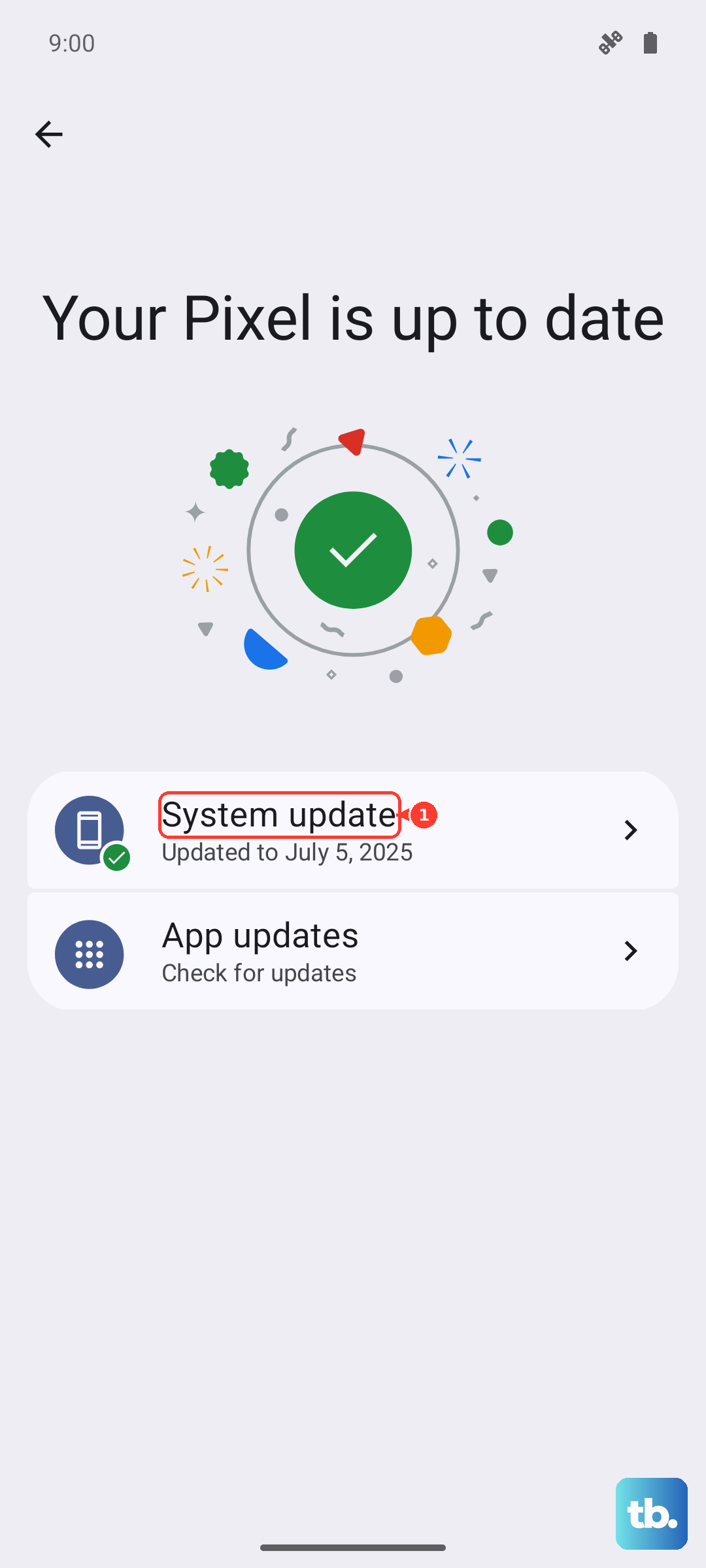
Keeping your Tab S9 on the latest software ensures it has all the performance improvements and security patches Samsung has released.
Check for Problematic Apps
A single misbehaving app can sometimes drag down the whole system. Go to Settings > Battery and device care and tap "Device protection." Run a scan to check for any malware. Next, look at battery usage under Settings > Battery.
If you see an app using a surprisingly high percentage of battery in the background, it might also be consuming excessive resources. Consider force-stopping it or checking for an update.
Manage Background Processes and Refresh Rates
Some features are constantly working even when you're not using them. You can rein these in. Go to Settings > Apps, select an app, and tap "Battery." Set apps you don't need constant updates from to "Restricted."
Also, consider lowering the screen's refresh rate. The Tab S9 has a smooth 120Hz display, but you can set it to a standard 60Hz in Settings > Display > Motion smoothness. This can save some processing power and battery.
Clear App Caches
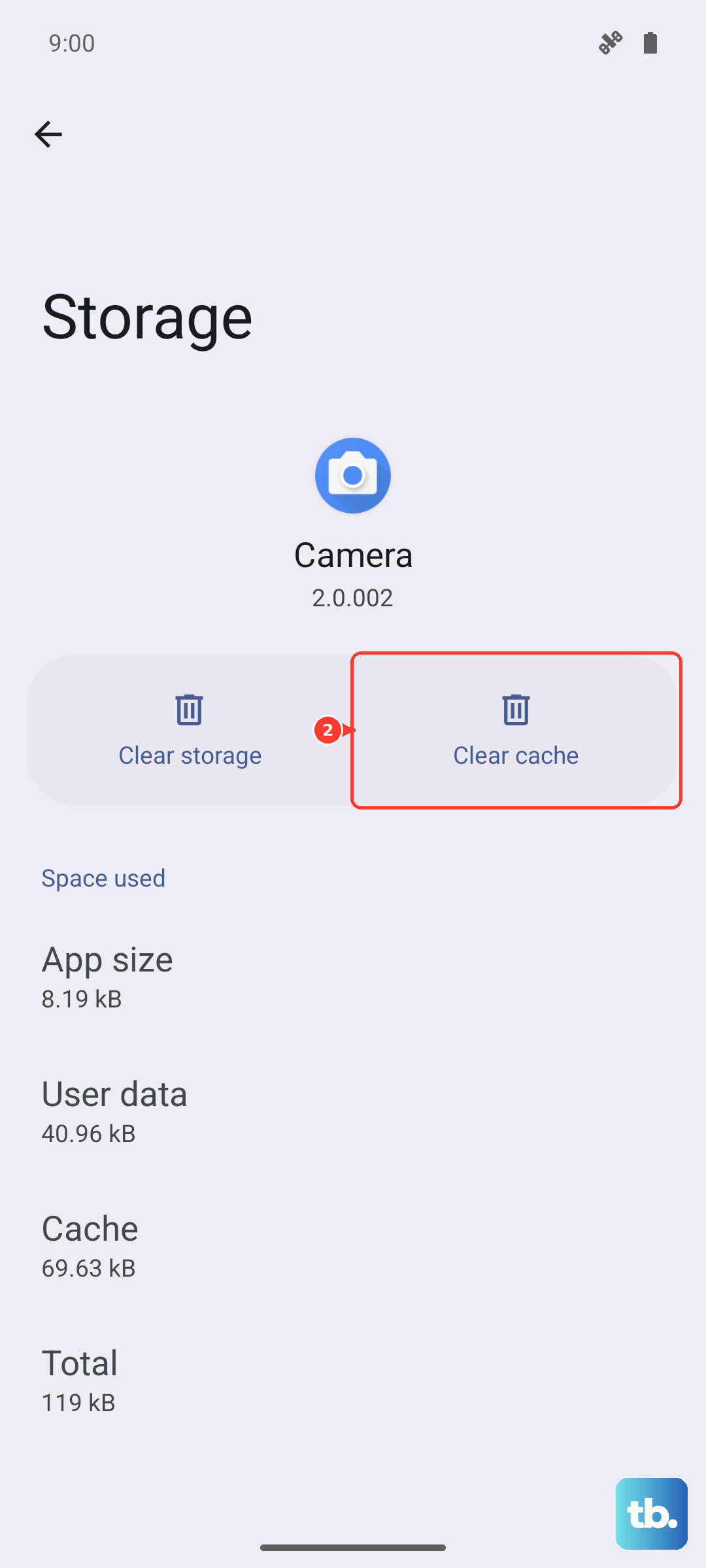
Over time, apps store temporary data (cache) that can become corrupted or bloated. Clearing this can free up space and fix odd behavior. Go to Settings > Apps, select a large app like Chrome or YouTube, then tap "Storage."
Tap "Clear cache." Do this for a few of your most-used apps. Don't tap "Clear data" unless you're prepared to sign back in, as that removes your personal settings for the app.
Turn Off or Reduce Animations
The visual effects in One UI look great, but they require processing power. You can scale them back. First, enable Developer Options by going to Settings > About tablet > Software information and tapping "Build number" seven times.
Then, go back to Settings and into "Developer options." Scroll down to the "Drawing" section. You can reduce the "Window animation scale," "Transition animation scale," and "Animator duration scale" to 0.5x or even turn them off. This makes the interface feel snappier.
Perform a Light Reset
If the tablet is still slow, you can reset all your system settings without touching your personal data. This reverts things like Wi-Fi passwords, wallpaper, and sound settings back to default, which can clear out any conflicting configurations. Go to Settings > General management > Reset and select "Reset all settings."
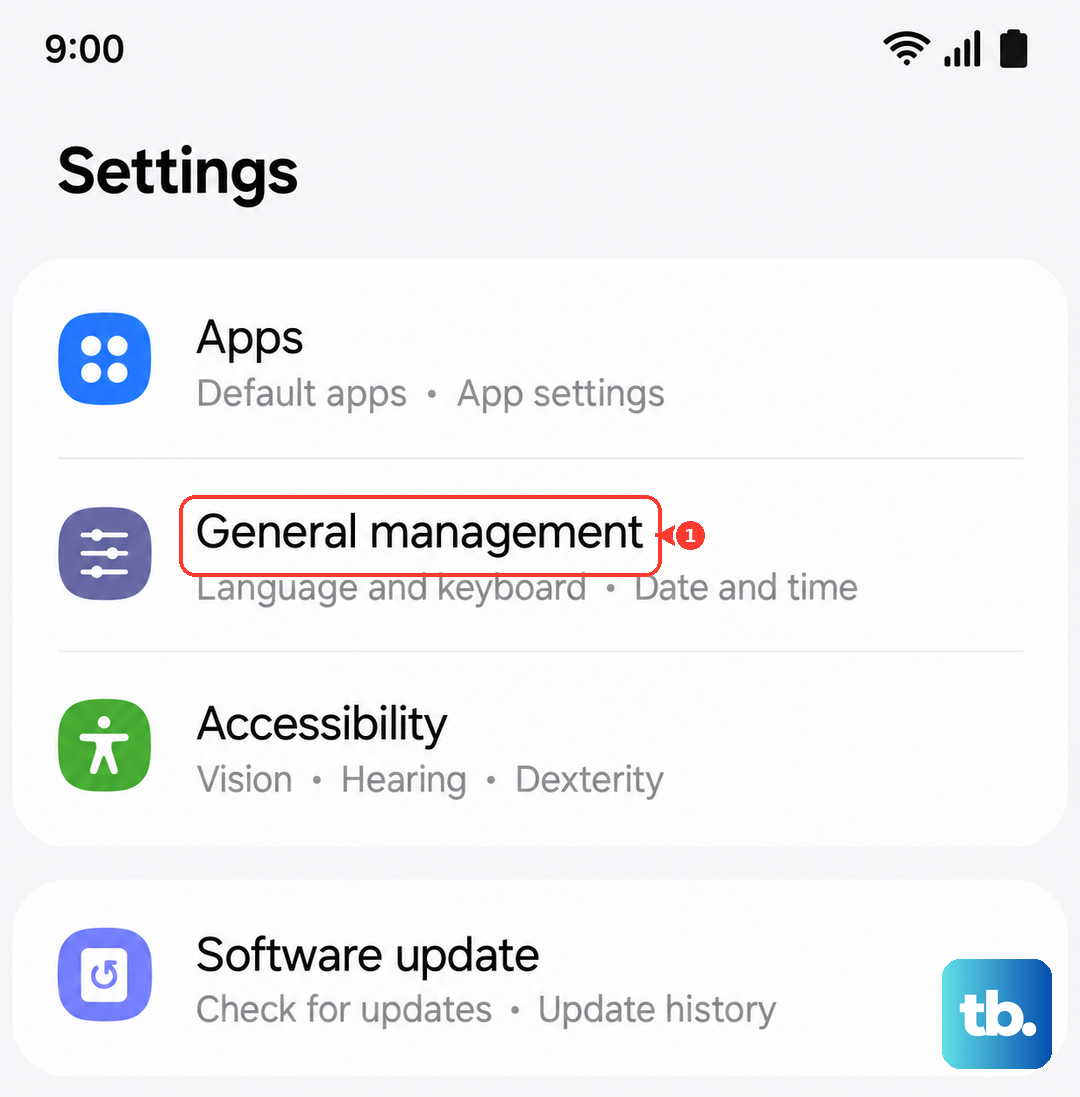
Enter your PIN if prompted, and confirm. Your apps and files will remain, but you'll need to set up your preferences again. This often resolves deeper software glitches.
Consider a Factory Reset (Last Resort)
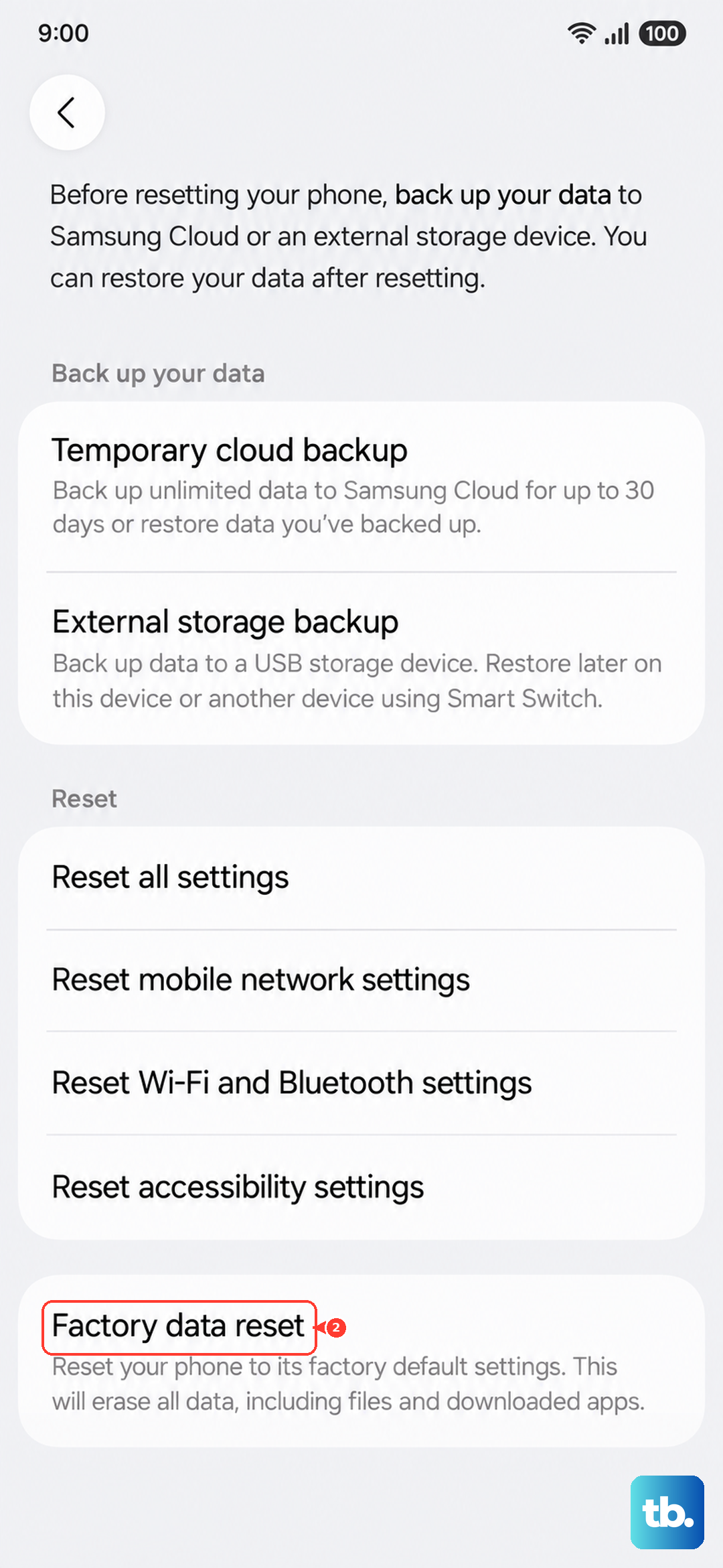
If all else fails, a factory reset will wipe the tablet back to its original out-of-the-box state. This is the most effective way to eliminate any deep-seated software issues, but it erases everything. Make absolutely sure you have backed up all important files, photos, and app data to Samsung Cloud or a computer first.
To proceed, go to Settings > General management > Reset > Factory data reset. Tap "Reset" and follow the prompts. After the tablet restarts, you can set it up as new or restore your backup, though setting it up fresh often yields the best performance.