If your Samsung Galaxy Tab S9 is losing power way faster than it should, you're not imagining things. A tablet with a big, beautiful screen and powerful processor can sometimes feel like it's always hunting for a charger. The good news is, there are quite a few settings you can adjust to get your battery life back on track.
Start With the Battery Usage Report
Before you start changing a bunch of settings, it's smart to see what's actually using your power. Samsung's One UI has a detailed battery section that shows you exactly which apps and services are the biggest drainers over the last 7 days.
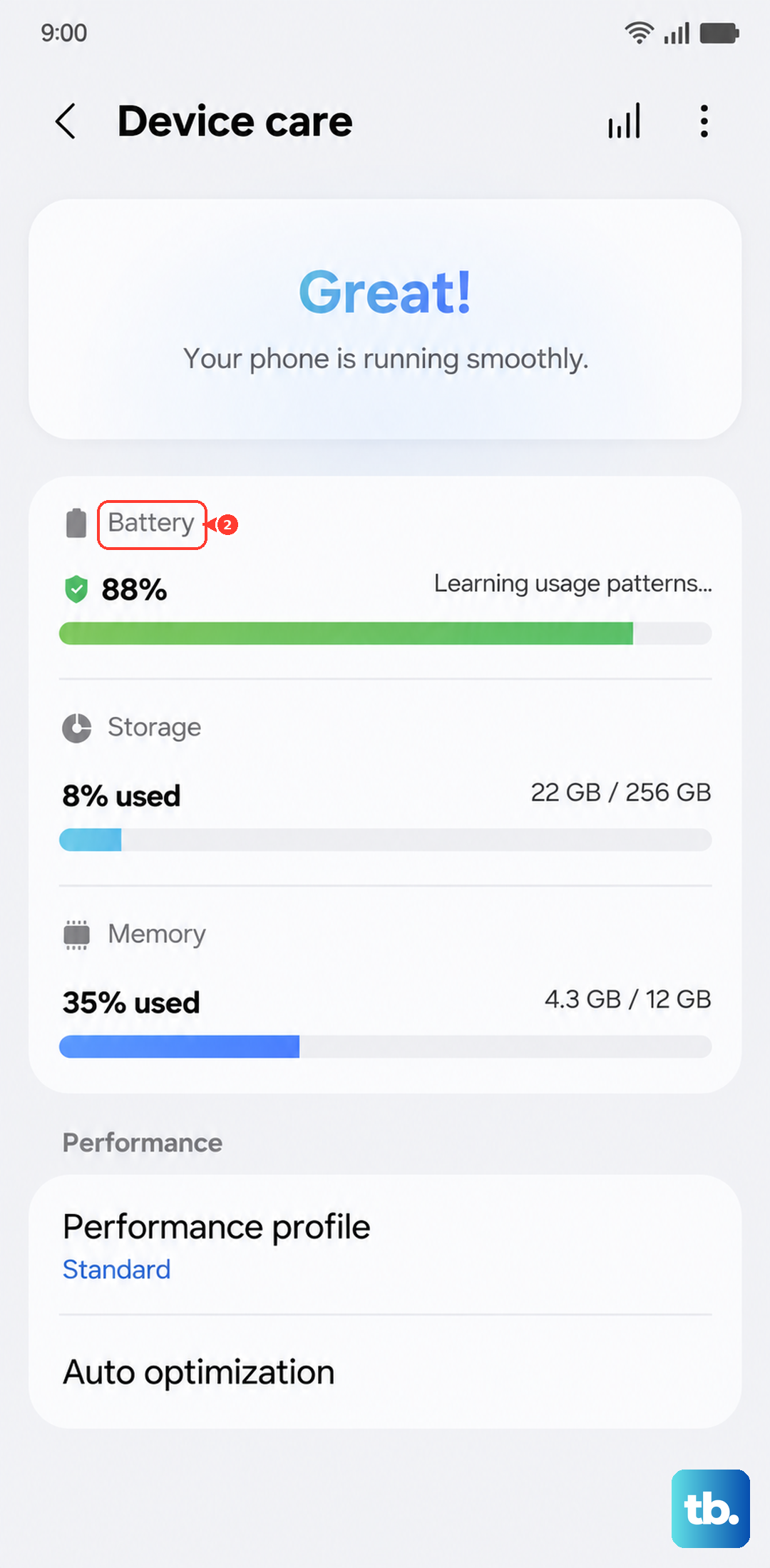
Head to Settings > Battery and device care > Battery. Tap on "Battery usage" to see the breakdown. Look for any apps using a surprisingly high percentage, especially ones you don't use often. This gives you a clear target for your troubleshooting.
Manage Screen Brightness and Timeout
The display is almost always the single biggest battery user on any tablet. On the Tab S9, that large, vibrant screen can really suck down power if it's left at full brightness. I'd start by pulling down the quick settings panel and adjusting the brightness slider down to a comfortable level.
Next, check how long the screen stays on when you're not using it. Go to Settings > Display > Screen timeout. Setting this to 30 seconds or 1 minute can save a significant amount of power throughout the day compared to longer intervals.
Review and Restrict Background Activity
Apps running in the background are a major culprit for battery drain. You can put specific power-hungry apps to sleep. In Settings > Battery and device care > Battery > Background usage limits, you'll find options for "Deep sleeping apps" and "Sleeping apps."
Adding apps here prevents them from running in the background when you're not actively using them. It's a good place for social media apps, games, or anything else you've identified in the battery usage report.
Disable Unnecessary Location Services
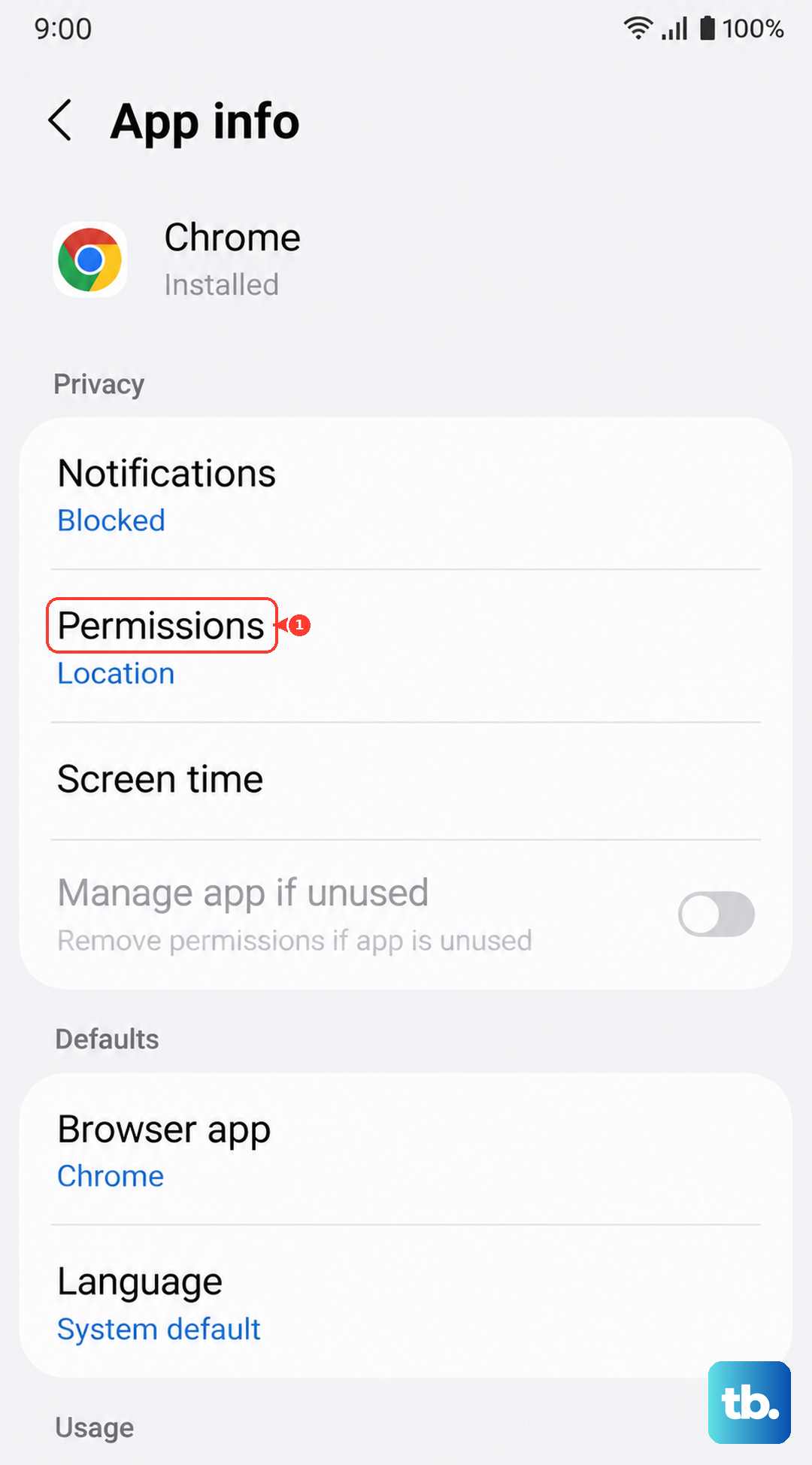
Constant location pinging by apps like weather widgets, social media, or shopping apps can drain the battery. You don't need to turn location off entirely, but you should review which apps have permission.
Go to Settings > Location. First, make sure "Use location" is on, then tap "App permissions." Review the list and change any app that doesn't absolutely need to know where you are to "Allow only while using the app" or "Deny." This stops them from tracking your location when they're closed.
Turn Off Always On Display
The Galaxy Tab S9 has an Always On Display feature that shows the time, date, and notifications even when the screen is off. While convenient, it does use extra battery power. If you're trying to maximize every minute of uptime, consider turning it off.
You can find this setting at Settings > Lock screen > Always On Display. Toggle it off. Your lock screen will still show notifications when you tap the screen or press the power button, but it won't be constantly lit.
Check Your Charging Habits and Gear
This is a big one for the Tab S9. The tablet supports 45W fast charging, but it only reaches that speed with a compatible charger. If you're using an old phone charger, especially one that's 15W or 25W, your tablet will charge very slowly.
For the fastest charge, use Samsung's official 45W charger or another USB-C PD charger that supports the 45W profile. Also, remember that the tablet charges much faster when the screen is off. If you're using it in Samsung DeX mode, it might even discharge slowly if your charger isn't powerful enough.
Update Your Software and Apps
Software updates often include optimizations and bug fixes that can improve battery life. Check for a system update by going to Settings > Software update > Download and install.
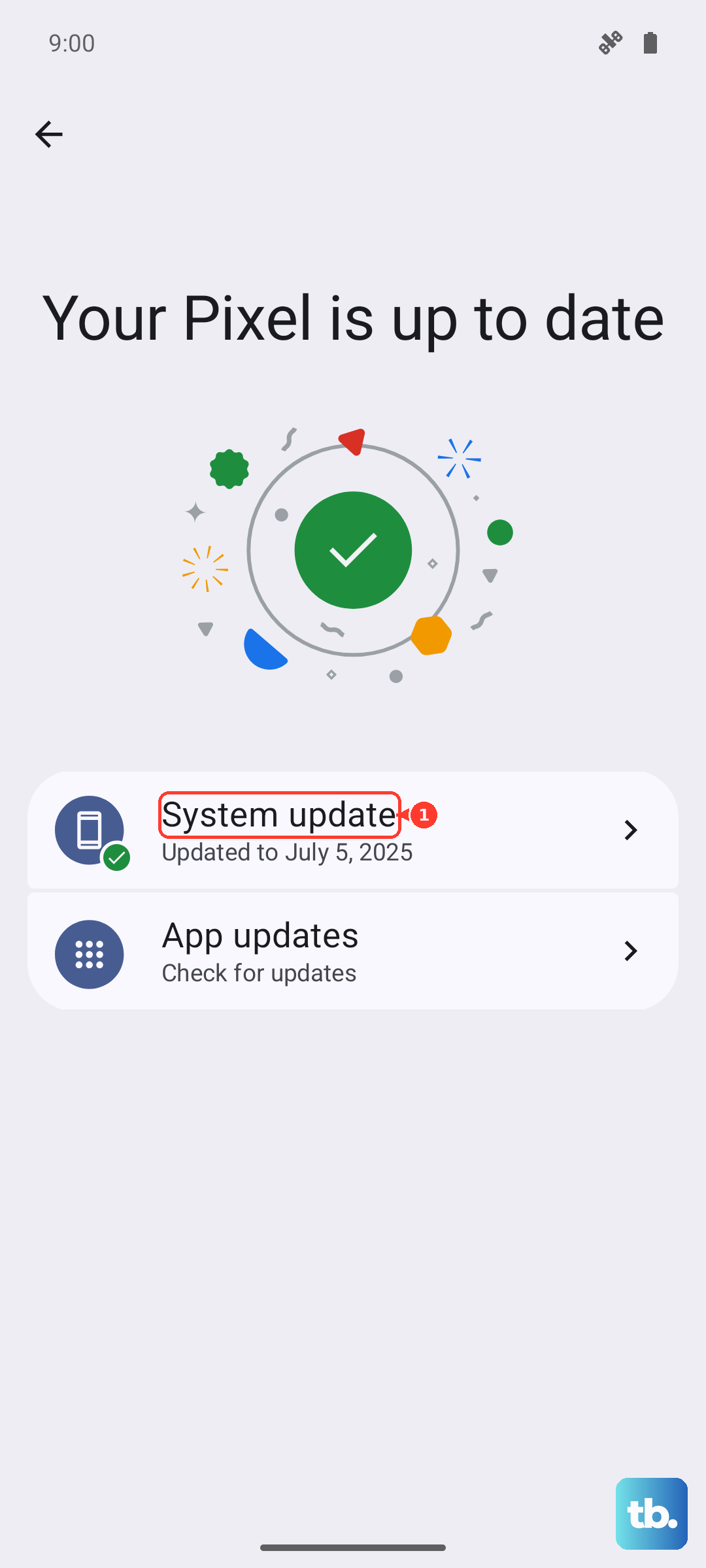
Also, make sure your apps are up to date. Outdated apps can sometimes have bugs that cause excessive battery use. Open the Galaxy Store and Google Play Store, go to your profile menu, and check for any pending updates.
Enable Power Saving Modes
Samsung includes several built-in tools to extend battery life when you need it. You can enable a standard Power saving mode from the quick settings panel or in Settings > Battery and device care > Battery > Power saving.
For more extreme savings, there's also an "Adaptive power saving" option that automatically switches modes based on your usage, and a "Maximum power saving" mode that severely limits functionality to stretch the last bit of charge.
Reduce Animations and Vibration
Smooth animations and haptic feedback feel great, but they require processor and motor activity. You can tone them down to save a little power. Go to Settings > Accessibility > Visibility enhancements and turn off "Remove animations."
You can also reduce or turn off vibration for touches. Navigate to Settings > Sounds and vibration > Vibration intensity and lower the sliders for "Touch feedback" and "Notification vibration."
Perform a Forced Restart
Sometimes, a background process or app can get stuck and cause abnormal battery drain that doesn't show up in the usage report. A simple forced restart can clear this out. Press and hold the Volume Down button and the Side/Power button together for about 10 seconds until you see the Samsung logo appear.
This doesn't delete any data, it just gives the system a fresh start. It's a good step if the battery drain started suddenly without any major changes to your apps or settings.
Consider a Factory Reset
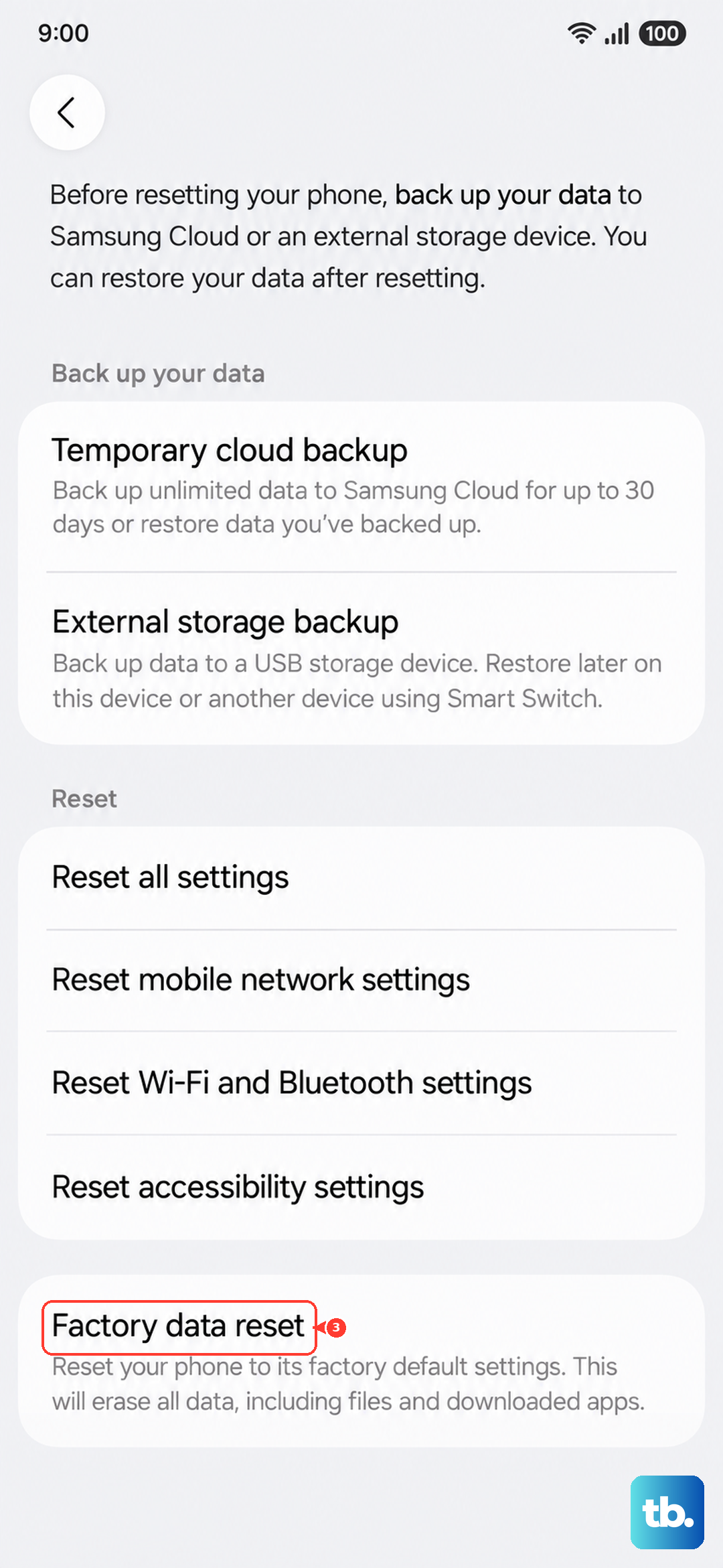
If you've tried everything else and the battery is still draining abnormally fast, a factory reset can be a last resort. This will erase all data and settings from your tablet, so make sure you have a full backup first.
You can initiate this through Settings > General management > Reset > Factory data reset. After the reset, set the tablet up as new instead of from a backup to see if the issue persists. If the battery life is normal after a fresh start, it points to a software or app conflict on your previous setup.