
If your Samsung Galaxy Tab A9+ is locked to a specific carrier, you can unlock it to use any compatible network provider.
What to Know
- Contact your carrier first. If you've paid off your device or completed your contract, they are legally required to provide the unlock code for free.
- You'll need your IMEI number. Find it by dialing *#06# on your tablet or checking Settings > About tablet > Status information.
- Be careful with attempts. Entering too many incorrect unlock codes can permanently lock the device's network function.
- Third-party services are an option if your carrier cannot or will not help, but research them carefully.
When you buy a tablet from a carrier like AT&T, T-Mobile, or Verizon, they often lock it to their network. This isn't about your SIM card, it's a restriction built into the tablet's software that prevents it from connecting to other networks. Getting the correct Network Unlock Code (NUC) removes this restriction, letting you use any compatible SIM card.
Request the Unlock Code from Your Carrier
This is always the first and best step. Major US carriers have specific policies, but they generally require the device to be paid off, not reported lost or stolen, and to have been active on their network for a certain period.
Start by calling your carrier's customer service or visiting their device unlock portal online. You'll need to provide your Galaxy Tab A9+'s IMEI number and verify your account ownership. The process can take anywhere from a few hours to several business days.
Once approved, they will email or text you the unlock code. Save this code somewhere safe. You won't use it until you insert a new carrier's SIM card.
Use the Carrier's Online Unlock Portal
Most carriers now offer a self-service website for unlock requests, which is often faster than calling. You'll need your account login details and the tablet's IMEI number.
For AT&T, visit their official unlock portal. T-Mobile and Verizon have similar dedicated pages. Fill out the form completely. If you meet the requirements, the system will often approve the request and provide the code automatically.
I've found the online portals to be the most reliable method, as they remove any potential for human error or miscommunication over the phone. Just make sure you're on the carrier's official website.
Insert a Different SIM Card to Trigger the Prompt
Your Galaxy Tab A9+ won't ask for the unlock code until it detects a SIM from a carrier it doesn't recognize. You need a SIM card from a network other than your current one to proceed.
Borrow a friend's SIM card from a different carrier, or purchase a cheap prepaid SIM. Power the tablet down completely, remove your current SIM, and insert the new one. Turn the tablet back on.
If the tablet is locked, you should see a prompt on the screen asking for the "Network Unlock Code" or "SIM network unlock PIN." This is where you enter the code you received from your carrier or unlocking service.
Enter the Code Carefully
When the prompt appears, type in the code exactly as provided. Be precise. The Galaxy Tab A9+ typically allows a limited number of incorrect attempts (often 5 or 10) before it permanently locks the network function, which is much harder to fix.
If the code is correct, you'll see a confirmation message like "Network unlock successful." The tablet will then restart. After it boots up, it should connect to the new network automatically.
If you don't see a prompt after inserting a new SIM, the tablet might already be unlocked. Check for network signal or go to Settings > Connections > Mobile networks to see if you can select networks manually.
Consider a Reputable Third-Party Unlocking Service
If your carrier refuses to unlock the tablet, perhaps because it's still under contract or was purchased from a different country, a third-party service is your main option. These services use databases and connections to generate valid unlock codes for a fee.
Choose a service with strong, verifiable reviews and a money-back guarantee if the unlock fails. You'll need to provide them with your tablet's IMEI number and the original carrier. Avoid any service that asks for your personal account details or promises "free" or "instant" unlocks, as these are usually scams.
The process usually takes between 24 to 72 hours. They will email you the same type of unlock code, which you enter following the same SIM-swap method. I'd only go this route after exhausting the official carrier channel.
Factory Reset as a Last Resort (With Caution)
Sometimes, an unlock can get stuck due to a software glitch. A factory reset can clear this state and allow the unlock prompt to appear properly when a new SIM is inserted. This will erase all data on your Galaxy Tab A9+.
Before you do this, ensure you have a valid unlock code ready and that you've backed up everything important. Go to Settings > General management > Reset > Factory data reset.
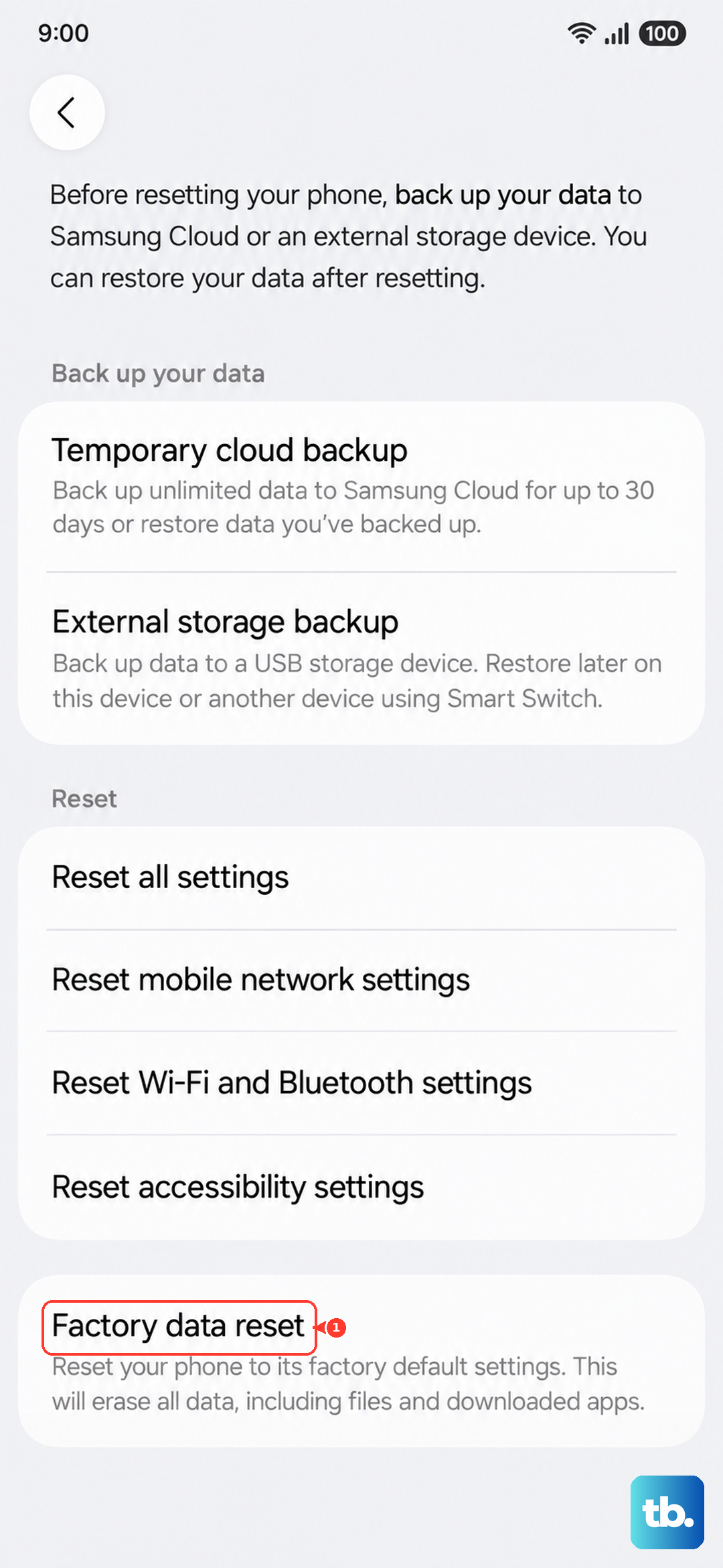
After the reset is complete and you've gone through the initial setup, insert the new carrier's SIM card. The unlock prompt should appear. This step doesn't unlock the tablet by itself, but it can resolve software issues blocking the process.
Check for a Permanent Unlock via Software Update
In some cases, particularly if you requested an unlock from your carrier, the unlock might be applied remotely via a software update. Connect your Galaxy Tab A9+ to Wi-Fi and check for updates manually in Settings > Software update.
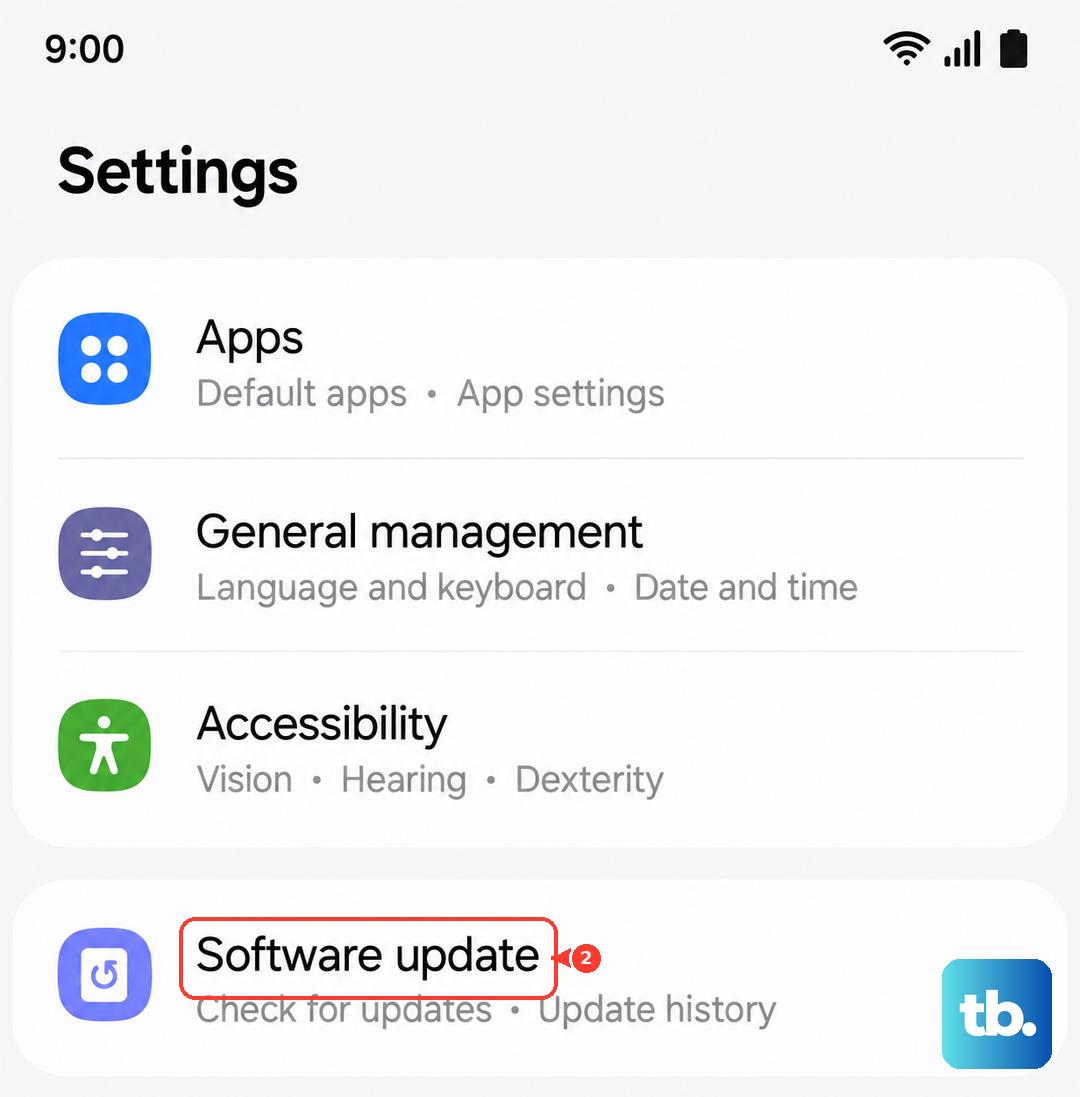
Install any available updates. After the update completes, try inserting a different carrier's SIM card again. The carrier may have pushed the unlock directly to the device, which would mean you won't need to enter a code at all.
Contact Samsung Support for Guidance
If you're hitting a dead end, Samsung's own support can sometimes provide guidance, especially if there's a deeper firmware issue. They can't provide unlock codes for carrier-locked devices, but they can help troubleshoot if the unlock prompt isn't appearing or if you're seeing strange error messages.
Explain that you have a legitimate unlock code but are having trouble applying it. They may suggest specific steps or confirm if a software repair is needed. Keep your IMEI and the unlock code handy when you call.
Remember, the carrier is always the first point of contact for the code itself. Samsung's role here is limited to ensuring the device's software is functioning correctly to accept the code you already have.