
If your Samsung Galaxy A16 is locked to a specific carrier, contact that carrier about unlocking it to use a compatible network provider.
What to Know
- Network Unlock Code may be part of your carrier's unlocking process; ask your carrier whether your Galaxy A16 requires one.
- Contact your carrier first to check eligibility, any fees, and the unlocking process before deactivating your current service.
- You need your IMEI number, which you can find by dialing *#06# on your phone's keypad.
- Be careful with attempts: if a code is rejected, stop and contact your carrier before trying again.
- Third-party services are an option if your original carrier cannot or will not help you.
Get Your Unlock Code from Your Original Carrier
Your original carrier handles carrier unlocking. Before you call, check its eligibility requirements and whether any fees apply. Requirements vary by carrier, so ask about payment status, account standing, and any minimum period of service. Contact the carrier before deactivating your phone or activating it on a new network, and confirm that your Galaxy A16 can be used with the new carrier.
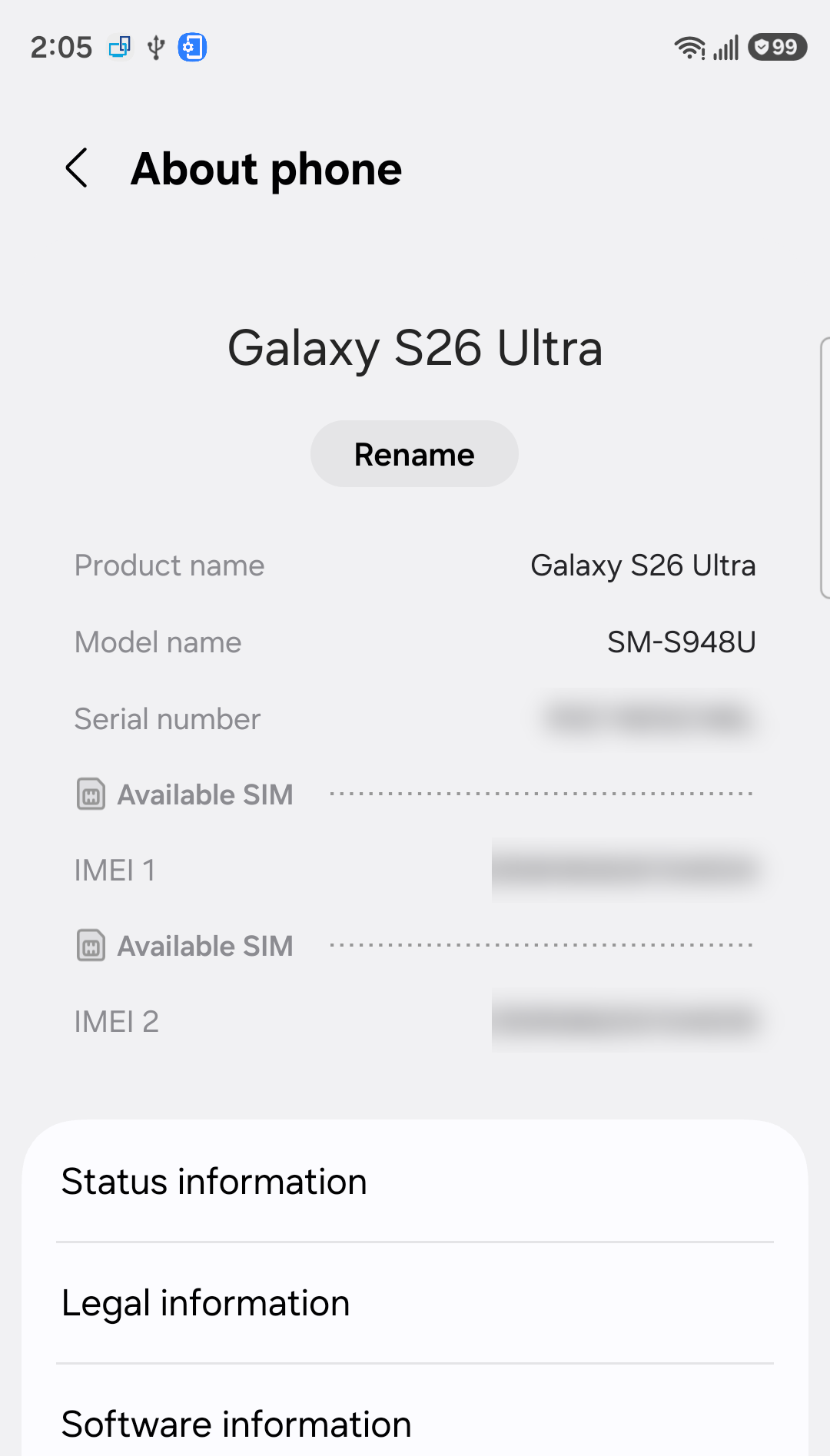
Gather your account information and have your IMEI ready. You can find it in Settings > About phone > Status information, or just dial *#06#. Contact customer support, request a carrier unlock, and follow their process. Ask whether you need a code and how long the request will take.
Use the Unlock Code on Your Galaxy A16
If your carrier gives you an unlock code, follow its instructions for using it. To switch physical SIM cards, first power the Galaxy A16 completely off. Eject the SIM card tray, replace the current SIM card with one from the new carrier, and reinsert the tray. Your carrier can tell you whether this is required to display an unlock prompt.
Turn the phone back on. If an unlock prompt appears, carefully enter the code your carrier provided and follow its instructions. The wording and confirmation can vary, so contact your carrier if the prompt differs from what you were told or the code is rejected. Once the carrier confirms the unlock, check that the phone connects to your new network.
Try a Third-Party Unlocking Service
If you bought the phone second-hand, check the original carrier's requirements before paying a third-party service. I'd start by searching for services that specifically mention the Samsung Galaxy A16 and your original carrier. Read recent reviews to check their reliability.
Before paying, ask whether the service covers your exact model and original carrier, what information it needs, and what happens if it cannot complete the unlock. Check its price, delivery estimate, and refund terms rather than assuming a standard fee or turnaround. Confirm the required unlocking steps with your original carrier before entering any code.
Check for a Built-In Unlock Option
Some Samsung phones, depending on the carrier and software version, have a menu option to request an unlock. On your Galaxy A16, go to Settings > Connections > More connection settings. Look for an option called "Network unlock" or "SIM card unlock."
If you see it, tap it. The phone may check your eligibility directly with the carrier and provide an unlock option right there. This isn't available on all models, but it's worth a quick look as it can be the fastest path if it's there.
What to Do If You Get an Error
If you see "SIM network PIN blocked," stop entering codes and contact your original carrier. Give them the exact message and explain which code you entered. Ask them to identify the lock and provide the correct next steps rather than trying a different type of code on your own.
For a "Device is blocked" message, contact your original carrier to check its restrictions and your phone's unlock eligibility. If the unlock code doesn't work, confirm that you're following the carrier's instructions and using the SIM it specified. Keep the error message handy and ask the carrier how to proceed before making another attempt.
Consider the Phone's Software Status
Your Galaxy A16's software can affect the unlock process. Make sure your phone is running the latest version of Android and One UI. Go to Settings > Software update > Download and install. Follow the on-screen instructions to install any available update.
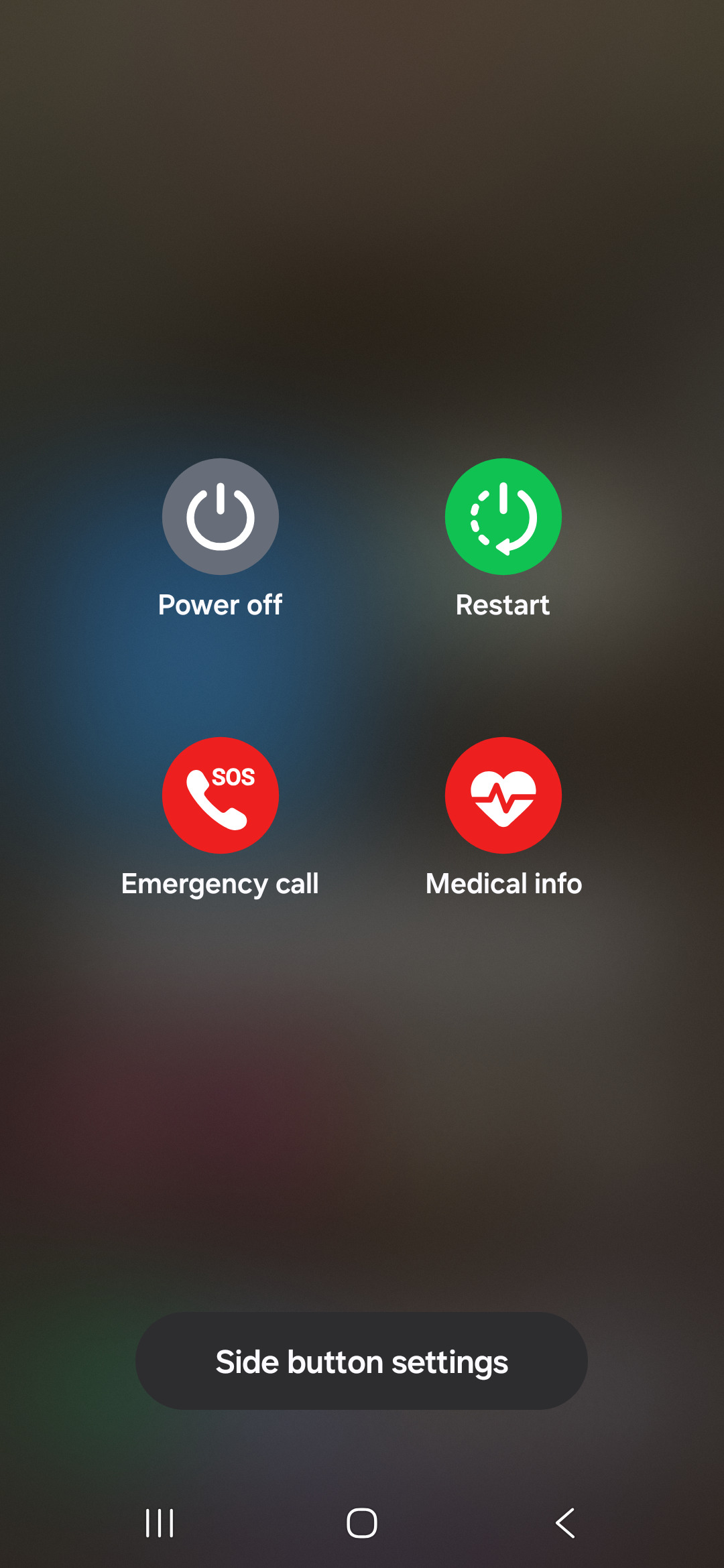
If the phone is acting up, try restarting it before retrying your carrier's instructions. Press and hold the Volume down button and Side button together until the power options appear. Tap Restart, then tap Restart again. After the phone turns back on, contact your carrier if the unlock process still cannot be completed.
Verify the Unlock Was Successful
After entering a successful code, it's good to confirm the unlock stuck. The easiest way is to insert SIM cards from two different carriers. If the phone connects to both networks without asking for a code again, you're all set. You can also check the unlock status by dialing *#7465625#, but this code doesn't work on all Android versions.
To check which network the phone is using, go to Settings > About phone > Status information > SIM card status. With a SIM card inserted, the provider's name appears under Network. If the expected provider isn't shown or the phone cannot connect, contact the carrier to check activation and compatibility.
Prevent Future Issues After Unlocking
Once unlocked, your Galaxy A16 should stay that way, even after factory resets or software updates. However, I've seen cases where a major Android OS update can cause a glitch. If the lock prompt reappears after an update, contact your original carrier and confirm the next steps before entering the code again.
Keep a record of your unlock code and your phone's IMEI in a safe place. This is especially helpful if you need to discuss a previous unlock with your carrier before selling the phone. An unlocked Galaxy A16 may appeal to more buyers who want to use it on a compatible network.