
You're staring at your Samsung Galaxy A16, and it just won't connect to Wi-Fi. It's a frustrating roadblock, especially on a new phone. The good news is that Wi-Fi problems can often be resolved by checking your phone's settings, password, and router.
Toggle Wi-Fi and Restart Your Phone
Let's start with the simplest fix. Swipe down from the top of your screen to open the Quick Settings panel. Tap the Wi-Fi icon to turn it off, wait a few seconds, then tap it again to turn it back on. This forces your A16 to drop the connection and search for networks fresh, which often solves the issue right away.
If that doesn't work, give your phone a full restart. Press and hold the Side button and Volume down button together until the power menu appears, then tap "Restart" and tap "Restart" again. I've seen this clear up temporary connection bugs on the Galaxy A16 more times than I can count. It's a quick process.
Use Airplane Mode to Retry the Connection
When a simple Wi-Fi toggle isn't enough, airplane mode is your next best friend. Swipe down for Quick Settings again and tap the airplane icon to enable it. Wait a few seconds, then tap it again to turn it off.
After turning airplane mode off, check that Wi-Fi is on. Open Settings > Connections > Wi-Fi and turn on the switch if needed. Select your network and enter its password if asked, then try the connection again.
Forget Your Wi-Fi Network and Reconnect
Your phone might be holding onto outdated or corrupted login information for your network. To clear it, go to Settings > Connections > Wi-Fi. Press and hold your network's name, then tap "Forget network."
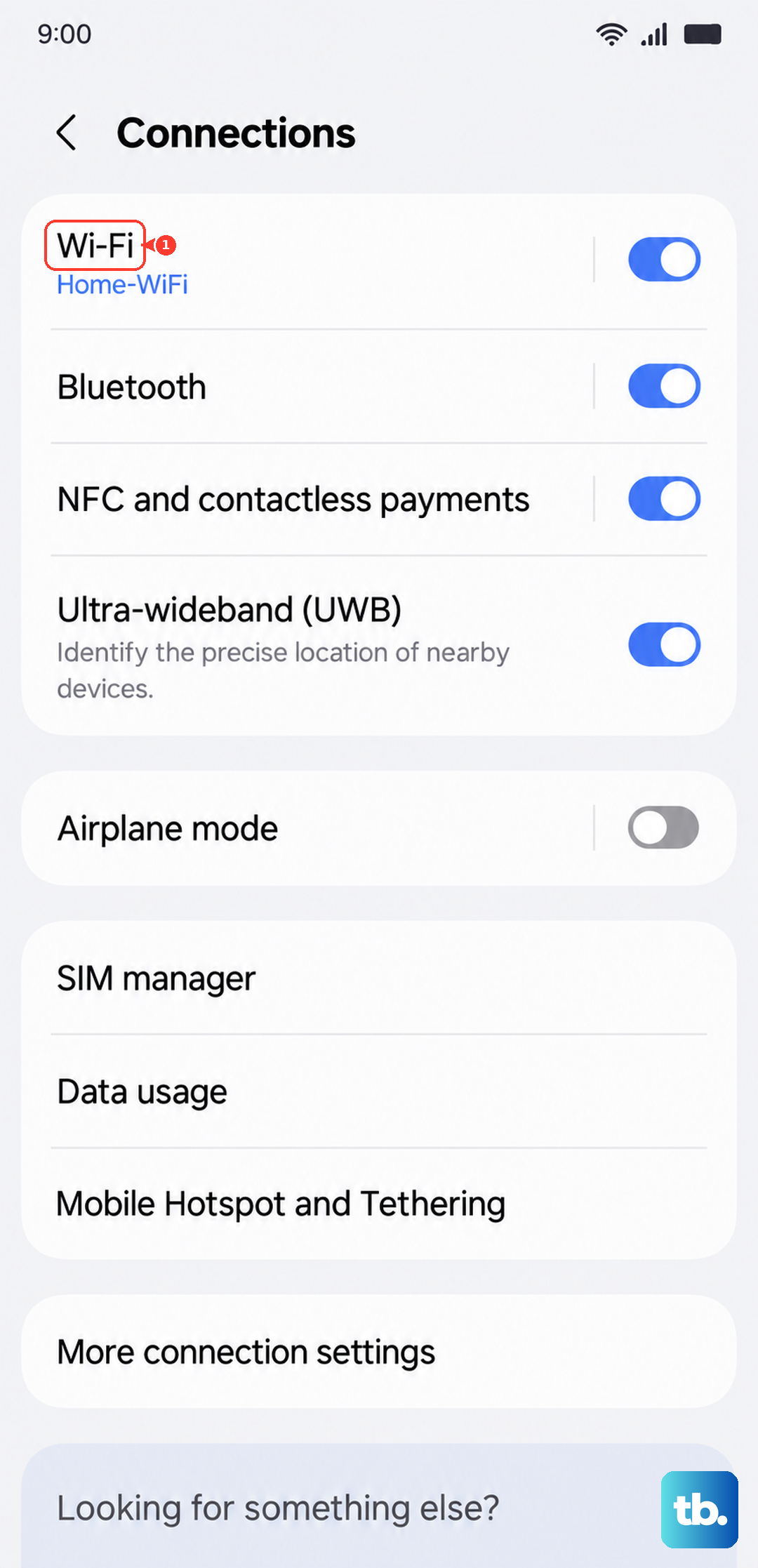
Now, go back to the list of available networks, tap on yours again, and re-enter the password. This is crucial if you've recently changed your Wi-Fi password or gotten a new router. Your A16 will keep trying the old password otherwise, and it will never connect.
Check for Simple Mistakes
It sounds obvious, but it's worth a double-check. Make sure you're selecting the correct network from the list, especially if you have a neighbor with a similar name. When typing your password, remember that it's case-sensitive.
Also, take a quick look to see if other devices in your home can connect to the Wi-Fi. If they can't, the problem is almost certainly with your router or internet service, not your phone.
Disable Bluetooth Temporarily
Bluetooth and Wi-Fi can sometimes interfere with each other because they both use the 2.4GHz radio band. Try turning off Bluetooth from your Quick Settings panel and see if your Wi-Fi connection stabilizes.
If your connection improves, interference may be involved. You can usually turn Bluetooth back on afterward, but this test helps rule out a common conflict.
Turn Off Wi-Fi Power Saving Mode
Wi-Fi power saving mode analyzes Wi-Fi traffic to reduce battery usage. On your Galaxy A16, go to Settings > Connections > Wi-Fi. Tap the three-dot menu in the top right, then go to Intelligent Wi-Fi.
Look for an option called "Wi-Fi power saving mode" and make sure it's turned off. After turning it off, check whether your connection improves.
Check Your Phone's Power Saving Settings
The standard Power saving mode on your A16 can also limit background network activity. If you have it enabled, it might be preventing your Wi-Fi from working properly. Go to Settings > Battery > Power saving. You can also view battery information in Device care.
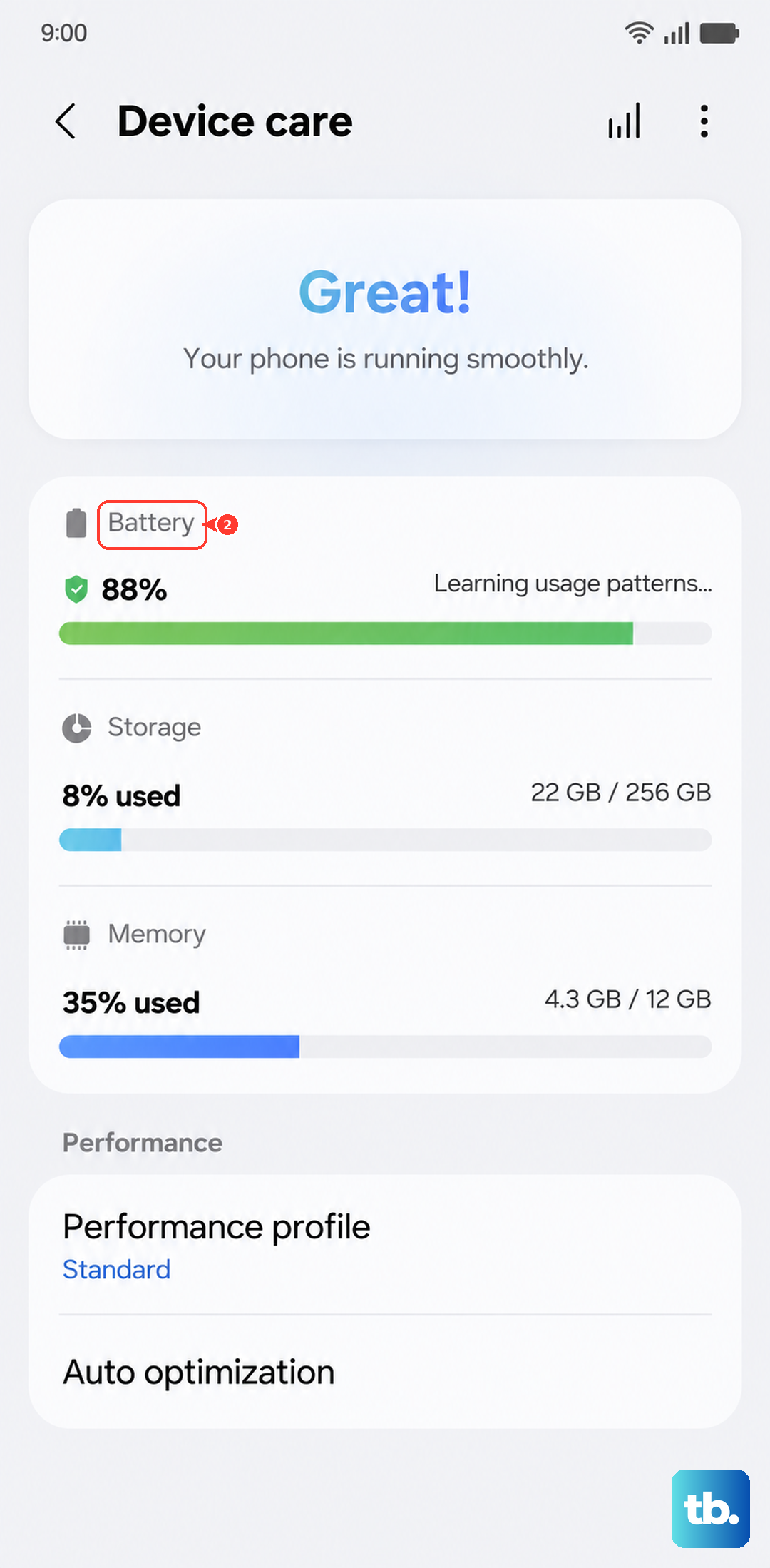
Make sure "Power saving" is switched off. If background activity is limited, turn Power saving off temporarily and check whether the connection behaves differently.
Update Your Phone's Software
Software updates often include patches for connectivity bugs. To check, go to Settings > Software update > Download and install.
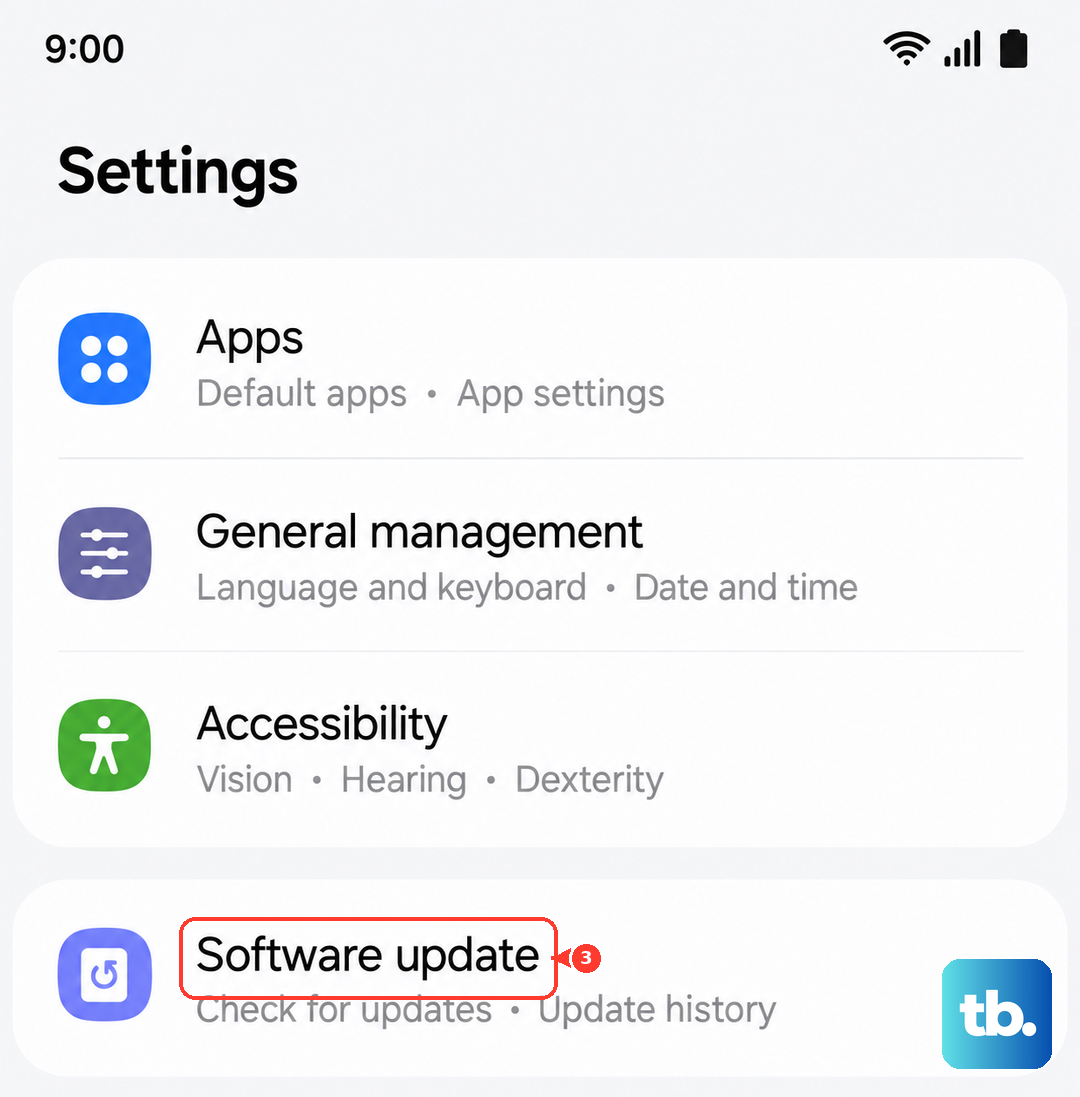
If an update is available, follow the on-screen instructions to install it. You can use mobile data if Wi-Fi is down, but data charges may apply. You can also update through Smart Switch on a PC.
Verify Your Date and Time Are Correct
An incorrect date or time can break Wi-Fi security certificates, preventing a successful connection. This is a sneaky one that many people overlook. Go to Settings > General management > Date and time.
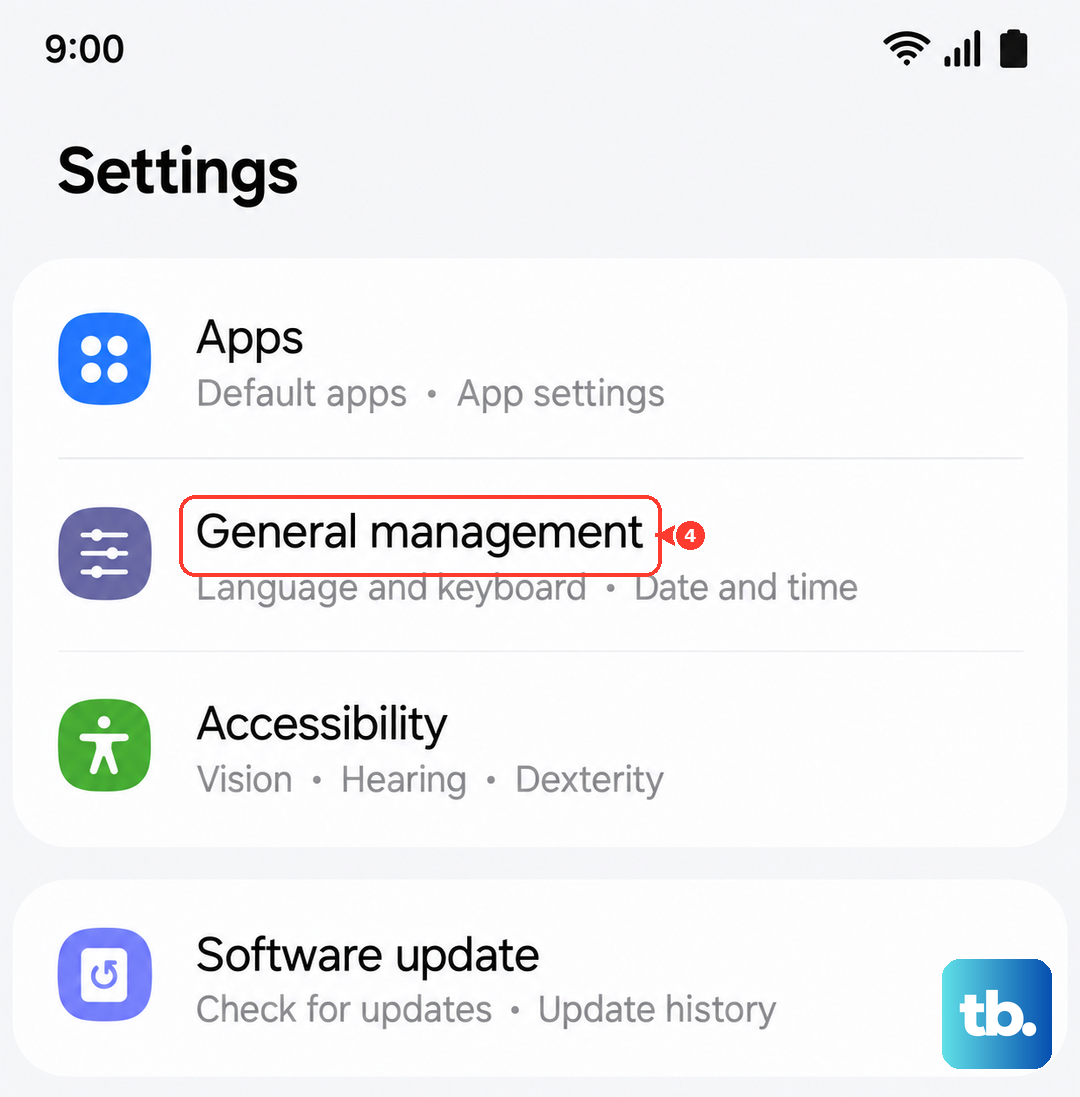
Ensure that "Automatic date and time" is enabled. This allows your phone to sync with network time servers and keeps everything in the right order for a secure connection.
Reset Your Network Settings
If you're still stuck, resetting network settings is a strong step that won't delete your personal data. Reset Wi-Fi and Bluetooth settings clears saved Wi-Fi connections and Bluetooth pairings. You'll have to reconnect to everything afterward.
On your A16, navigate to Settings > General management > Reset > Reset Wi-Fi and Bluetooth settings. Review the information, then tap Reset settings and follow any confirmation prompts. Reconnect to your Wi-Fi network and Bluetooth accessories afterward.
Restart Your Wi-Fi Router
Don't forget that the problem might not be your phone. Unplug your router and modem from power. Plug them back in and allow them to finish restarting.
Wait another minute or two for all the lights to settle, then try connecting your Galaxy A16 again. If every device in your house lost Wi-Fi, the router was almost certainly the culprit.
Boot Into Safe Mode to Check for App Conflicts
A third-party app you installed could be interfering. To test this, you need to boot into Safe Mode, which temporarily disables all downloaded apps. First, press and hold the Side button and Volume down button together until the power menu appears.
On the menu, tap and hold the "Power off" option. When "Safe mode" appears, tap it. If your Wi-Fi works normally in Safe mode, a downloaded app may be causing the problem. Start by uninstalling apps that were installed or updated when the problem began, then restart your phone to exit Safe mode and test Wi-Fi again.