
If your Samsung Galaxy S25 FE suddenly says "No SIM card" or "SIM not detected," you can't make calls or use mobile data. This usually happens because of a simple software hiccup or a bit of dust in the tray, and you can almost always fix it yourself without a trip to the store.
Start With a Force Restart
This is the quickest fix and solves a lot of temporary glitches on the S25 FE. Press and hold the Volume Down button and the Side key (power button) together for about 10 seconds. Keep holding until you see the Samsung logo appear, then let go. This forces a clean reboot of the phone's system.
Check Airplane Mode and SIM Status
Swipe down twice from the top of your screen to open the full Quick Settings panel. Look for the Airplane Mode icon and tap it to turn it on. Wait about five seconds, then tap it again to turn it off. This resets the phone's radio connections.
Next, go into your settings to make sure the SIM is actually enabled. Open Settings, then tap Connections. Select SIM card manager and ensure the switch next to your SIM is toggled on. If it's already on, try toggling it off and back on again.
Inspect and Clean the Physical SIM
Power your S25 FE off completely. Use the SIM ejector tool that came in the box (or a small paperclip) to gently push into the tiny hole on the SIM tray. The tray should pop out.
Carefully remove the SIM card and look at the gold contacts. If you see any dust, lint, or a faint oily film, that's likely the culprit. Gently wipe the gold contacts with a clean, dry microfiber cloth. You can also use a tiny bit of isopropyl alcohol on a cotton swab if they're really dirty, but let it dry completely before reinserting.
While you have it out, check that the SIM card isn't cracked or bent. Also, look inside the phone's SIM slot for any debris. Blow into it gently or use a can of compressed air to clear any dust. Reinsert the SIM, making sure it's seated correctly in the tray, and push the tray back in until it clicks.
Test the SIM in Another Device
To rule out a faulty SIM card, the best test is to put it into another phone. If the other phone also fails to recognize it, the problem is definitely with the SIM itself. In that case, you'll need to contact your carrier (like T-Mobile, AT&T, or Verizon) to get a replacement SIM card sent to you, which usually solves it.
Update Your Phone's Software
Software bugs in Android 15 or Samsung's One UI 7 can sometimes cause SIM detection issues. It's a good idea to check for any pending updates that might contain a fix. Go to Settings > Software update > Download and install. If an update is available, let it install completely and then restart your phone.
Reset Your Network Settings
This clears out all your saved Wi-Fi networks, Bluetooth pairings, and mobile network configurations, which can resolve deeper software conflicts. Don't worry, it won't delete your photos or apps.
To do this, open Settings and scroll down to General management. Tap on Reset, then select Reset network settings. You'll need to confirm your PIN or password, and then the phone will restart. After it boots up, you'll need to reconnect to Wi-Fi and re-pair Bluetooth devices, but it often fixes stubborn SIM problems.
Clear the SIM Toolkit Cache
Background system apps that manage the SIM can get bogged down with corrupted cache data. You can clear this cache easily. Go to Settings > Apps. Tap the three-dot menu in the top right and select Show system apps.
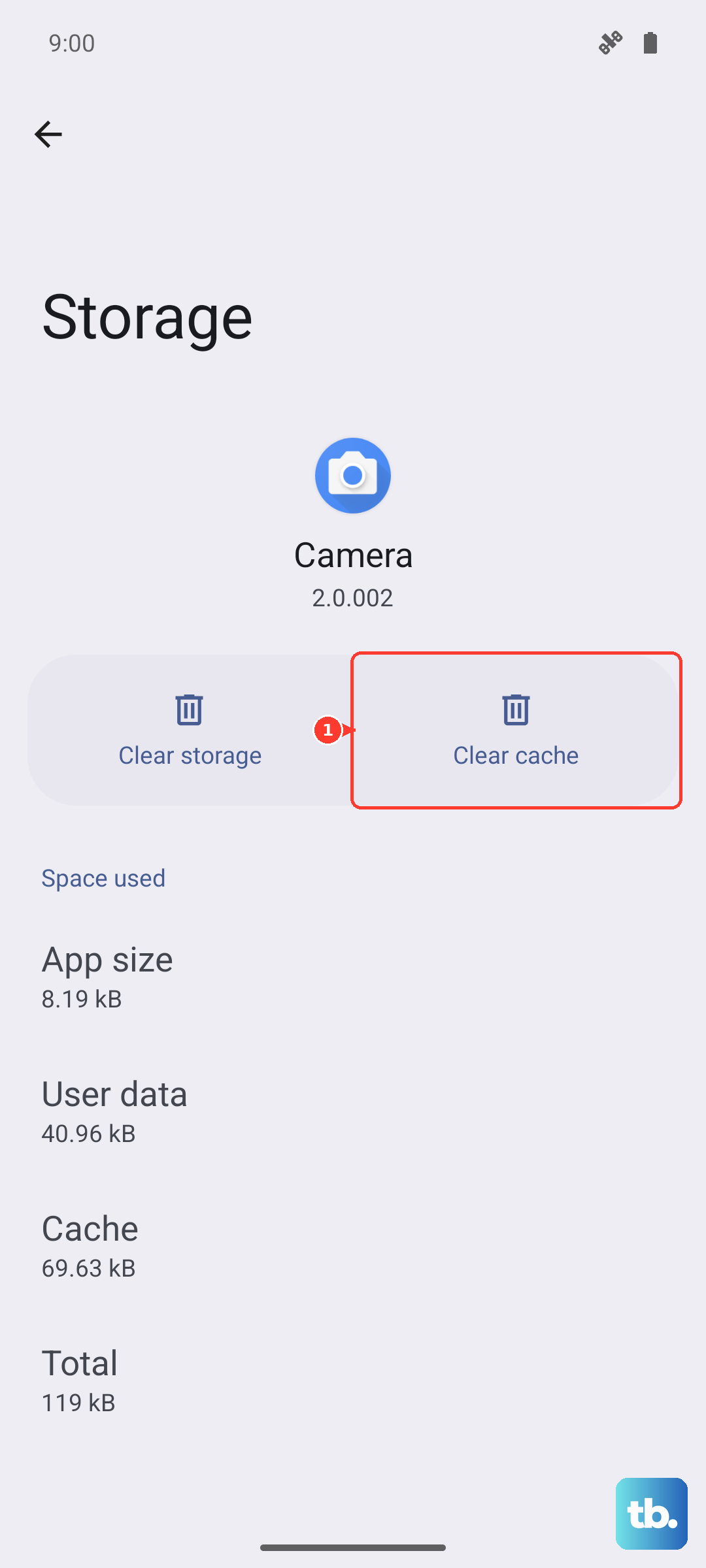
In the list that appears, find and tap on SIM Toolkit or SIM Application Toolkit. Tap on Storage, then hit Clear cache. You can do the same for the SIM Card manager app if you see it in the system apps list.
Manually Select Your Network Operator
Sometimes the automatic network selection gets stuck. You can force your S25 FE to search for and lock onto your carrier's signal manually. Go to Settings > Connections > Mobile networks.
Tap on Network operators. The phone will search for a moment. When the list pops up, select your specific carrier (e.g., "T-Mobile" instead of "T-Mobile LTE"). This can establish a more stable connection if the auto-select feature was failing.
Reset Your APN Settings
The Access Point Name (APN) tells your phone how to connect to your carrier's mobile data network. If these settings are wrong, it can cause all sorts of connection issues, including SIM detection problems.
Navigate to Settings > Connections > Mobile networks > Access Point Names. Tap the three dots in the top corner and select Reset to default. This will load the standard APN settings for the SIM card you have inserted. After the reset, restart your phone.
Consider Switching to an eSIM
The Galaxy S25 FE supports eSIM technology. If your physical SIM card or the tray reader seems to be the persistent issue, moving to a digital eSIM can be a permanent solution. Contact your carrier's support and ask if they support eSIM activation for your account. They can guide you through converting your physical SIM to an eSIM profile, which is downloaded directly to your phone, eliminating the physical component entirely.











