
If your Samsung Galaxy S26 is completely black and won't respond when you press the side button, don't panic. This is a stressful situation, but it's often something you can fix yourself. The first thing to try is the force restart, which is different from a normal power cycle.
Press and hold the Volume down button and the Side button simultaneously. Keep holding them for more than 7 seconds until the device restarts, then let go. This can clear a temporary software hang that's preventing the phone from booting up normally.
Check Your Charger and Cable
Your phone might have a completely drained battery. Plug it into a wall outlet using the original USB-C cable and a compatible charger. For the Galaxy S26, you'll need a 25W USB Power Delivery (PD) charger to get the full Super Fast Charging speeds.
Leave it plugged in for at least 1 hour. The charging indicator may take up to 10 minutes to appear. I'd also try a different compatible cable and wall adapter if you have one, as a faulty accessory is a common culprit. After charging, disconnect the phone and hold the Side button for 15 to 20 seconds to try turning it on.
Use a compatible wired charger for this initial diagnosis. The S26 supports wireless charging and Wireless PowerShare; magnetic Qi2 alignment requires a Qi2-ready Magnet Case. Also, check the USB-C port on the phone for any lint, debris, or signs of moisture. Let the port dry completely before connecting a charging cable.
Look for Signs of Life
While the phone is plugged in, look very closely at the screen. Do you see a battery charging indicator, even for a split second? Sometimes the Always On Display might be off, but the phone is actually on.
Try pressing the Side button once. Listen for any vibration or sound, which may mean the phone is on even though the screen is black. If the phone becomes too hot, disconnect the charger and let it cool before charging again.
Boot Into Safe Mode
If the force restart worked but the phone gets stuck again, a recently installed app might be causing a conflict. Booting into Safe Mode loads the phone with all third-party apps disabled, which helps identify the problem.
First, turn the phone off completely. Once it's off, turn it on using the Side button. When the Samsung logo appears, press and hold the Volume down button. Keep holding it until you see "Safe mode" in the bottom-left corner of the screen.
If the problem disappears in Safe Mode, a downloaded app may be the cause. You can then go to Settings and uninstall apps you recently added, one by one, restarting normally after each to find the culprit.
Clear the System Cache
Corrupted temporary system files can prevent a proper boot. Clearing the cache partition in Recovery Mode is a safe step that doesn't delete your personal data like photos or messages. You'll need to connect the phone to a computer with a USB-C cable first.
Turn the phone off, then connect it to a computer with the USB-C cable. Now, press and hold the Volume Up button and the Side button together. When you see the Samsung logo, let go of both buttons. You'll enter the Android Recovery screen.
Use the Volume Down button to navigate to the "Wipe cache partition" option if it appears. Press the Side button to select it. Confirm on the next screen, then select "Reboot system now" when the process is complete.
Inspect for Physical Damage
Think about what happened before the phone died. Did it get dropped, exposed to water, or was it charging during a storm? Physical damage isn't always obvious from the outside.
With the phone off, look at the USB-C port under a bright light. If you see lint or debris, carefully remove it without using metal objects or liquids. Even a small amount can prevent the charging cable from seating fully. Check the screen closely for any new cracks or discoloration you might have missed.
Check Battery Protection Settings
The Galaxy S26 has adaptive features to extend battery lifespan. Battery protection can stop charging early or limit the maximum charge, depending on the option selected. If the phone turns on but stops charging before reaching 100%, check this setting.
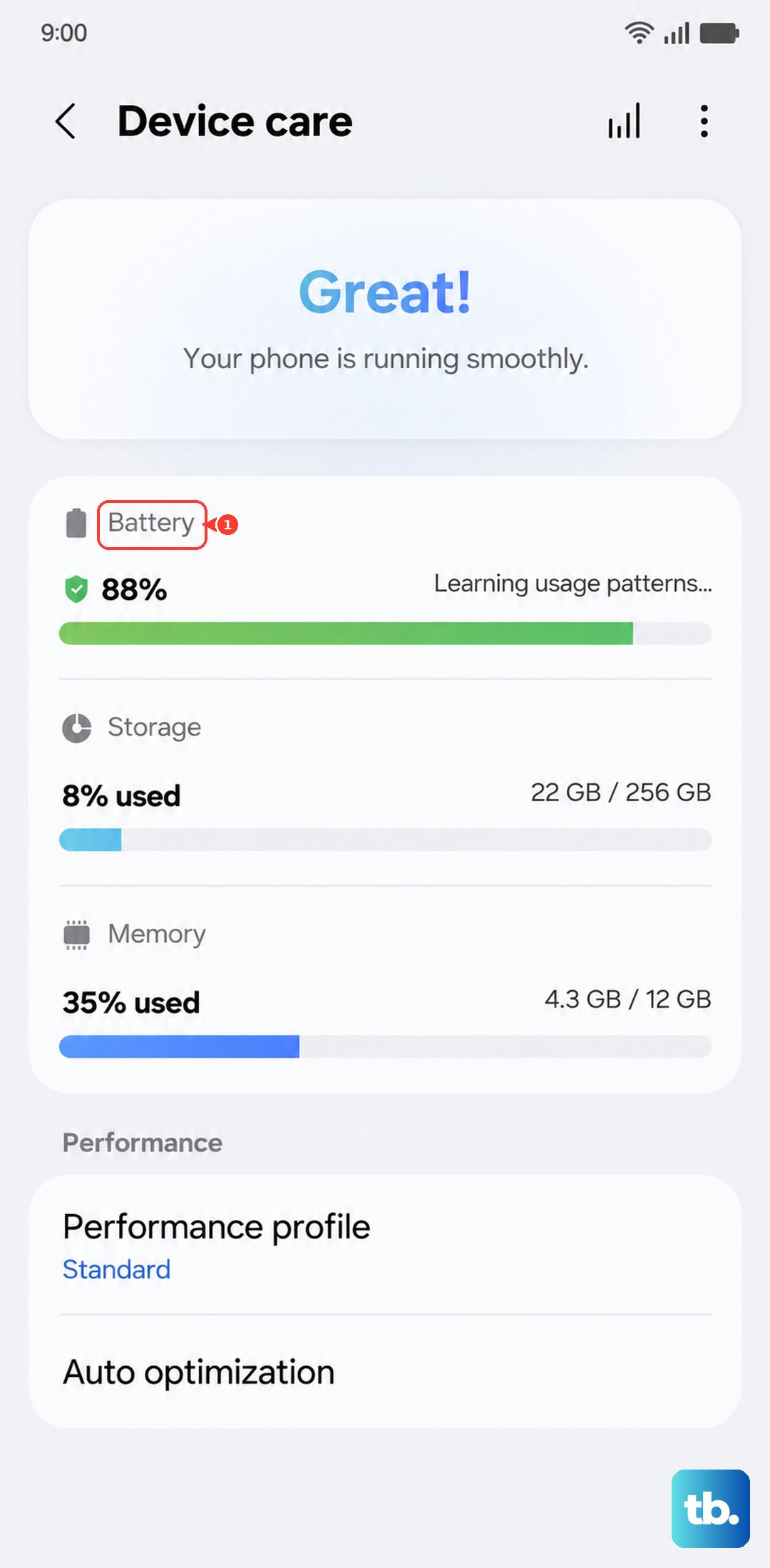
If you can get the phone to turn on, go to Settings > Battery > Battery protection. Select a different option or turn off Battery protection to see if it changes the charging behavior. You can also open Device care to review the phone's battery status.
Perform a Factory Reset
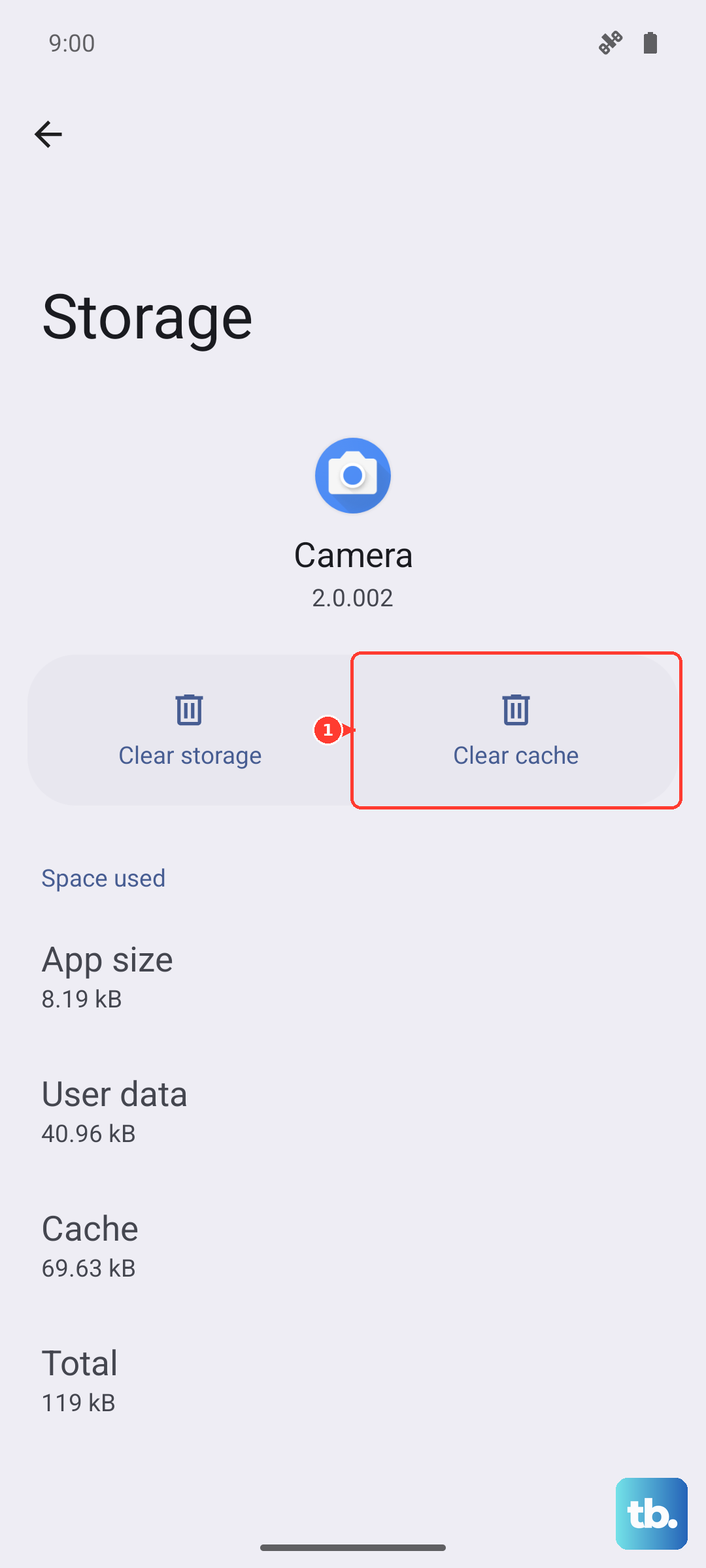
This is your last resort before seeking repair, as it will erase everything on your phone. You must back up your data first if possible. If the phone can open Recovery Mode, you can initiate the reset there. Clearing an individual app's cache, as shown below, is different from a factory reset.
In the Android Recovery screen, use the volume keys to navigate to "Wipe data/factory reset." Select it with the Side button. Confirm with "Yes" or "Factory data reset," depending on the menu shown. After the reset is complete, choose "Reboot system now." You'll need the credentials for the last Google account used on the phone, and you may also need your previous screen lock PIN or password, to complete setup.