
Seeing that "No SIM" or "SIM card not detected" message on your brand new Galaxy S26 Ultra is a real buzzkill. You just want to make calls and use your data, but the phone acts like the SIM isn't even there. This is a common hiccup, especially with new devices, and it's usually something you can sort out in a few minutes.
Start With a Quick Restart
Before you do anything else, give your phone a fresh start. On the S26 Ultra, press and hold the Volume Down button and the Side/Power button together for about 10 seconds. You'll see the screen go black and then the Samsung logo will appear. This force restart clears out any temporary software glitches that might be blocking the SIM from being recognized.
Check the SIM Card Manager
Swipe down from the top of your screen twice to open the full Quick Settings panel and make sure Airplane Mode is off. Then, head into your settings to verify the SIM is actually enabled. Open Settings > Connections > SIM card manager.
Make sure the toggle for your SIM card is switched on. If you're using a dual SIM setup, check that the correct line is set for calls and data. Sometimes a simple toggle off and on here is all it takes for the phone to re-establish the connection.
Inspect and Clean the Physical SIM
If the software checks out, the next step is a physical inspection. Power your S26 Ultra off completely. Find the SIM ejector tool that came in the box (it's usually in the paperwork sleeve) and gently push it into the tiny hole on the SIM tray, which is on the bottom edge of the phone.
Carefully pull the tray out and take a close look at the SIM card. Check the gold contacts for any scratches, dirt, or corrosion. Give them a gentle wipe with a clean, dry microfiber cloth. Also, peek into the SIM tray slot inside the phone for any obvious debris. When reinserting, ensure the card is seated perfectly in the tray and the tray slides back in smoothly without force.
Test the SIM in Another Device
This is the best way to figure out if the problem is with the card itself or your phone. Pop your SIM into another compatible phone, like an old Android or even a friend's device. If the other phone also says "No SIM," then the issue is almost certainly with the SIM card.
In that case, you'll need to contact your carrier (AT&T, Verizon, T-Mobile, etc.) for a replacement. They can often activate a new SIM for you over the phone or at a store. If the SIM works fine in another phone, then the problem lies with your S26 Ultra's software or hardware.
Update Your Phone's Software
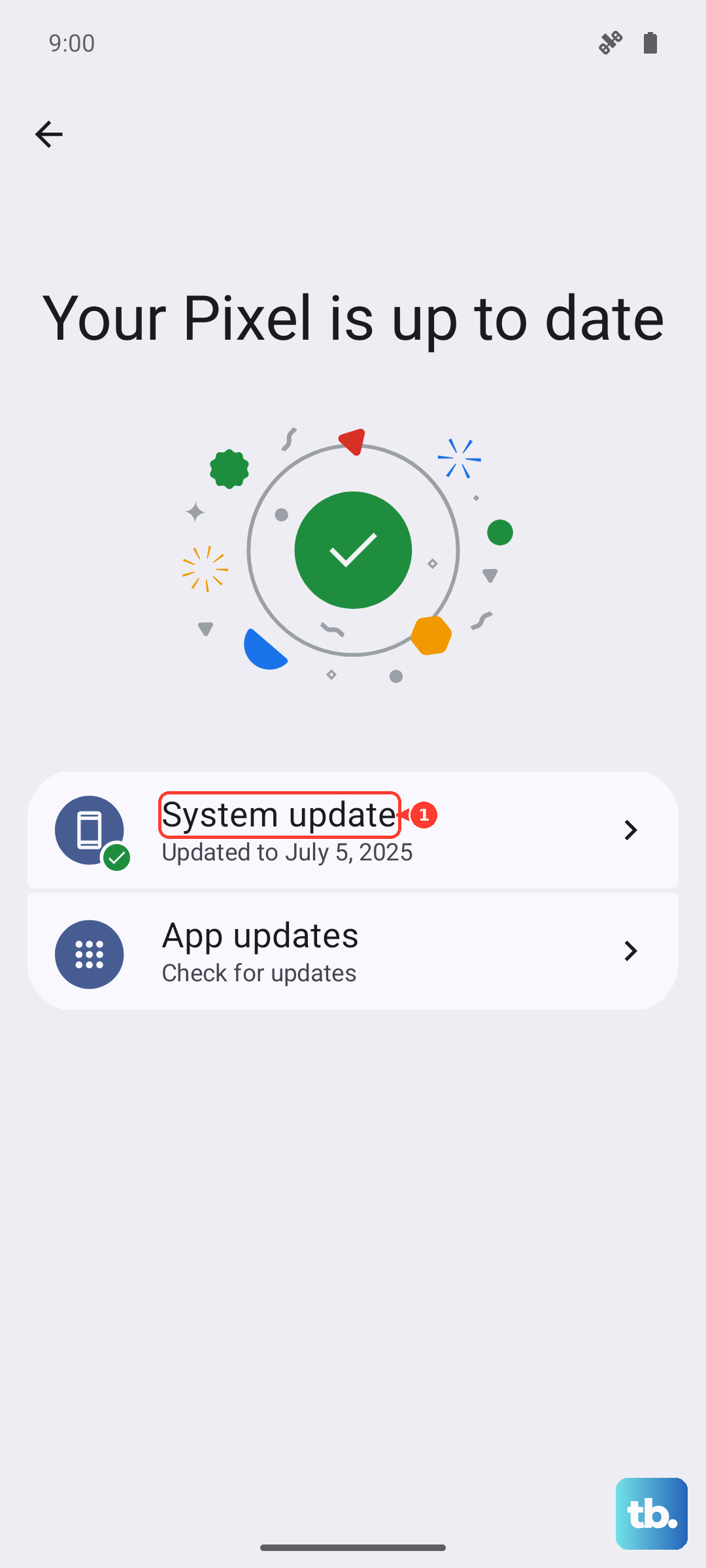
Since the S26 Ultra is a new 2026 device, early software bugs are a real possibility. Samsung is likely pushing out updates to fix these kinds of teething issues. To check, go to Settings > Software update > Download and install.
If an update is available, connect to Wi-Fi and let it install. The phone will restart as part of the process. I've seen many connectivity issues, including SIM detection problems, get resolved with a simple system update that patches a glitch in the initial release software.
Reset Your Network Settings
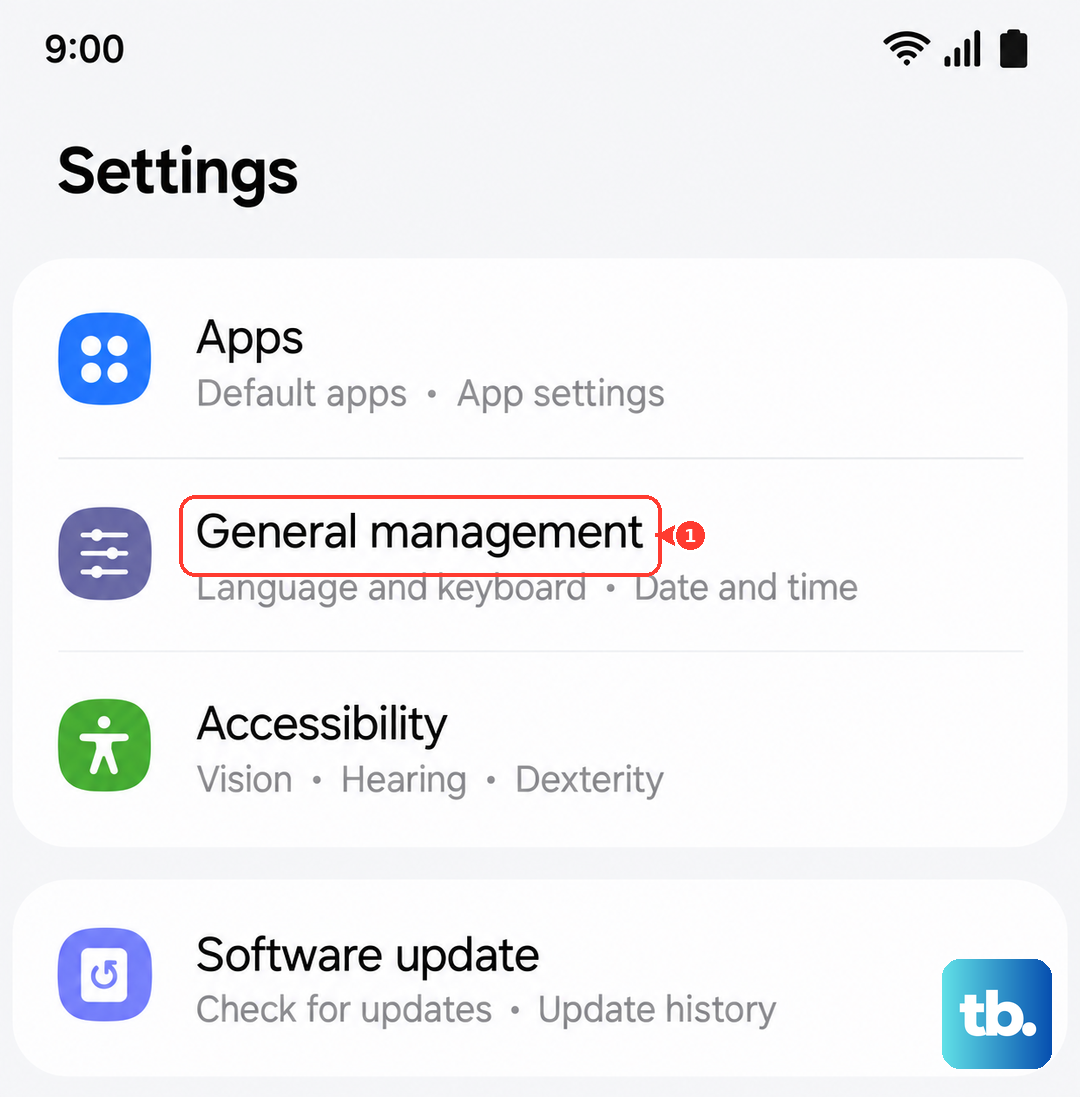
This is a very effective step that won't delete your personal photos or apps. It clears out all your saved Wi-Fi passwords, Bluetooth pairings, and cellular network configurations, which can sometimes get corrupted. Go to Settings > General Management > Reset > Reset network settings.
Tap to confirm and your phone will reboot. After it comes back on, you'll need to reconnect to Wi-Fi and re-pair Bluetooth devices, but it often clears up persistent SIM and network errors.
Manually Select Your Network Operator
Sometimes the phone's automatic network selection gets stuck. You can manually tell it to connect to your carrier. Go to Settings > Connections > Mobile Networks > Network Operators.
Tap Search now and wait a moment for the list to populate. Instead of "Automatic," select your specific carrier's name from the list (e.g., "T-Mobile" or "Verizon Wireless"). This forces a direct registration attempt and can bypass a selection error.
Reset Your APN Settings
The Access Point Name (APN) is the gateway your phone uses to connect to your carrier's data network. If these settings are wrong, it can cause all sorts of connection issues. Go to Settings > Connections > Mobile Networks > Access Point Names.
Tap the three-dot menu in the top right and select Reset to default. This will load the standard APN settings for the SIM card's carrier. After resetting, restart your phone. If you were using custom APN settings before, you may need to re-enter them, but start with the default first.
Clear the SIM Toolkit Cache
System apps that manage the SIM can accumulate corrupted cache data. To clear it, go to Settings > Apps. Tap the three-dot menu and select Show system apps. Now, find and tap on SIM Toolkit or SIM Application Toolkit.
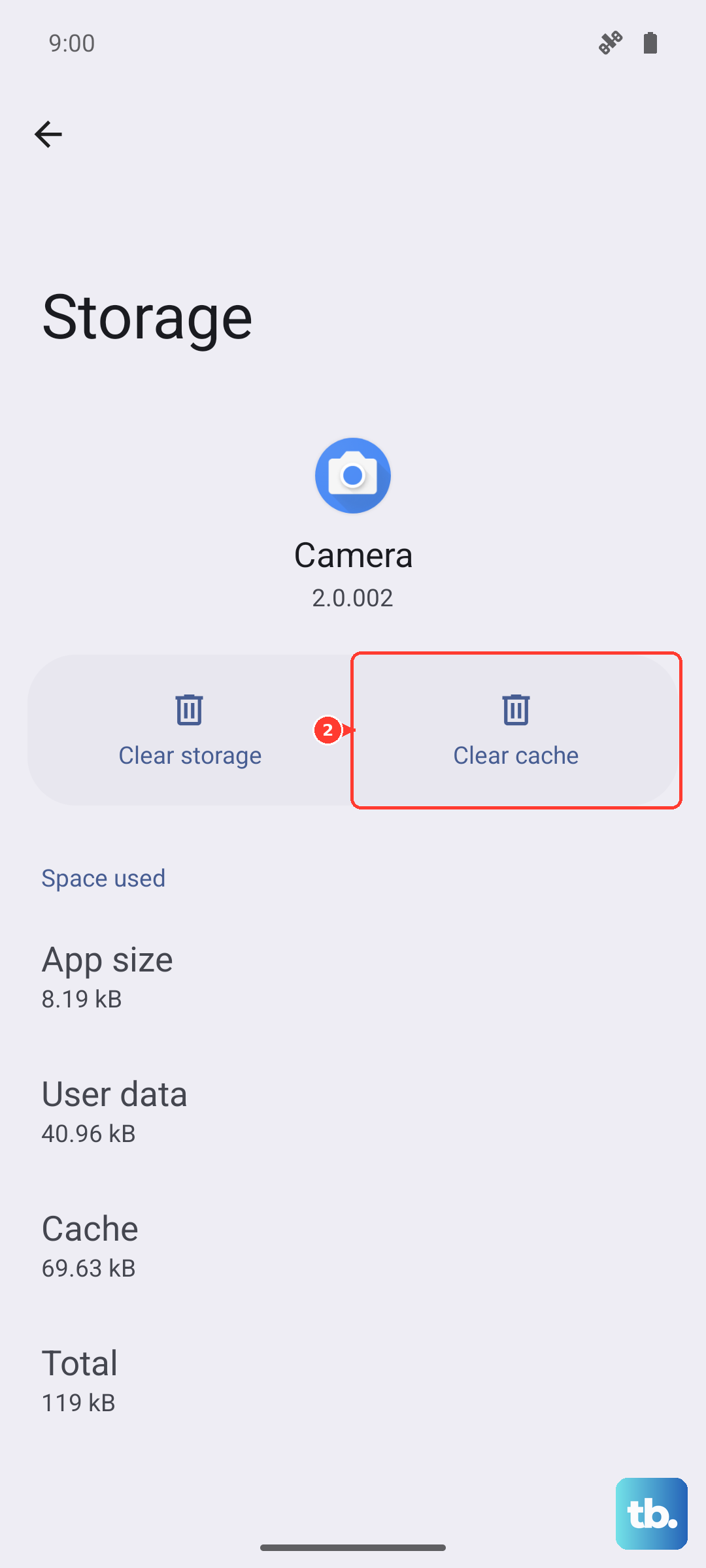
Tap Storage, then tap Clear Cache. Do not tap "Clear Data" or "Force Stop" unless you're directed to. This gentle clean-up can resolve background service conflicts without affecting your data.
Consider Switching to an eSIM
The Galaxy S26 Ultra fully supports eSIM technology. If your physical SIM card slot seems problematic or you keep having issues, switching to a digital eSIM can be a permanent solution. Contact your carrier's support and ask if they support eSIM activation for your account.
They can guide you through scanning a QR code or entering details manually in Settings > Connections > SIM card manager > Add eSIM. This completely bypasses the physical SIM tray and reader.