
If your Samsung Galaxy S26 Ultra's fingerprint scanner has suddenly stopped recognizing you, it's a major roadblock. You can't unlock your phone, log into banking apps, or authenticate purchases. I'd start with the simplest fix first, as it often resolves the issue in seconds.
Give the lower-center area of the screen, where the sensor sits, a good wipe with a soft, dry microfiber cloth. The S26 Ultra's fingerprint sensor is an ultrasonic scanner built into the display, and even a little oil from your hands or pocket lint on the screen can block it from reading your print properly.
Restart Your Galaxy S26 Ultra
A quick force restart can clear out temporary software glitches that might be affecting the biometric security system. Press and hold the Volume Down button and the Side/Power button together for about 10 seconds.
Keep holding them until you see the Samsung logo appear on the screen, then let go. Your phone will boot back up. Try the fingerprint scanner again once it's fully on.
Check for a Software Update
Since the S26 Ultra is a brand new device, early software bugs are a real possibility. Samsung is likely pushing out updates to fix these kinds of issues. Go to Settings > Software update > Download and install.
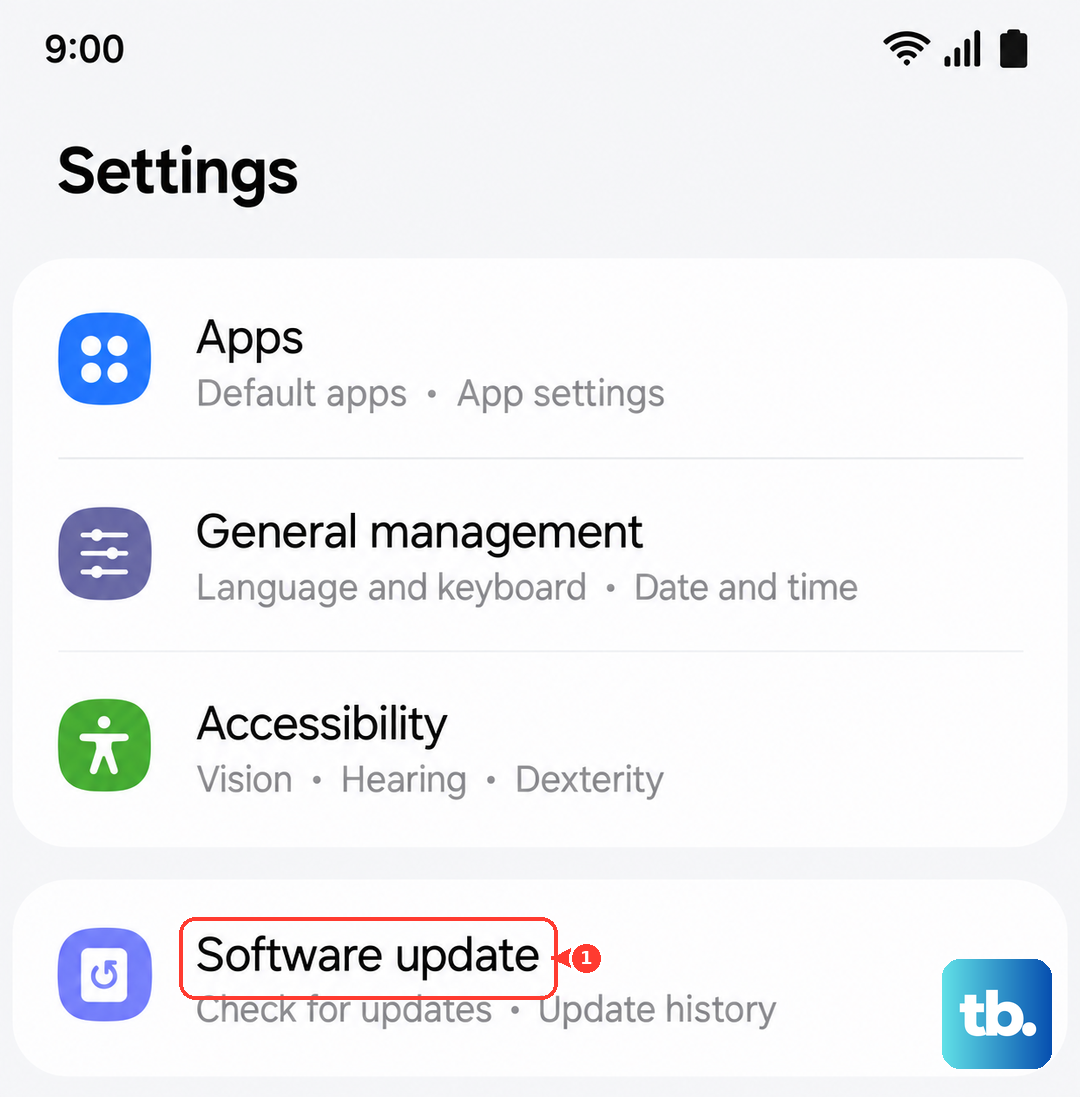
If an update is available, install it. These updates often include patches for the biometrics system. After the update completes, go back and test your fingerprint.
Re-register Your Problem Fingerprint
Sometimes the stored fingerprint data gets corrupted. The most reliable fix is to delete the problematic print and add it again. Open Settings and go to Biometrics and security > Fingerprints.
You'll need to enter your PIN, password, or pattern to proceed. Tap on the fingerprint that's not working, then tap Remove. Now, tap Add fingerprint and follow the on-screen prompts carefully.
When registering, make sure to roll your finger to capture the edges, not just the center. Do this in the same lighting you typically use your phone in. A good, complete scan is key.
Inspect Your Screen Protector
This is a very common culprit. Because the S26 Ultra uses an ultrasonic under-display sensor, a thick, poorly fitted, or non-compatible screen protector sits directly over the sensor and can block or distort the ultrasonic waves enough to prevent an accurate read.
If you recently applied a new protector and the problems started then, try removing it temporarily. Test the fingerprint sensor without it. If it works, you may need a different brand or model of protector that's certified to work with your phone.
Check Your Finger and the Environment
Your fingerprint can change slightly. Dry, cracked skin, minor cuts, or even lotion residue can prevent a scan. Make sure your finger and the area of the screen over the sensor are clean and dry.
Also, try a different finger that you've registered. If another finger works instantly, the issue is likely with your first finger's condition or its saved data, not the sensor hardware.
Clear the System Cache Partition
This clears temporary system files that can sometimes cause conflicts, without touching your personal data. First, turn off your S26 Ultra completely. Connect it to your computer with a USB-C cable.
Now, press and hold the Volume Up button and the Side/Power button. When you see the Android recovery screen, let go. Use the volume buttons to highlight Wipe cache partition and press the power button to select it.
Confirm the action, then select Reboot system now. This process can fix underlying software hiccups affecting the sensor.
Review Your Security and Display Settings
A couple of settings in One UI 8.5 can interfere. First, go to Settings > Biometrics and security > Fingerprints and make sure Show animation when unlocking is toggled on. Sometimes this visual cue helps.
Also, check Settings > Advanced features > Motions and gestures. If Finger sensor gestures is on, try turning it off. This feature lets you swipe on the sensor, and disabling it can rule out a conflict.
Test in Safe Mode
This will tell you if a third-party app you installed is causing the problem. To boot into Safe Mode, press and hold the Side/Power button until the power off menu appears.
Tap and hold the Power off icon until you see a prompt to reboot to Safe Mode. Tap it. In Safe Mode, try your fingerprint. If it works perfectly here, a recently downloaded app is the culprit. You'll need to uninstall apps one by one to find the offender.
Consider a Factory Reset
This is a last resort, but if it's a deep software issue, this will wipe it clean. Make absolutely sure you have a full backup of your data first. Go to Settings > General management > Reset > Factory data reset.
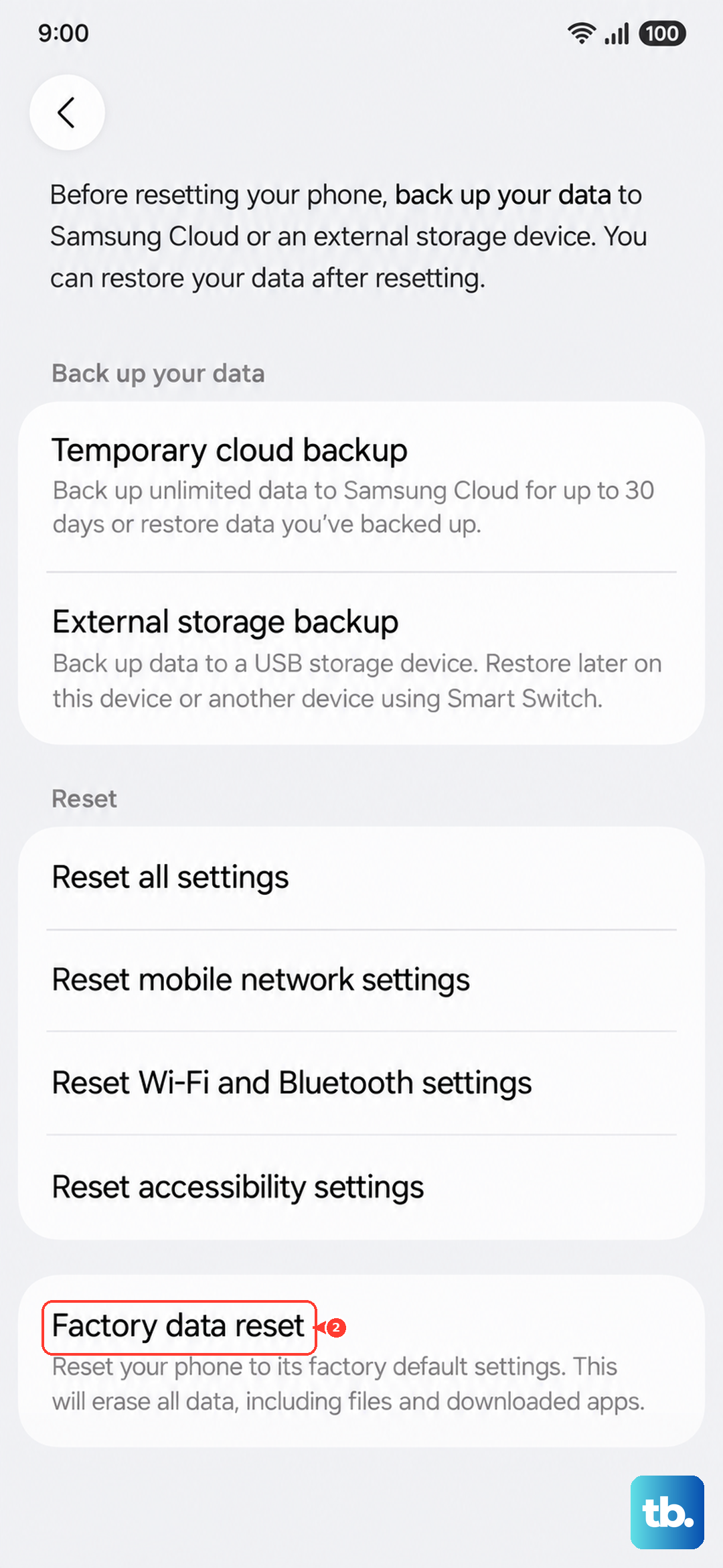
Tap Reset and follow the prompts. After the phone erases itself and reboots, set it up as new initially. Don't restore from a backup right away. Just register your fingerprint on the fresh system and see if it works. If it does, the problem was in your previous software configuration.