
If your Samsung Galaxy S26 Ultra won't connect to your earbuds, car, or smartwatch, it's a frustrating roadblock. Bluetooth issues can pop up even on a device running the latest version of One UI. The good news is you can usually fix it yourself with a few specific steps.
Let's jump straight into the most common fix. Pull down the Quick Settings panel from the top of your screen and tap the Bluetooth icon to turn it off. Wait about ten seconds, then tap it again to turn it back on. Now, try pairing your device again. Turning Bluetooth off and back on may help you reconnect.
Restart Your Phone and the Bluetooth Device
Temporary software glitches are possible. A force restart can help with minor issues that might be affecting Bluetooth. Press and hold the Volume down button and the Side button together for approximately 10 seconds, continuing to hold if the power menu appears.
Release the buttons when you see the Samsung logo appear. Restart the device you're trying to connect to, whether it's headphones or a speaker, using its own instructions. Once both are back on, attempt the pairing process from the beginning.
Forget and Re-Pair the Problem Device
If the device was paired before and now won't connect, the saved pairing information might be corrupted. Open Settings and go to Connections > Bluetooth. Find the troublesome device in your list of paired gadgets.
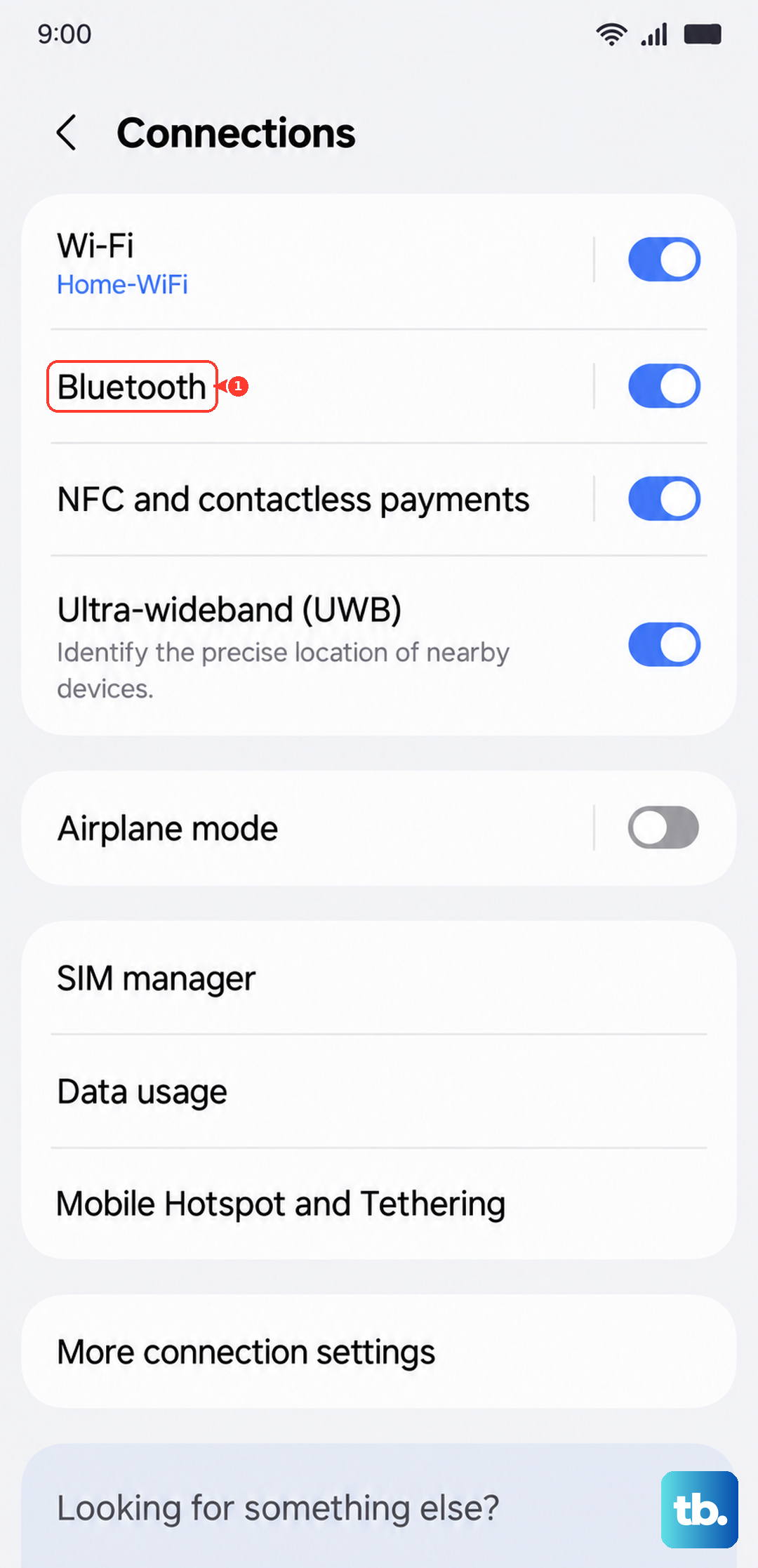
Tap the Settings icon next to its name and select Unpair. This removes the saved pairing from your phone. Put the other device back into pairing mode, then select it under Available devices on your S26 Ultra. Tap OK if prompted, and follow any PIN or verification steps.
Clear the Bluetooth System Cache
Sometimes, the system files that help Bluetooth run can get scrambled. Clearing this cache is safe and doesn't delete your paired devices. Go to Settings > Apps. You might need to tap the three-dot menu and select Show system apps.
Scroll down and find Bluetooth in the list. Tap on it, then select Storage. Tap the Clear cache button. After doing this, restart your phone and test the Bluetooth connection again.
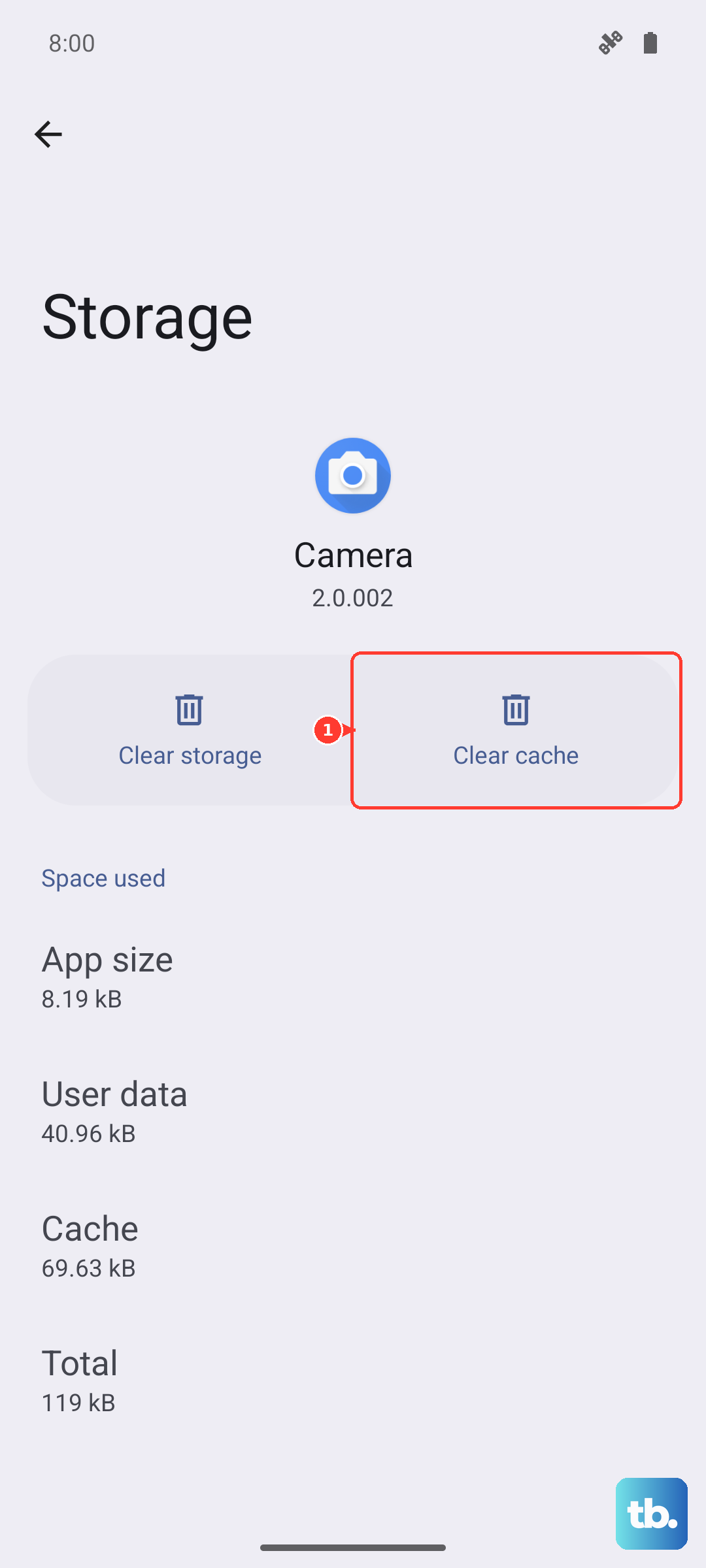
If that doesn't work, you can take the more thorough step of clearing the Bluetooth data. This will forget all your paired devices, so you'll have to re-pair everything. In the same Bluetooth app storage menu, tap Clear data instead, then tap Delete to confirm.
Check for a Software Update
Software updates can fix bugs and improve compatibility. An outdated system can have compatibility problems with newer Bluetooth accessories. To check, open Settings and go to Software update > Check for updates. Depending on your carrier and software version, the option may be Download and install, Check for system updates, or Check for software updates.
If an update is available, connect to Wi-Fi and let it install. Also, check the companion app for your Bluetooth device, like the Galaxy Wearable app for Samsung earbuds, to see if a firmware update is available for the accessory itself.
Reset Your Network Settings
This is a more comprehensive step that resets your Wi-Fi and Bluetooth settings. It leaves your apps and personal data in place, but you'll need to reconnect to Wi-Fi networks and re-pair your Bluetooth devices afterward. Mobile network settings have a separate reset option.
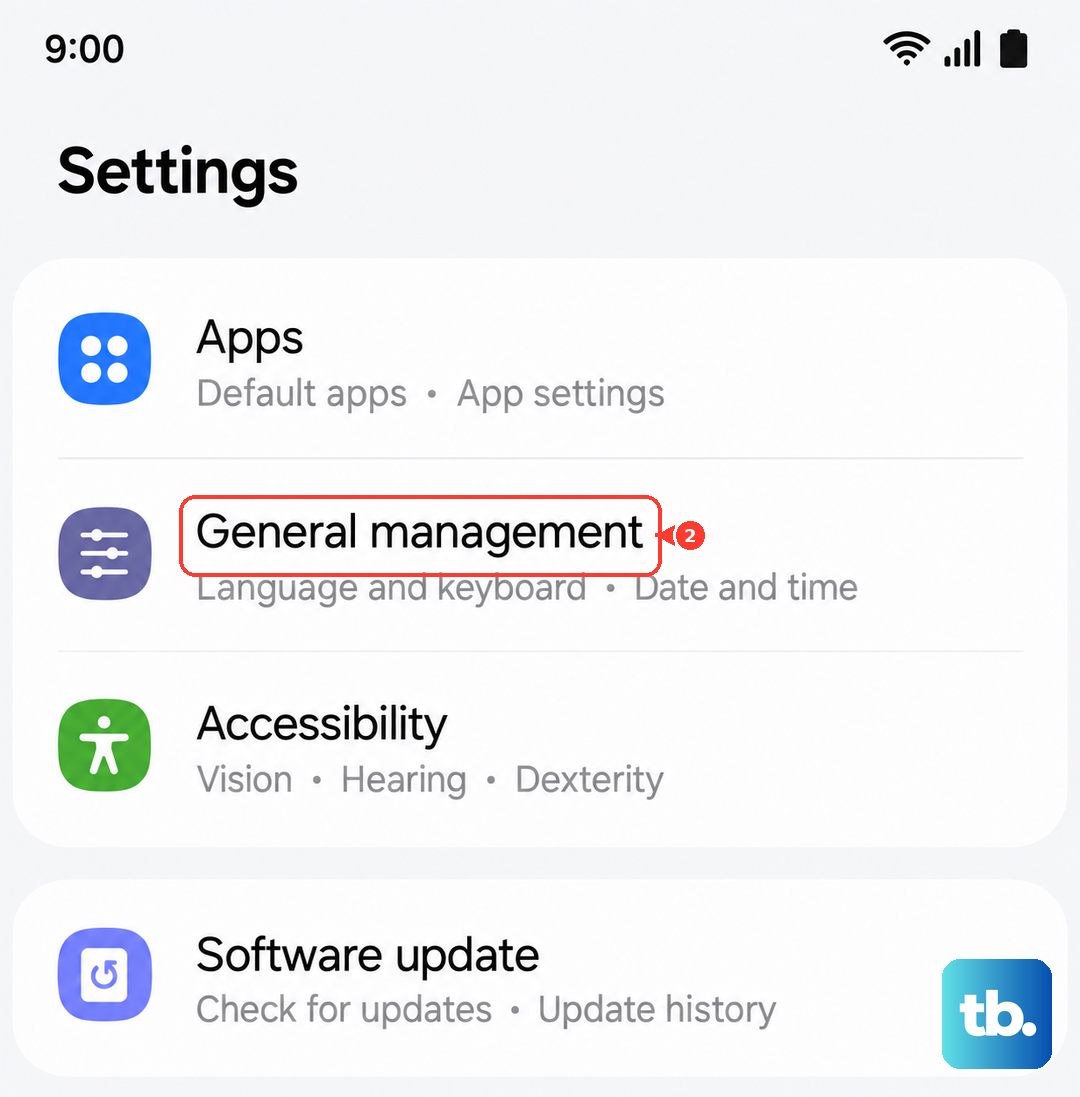
Go to Settings > General management > Reset. Select Reset Wi-Fi and Bluetooth settings, then tap Reset settings. Enter your security credentials if prompted and tap Reset to finish. Afterward, try connecting your Bluetooth accessory again.
Boot Into Safe Mode
If a recently downloaded third-party app is interfering with Bluetooth, Safe mode can help you check. To enter Safe mode on the S26 Ultra, press and hold the Side button and the Volume down button together until the power menu appears.
On the menu, touch and hold the Power off option, then tap Safe mode. If Bluetooth works in Safe mode, a downloaded app may be the cause. Restart normally and try uninstalling apps you installed or updated just before the problem started.
Address Specific Connection Scenarios
For car Bluetooth, the process is often more finicky. I'd recommend deleting your phone from your car's infotainment system memory first, then forgetting the car on your phone. Start the pairing process fresh from the car's menu, not your phone.
With Samsung Galaxy Buds or a Galaxy Watch, check the accessory's setup instructions for any Galaxy Wearable app requirements. Some Bluetooth devices need a support app to connect or operate. If your phone connects to one device but not another, the issue is likely with the accessory, not your S26 Ultra.
Make sure the accessory is fully charged and in proper pairing mode, which sometimes involves holding a button for several seconds until an indicator light flashes. Keep the two devices close together during the initial pairing process, ideally within three feet.