
If your Samsung Galaxy S26 feels unusually warm, charging, demanding apps, software updates or initial setup may be the cause. Using an incompatible charger or running several power-intensive tasks together can also push temperatures up. The good news is, a few quick adjustments can help cool things down.
I'd start by checking for a software update, as that's often the fastest fix for a new device. Go to Settings > Software update > Download and install. If an update is available, install it and restart your phone. This can resolve bugs that cause unnecessary background activity and heat.
Check Your Charger and Cable
Using a charger that isn't compatible with your Galaxy S26's fast charging (25W on the standard S26, 45W on the S26+, or 60W Super Fast Charging 3.0 on the S26 Ultra) can cause excess heat. Make sure you're using an official Samsung charger rated for your model and a high-quality USB-C cable. Damaged or incompatible chargers and cables can cause charging problems and excess heat. If the phone heats up while charging, unplug it, close running apps and let it cool before charging again.
Also, take a look at your USB-C port. Turn off the phone and use a flashlight to inspect it for lint or debris. Carefully remove visible debris with a soft, dry brush, without using metal objects or liquids. If a moisture warning appears, let the port dry completely before charging. Even a small amount of pocket lint can interfere.
Manage Battery and Performance Settings
Your S26 has built-in features to protect the battery and limit charging. Head to Settings > Battery > Battery protection. You can also reach the Battery screen from Settings > Device care. Here, you can check your charging limits.
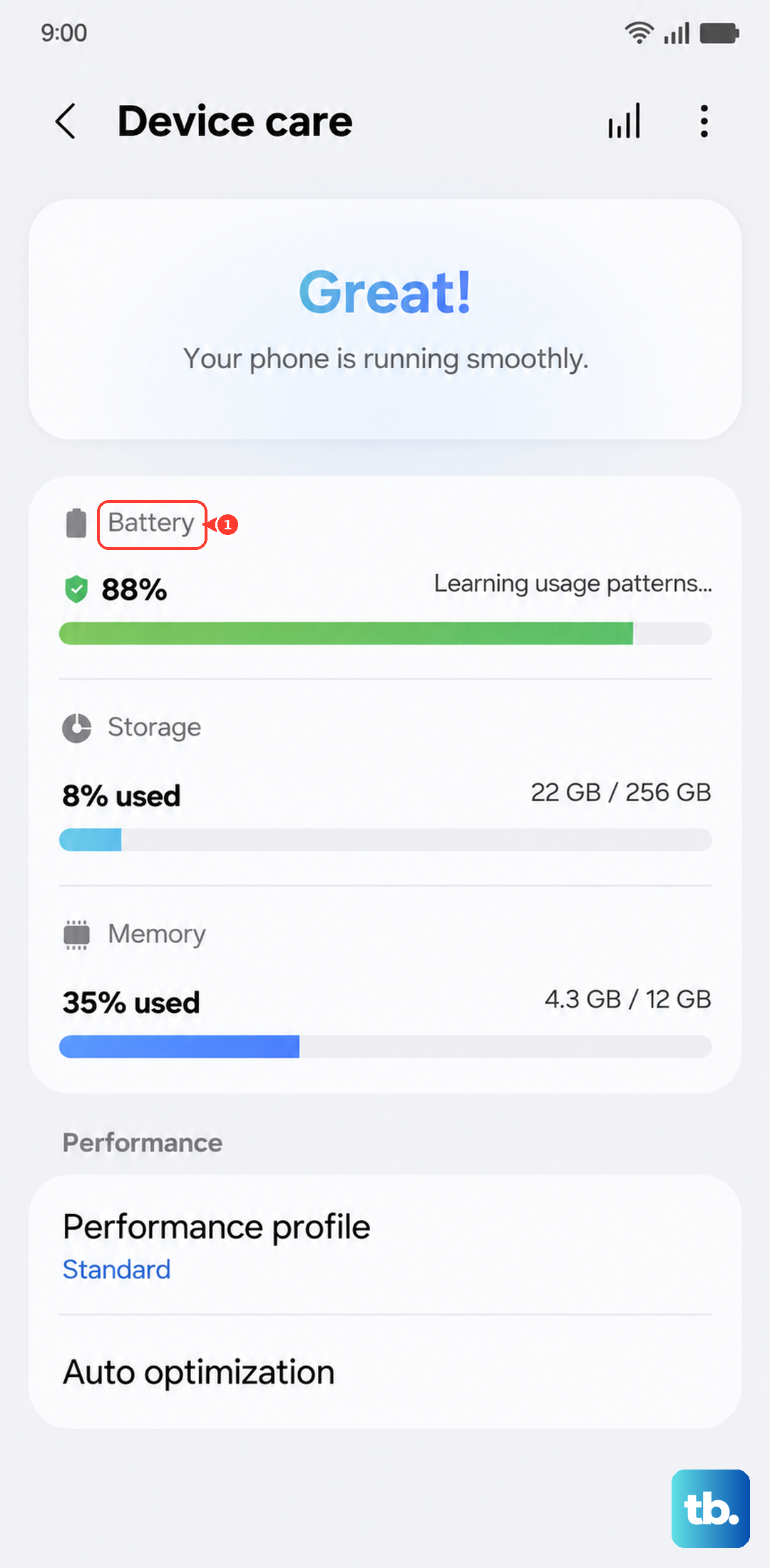
If "Battery protection" is set to Maximum, it limits charging to 80% by default (you can raise the limit to 85%, 90%, or 95%) to extend battery lifespan. You can adjust the maximum charging limit, but I'd recommend keeping it on for long-term battery health.
Next, go to Settings > Battery > Background usage limits. Tap "Put unused apps to sleep" to make sure it's enabled. This prevents apps you haven't opened in a while from running in the background and using resources that generate heat.
Identify and Close Problem Apps
Sometimes, a single misbehaving app is the culprit. Open Settings > Battery. Your phone will show you recent battery usage. Tap View details to review app usage, Screen on time and Screen off time.
If you see an app with unusually high background usage, it may be contributing to the heat. Open Settings > Apps, select the app, and tap Force stop. Then close apps you aren't using and give the phone time to cool down. For persistent offenders, consider uninstalling and reinstalling the app, or checking for an update in the Galaxy Store or Google Play Store.
Adjust Display and Performance Modes
The stunning display on the S26 is a common source of heat, especially at high brightness. Try reducing your screen brightness manually or ensure adaptive brightness is on. You can also lower the screen refresh rate. Go to Settings > Display > Motion smoothness. Switching from "Adaptive" (up to 120Hz) to "Standard" (60Hz) reduces the workload on the processor and GPU.
Your phone also has different performance profiles. Swipe down twice for the Quick Settings panel and look for a "Performance profile" tile. If you don't see it, you can add it. Try switching from "Standard" to "Light" for everyday tasks. This gently limits the peak speed of the processor to generate less heat.
Give Your Phone a Fresh Start
If the phone is hot and unresponsive, a force restart can clear any temporary glitches. Press and hold the Volume down button and the Side button together for more than 7 seconds until the device restarts. This is different from a normal restart and can stop runaway processes.
To check whether a downloaded app is contributing to the heat, boot into Safe mode. This temporarily disables all third-party apps. Press and hold the Side and Volume down buttons together until the power menu appears, then touch and hold "Power off". Tap "Safe mode" when prompted. If the phone doesn't overheat in Safe mode, a downloaded app may be causing the problem. Restart normally to exit Safe mode.
Be Mindful of Your Environment and Case
Using your phone in direct sunlight or a hot car will make any overheating issue worse. Try to keep it in the shade. Also, consider your phone case. A thick, insulating case can trap heat. Try removing the case for a while, especially if you're charging, gaming, or using GPS navigation, to see if it helps with cooling.
If your phone heats up while charging, unplug the charger and wait for it to cool before charging again. When using wireless charging, keep metal objects and credit cards out of the space between the phone and charger. The S26 supports wireless charging up to 15W.
If you've tried all these steps and your S26 is still consistently overheating, it's worth contacting Samsung Support. You can also send an error report through the Samsung Members app, including details of when the phone gets hot. Support can advise on the next steps.