Seeing "No Service" or a completely empty signal bar on your brand new Samsung Galaxy S26 is a real headache. You've got this powerful 2026 flagship in your hand, but it can't make a call or send a text. The good news is this is almost always a software or settings hiccup, not a broken phone.
Since the S26 is running the very latest One UI 8.5 on Android 16, there's a chance an early software bug is the culprit. I'd start by checking for updates, but let's run through the most effective fixes in order.
Restart Your Galaxy S26
It sounds too simple, but a restart clears out the phone's temporary memory and can resolve a ton of minor glitches, including radio software errors. Just press and hold the Side key and tap 'Restart' on the screen.
If the phone is completely frozen or the screen is unresponsive, you'll need to force a restart. Press and hold the Volume Down button and the Side/Power button together for about 10 seconds. Let go when you see the Samsung logo appear.
Check for a Software Update
Given that One UI 8.5 is brand new, Samsung is likely pushing out updates to squash early bugs. A network connectivity fix could be in one of these patches.
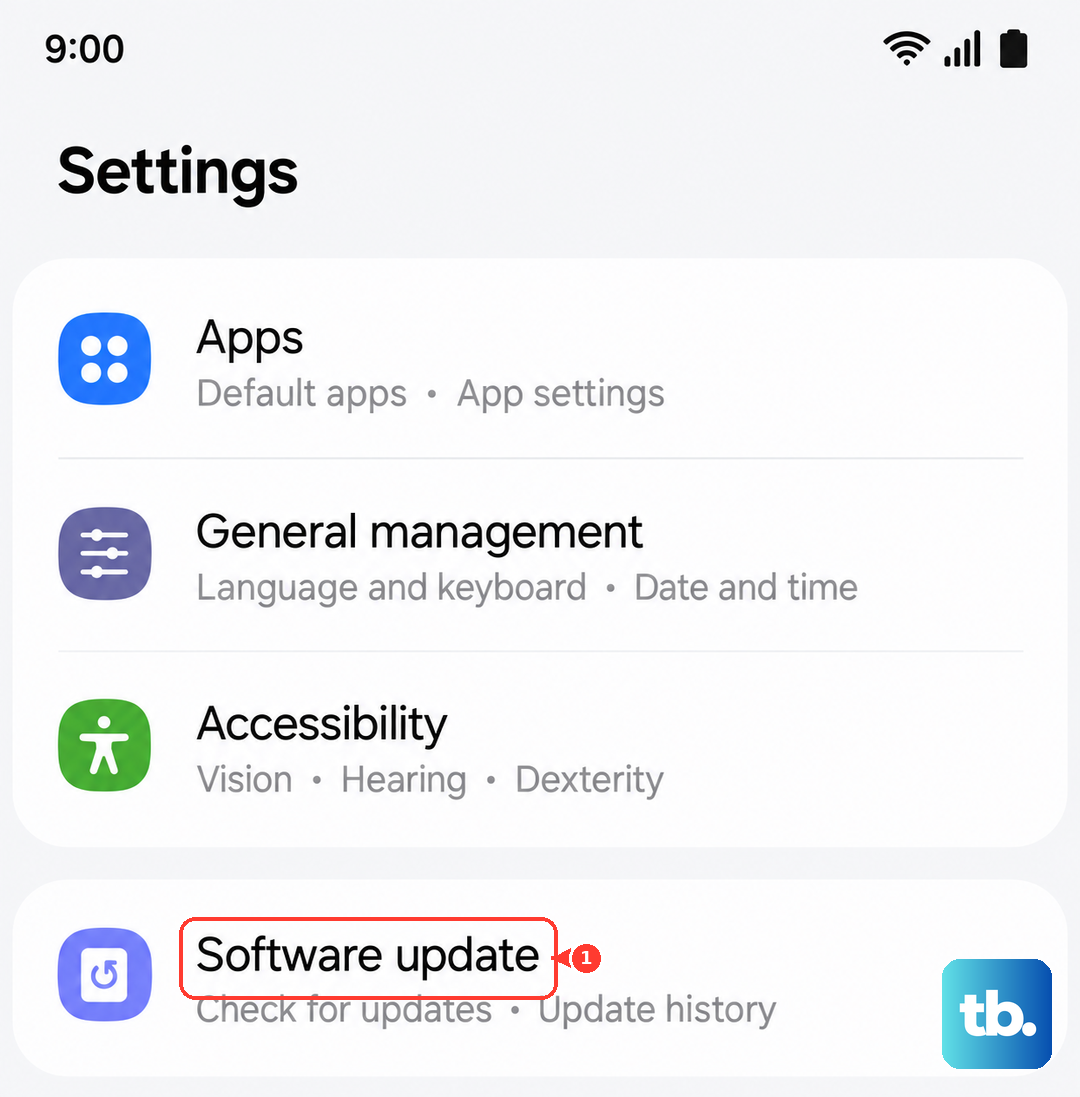
Head to Settings > Software update > Download and install. Let it check and install any available updates. Your phone will restart, and it's worth checking your signal immediately after it boots back up.
Toggle Airplane Mode On and Off
This forces your phone's cellular radio to completely power down and reconnect to the network from scratch. It's a quick trick that works more often than you'd think.
Swipe down twice from the top of your screen to open the full Quick Settings panel. Tap the Airplane Mode icon to turn it on, wait about 15 seconds, then tap it again to turn it off. Watch for the signal bars to reappear.
Reinsert Your SIM Card
A SIM card that's slightly loose or has dusty contacts can cause this exact problem. The S26 uses a nano-SIM, and the tray is on the bottom edge.
Use the ejector tool that came in the box (or a small paperclip) to pop out the SIM tray. Gently remove the SIM card, blow on the tray to clear any dust, and carefully reseat the card. Push the tray back in until it clicks.
Reset Your Network Settings
This is a very effective step for persistent network issues. It will wipe all your saved Wi-Fi networks, Bluetooth pairings, and cellular preferences back to factory defaults, but it won't touch your personal photos, messages, or apps.
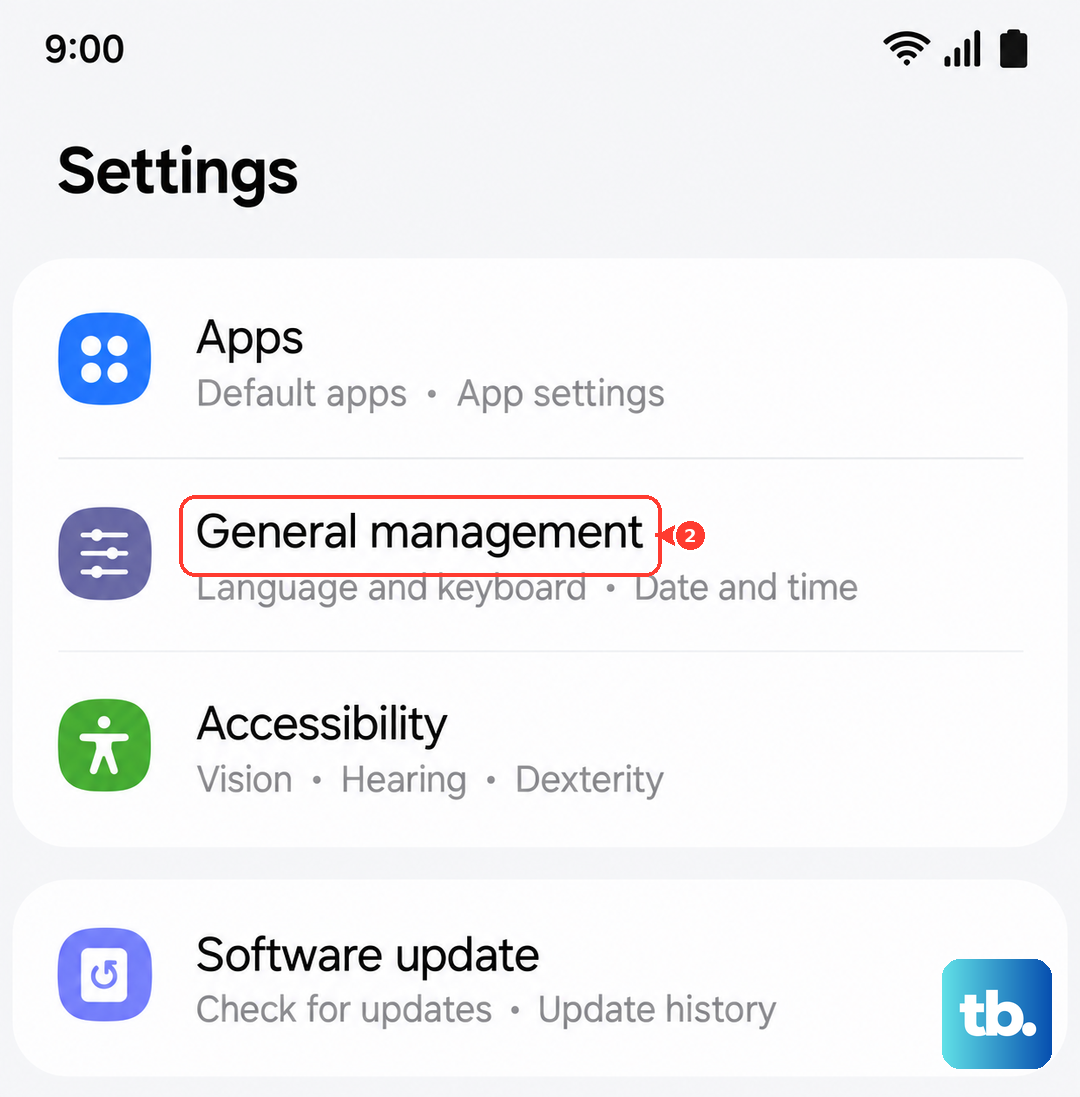
Go to Settings > General management > Reset > Reset network settings. Tap 'Reset settings' at the bottom and confirm. After the phone resets, you'll need to reconnect to Wi-Fi and Bluetooth devices, but your cellular connection should be freshly established.
Manually Select Your Network Operator
Sometimes your phone gets stuck trying to connect to a weak or incorrect tower. Telling it exactly which carrier to use can snap it out of this loop.
Open Settings > Connections > Mobile networks > Network operators. Tap 'Search networks' and wait for the list to populate. Select your specific carrier's name from the list (e.g., Verizon, T-Mobile, AT&T). Avoid choosing any that say "Forbidden."
Verify Your APN Settings
The Access Point Name (APN) is the gateway your phone uses to connect to your carrier's data network. If these settings are wrong, you'll have no data, and sometimes no service at all.
Navigate to Settings > Connections > Mobile networks > Access Point Names. You should see a list with at least one APN for your carrier selected (indicated by a filled-in circle). If it's empty or looks wrong, tap the three-dot menu and select 'Reset to default'.
If that doesn't populate the correct settings, you'll need to get them directly from your carrier's website or customer service and enter them manually here.
Use the Diagnostic Menu
Android has a hidden testing menu that lets you see the status of your phone's radio and even run diagnostics. On your S26's dialer pad, enter *#*#4636#*#*.
This will open the 'Testing' menu. Tap 'Phone information'. Here, you can see if your radio is actually on. You can try tapping 'Turn off radio' and then 'Turn on radio' to cycle it. For the 'Set preferred network type' dropdown, 'NR/LTE/WCDMA/GSM' is usually the best setting for full connectivity.
Check for a Physical SIM Card Issue
If you've done all the software steps, the problem might be with the SIM card itself. The easiest way to test this is to put your SIM into another compatible phone.
If the other phone also shows no service, the issue is with the SIM or your carrier account. Call your carrier's support line. They can check for outages, account issues, or send you a replacement SIM if yours is faulty.
Consider a Factory Reset
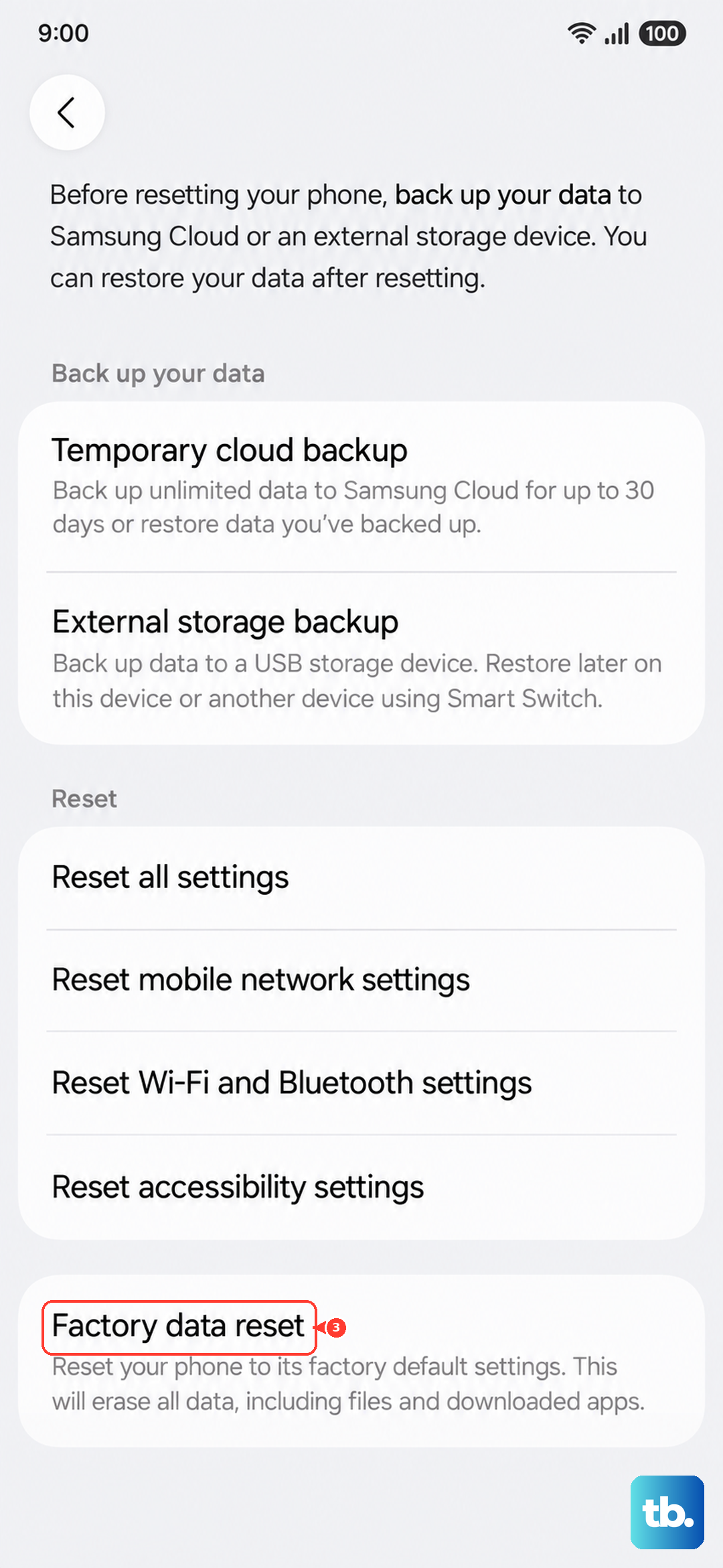
This is the last resort software fix. A factory reset will erase everything on your phone and return it to its out-of-the-box state. You must back up all your important data, photos, and messages before proceeding.
Once backed up, go to Settings > General management > Reset > Factory data reset. Scroll down and tap 'Reset'. This process will take several minutes. After setup, test your cellular connection before restoring your data, to see if the clean software install fixed it.