
That "Unfortunately, the keyboard has stopped" message popping up on your new Galaxy S26 is a real roadblock. It's a common hiccup, especially with a brand-new operating system like One UI 8.5. The good news is you can almost always fix it yourself without losing any of your stuff.
Force Stop and Restart the Keyboard App
This is the quickest thing to try. It just closes the app and lets it start fresh, which clears up most temporary glitches. Head to Settings > Apps.
Tap the three-dot menu in the top right and select Show system apps. Scroll down and find Samsung Keyboard. Tap on it, then hit Force Stop and confirm.
Now, just back out and try opening any app where you need to type. If you're using something like Gboard or SwiftKey instead, look for that specific app in the list and force stop it the same way.
Give Your Phone a Quick Restart
If force stopping didn't do the trick, a full restart of your S26 is the logical next step. It clears the phone's working memory and can resolve conflicts that a simple app restart can't.
Just press and hold the Side key and the Volume Down button together for about 10 seconds. Let go when you see the Samsung logo. Once it boots back up, check if the keyboard is responding.
Clear the Keyboard's Cache and Data
Sometimes the temporary files (cache) the keyboard app stores get corrupted. Clearing them is safe and won't touch your personal data, but it will reset your keyboard's learned words and any custom settings.
Go back to Settings > Apps and find Samsung Keyboard again. This time, tap on Storage. You'll see two options: Clear Cache and Clear Data.
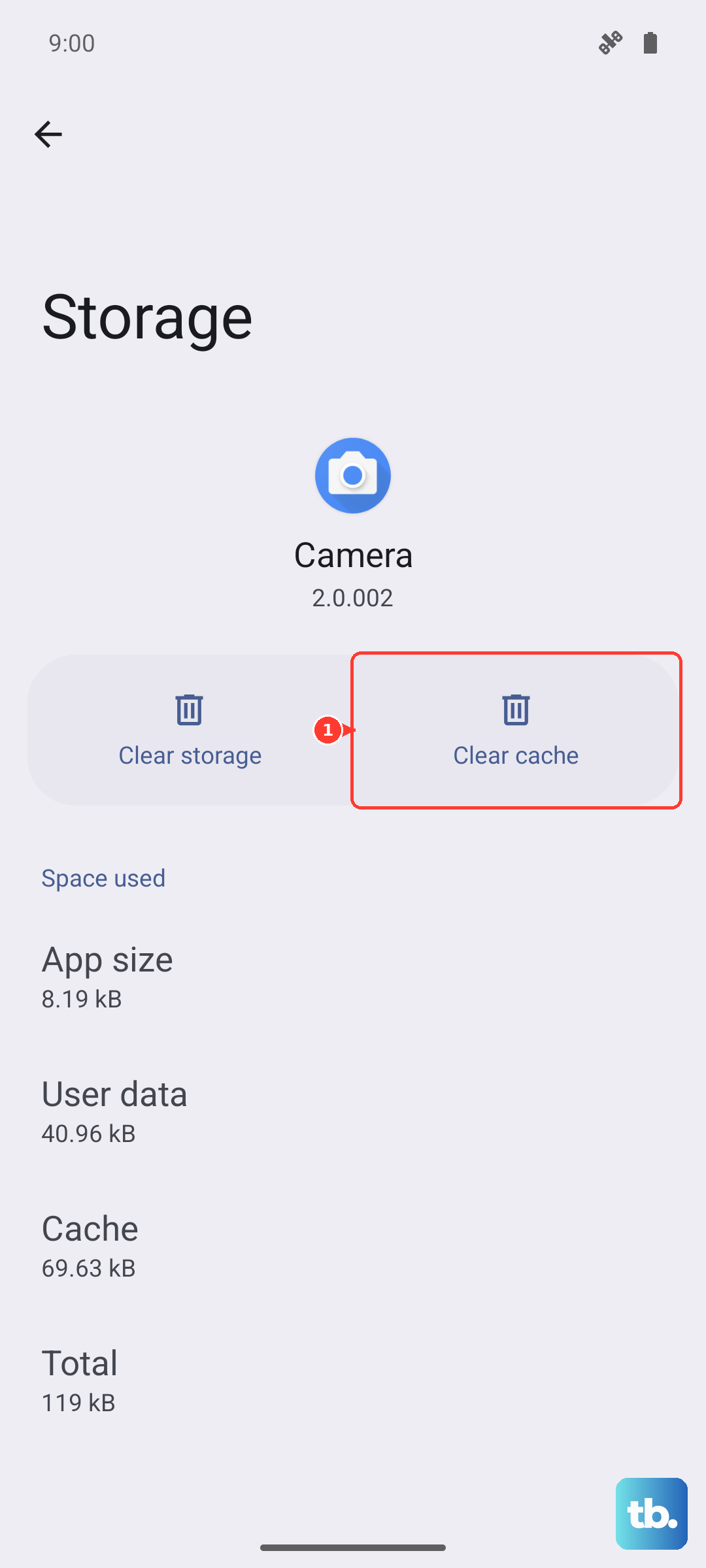
Tap Clear Cache first and test the keyboard. If it's still acting up, go back and tap Clear Data. Confirm the action, then restart your phone for good measure.
Check for a Software Update
Since the S26 is new with One UI 8.5, early software bugs are a real possibility. Samsung is likely pushing out updates to fix these kinds of issues. It's a good idea to check frequently.
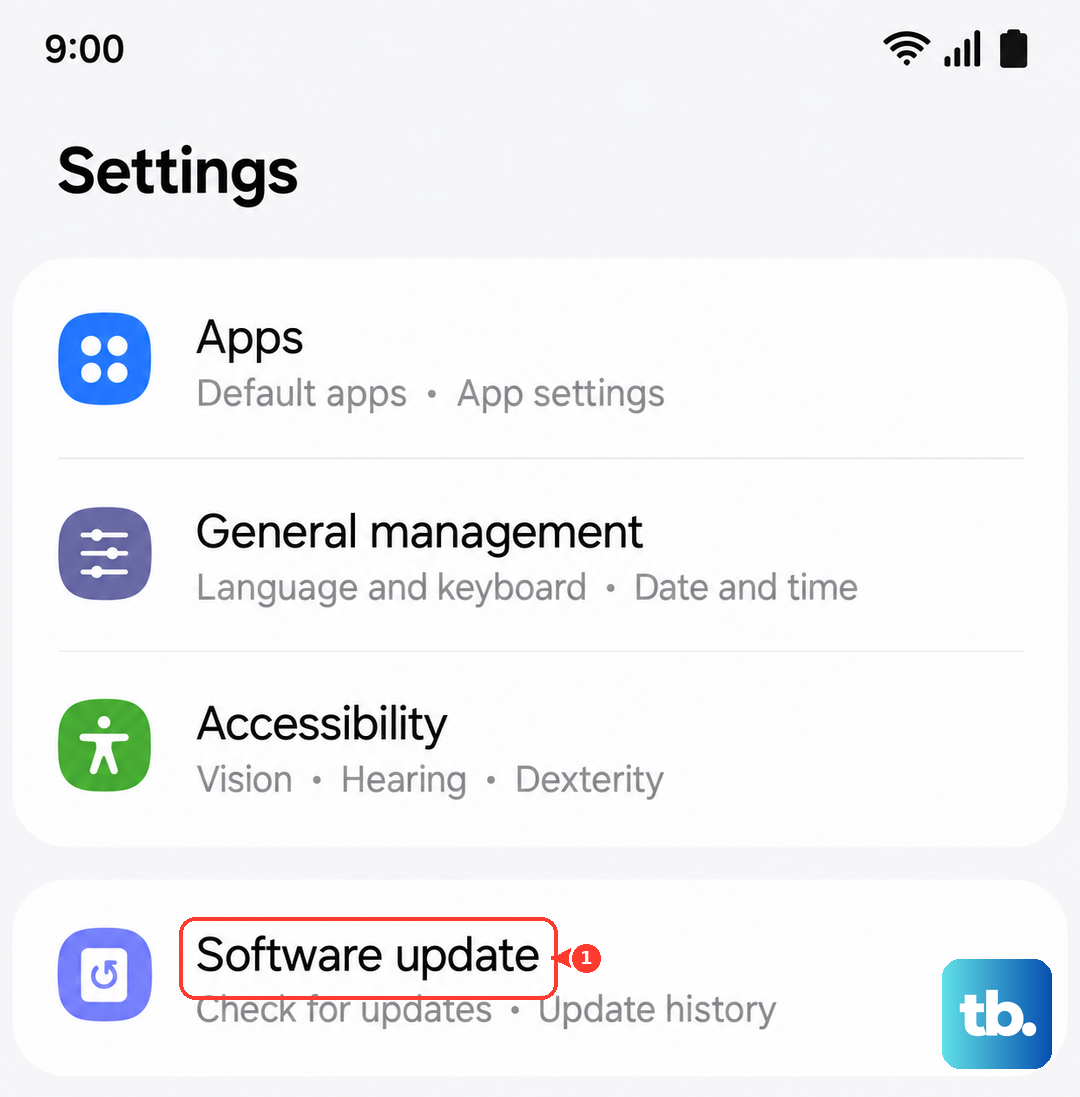
Open Settings and go to Software update. Tap Download and install. If an update is available, let it run. I'd recommend doing this over Wi-Fi and making sure your phone is charged above 50%.
Reset the Keyboard's Settings to Default
If you've changed a lot of keyboard settings, something might have gotten misconfigured. Resetting them to factory defaults can clear that up.
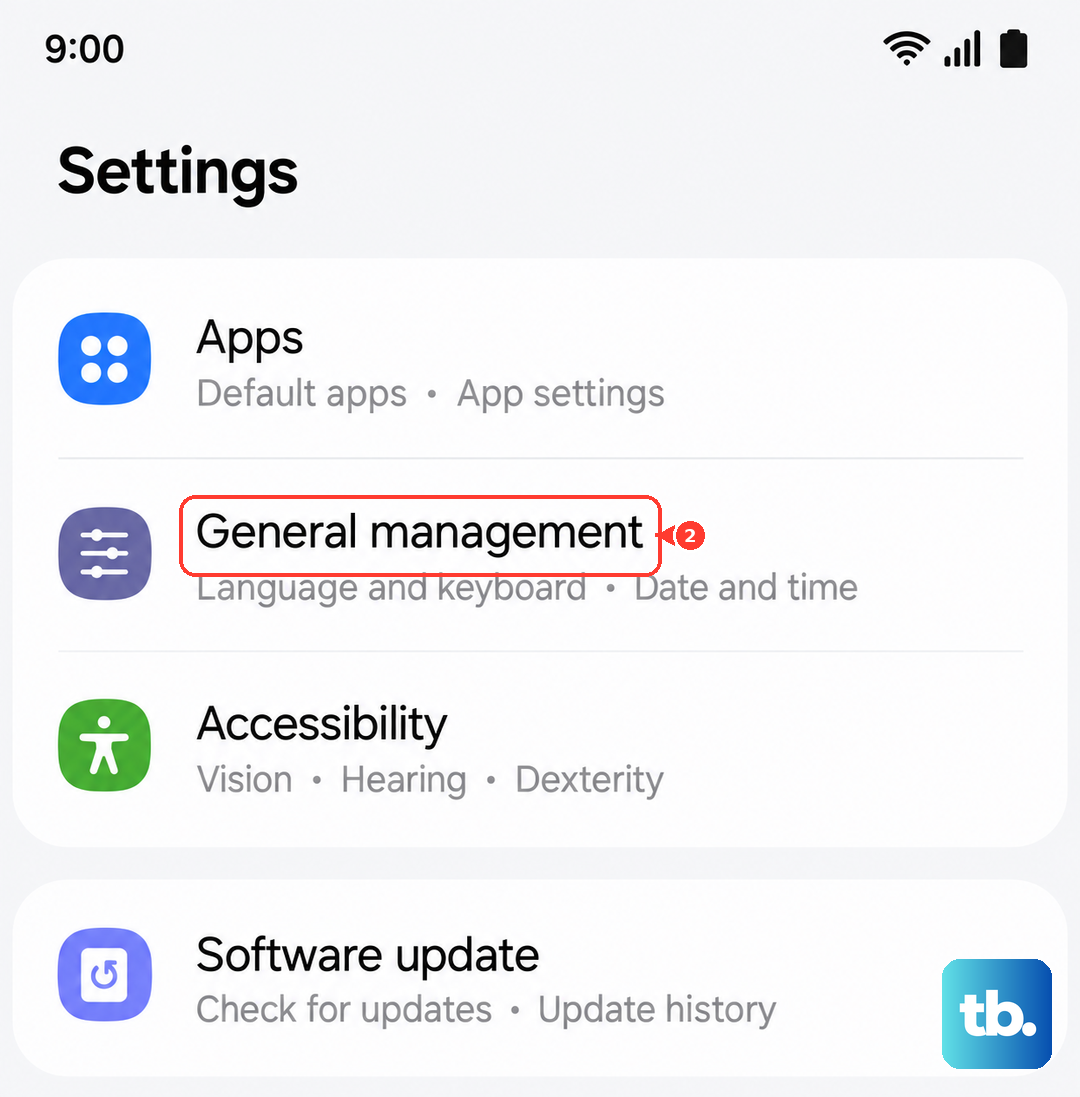
Navigate to Settings > General management. Tap on Keyboard list and default. Here, select Samsung Keyboard.
Look for an option labeled Reset settings. Tapping this will revert all your personalizations, like theme, layout, and predictive text preferences, back to how they were when you took the phone out of the box.
Try a Different Keyboard App
While you're sorting out the main Samsung keyboard, installing a third-party one gives you a perfect workaround. Apps like Gboard (Google's keyboard) or SwiftKey are excellent alternatives and are free in the Play Store.
Once installed, go to Settings > General management > Keyboard list and default. Turn on the new keyboard and set it as your default. This gets you typing again immediately.
Boot Into Safe Mode
If the keyboard only fails in certain apps or started after you installed something new, a third-party app could be the culprit. Booting into Safe Mode temporarily disables all apps you downloaded.
Press and hold the Side key and Volume down key until the power menu appears. Tap and hold the Power off icon until you see a prompt to reboot to Safe Mode. Tap it. When the phone restarts, "Safe mode" will be in the bottom corner.
Test the keyboard now. If it works perfectly in Safe Mode, you know one of your installed apps is causing the conflict. You'll need to uninstall recent apps one by one to find the bad one.
Clear the Dictionary App's Data
The dictionary service works hand-in-hand with your keyboard for predictions and corrections. If its data is corrupted, it can crash the whole keyboard.
Go to Settings > Apps, show system apps, and find Dictionary or Dictionary provider. Tap on it, select Storage, and then hit Clear data. Restart your phone after doing this.
Reset All Settings on Your Phone
This is a more thorough step if nothing else has worked. It will reset all your system settings, like Wi-Fi passwords, Bluetooth connections, and display preferences, back to default, but it won't delete any of your personal photos, messages, or apps.
To do this, open Settings and go to General management. Tap Reset, then select Reset all settings. Enter your PIN if prompted and confirm. Your phone will reboot, and you'll need to reconfigure your preferences, but your keyboard should be back to a clean state.